Finances
Bill your students, record what comes in and goes out, and hand out receipts.
For group owners and admins · 3 min · Updated 2026-07-30
Finances is where your school's money lives in the hub: what you have billed, what has actually been paid, what you have spent, and the receipt a student gets afterwards. You will find it under Finances in the sidebar, in the School section. (The sidebar says Finances; the page header itself reads Finance — same screen.)
Two objects, and they are not the same thing
Almost every mistake in this module comes from mixing up two records. Learn the difference once and the rest of the section reads easily.
| An invoice | A transaction | |
|---|---|---|
| What it is | A bill. "This student owes me this much, by this date." | A movement of money. "This much actually changed hands on this day." |
| Direction | Always something you charge | Either Income or Expense |
| Has a status | Pending, Overdue, Partial, Paid, Cancelled | No status — it either exists or it doesn't |
| Lives in | the Invoices tab | the Transactions tab |
| Created by | you, or automatically from a student's plan | you, or automatically when you mark an invoice paid |
An invoice is a claim; a transaction is a fact. Creating an invoice moves no money. Recording a payment does.
They are linked: when you mark an invoice paid, the hub writes one income transaction for the amount you entered and then recalculates the invoice from its transactions. That recalculation — not your click — is what decides whether the invoice reads Partial or Paid. Two payments of half the amount leave two transactions and one Paid invoice.
Your income figure is the sum of your income transactions, never the sum of your invoices. An invoice you issued but nobody paid contributes nothing to Income — it shows up in Pending or Overdue instead. This is the right behavior, and it is also why an unrecorded cash payment makes your books look worse than reality.
The seven items across the top
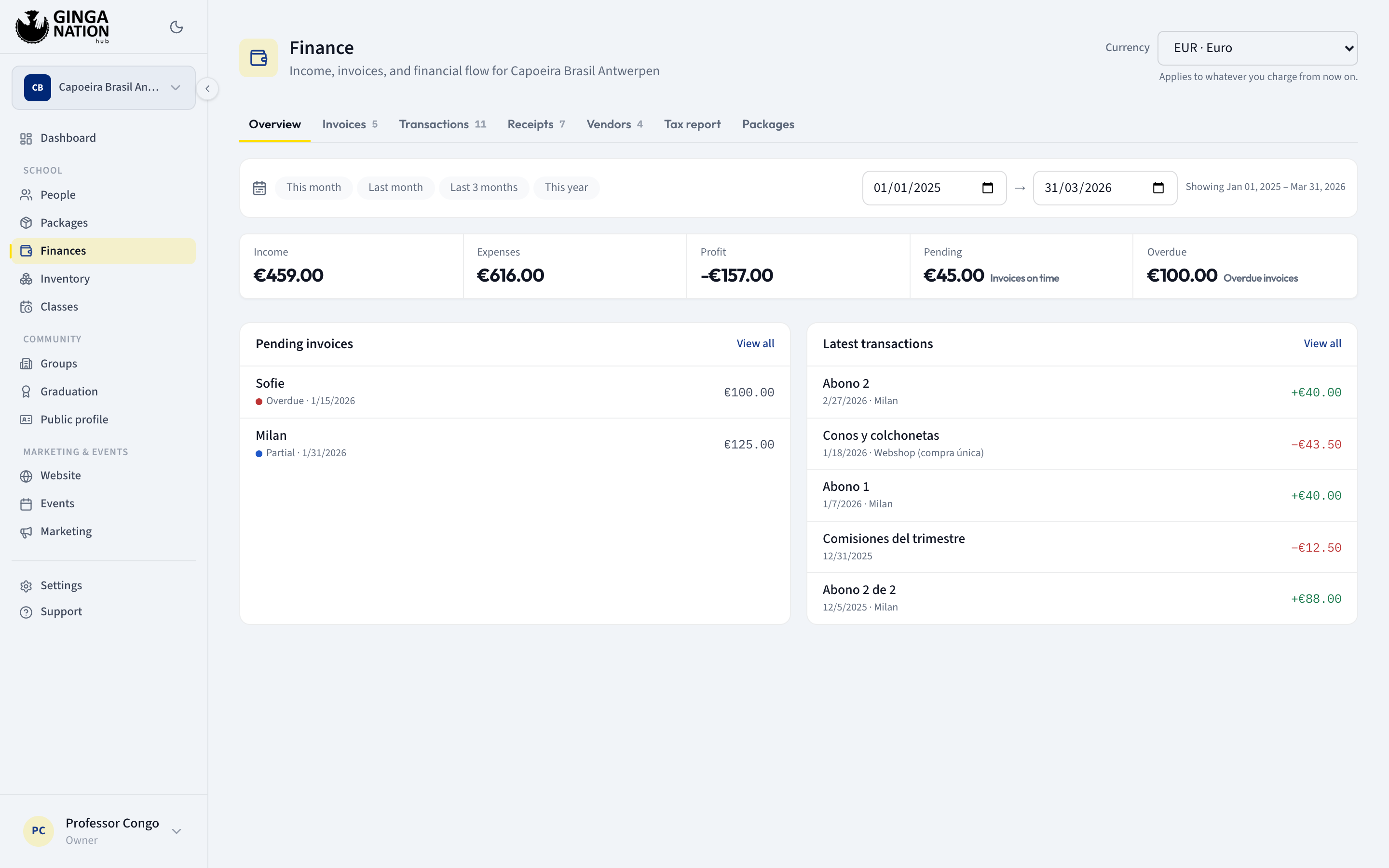
- Overview — the two shortest lists that matter: Pending invoices and Latest transactions, five rows each.
- Invoices — every bill you have issued, with the Mark as paid button.
- Transactions — the ledger: income and expenses, one row per movement.
- Receipts — the same income transactions, presented as printable receipts.
- Packages — not a tab. It is a link out of Finances to the separate Packages screen, where the plans you sell are defined.
- Vendors — the catalog of who you buy from. Owner and admin only.
- Tax report — the totals your own tax settings add up to. Owner and admin only.
Two controls sit above all of them:
- A date range card — the presets This month, Last month, Last 3 months and This year, plus a From / To pair for anything else. Everything below it obeys it, except Vendors (a catalog has no period).
- A row of five figures: Income, Expenses, Profit, Pending and Overdue. The first three are for the range you picked; the last two are the outstanding balance on all your open and overdue invoices, whatever the range. This row is hidden on Vendors and Tax report.
Opening Finances lands you on Invoices, not on Overview — the module opens on the work, not the summary.
Guides in this section
Set up how you charge
Choose how you bill
Collect by hand and mark invoices paid yourself, or let Stripe charge the card automatically.
Set up your plans
The packages you sell: price, billing period, and how long a student has to pay.
Set up your billing and tax details
Your legal name and tax id, your bank-transfer instructions, and the tax rates your documents use.
Bill and get paid
Subscribe a student to a plan
Put a student on a package so their invoices get generated instead of typed.
Issue an invoice
Bill one student for one thing, without a plan behind it.
Break an invoice into lines
Itemize a bill, put tax on each line, and record a discount as a negative line.
Record a payment
Mark an invoice paid, take a payment in instalments, and log an expense.
Share a receipt
Send a student proof of payment as an image or a private link.
Keep an eye on the money
Read your finance overview
What each of the five figures means, and what the date range does and doesn't cover.
See who owes you
Find the open and overdue invoices and the students behind on payments.
Keep a vendor catalog
Save the people you buy from so your expenses group together.
Read your tax report
Tax charged on your income, creditable tax on your expenses, and the difference.
Who can do what
Finances is the most tightly restricted module in the hub. Almost everything here is owner and admin only.
| Task | Owner | Admin | Staff | Member |
|---|---|---|---|---|
| See the Invoices tab | Yes | Yes | Yes | No |
| See the Transactions and Receipts tabs with data | Yes | Yes | No | No |
| See the five figures (Income … Overdue) | Yes | Yes | No | No |
| Create an invoice, Mark as paid, Cancel invoice | Yes | Yes | No | No |
| Create, edit or Remove a transaction | Yes | Yes | No | No |
| See the Vendors and Tax report tabs | Yes | Yes | No — the tabs are not shown | No |
| Change the group's Currency | Yes | Yes | No | No |
Staff get a half-working screen, silently. A staff member can open Finances and read the Invoices tab, but the figures row never appears and Transactions and Receipts show "No transactions recorded" and "No receipts in this range" as though the group had never taken a peso. Those two requests are refused by the server and the page does not say so. Treat Finances as an owner/admin screen.
A plain member who reaches /finanzas sees a permission error instead of
data. Roles are per group and are not inherited: being admin of a parent group
gives you nothing in a child group's finances.