Break an invoice into lines
Itemize what you are charging for, add discounts as negative lines, and show a tax breakdown per line.
For group owners and admins · 6 min · Updated 2026-07-30
An invoice can be a single amount, or it can be a list of things you are charging for: a membership, a uniform, minus a sibling discount. Itemizing gives you three things a single amount cannot — a readable breakdown for the student, discounts that show as discounts, and a tax figure per line.
Every line carries its own tax choice, on purpose: an exempt membership and a taxed uniform can sit on the same invoice.
Before you start
- You need to be owner or admin. Staff can see invoices and their line breakdown, but cannot create one.
- The Tax column only appears if your group has at least one tax rate. With no rates you can still itemize — the lines just carry no tax. See Set up your billing and tax details.
- Know whether your prices include tax before you itemize. It changes what the totals mean, and it is a group-wide answer, not a per-invoice one.
Steps
Open Finances → Invoices and click New invoice
The modal is titled New invoice.
At the top are two mode buttons: Single amount and Itemized. Single amount is the old one-figure invoice — no lines, no tax breakdown, no invoice number. Itemized opens the line editor.
If your group has tax rates configured, the modal opens on Itemized already. If it has none, it opens on Single amount and you switch by hand.
Pick who the invoice is for
Client type is either Registered client — pick from the Client dropdown — or Guest, which asks for a Name and an optional Email (optional). Then set the Due date, pre-filled a week out.
Fill the first line
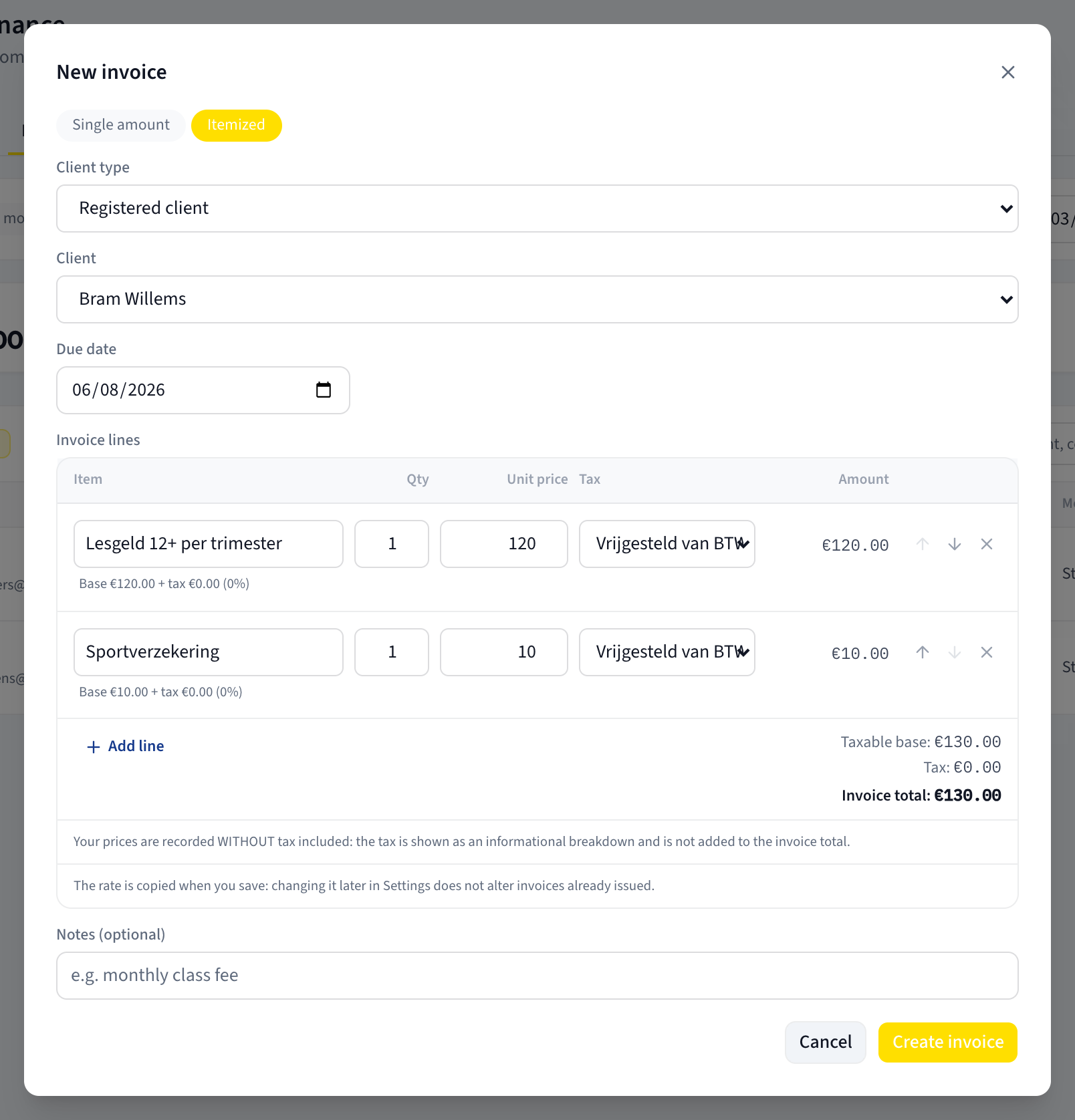
Under Invoice lines, the editor has one empty line and five columns:
| Column | What goes in it |
|---|---|
| Item | What you are charging for. Required on every line. |
| Qty | How many. Any number except 0; decimals allowed. |
| Unit price | Price for one. May be negative — that is how you write a discount. |
| Tax | The rate for this line, or No tax. Only shown if your group has rates. |
| Amount | Calculated for you: Qty × Unit price. Not editable. |
If one of your rates is marked as the default, it is preselected in Tax on every new line. Archived rates are not offered, but a rate already picked on a line stays visible so you can see what it was.
When a line has a rate and a non-zero amount, a small line appears underneath
showing its base and its tax — in the form Base … + tax … (…%).
Add more lines, and reorder them
Add line appends an empty line at the bottom. Each line has three icon buttons on the right:
- Move up and Move down — swap the line with its neighbour. The order you see is the order that gets saved, and it is the order the student sees.
- Remove line — deletes the line.
Remove line has no confirmation. One click and the line and everything typed into it are gone. There is no undo — retype it. The button is disabled when only one line is left, so you can never end up with an empty invoice.
Write a discount as a negative line
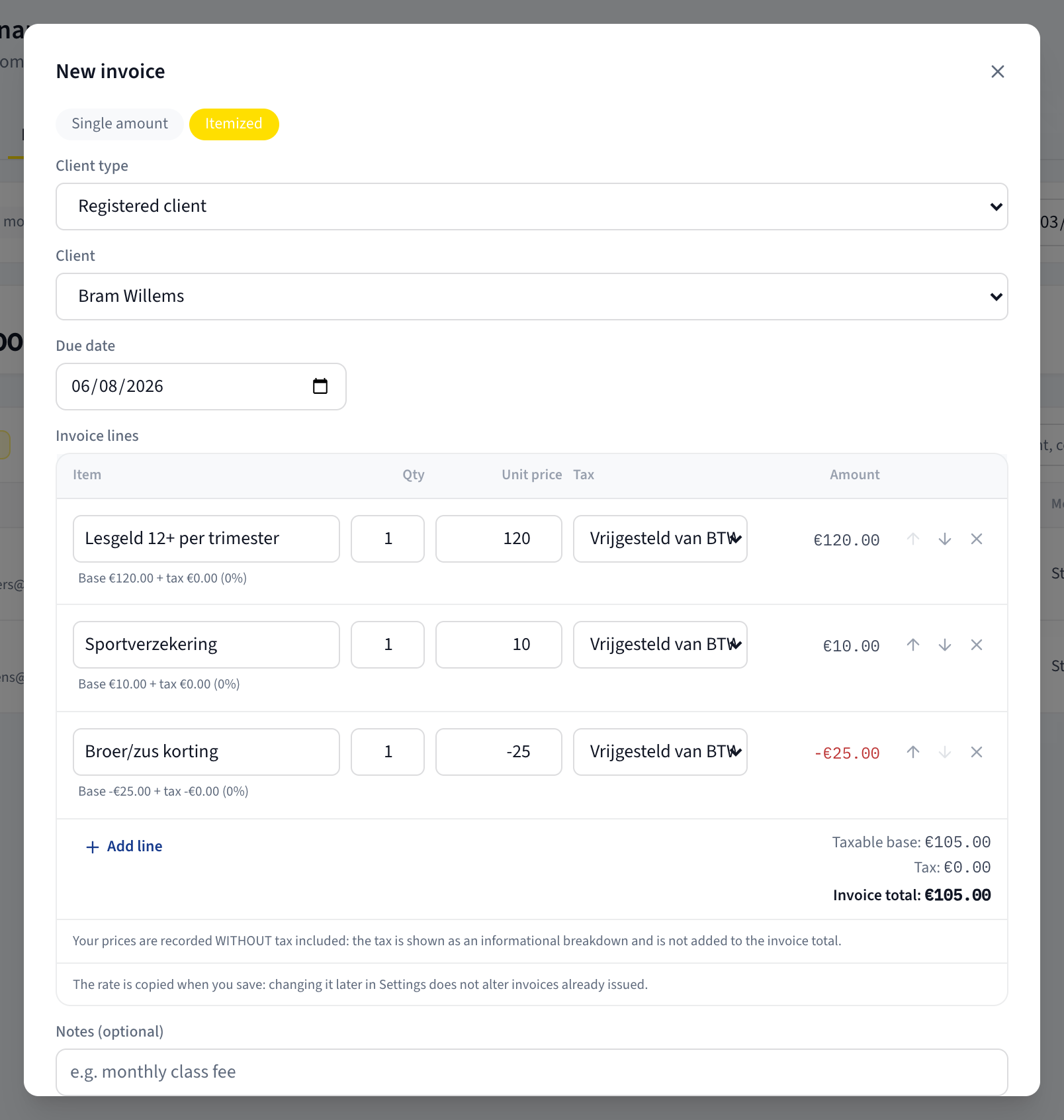
There is no discount field. A discount is a normal line with a negative Unit price — for example an item reading "Sibling discount" at −25. Its Amount turns red, and the invoice total drops by that much.
The rule is: lines may be negative, the total may not.
Check the totals, then create
The bottom right of the editor shows, when any line has a rate:
- Taxable base: — the sum of the bases of the lines that have a rate. Lines set to No tax are not counted here.
- Tax: — the sum of their tax.
- Invoice total: — the sum of every line Amount. This is what gets saved and what the student owes.
Add Notes (optional) if you want, then click Create invoice.
What the total does and does not include
The tax is never added on top of the invoice total. The total is the sum of the line amounts, full stop. When your group is set to prices without tax included, the editor spells it out at the bottom:
Your prices are recorded WITHOUT tax included: the tax is shown as an informational breakdown and is not added to the invoice total.
If you mean to charge a price plus tax, you must type the tax-inclusive figure in Unit price yourself. Nothing on this screen will do that for you.
How the base and the tax are worked out depends entirely on the group-wide answer to Do your prices already include tax?:
| Your group's answer | Base of a line | Tax of a line |
|---|---|---|
| Yes, it's already included | Amount ÷ (1 + rate) | Amount − base |
| No, it's added on top (or unanswered) | the Amount itself | Amount × rate |
Both ways, Invoice total is the same number. Only the split changes. You set that answer in Set up your billing and tax details.
The rate is frozen onto the invoice
The editor says it at the bottom: The rate is copied when you save: changing it later in Settings does not alter invoices already issued.
The rate's name, percentage and type are written onto each line at the moment you click Create invoice. Editing or archiving the rate afterwards leaves that invoice exactly as it was. That is deliberate — an issued document should not change under your students' feet.
What you should see
The invoice appears in the Invoices list. Itemized invoices get an invoice number of their own, shown in small monospace type under the row — invoices created as a Single amount have none.
That number is your group's own running counter, not a government-certified number. Ginga Nation does not issue tax documents.
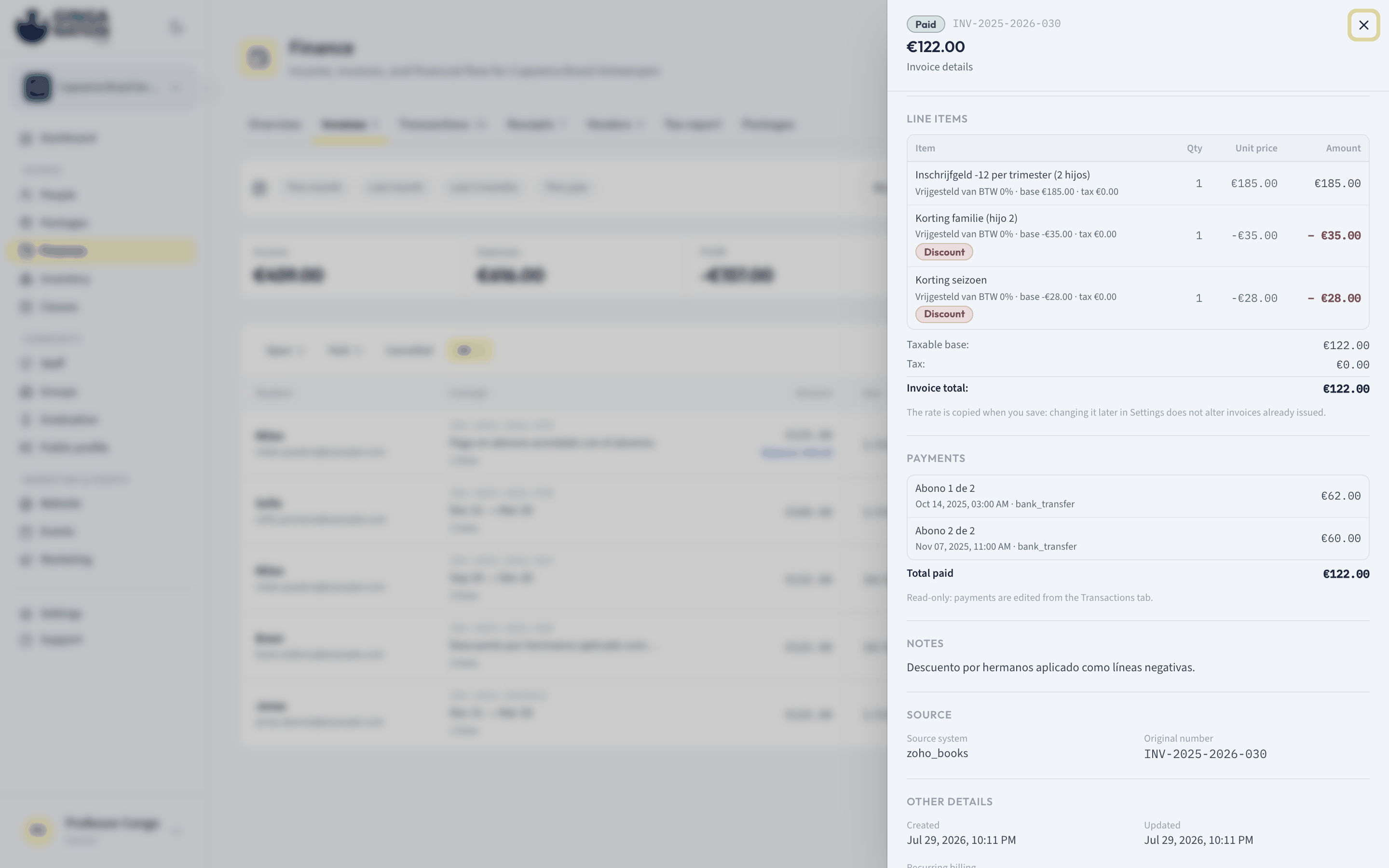
Click the row to open Invoice details. Its Line items section repeats your lines as a table — Item, Qty, Unit price, Amount — with the tax snapshot printed under each item name, No tax where you left it off, and a red Discount badge on negative lines. Underneath sit the same Taxable base:, Tax: and Invoice total: figures, then the snapshot reminder.
An invoice with no lines shows instead: This invoice has no line breakdown: it was issued as a single amount.
Who can do what
| Task | Owner | Admin | Staff |
|---|---|---|---|
| See the Invoices tab | Yes | Yes | Yes |
| Open Invoice details and read Line items | Yes | Yes | Yes |
| Create an itemized invoice | Yes | Yes | No |
Troubleshooting
Every line needs an item description. One of your lines has an empty Item. Fill it in or remove the line.
Quantity must be a number other than 0. A zero Qty would make the line pointless, so it is refused. To write a credit, use a negative Unit price instead.
Unit price is required. An empty Unit price is not read as zero. Type a
number, including 0 if the line really is free.
The total cannot be negative: discounts cannot exceed the rest of the lines. Your negative lines add up to more than your positive ones. An invoice total has to be zero or more — reduce the discount, or issue it against a different invoice.
I saved the invoice and now I can't edit the lines. The line editor only exists inside New invoice — the hub has no way to re-open an issued invoice and change its lines. To fix a mistake, cancel the invoice and issue a new one.
There is no Tax column. Your group has no tax rates configured. Add one under Settings → Billing, then create the invoice again — the column appears as soon as a rate exists.