See who owes you
Read the Clients screen, spot students who are training without paying, and push a period's invoice out early.
For group owners and admins · 6 min · Updated 2026-07-30
"Who owes me money" is really two questions, and the hub answers them in two different places. Finances → Invoices tells you which bills are unpaid. People → Clients tells you who is on the hook at all — which is how you catch the more expensive problem: a student who trains every week and was never subscribed to anything.
This page is about the Clients screen and about one button on it that creates a real invoice.
Before you start
- You need to be owner or admin. Staff get an error instead of the page.
- Get there through People in the sidebar, then the Clients tab. There is no Clients entry in the sidebar itself.
What Clients actually tells you
One row per person linked to your group. Four numbers across the top:
- Total clients — everyone linked to the group, whatever their role.
- With subscription — how many of them have at least one active subscription.
- Without subscription — the rest. This is the number to look at.
- Monthly revenue — the sum of what every active subscription is priced at.
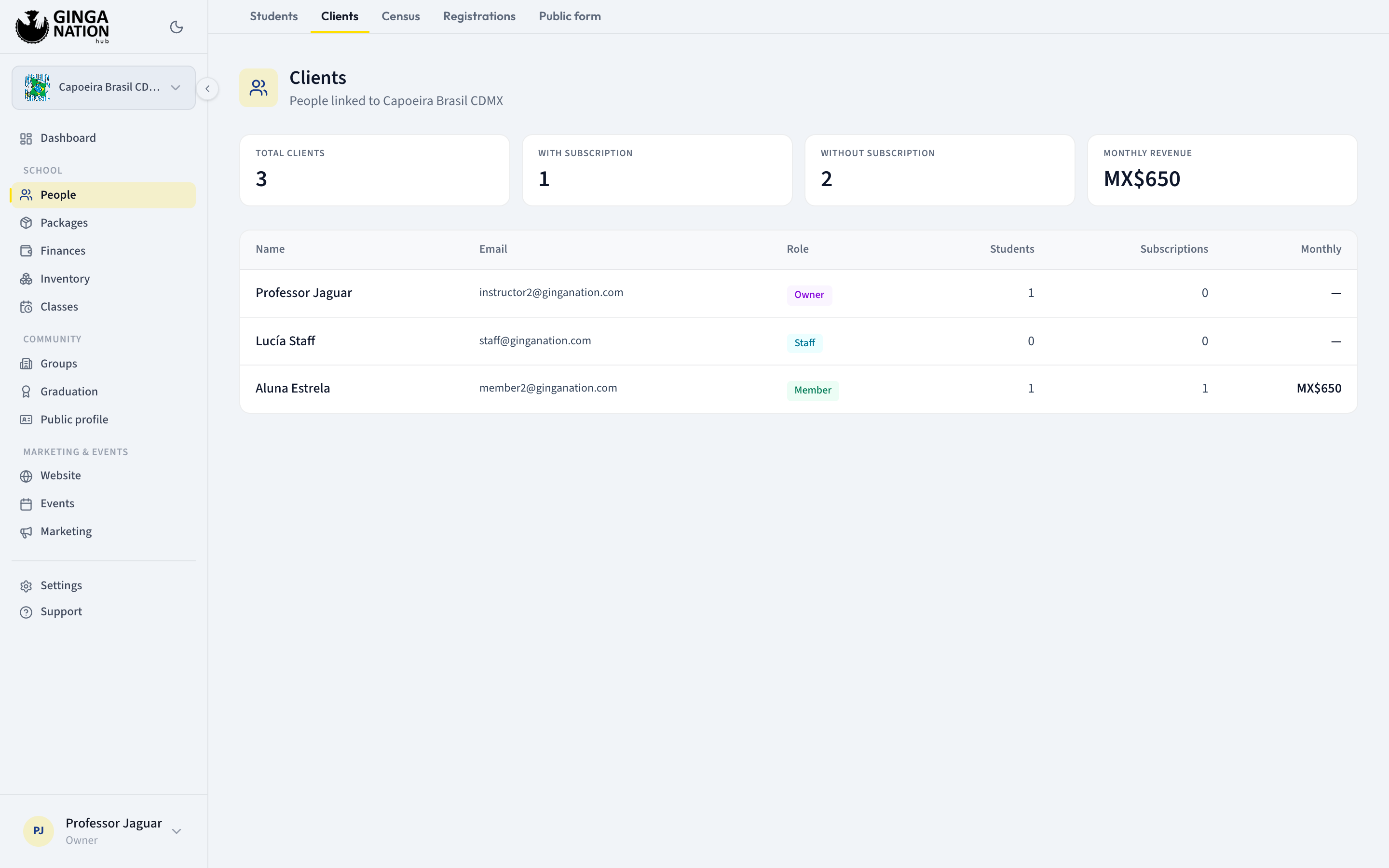
The columns are Name, Email, Role, Students, Subscriptions and Monthly. Role is the badge you already know from the rest of the hub — Owner, Admin, Staff, Member or Guardian — so you will see yourself and your teachers in this list too, normally with no subscription and no amount. That is expected; the screen lists people attached to the group, not customers.
Read Monthly as "per period", not "per month". Both the Monthly column and the Monthly revenue counter add up the price of every active subscription, whatever its cadence. A yearly plan contributes its whole yearly price to a figure labelled "monthly". If you sell anything other than monthly plans, these two numbers are not a monthly total and should not be used as one.
(For the same reason, the Estimated MRR counter on the Packages page will disagree with Monthly revenue here: that one deliberately counts monthly plans only, and says so.)
This list is built from your group's members, not from your subscriptions. If someone has a subscription but is not a member of the group — which happens when a subscription was created for a profile that was never added to the roster — they do not appear here at all, and their money is not in Monthly revenue either. Finances → Invoices is the list that misses nobody.
Steps
Sort out Without subscription first
Every person in that count who actually trains with you is training for free. Compare the Students column (capoeiristas linked to that person) against Subscriptions: a row with students and zero subscriptions is the classic miss — an enrollment that was approved and then never billed.
Fix it from the drawer, in the next step, so the client is pre-filled for you.
Open a person
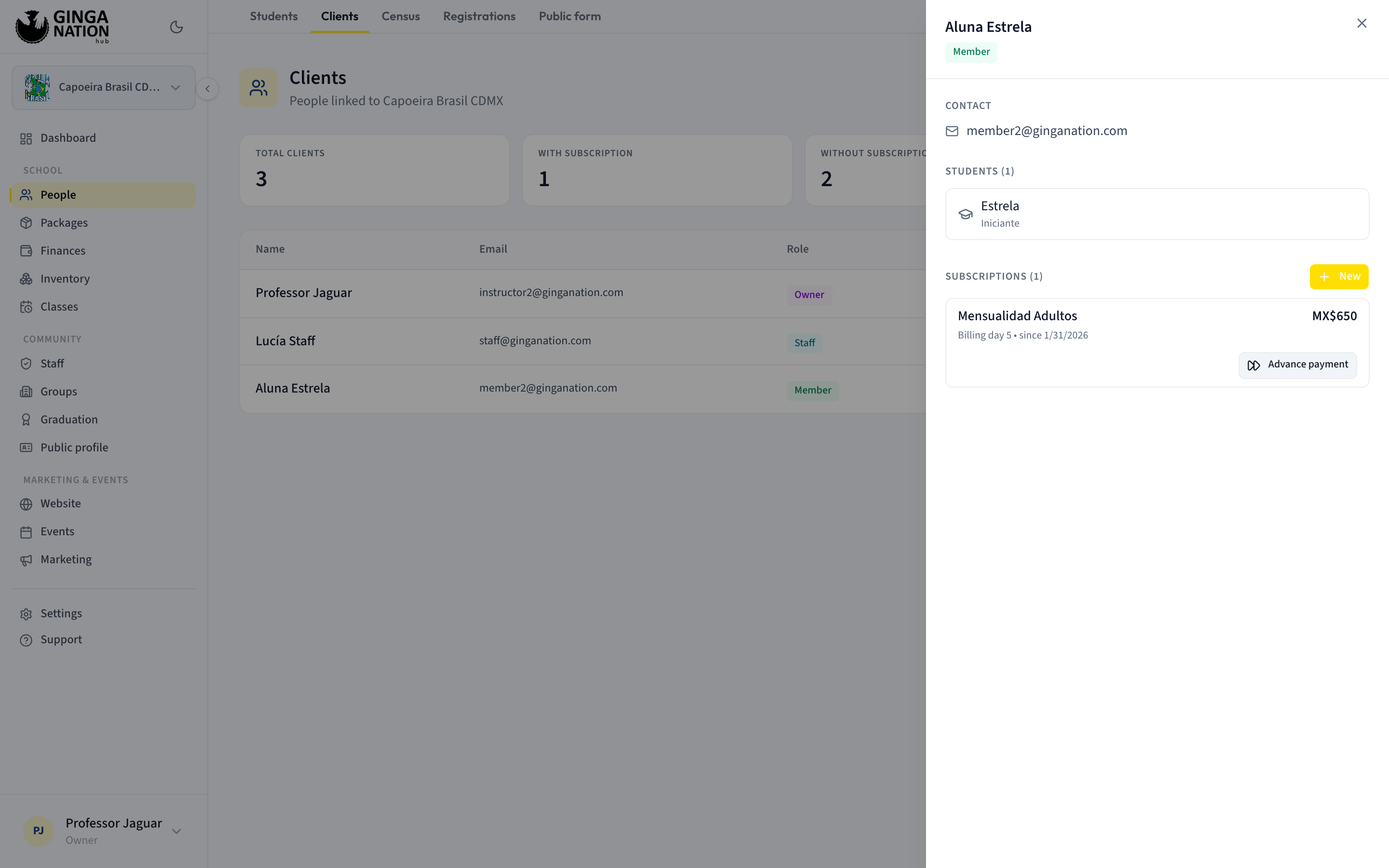
Click the row. A panel slides in from the right with three sections:
- Contact — email and phone, or No contact info. if the profile has neither.
- Students (n) — the capoeiristas linked to this person, with their graduation underneath. A student who has not been approved yet is tagged Pending or Rejected.
- Subscriptions (n) — one card per subscription, with the plan name, the
price, and a line reading
Billing day 5 • since 1 Feb 2026.
Only Active and Paused subscriptions appear here; a cancelled one is not shown at all, even though it still exists on the Subscriptions tab of Packages.
Add the missing subscription
New, at the top of the Subscriptions section, opens the same dialog as Packages → Subscriptions → New subscription, with this person already filled in and locked. Everything about that dialog — including the two warnings that matter — is in Subscribe a student to a plan.
Charging a period early with Advance payment
Each subscription card carries an Advance payment button. Despite the name, it does not take a payment and it does not ask anyone for money. What it does is issue the next invoice ahead of schedule.
Precisely, one click:
- Finds the earliest billing period of that subscription that has no invoice yet — walking forward from the subscription's start, skipping every period already invoiced.
- Creates one invoice for that period, with status Pending, for the subscription's amount (its custom price if it has one, otherwise the plan price), in your group's currency.
- Sets the due date to that period's start plus the plan's Due (days after start).
The button reads Generating… while it works, and the new invoice appears in Finances → Invoices. Nothing else changes: no message is sent, no card is touched, the subscription is not modified.
Use it when a student wants to pay next month now, or when you need the bill in hand before the daily run would have made it.
One click, one invoice — and clicking twice makes two. There is no confirmation step. The second click does not repeat the first one; it moves on and invoices the period after it. Three impatient clicks on a monthly plan mean three months billed in advance, all sitting there Pending.
If you did that, cancel the extra invoices in Finances → Invoices. They are ordinary invoices and can be cancelled.
If the subscription has a saved card, an advanced invoice can be charged automatically. For a Cash / transfer subscription with a card on file, and for anything in Card (auto-debit) mode, invoices are settled by machine — so "issue the bill early" can become "charge the student early". Only use Advance payment on subscriptions you settle by hand, unless charging now is exactly what you want.
Advance payment is offered on paused subscriptions too. The button appears on anything that is not cancelled. Pausing a student stops the automatic invoices, but this button still bills them, quietly. Check the status line on the card before you click.
An advanced invoice carries no tax breakdown and no invoice number. When a plan has a Tax rate, invoices created by the daily run get both. Invoices created by Advance payment get neither — the amount is the same, but there is no breakdown and no number on it. If your group depends on numbered invoices or on the tax figures, either open the invoice in Finances and add its lines by hand, or let the daily run issue that period instead of advancing it.
Where the actual arrears live
Clients never shows a balance. For the "who owes me" list, go to Finances → Invoices:
- The Open filter is the working list — everything not yet settled.
- Each row's status is Pending (issued, not yet due), Overdue (past its due date), Partial (part-paid) or Paid.
- The counters at the top of Finances include Pending, with the note Invoices on time, and Overdue, with the note Overdue invoices. That second number is your arrears.
Settling one is a separate guide: Record a payment.
Troubleshooting
"Could not generate the invoice". The message appears in red just above the subscriptions list. If it mentions that the subscription has reached its end date, every period up to that end date is already invoiced and there is nothing left to advance. Any other cause is a server error — nothing was created, so it is safe to try again.
The page shows an error instead of a list. You don't have permission to manage this group's school means you are signed in as staff. Anything else means the group's currency could not be read, and the hub would rather show nothing than print amounts in a currency it is guessing at.
A client's monthly amount looks wrong. It is the sum of their active subscriptions at their current prices — including any custom price set when the subscription was created, which overrides the plan price permanently. Open Packages → Subscriptions and look for the Custom marker on their row.
You have several groups and this is the wrong one's list. Clients always reads your first group, and the sidebar group switcher does not change it. Check the group name in the grey line under the page title.
Who can do what
| Task | Owner | Admin | Staff |
|---|---|---|---|
| Open People → Clients | Yes | Yes | No |
| Open a client's panel | Yes | Yes | No |
| New subscription from the panel | Yes | Yes | No |
| Advance payment | Yes | Yes | No |
| See unpaid invoices in Finances → Invoices | Yes | Yes | Yes |