Keep a vendor catalog
Save the people and businesses you pay regularly, so your expenses group under one name instead of a dozen spellings.
For group owners and admins · 5 min · Updated 2026-07-30
Most of what a school pays goes to a handful of the same places: the hall you rent, the insurance, the bank. The vendor catalog saves those once so every expense points at the same entry, instead of three slightly different spellings of the same name.
It is deliberately optional. The panel says so: Group catalog. Saving a vendor is optional: a one-off purchase can still use just a name. A one-time purchase is faster to type as free text, and nothing forces you to create a record for it.
Before you start
- You need to be owner or admin. The Vendors tab is not shown to staff or members at all.
- The catalog belongs to the group, not to one part of it — the same entries are available wherever you record what you paid.
- Only expenses can point at a vendor. An income has a client, not a vendor.
Steps
Open Finances → Vendors
The tab shows a count of saved vendors next to its name. Unlike the other tabs, it has no date range control — a catalog is not a period.
Before you save anything, the panel shows No vendors with the hint Save your recurring vendors to see them grouped across your expenses.
Click New vendor
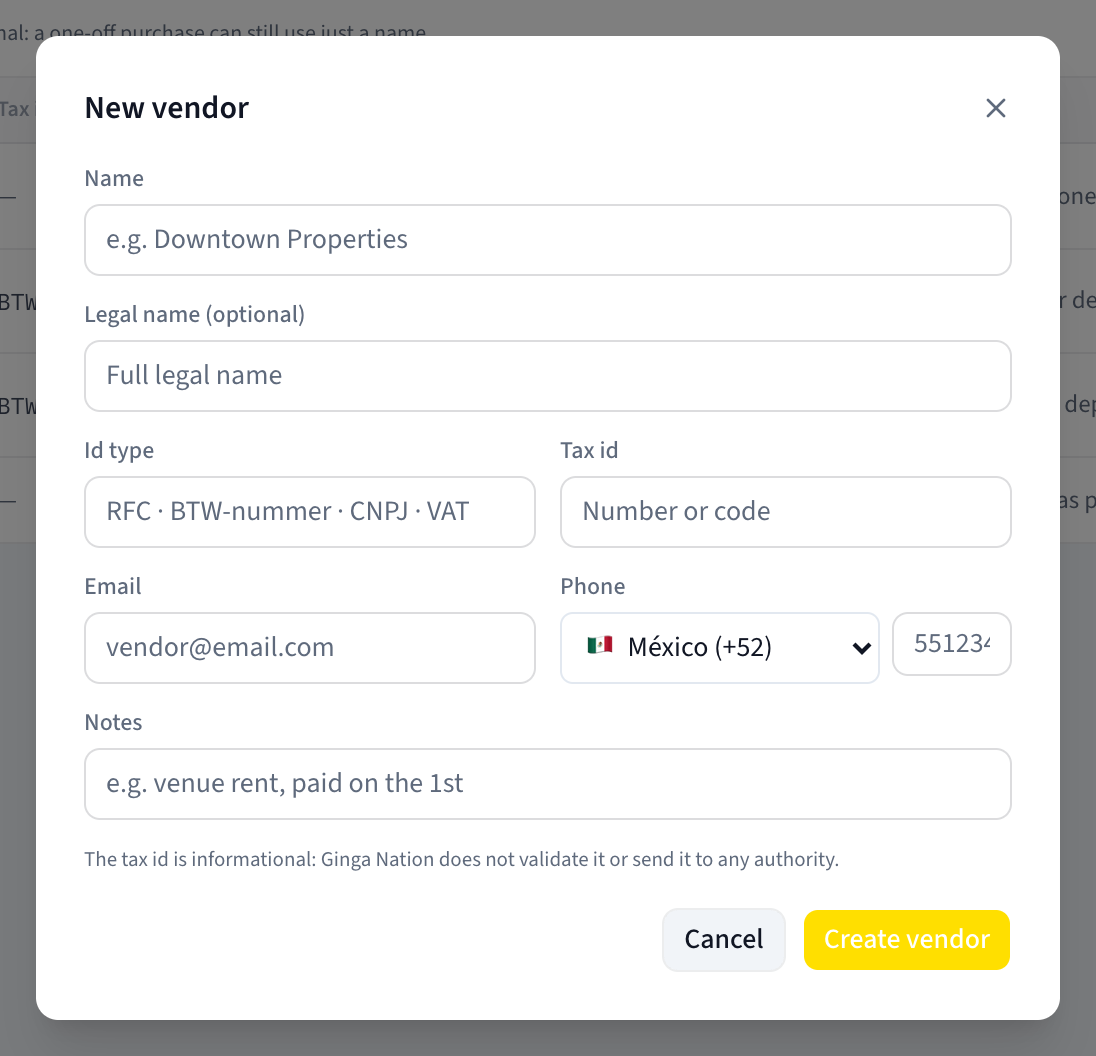
The dialog is titled New vendor. Only one field is required:
- Name — what you call them day to day. This is what appears in the picker when you record an expense.
- Legal name (optional) — the registered name, if it differs. Shown in smaller type under the name in the list.
- Id type — what their tax number is called. Free text, because it differs by country, and whatever you type prints as the label next to the number.
- Tax id — the number itself.
- Phone — pick the country from the flag dropdown, then type the number.
- Notes — free text, shown as its own column. Useful for "hall rent, paid on the 1st".
Click Create vendor. The button reads Saving... while it works.
Point an expense at the vendor
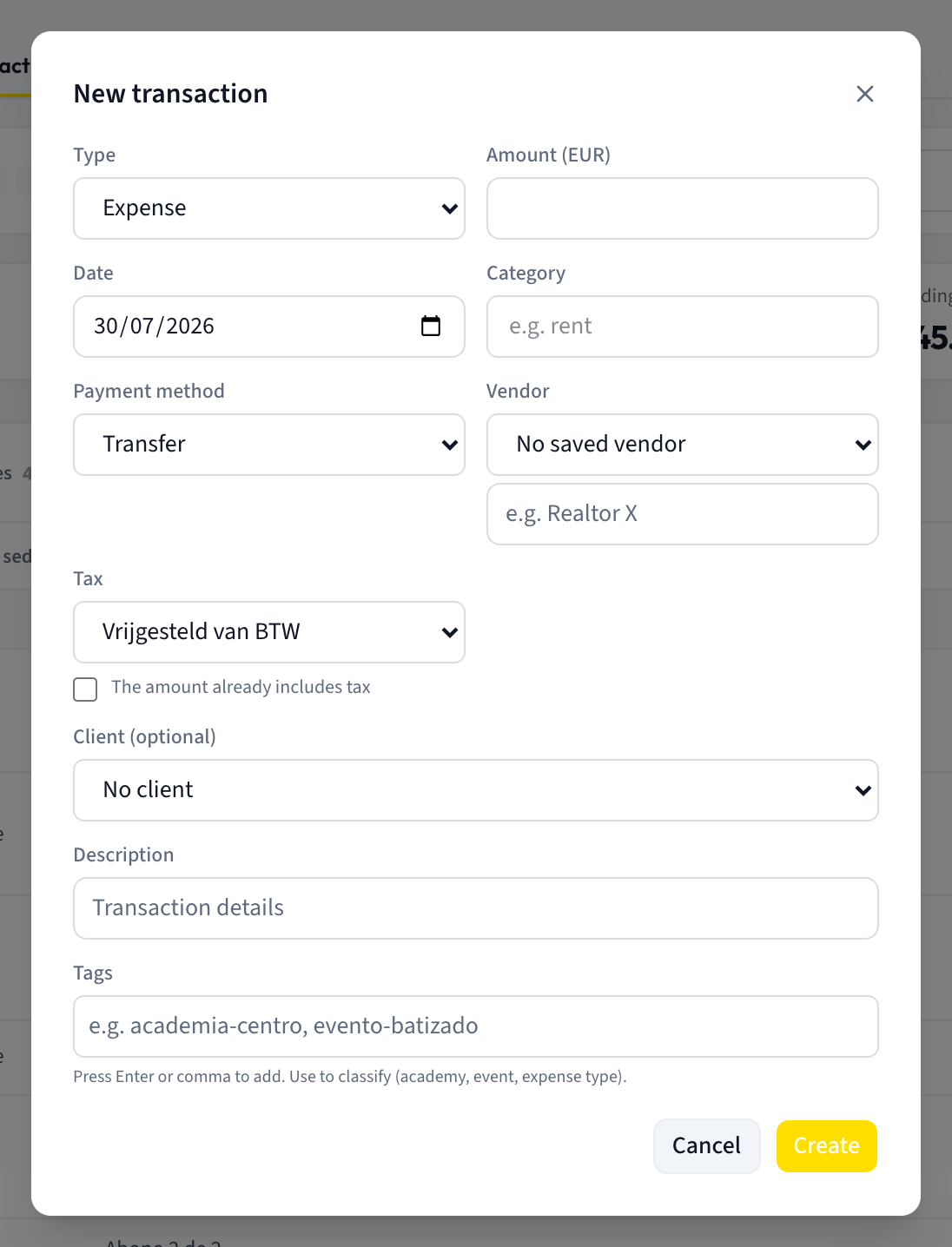
In Finances → Transactions, click New transaction and set Type to Expense. A Vendor field appears, and once you have at least one saved vendor it becomes a dropdown whose first option is No saved vendor.
Pick your vendor from the dropdown, or leave it on No saved vendor and type straight into the free-text box underneath — that box is only shown while no saved vendor is selected. Both are valid, and the free-text route is the normal one for a one-off purchase.
What you should see
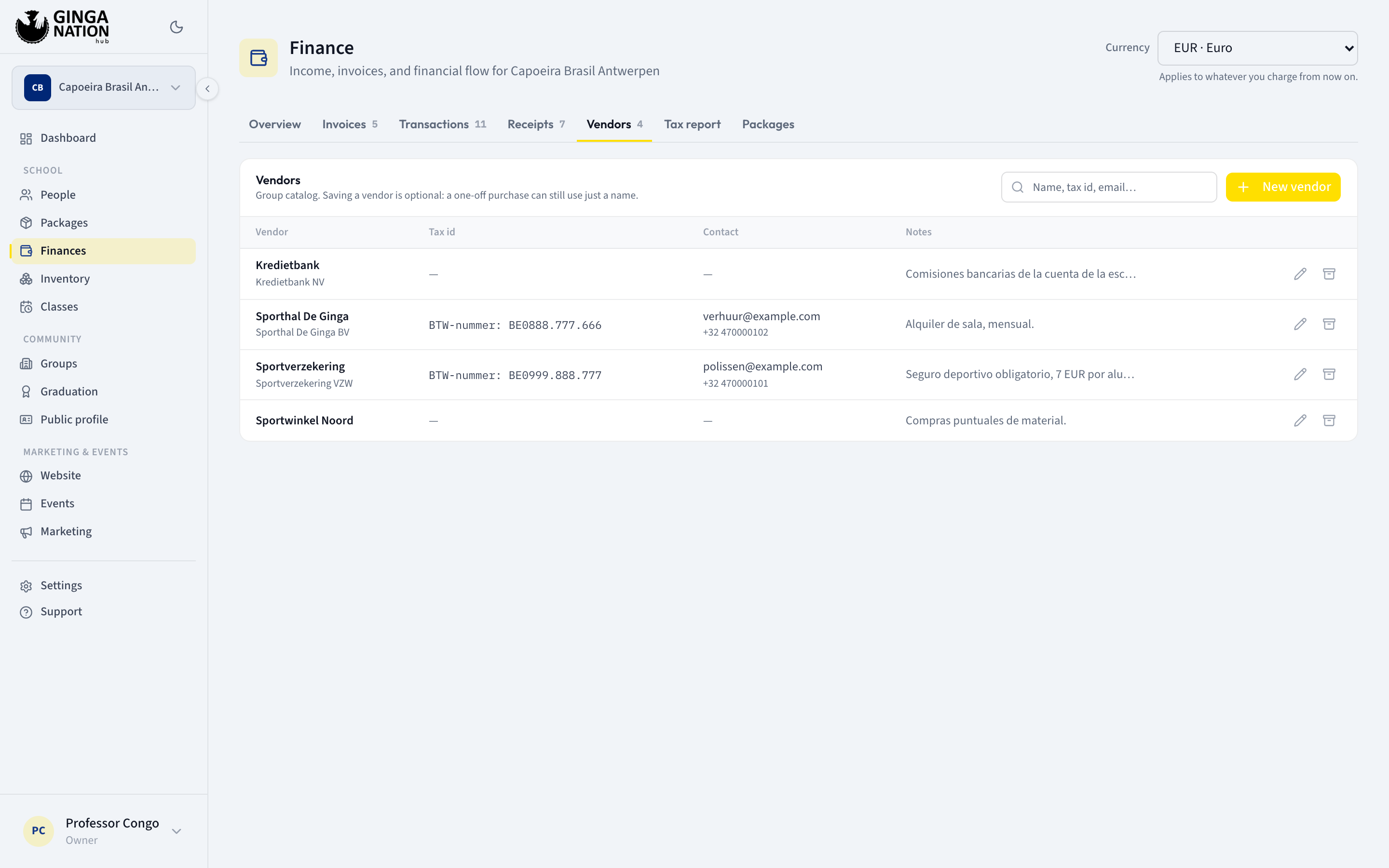
Each vendor is one row: the Vendor name with the legal name under it, the Tax id prefixed by whatever you typed as Id type, the Contact column with the email and phone, and Notes. Anything you left blank shows as a dash.
Open a transaction to see the other side of the link. The Transaction details panel shows a Vendor section with Tax ID, Email and Phone for a saved vendor. For an expense typed as free text it shows the name plus the line Free text: this vendor is not in the catalog. With neither, it reads No counterparty recorded.
The tax id is not checked
The dialog says it plainly: The tax id is informational: Ginga Nation does not validate it or send it to any authority.
Nothing about the number is verified — not its length, not its format, not its checksum, and not whether the business exists. It is stored so you can read it back when you need it, and that is all. If it matters for your own records, check it against the vendor's own paperwork.
Finding a vendor
The search box at the top of the panel filters the list as you type. Its placeholder — Name, tax id, email… — undersells it slightly: it matches against the name, the legal name, the tax id, the email and the notes. When nothing matches, the panel shows No vendors, the same wording as an empty catalog.
Who can do what
| Task | Owner | Admin | Staff |
|---|---|---|---|
| See the Vendors tab | Yes | Yes | No |
| Create or edit a vendor | Yes | Yes | No |
| Archive a vendor | Yes | Yes | No |
| Point an expense at a saved vendor | Yes | Yes | No |
Editing and archiving
The pencil icon on a row opens it as Edit vendor, with Save instead of Create vendor. Editing a vendor's details updates them everywhere the vendor is shown — unlike a tax rate, a vendor's details are not frozen onto past expenses.
The archive icon asks first. The dialog is titled Archive this vendor?, shows the vendor's name, and explains what happens: It stops showing up in the expense picker. Expenses that already reference it keep it. Confirm with Archive or back out with Cancel.
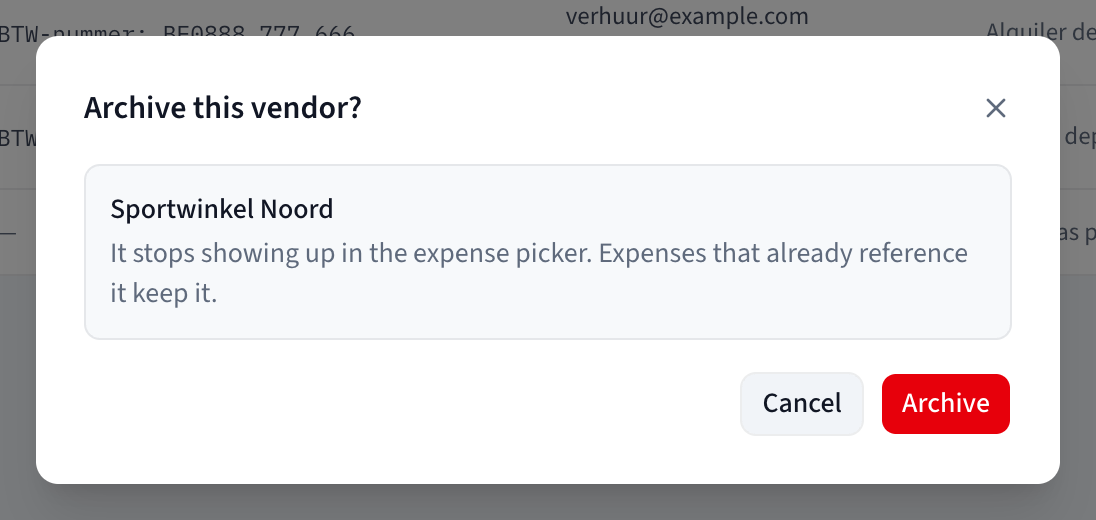
Archiving is not a deletion. Nothing about your expense history changes: past expenses keep the vendor, keep its name, and keep showing it in Transaction details. The vendor simply drops off the list and out of the Vendor dropdown.
There is no un-archive button. Once archived, a vendor cannot be brought back from this screen — the list only ever shows current vendors. If you need it again, create it as a new vendor. Editing beats archiving whenever the vendor still exists and something about them has just changed.
Troubleshooting
Name is required. The Name field is empty or only spaces. It is the one field a vendor cannot go without.
Could not save the vendor. The save was rejected. Check the phone number — it is stored as a country plus a number, so pick a country from the flag dropdown rather than typing a code into the number box.
Could not archive the vendor. The archive did not go through. Reload the page and try again; if it persists, the vendor may already have been archived from another session.
The Vendor field doesn't appear on my transaction. You are recording an income. Only an expense has a vendor — an income has a client instead.
I archived a vendor and my old expenses look unchanged. That is exactly right. Archiving only affects what is offered from now on.