Set up your plans
Create the tuition plans you charge for, what each one includes, and how often it bills.
For group owners and admins · 7 min · Updated 2026-07-30
A package is one thing you sell on a repeating basis: "adults, twice a week, billed monthly". You create it once, and from then on you enroll students into it. Nothing in finances happens until at least one package exists.
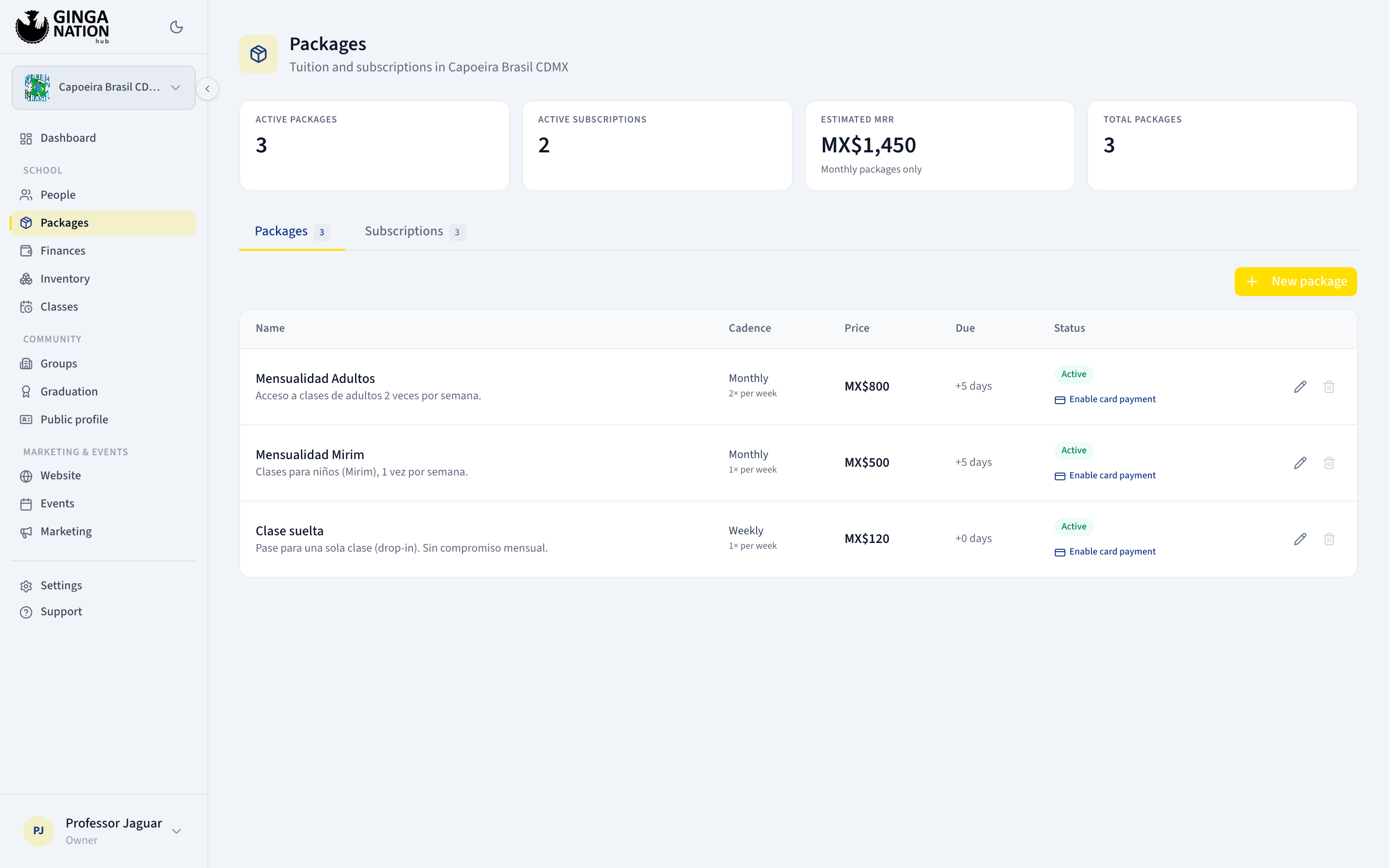
Open Packages in the sidebar. The page has two tabs — Packages, the catalog you are about to build, and Subscriptions, the students enrolled in it (that is the next guide).
There is only one Packages screen, even though it looks like there are two. Finances shows a tab called Packages at the end of its tab row, and that tab is not a tab at all — it is a link that takes you to this same Packages page in the sidebar. Use whichever door you like; there is nothing in one that is missing from the other.
Unrelated to both: an event also has a Packages tab, which is ticket tiers for that one event. Different feature, different data.
Before you start
- You need to be owner or admin. Staff cannot open this page.
- Know your cadence and your due window before you start typing — changing the price later is possible but has consequences, listed at the bottom of this page.
- Optional, and only if you want tax broken out on these invoices: set your tax rates up first, in Settings → Billing. See Set up your billing and tax details.
Steps
Open Packages → Packages
The four numbers across the top are Active packages, Active subscriptions, Estimated MRR and Total packages. Estimated MRR carries the note Monthly packages only for a reason: it adds up only the subscriptions whose plan bills monthly, so a school that sells quarterly or yearly plans will see a figure lower than what it actually bills.
Click New package
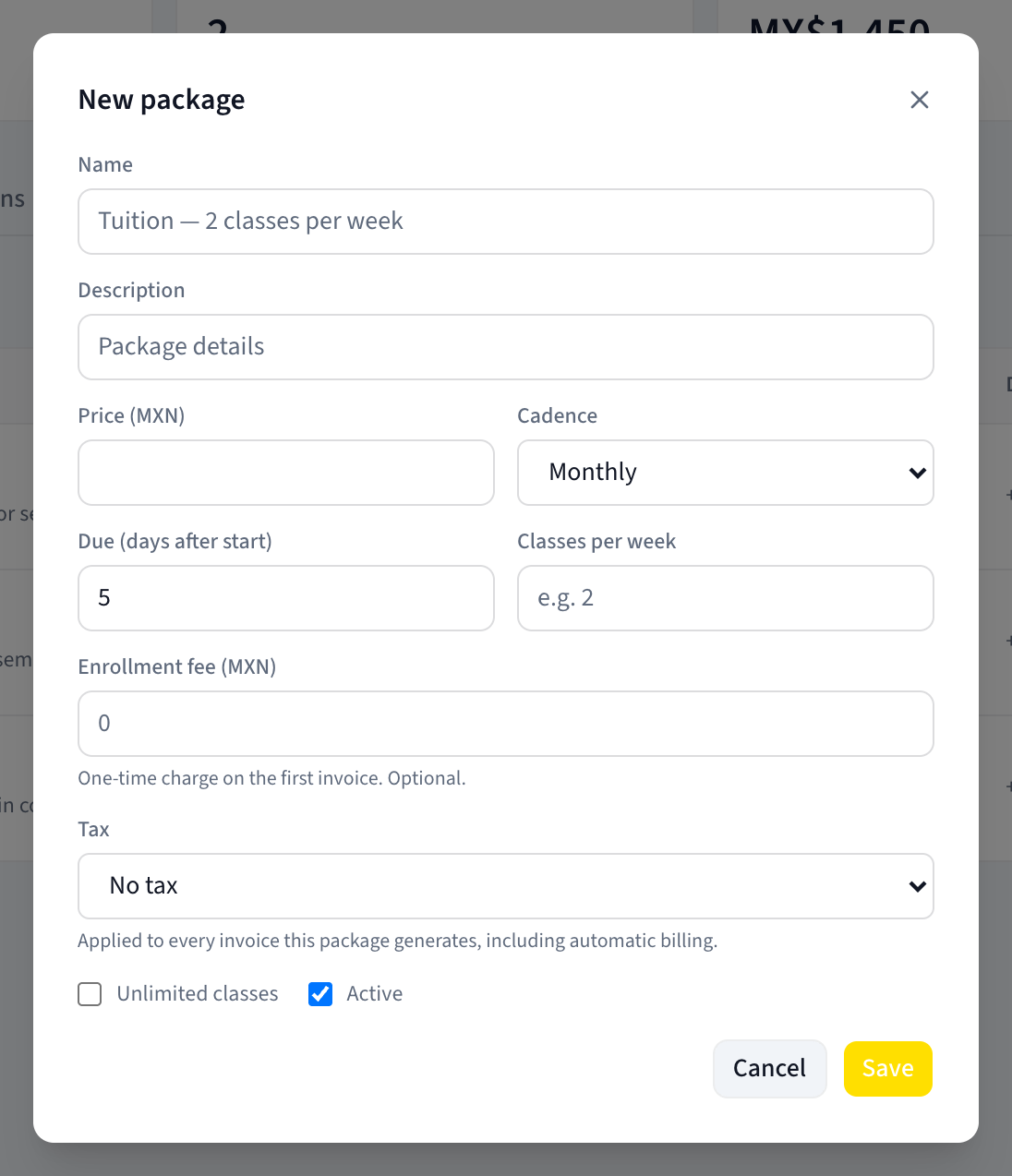
Give it a Name — this is what the student sees on their invoice and what you will pick from a dropdown later, so "Adults 2x per week" beats "Plan A". The placeholder shows the kind of thing that works.
Description is optional and shows up under the name in the list.
Set the price and the cadence
Price is labelled with your group's currency code in brackets — Price (MXN)
for a group configured in pesos, Price (EUR) in euros, and so on. The code
comes from your group's own configuration, not from us; the field itself is just
a number.
Cadence is how often it bills. Six options, and the label spells out the period so there is nothing to guess:
- Weekly
- Biweekly
- Monthly
- Quarterly (3 months)
- Semiannual (6 months)
- Yearly
Cadence is the single most consequential field on this form. It decides how often an invoice is created, what period each invoice covers, and — if you later turn on card payment — how often the card is charged.
Set the due window and what the plan includes
Due (days after start) is how many days after a billing period opens the
invoice is due. It is pre-filled with 5, so a period starting on the 1st is due
on the 6th. Set it to 0 and the invoice is due the day it is issued. This is
what decides when an unpaid invoice flips to Overdue.
Classes per week is a number shown alongside the plan in the list. Tick Unlimited classes instead and the field is disabled. Neither one enforces anything — the hub does not stop a student attending more classes than their plan says. They are descriptions, for you and for the student.
Decide on the enrollment fee
Enrollment fee — also labelled with your currency code — is a one-time amount, and its hint reads One-time charge on the first invoice. Optional.
The enrollment fee is only ever collected on card payments. It is added to the first Stripe charge when a student pays a card link. Invoices created for a Cash / transfer subscription never include it — not the first one, not any of them. If you collect enrollment in cash, leave this empty and bill it as a separate one-off invoice instead (see Issue an invoice).
Pick a tax rate, or don't
Tax is a dropdown that defaults to No tax, and a brand-new package always starts there — nothing is pre-selected for you, whatever country you are in.
If your group has tax rates configured, they appear as options with their percentage next to the name. The hint below reads Applied to every invoice this package generates, including automatic billing. If your group has no rates yet, the hint instead reads This group has no tax rates configured yet. Set them up under Settings → Billing.
Tax is a subject in its own right and it is not this page's job — read Set up your billing and tax details before you pick anything here. Two things worth knowing while you are on this screen:
- Choosing a rate does not change what the student pays. The invoice total stays the amount in Price; the rate only adds a breakdown explaining how much of that total is tax. Whether the tax is treated as already inside the price or added on top comes from a separate setting on your group.
- A rate that has since been archived still shows in this dropdown for packages
that already use it, marked
— archived, so you do not lose the selection by opening the editor.
Leave Active ticked and click Save
Active controls whether the plan can be enrolled into: the New subscription dialog only offers active packages. Untick it to retire a plan without touching the students already on it.
The button reads Save and shows Saving... while it works.
What you should see
The plan appears in the table with its Name, Cadence, Price, Due and Status. Under the status badge is one of two things:
- Enable card payment — a link. The plan is cash/transfer only for now.
- Card payment active — a badge. The plan can be paid by card.
On a narrow screen the table becomes a list of cards with the same information.
Turning on card payment for a plan
Enable card payment is what makes a plan eligible for the Card (auto-debit) billing mode. Clicking it registers this plan — its price, its cadence, and its enrollment fee if it has one — with your connected Stripe account. The link shows Enabling... and then turns into the Card payment active badge, with a Card payment active confirmation toast.
You need a connected Stripe account with charges enabled first; see Set up your billing and tax details. Without one, the click fails with El grupo no tiene una cuenta Stripe activa — this error comes back untranslated from the server, in Spanish.
If your group has more than one active Stripe account, Enable card payment fails with El grupo tiene varias cuentas Stripe; especifica integration_id and there is no way to choose an account from this screen. Groups with two or more connected accounts cannot use this button at all today.
Editing a plan, and what it does to people already on it
Click the pencil icon on a row to reopen it as Edit package. Same form, same Save button. What happens next depends on the mode your students are in:
- Cash / transfer students. Each invoice snapshots the amount at the moment it is created, so a price change affects invoices created from now on and leaves history alone. Anyone whose subscription has a custom price keeps that price — it always wins over the package.
- Card students. Changing the Price or the Cadence registers a new price with Stripe and retires the old one, but subscriptions that are already running keep paying the old amount. Nothing in the hub re-prices an existing card subscription. To actually move someone to the new price you have to cancel their subscription (in Stripe as well as in the hub) and set up a new one.
- Changing the Name also renames the matching product in Stripe, so the name on Stripe's own receipts follows.
Removing a plan
The trash icon asks Remove the package "..."? and then behaves in one of two ways, silently, with no message telling you which:
- No students on it — the plan is deleted outright.
- Students on it (any subscription that is Active or Paused) — the plan is hidden instead of deleted, and it disappears from this tab.
Removing a plan that has students does not stop their billing. The plan vanishes from the Packages tab, but the subscriptions on it stay Active, and the daily job keeps generating their invoices from the plan you can no longer see or edit.
If your intent is "stop selling this", untick Active instead of removing it: the plan stays visible, keeps billing the people on it, and is no longer offered for new subscriptions. If your intent is "stop billing these students", cancel each subscription on the Subscriptions tab first, then remove the plan.
Troubleshooting
Save does nothing and a red message appears. Two checks run before anything is sent: Name required if the name is empty, and Invalid price if the price is missing or negative. Zero is accepted.
"Enable card payment" says the package already has it. The message is Este paquete ya tiene pago con tarjeta habilitado (again, untranslated). The plan is already enabled; refresh the page and you will see the Card payment active badge.
"Enable card payment" says the price must be greater than zero. The message is El paquete debe tener un precio mayor a 0. A free plan can exist for cash/transfer, but it cannot be registered with Stripe. Give it a price first.
The whole page shows an error instead of loading. If it reads You don't have permission to manage this group's school, you are signed in as staff — this page needs owner or admin. Any other error here means the group's currency could not be read; every price on the screen would be a guess, so the hub refuses to render rather than show you an amount in the wrong currency.
You have several groups and this page shows the wrong one. Packages always reads your first group, and switching group in the sidebar does not change it. If you run a parent group and a child group, verify the group name in the grey line under the page title before you create or edit anything.
Who can do what
| Task | Owner | Admin | Staff |
|---|---|---|---|
| Open Packages | Yes | Yes | No |
| Create, edit or remove a package | Yes | Yes | No |
| Enable card payment | Yes | Yes | No |
| Pick a Tax rate for a package | Yes | Yes | No |