Subscribe a student to a plan
Enroll someone in a tuition plan so their invoices are created for you every period.
For group owners and admins · 8 min · Updated 2026-07-30
A subscription is what turns a plan into money: it ties one person to one package, and from then on their invoices appear on their own. This is the step where a mistake is expensive, so read the two warnings on this page before you click Create.
Before you start
- You need to be owner or admin.
- You need at least one Active package — the dropdown only offers active ones. See Set up your plans.
- Decide the billing mode first. See Choose how you bill. You cannot change it afterwards.
- For Card (auto-debit) only: the package must already show the Card payment active badge.
The column says Student, but a subscription belongs to whoever pays. The person you pick is a Client — an account linked to your group. When a parent pays for a child, the subscription goes on the parent, and the hub has no field for saying which child it covers. That is fine as long as you know it: the name on the invoice is the payer's.
A consequence worth planning around: the hub refuses two live subscriptions for the same person on the same package. A guardian with two children on the same plan cannot have two subscriptions for it. Either put both children on one subscription with a custom price covering both, or make a second package for the sibling rate.
Steps
Open the New subscription dialog
Two doors lead to the same dialog:
- Packages → Subscriptions → New subscription.
- People → Clients → click a person → New in their Subscriptions section. This one arrives with the Client already filled in and locked, which is the safer route when you have a lot of members with similar names.
Pick the Client and the Package
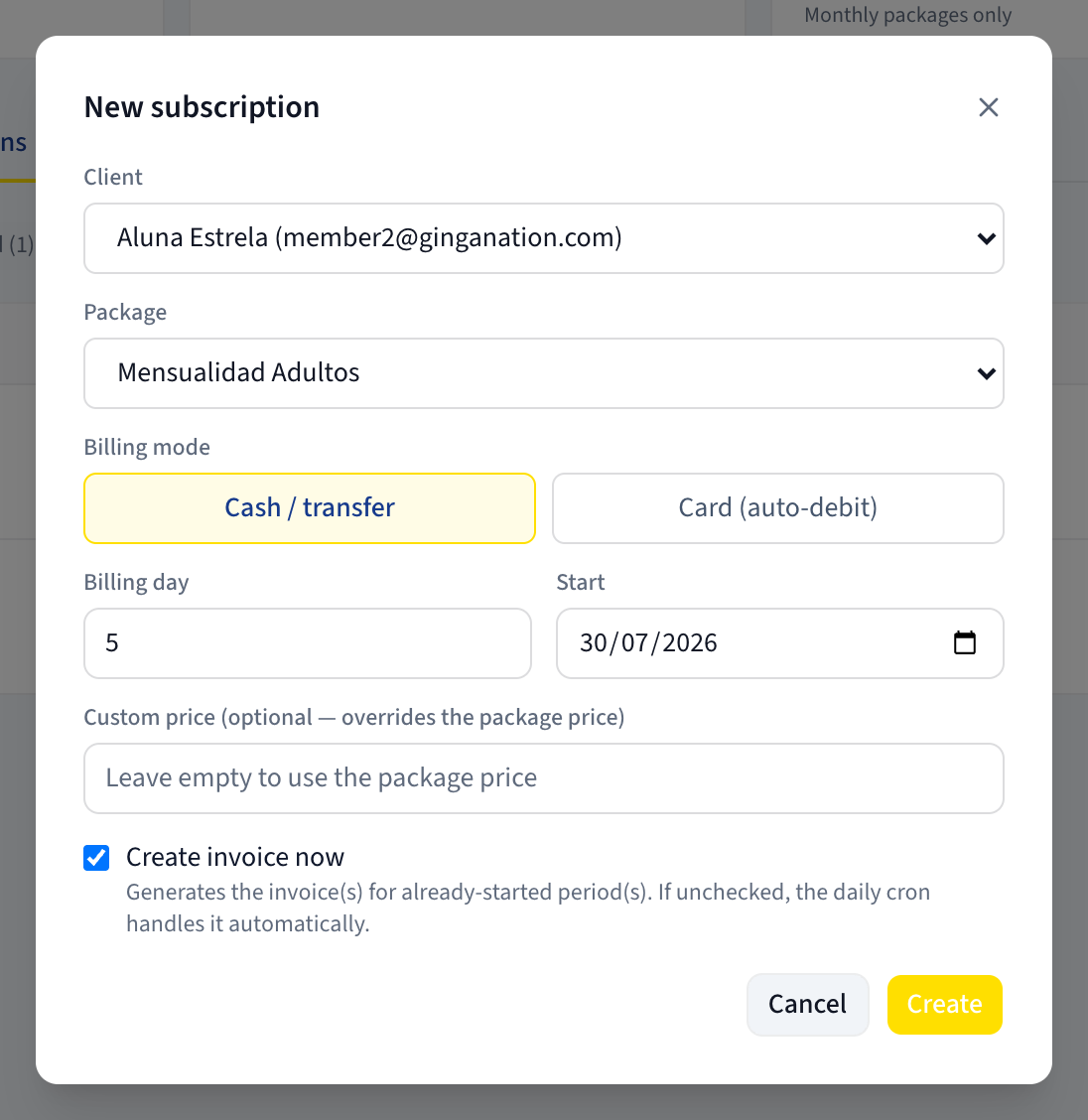
Client lists everyone linked to your group, with their email in brackets — including staff and yourself, because the list is "people attached to this group", not "students". Match on the email if two names look alike.
Package lists your active plans by name. Picking one is what decides the amount and the cadence.
Choose the Billing mode
Two buttons: Cash / transfer (selected by default) and Card (auto-debit). The rest of the form changes depending on which one is lit, so finish this step before filling anything else in.
If you pick Card (auto-debit) for a package that is not set up for cards, an amber line appears: This package doesn't have card payment enabled. Enable it in the Packages tab. With a card-ready package you instead get the note You'll send a link to save their card. Stripe charges every period automatically.
Finish a Cash / transfer subscription
Four fields, and the last one is the one to be careful with.
Billing day — which day of the month each period opens. Pre-filled with 5,
and it must be between 1 and 28. There is deliberately no 29th, 30th or 31st, so
that a period exists in February too.
Start — pre-filled with today. This is the date billing begins, and it can be in the past.
Custom price (optional — overrides the package price) — leave it empty to use the package price; the placeholder says Leave empty to use the package price. Fill it in for a family discount or a special arrangement and this student is billed that amount from now on, whatever the package says later. Rows with a custom price are marked Custom in the list.
Create invoice now — ticked by default. Its hint reads Generates the invoice(s) for already-started period(s). If unchecked, the daily cron handles it automatically.
Create invoice now plus a back-dated Start generates one invoice per period that has already passed, all at once. Set Start to eight months ago on a monthly plan and you get eight invoices, every one of them immediately due or overdue, on a student who probably paid you in cash months ago.
Use a back-dated Start only when you genuinely intend to bill that history. Otherwise set Start to the beginning of the period you want to charge for first. If you only want the subscription on record and no invoices yet, untick the box — the daily job will pick it up from the next period.
Click Create. The dialog closes, the row appears in the list, and any invoices it generated are waiting in Finances → Invoices.
Finish a Card (auto-debit) subscription
There are no dates to set here — Stripe anchors the cycle to the day the student actually pays. The only decision is the discount.
Coupon (optional) defaults to No discount. The hint explains what that means: Applies a discount to the first invoice. Empty = allow promo codes at checkout. In other words, leaving it as No discount does not disable discounts — it lets the student type a promotion code on the payment page instead. Pick a coupon here and the promo-code box disappears.
The dropdown lists the coupons that already exist on your Stripe account, each shown as its name, the amount off, and when it applies — First invoice, forever, or a number of months.
To make a new one without leaving the hub, click Create coupon:
- A Name and a % off between 1 and 100. Percentage only; there is no fixed-amount option in this form.
- Apply only to this package (not the enrollment fee) — ticked by default, so the discount comes off the tuition and the enrollment fee is charged in full.
- Apply to every invoice (not just the first) — unticked by default, so by default the discount is a welcome offer on the first payment only. Tick it and the discount applies for as long as the subscription lives.
- Click Create. The coupon appears in the dropdown, already selected.
Then click Generate payment link. You get a Payment link ready dialog with the URL, a Copy link button, and the note The link expires in 24 hours. Send it to the student by WhatsApp or email; they open it, enter their card, and that first payment covers the enrollment fee (if the plan has one) plus the first period.
There is no screenshot of this dialog in these guides on purpose: producing one would mean opening a real card-payment session against a live Stripe account. The dialog holds exactly three things — the generated link, a Copy link button, and the line The link expires in 24 hours. Copy the link before you close it; if you lose it, generate a new one only after reading the warning below.
Nothing exists in the hub until the student pays — and generating a second link is how students get charged twice.
Generating the link creates no subscription, no invoice and no row anywhere. The list looks exactly as it did before. The subscription appears only after the student completes the payment, at which point it shows up as Active with a Card · Stripe badge.
So if a student is slow, resist generating a fresh link "to be safe". If two links are ever both paid, Stripe now has two subscriptions charging that card every period, while the hub can only show one of them — the second one fails to record and is invisible to you. The student is charged twice, indefinitely, and nothing in the hub will tell you.
If you suspect it has happened, check the subscriptions on the account in the Stripe dashboard: Settings → Integrations → Stripe Connect → the View in Stripe icon.
What you should see
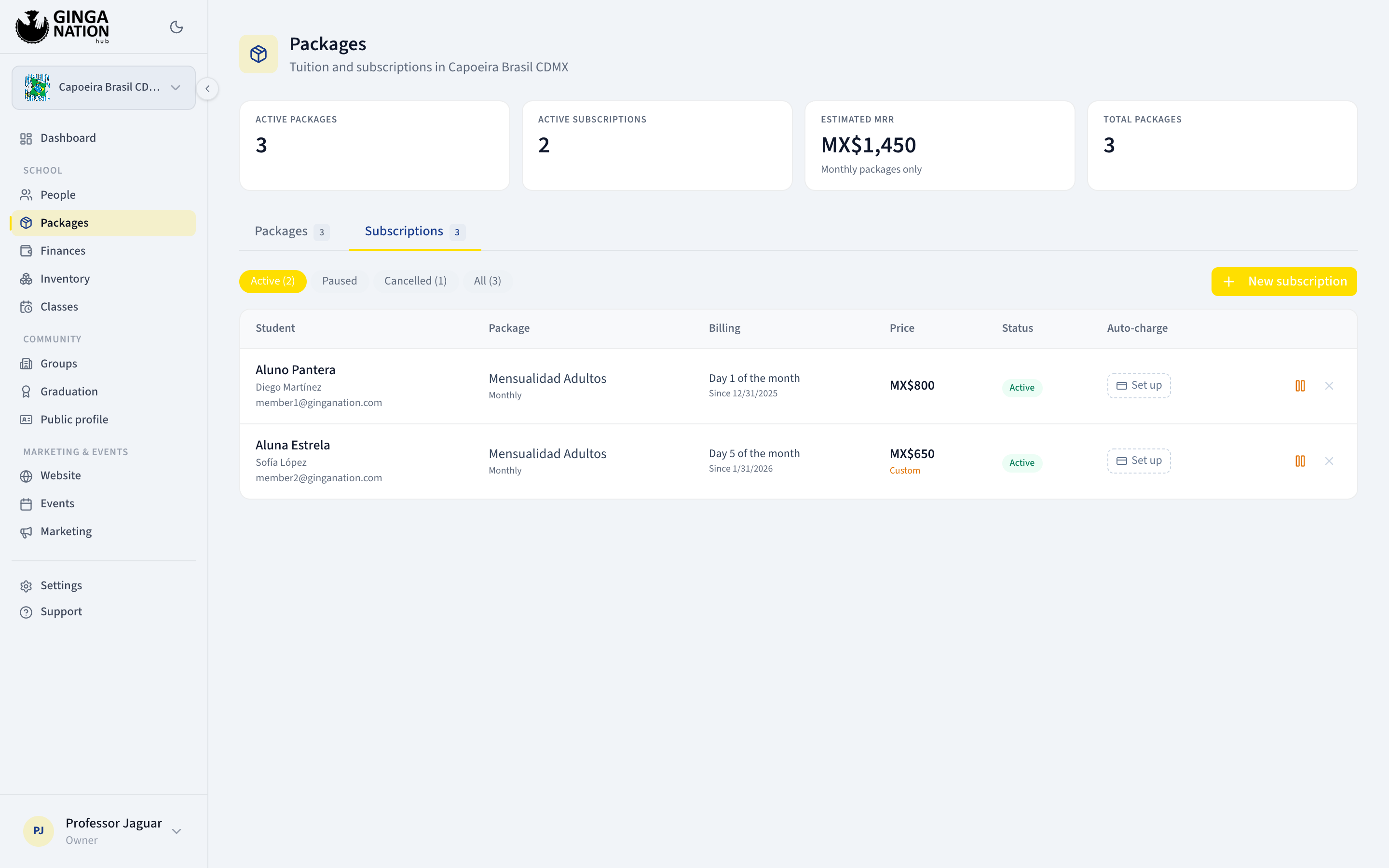
The new row appears on the Subscriptions tab. The columns are Student, Package, Billing, Price, Status, Auto-charge.
- Billing spells out the billing day as
Day 5 of the month, withSinceand the start date underneath. - Status is Active, Paused or Cancelled, and the filter chips above the table (Active, Paused, Cancelled, All) each carry a count. The tab opens filtered to Active, so a subscription you cancelled has not disappeared — it is behind the Cancelled chip.
- Auto-charge is the mode at a glance:
- Card · Stripe badge — Stripe is charging this one. A second line reads Overdue when Stripe's last attempt did not go through.
- Set up button — cash/transfer, no saved card. Clicking it produces a Card setup link, which turns this subscription into an auto-charging one. Read the warning in Choose how you bill before you click it.
- A card brand and last four digits — cash/transfer with a card already saved, which our daily job charges. Clicking it (Renew card) issues a fresh setup link so the student can replace the card.
Pausing, resuming and cancelling
The icon buttons at the end of each row:
- Pause — no new invoices are generated while paused. Invoices already issued stay exactly as they are, unpaid ones included.
- Resume — back to Active. Careful: resuming a subscription whose periods elapsed while it was paused means the next daily run creates the invoices for those periods too, because it fills every gap it finds.
- Cancel — asks Cancel this subscription? and stamps today as the end date. Open invoices are not cancelled with it; go and cancel them in Finances → Invoices if you do not intend to collect them.
A card subscription is not stopped by any of these buttons. They change only what Ginga Nation shows. Stopping the charge has to be done in the Stripe dashboard — see Choose how you bill.
There is no way to edit an existing subscription's Billing day or Custom price from the hub. Changing either means cancelling this subscription and creating a new one — which is safe to do, because a cancelled subscription no longer blocks a new one for the same person and package.
Troubleshooting
"This person already has an active or paused subscription to this package". Exactly what it says: one live subscription per person per package. Find the existing one (check the Paused and All chips), and either use it or cancel it first.
"Select a client and a package". One of the two dropdowns is still empty.
"Billing day must be between 1 and 28". Days 29 to 31 are not accepted, so that every month has that day.
"Connect a Stripe account in Settings > Integrations first." You clicked Set up on a group with no active Stripe account. See Set up your billing and tax details.
"Could not generate the link". The Stripe account is connected but the request failed. Check the account still reads Active under Settings → Integrations, then try again. Nothing was charged and nothing was created, so retrying is safe here.
The student paid but no subscription appeared. The usual cause is an existing Active or Paused subscription for the same person and package — their payment went through in Stripe but the hub could not record it. Cancel the old subscription, then contact Ginga Nation: the payment needs to be reconciled manually, and until it is, that student is being charged for something you cannot see.
Who can do what
| Task | Owner | Admin | Staff |
|---|---|---|---|
| See the Subscriptions tab | Yes | Yes | No |
| Create a subscription | Yes | Yes | No |
| Generate a payment link or a Card setup link | Yes | Yes | No |
| Pause, Resume, Cancel | Yes | Yes | No |
| Create a coupon | Yes | Yes | No |