Classes
Set up where and when you teach, let prospects book a class, and track who actually shows up.
For group owners, admins and staff · 2 min · Updated 2026-07-30
Classes is where your teaching week lives in the hub: the places you train, the weekly classes you run there, the people who book a class with you, and the attendance you take every session.
How the pieces fit together
The module is built as a chain, and each link needs the one before it:
- Locations — the physical places you teach. Nothing else can be created until you have at least one.
- Schedules — a recurring weekly class at one of those locations (Monday 19:00–20:30, adults, capacity 20). This is a template, not a single date.
- Upcoming — bookings that arrive from your public booking link, one row per person per date.
- Attendance — for each session of a schedule, mark which of your capoeiristas were present.
- Reports — attendance rate over a date range, your busiest and emptiest classes, and students who have stopped coming.
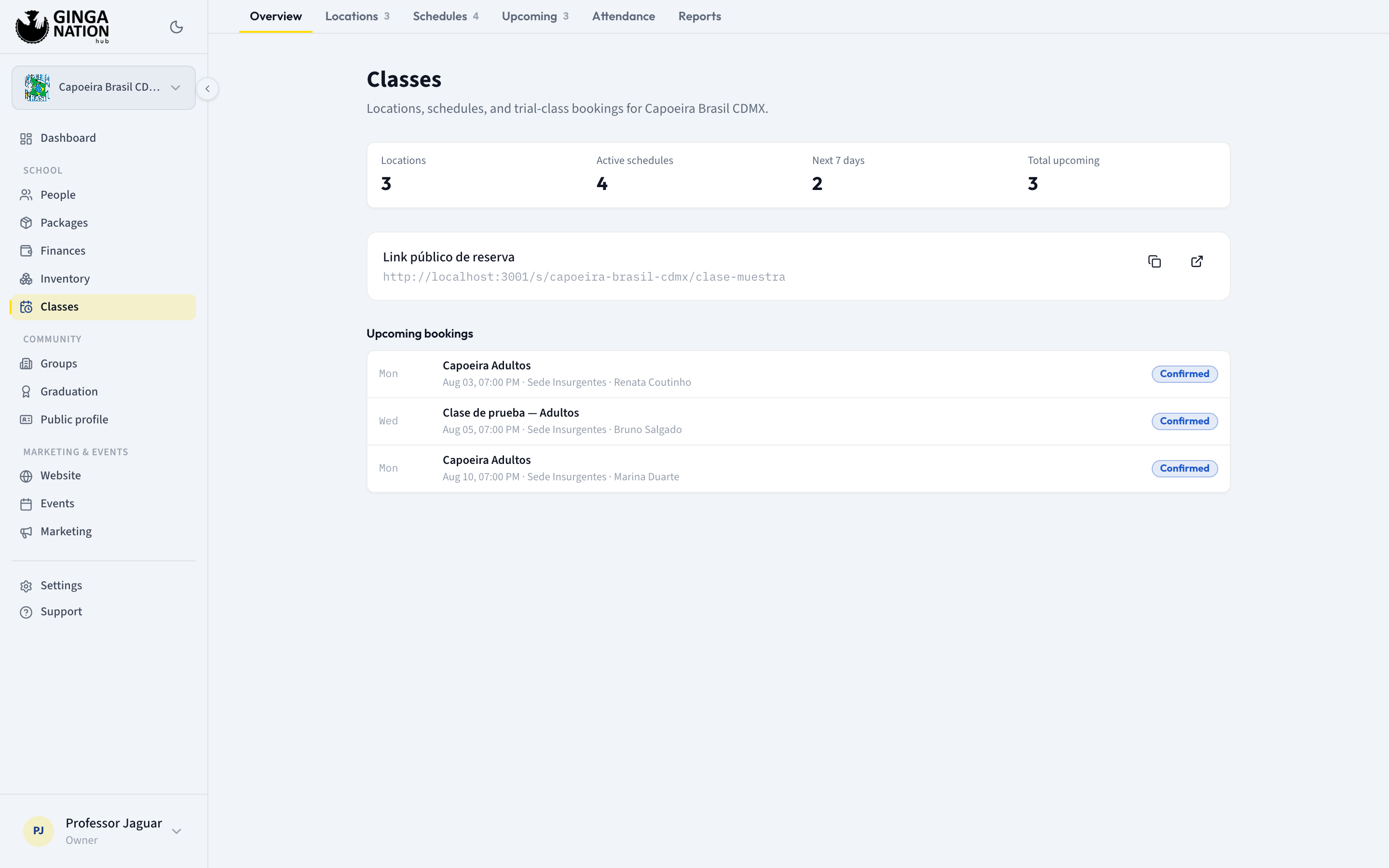
Open Classes in the sidebar and you land on Overview, which shows how many locations and active schedules you have, how many bookings are coming in the next 7 days, and the next few bookings. The tabs across the top — Overview, Locations, Schedules, Upcoming, Attendance, Reports — follow the same order as the chain above.
Guides in this section
Add your training locations
Create the places you teach — the first thing the module needs.
Build your weekly schedule
Turn your training times into recurring weekly classes.
Offer a trial class
Share a public booking link and handle the bookings that arrive.
Confirm today's class
The morning question, what answering no actually stops, and the reminder your students get.
Take attendance
Mark present or absent for a session, a couple of taps per student.
See your class reports
Attendance rate, class ranking and students who stopped coming.
Who can do what
Not every role can do everything in this module:
| Task | Owner | Admin | Staff |
|---|---|---|---|
| See locations and schedules | Yes | Yes | Yes |
| Create or edit a location or a schedule | Yes | Yes | No |
| See bookings in Upcoming | Yes | Yes | Yes |
| Mark a booking attended, no-show or cancelled | Yes | Yes | Yes |
| Reschedule a booking (Edit information) | Yes | Yes | No |
| Take attendance | Yes | Yes | Yes |
| See reports | Yes | Yes | Yes |
Staff still see the New location and New schedule buttons, but saving fails with a database permission error. Setting up locations and schedules is an owner/admin job.