Build your weekly schedule
Turn your training times into recurring weekly classes that students can see and book.
For group owners and admins · 6 min · Updated 2026-07-30
A schedule is one recurring weekly class: "Monday 19:00–20:30, adults, Roma Norte location, 20 places". You create it once and it repeats every week — you never create individual dates.
Everything downstream depends on these: the public booking form only offers what you define here, and Attendance only lists schedules that are active.
Before you start
- You need to be owner or admin. Staff can see schedules but not create or edit them.
- You need at least one active location — see Add your training locations.
- Decide the class type before you start: it changes whether prospects can book it (see the table further down).
Steps
Open Classes → Schedules
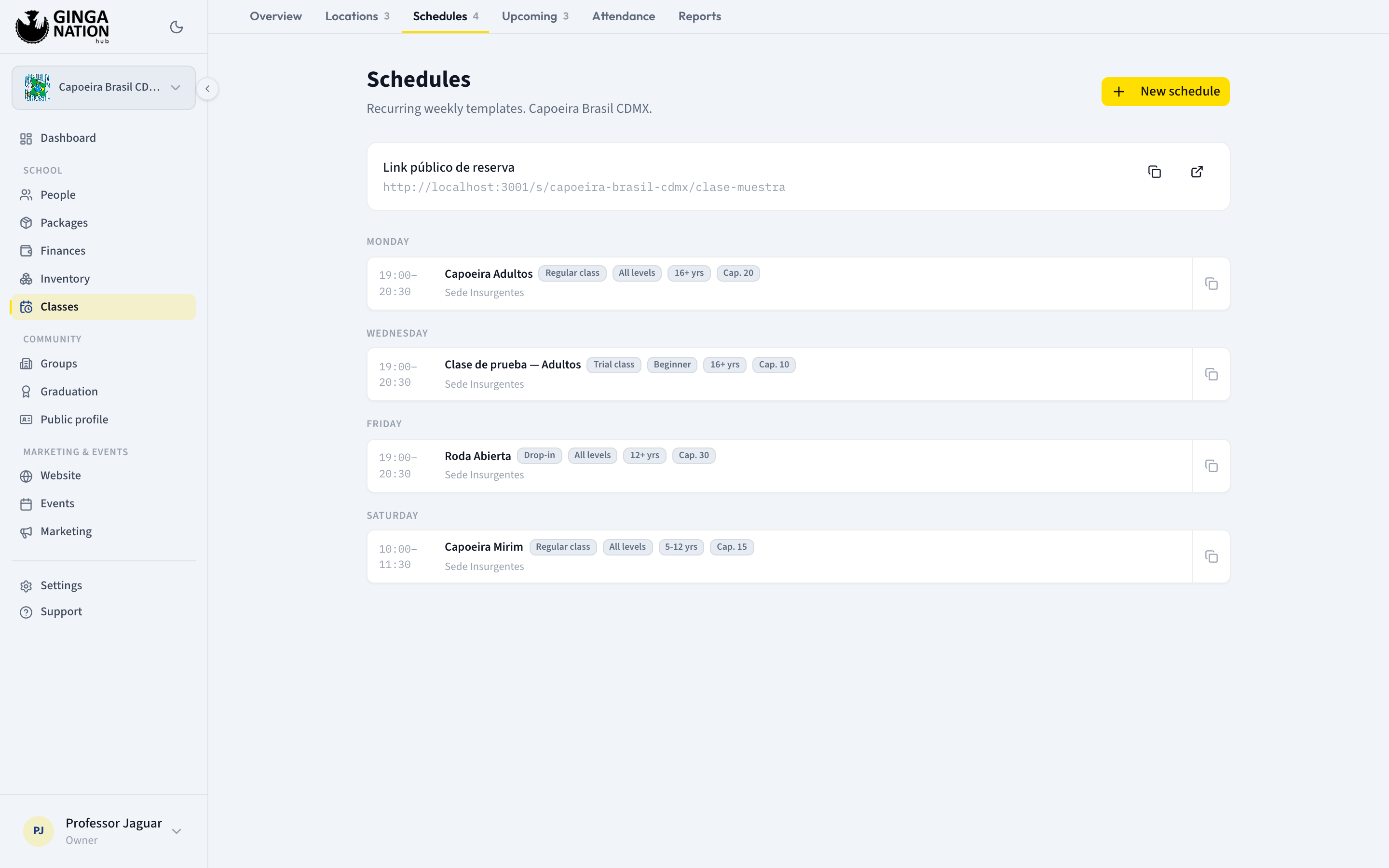
Existing schedules are grouped under a heading per weekday, sorted by start time, with the time range on the left.
Click New schedule
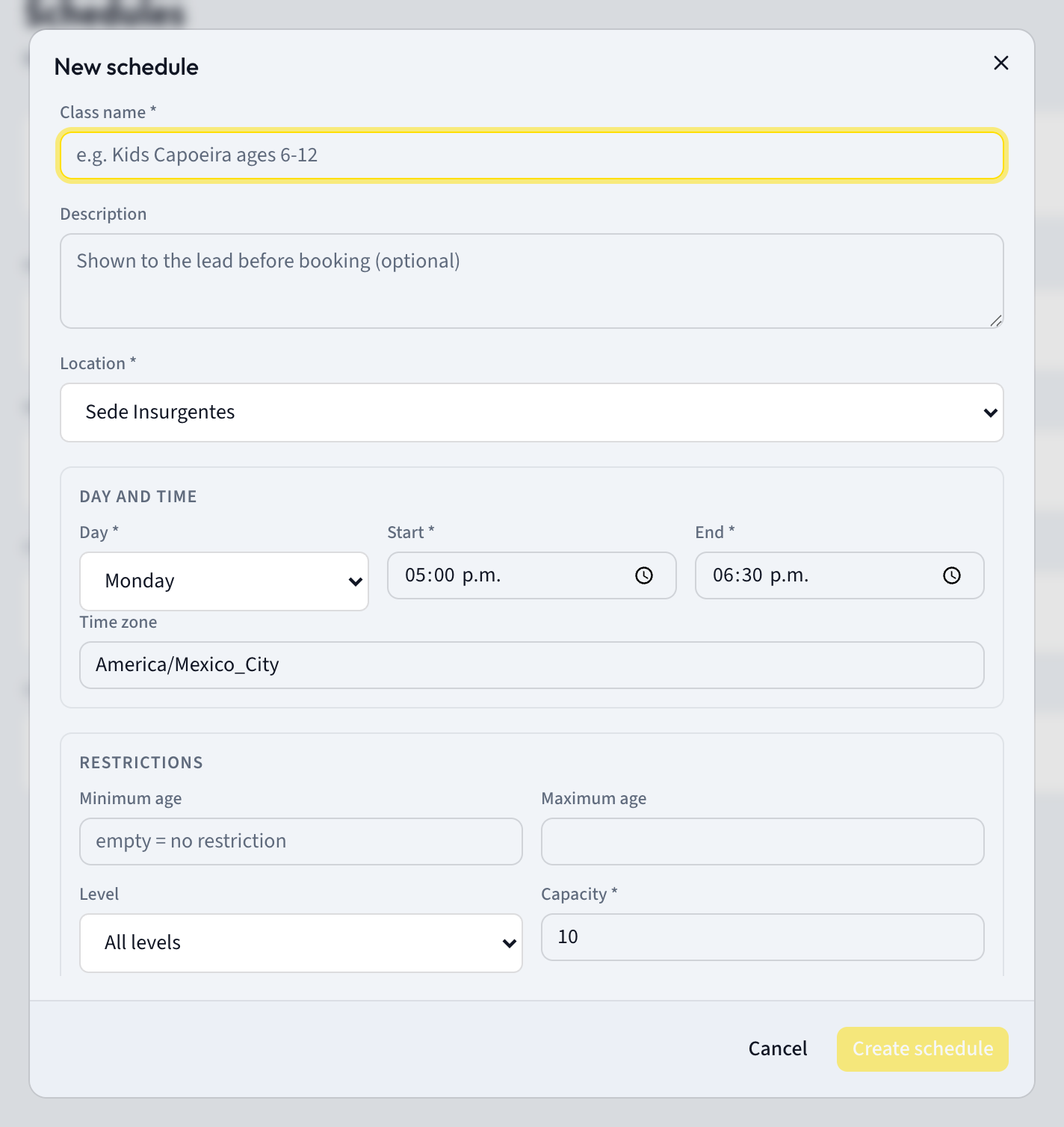
Give the class a Class name * — this is the name a prospect sees, so "Kids Capoeira ages 6-12" beats "Class 2". Description is optional and also shown to prospects before they book.
Pick the Location * from the dropdown. Inactive locations appear with
(inactive) next to the name.
Set the day and time
Under Day and time, pick the Day *, then Start * and End *. The end must be later than the start; the save button stays disabled otherwise.
There is no duration field — the length of the class is simply the gap between start and end.
Time zone holds an IANA time-zone name such as America/Mexico_City or
Europe/Brussels. It is pre-filled with America/Mexico_City.
Set the restrictions
Under Restrictions:
- Minimum age / Maximum age — leave empty for no limit. The public booking form asks the prospect's age and only shows classes that fit it, and a booking outside the range is rejected.
- Level — All levels, Beginner, Intermediate or Advanced. Prospects can filter on this.
- Capacity * — how many people can book the same date. Must be at least 1. When a date is full the booking form stops offering it.
- Class type — see the table below.
| Class type | Appears on your public booking link? |
|---|---|
| Trial class | Yes |
| Regular class | Yes |
| Drop-in | No |
| Event | No |
Both Trial class and Regular class are bookable on purpose: many groups let a newcomer try a normal class rather than running a separate one.
Set validity and booking rules
Under Validity and bookings:
- Active from / Active until — the calendar dates the class runs between. Leave both empty for "runs indefinitely". Active until is how you end a term without deleting anything.
- Days ahead to book — how far ahead a prospect may pick a date, 1 to 90. Default 14.
- Cutoff (min before start) — how long before the class starts bookings close for that date. Default 60, so a 19:00 class stops taking bookings at 18:00 that day.
Write the notes
Under Notes:
- For the lead (shown in the confirmation) — appears on the confirmation screen after someone books. Good for "Arrive 10 min early. Bring comfortable clothes."
- Internal (owner/staff only) — never shown to anyone outside your team.
Leave Active schedule (accepts bookings) checked and click Create schedule.
What you should see
The schedule appears under its weekday heading, with the time range, the name,
and small tags for the type, the level, the age range if you set one, and
Cap. followed by the capacity. The location name sits underneath.
If this is your first active schedule, a card with your public booking link appears at the top of the tab — that is the next guide, Offer a trial class.
Time zones — read this if you teach in more than one city
A class time belongs to the venue, not to whoever is looking at the screen. The 19:00 in a schedule is 19:00 on the clock at that location, and that is exactly how the hub shows it — the Schedules, Attendance and Take attendance screens print the start and end times you typed, without converting them to your own time zone.
Two consequences worth knowing:
- Set the Time zone field per location, not per habit. If you run classes in
Mexico City and Brussels, the Brussels schedules need
Europe/Brussels— the field does not follow the location you picked, it keeps whatever was pre-filled. The value matters for the exact moment each booking is anchored to. - The times in the schedules list never say which zone they are in. With locations in two cities, two rows both reading 19:00 are two different moments. The location name under each row is your only clue, so keep location names unambiguous.
Editing, duplicating and ending a schedule
Click any row to reopen it as Edit schedule. The button becomes Save changes, and two more appear:
- Duplicate — switches the form to Duplicate schedule with every field pre-filled and a hint reminding you to change the day or time before saving. The button becomes Create copy. There is also a copy icon at the right edge of each row that does the same thing without opening the schedule first. This is the fast way to build a week: create Monday, then duplicate it four times.
- Delete — asks for confirmation and warns that existing bookings are kept.
To stop a class without losing its history you have two softer options:
- Uncheck Active schedule (accepts bookings). The row stays with an Inactive badge and dimmed, no new bookings arrive, and the class disappears from Attendance.
- Set Active until to the last date it runs. The class stays active until then and bookings after that date are refused.
Troubleshooting
The create button won't activate. All four of these must be true: a Class name *, a Location *, an End * later than the Start *, and a Capacity * above 0.
I unchecked "Active schedule" and the class vanished from Attendance. That is expected — the Attendance tab only lists active schedules. Re-check the box to take attendance for it again.
A row says "(location deleted)". The location was deleted after the schedule was created. Open the schedule and pick a location again.