Add your training locations
Create the places you teach — the first thing the Classes module needs before anything else works.
For group owners and admins · 4 min · Updated 2026-07-30
A location is a physical place where you hold classes: an academy, a park, a rented gym. You create them once, and every weekly class you build afterwards points at one of them.
This is the first thing to do in Classes. A schedule cannot exist without a location, so the New schedule button stays disabled until you have at least one active location here.
A location is not a sub-group. If your school in another city has its own teachers, students and graduations, that is a child group — see Getting started. Locations are just addresses your classes happen at, and one group can have as many as it needs.
Before you start
- You need to be owner or admin of the group. Staff can see the list but cannot create or edit locations.
- Have the street address ready, and a Google Maps link if you have one — that is what prospects use to find you.
Steps
Open Classes → Locations
Click Classes in the sidebar, then the Locations tab. The number next to the tab name is how many locations you already have.
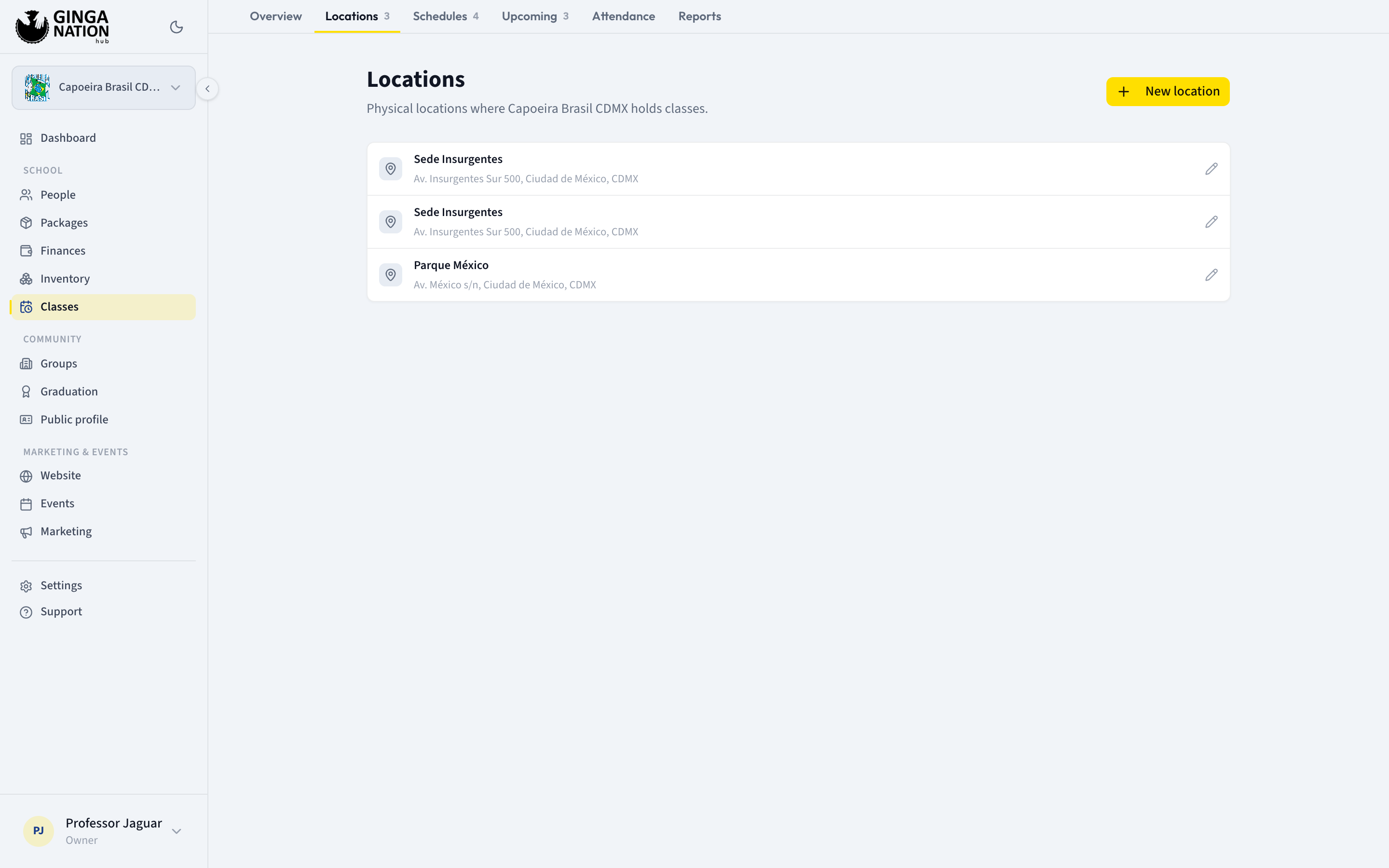
Click New location
If this is your first one, the page shows No locations yet with a Create first location button that opens the same form.
Fill in the name
Name * is the only required field. Use the name your students actually say out loud — "Roma Norte location", "Parque Juárez" — because it appears in the public booking form, in the schedules list and on every booking row.
Description is optional, and it is written for prospects: it is shown to them before they book.
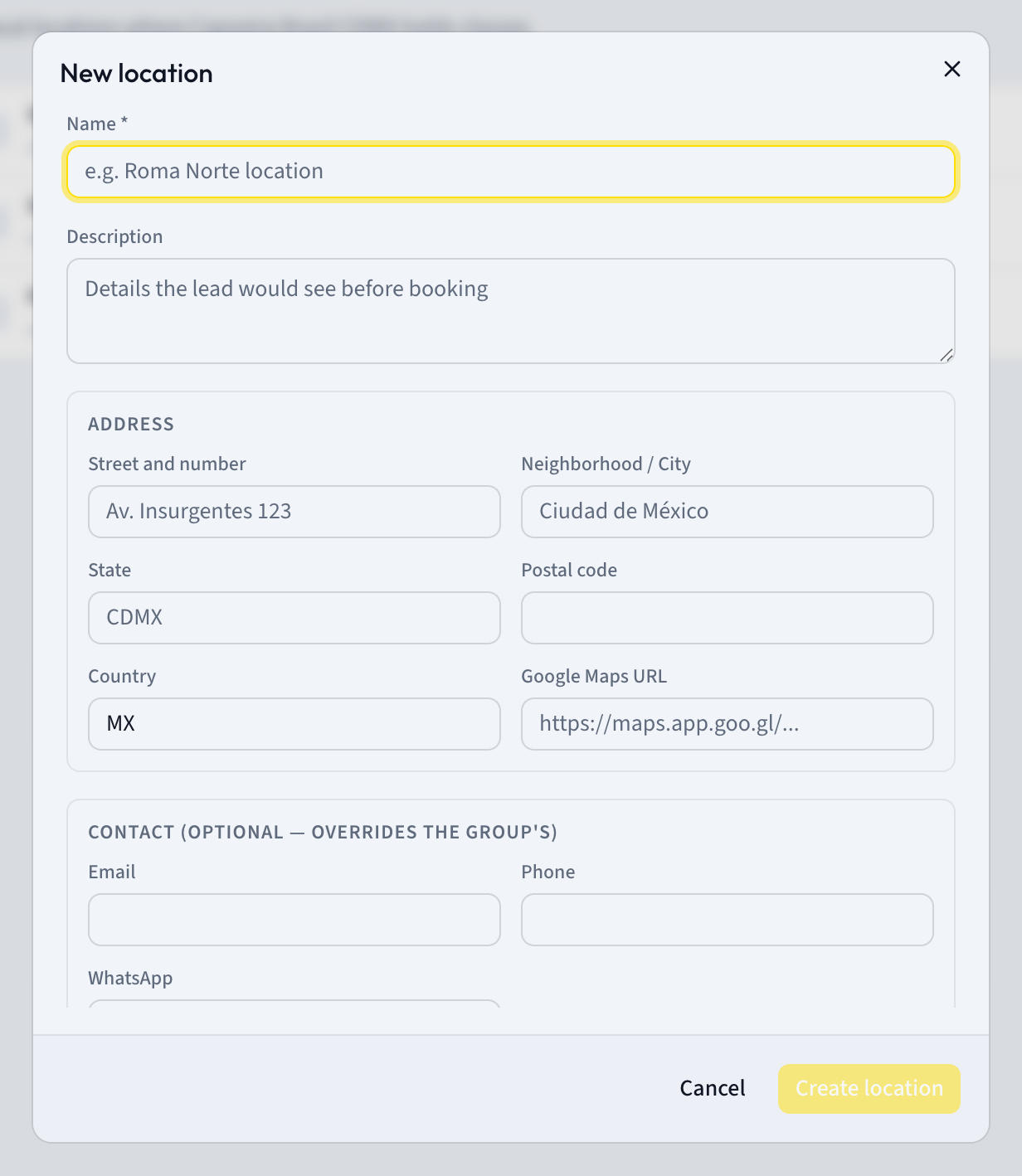
Add the address
Under Address you have Street and number, Neighborhood / City, State, Postal code, Country and Google Maps URL. All of them are optional, but the street, city and state are what appear as the second line of each row in the list — and the Maps link is what a prospect taps for directions after booking.
Country is pre-filled with MX. Change it if you are not in Mexico.
Add contact details only if they differ
The Contact (optional — overrides the group's) section has Email, Phone and WhatsApp. Leave these empty and the group's own contact details are used. Fill them in only when this particular location has its own phone or inbox.
Check the last details, then create
Under Other you have Photo URL (a link to an image, not an upload) and Display order — a number that controls the order of the list, lowest first. Locations with the same number fall back to oldest first.
Active location (visible on the public form) is checked by default. Leave it checked; see below for when to uncheck it.
Click Create location.
What you should see
Your location appears as a row with its name in bold and the street, city and state underneath. Clicking the row reopens the same form as Edit location, where the button becomes Save changes and a Delete button appears.
The Schedules tab is now unlocked, and the New schedule button there is clickable.
Turning a location off instead of deleting it
Uncheck Active location (visible on the public form) and the row keeps an Inactive badge. An inactive location:
- disappears from the location picker on your public booking form, and any attempt to book a class there is refused;
- is still selectable when you edit a schedule, marked
(inactive)in the dropdown; - does not count toward the "at least one active location" rule, so if it is your only location the New schedule button locks again.
Deactivating a location does not hide its classes from the public form — they can still be listed, and the booking only fails at the last step. If you are closing a venue, deactivate the location and uncheck Active schedule (accepts bookings) on each of its classes.
This is the right move for a venue you have paused for the summer. Delete (which asks for confirmation first) is for a location created by mistake.
Troubleshooting
The New schedule button is greyed out even though I have a location. The rule is at least one active location. Reopen the location and check Active location (visible on the public form).
Saving shows a long red database error. You are signed in as staff, or as a member of a different group than the one you are looking at. Only owners and admins can create or edit locations.
A schedule shows "(location deleted)". The location that schedule pointed at was deleted. Open the schedule and pick a location again, otherwise it cannot accept bookings.