See your class reports
Read your attendance rate, spot which classes are emptying out, and message the students who stopped coming.
For group owners, admins and staff · 5 min · Updated 2026-07-30
Once you have been taking attendance for a few weeks, Reports turns those lists into three answers: how full your classes are, which class is losing people, and who exactly has stopped showing up. The last one is the useful one — it comes with a WhatsApp button.
Before you start
- You need to be owner, admin or staff.
- You need saved attendance. Every number here comes from sessions where a list was taken — see Take attendance. Trial bookings are not counted.
Steps
Open Classes → Reports
You can also get here from the View reports button on the Attendance tab.
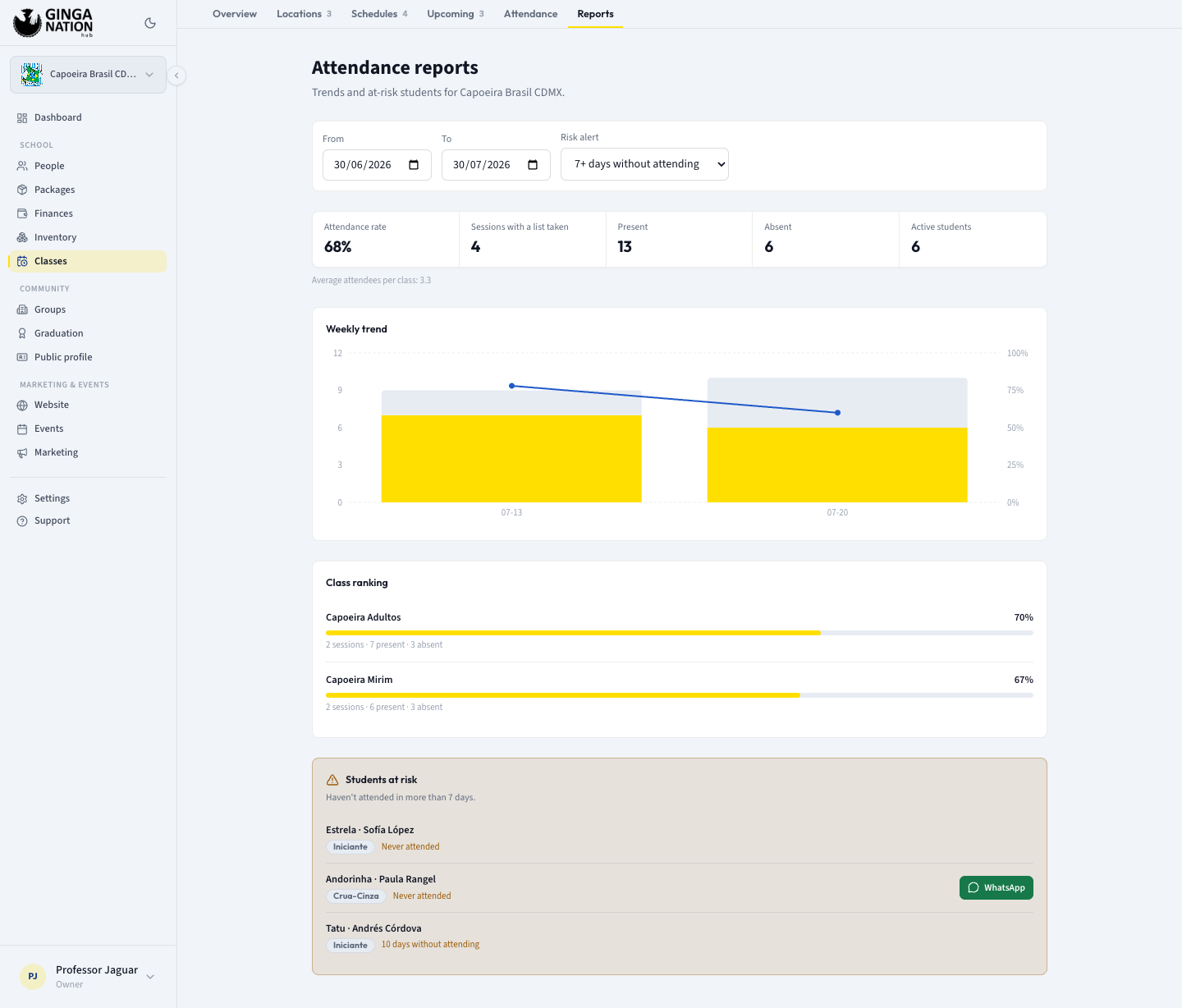
The page opens on From = 30 days ago, To = today, and Risk alert = 7+ days without attending.
Set the period
From and To define the window every number except the risk list is calculated over. To cannot be in the future, and From cannot be after To.
A month is a good default. Set it to a single week when you want to see whether last week was actually as thin as it felt.
Read the five headline numbers
| Number | What it counts |
|---|---|
| Attendance rate | Present ÷ (present + absent) across the period. Unmarked students are not in the maths. |
| Sessions with a list taken | How many class sessions you recorded — not how many you taught. |
| Present | Total present marks in the period, all classes together. |
| Absent | Total absent marks in the period. |
| Active students | Active capoeiristas in the group right now. This one ignores the date filter. |
Under them sits Average attendees per class, which is Present divided by Sessions with a list taken — the honest answer to "how many people are actually in the room".
Attendance rate only knows what you marked. If your habit is to tap All present and never mark absences, the rate is close to 100% and tells you nothing. Marking absences is what makes this page worth reading.
Check the trend and the ranking
Weekly trend stacks present and absent per week as bars and draws the rate as a line on the right axis, so you can see whether a bad week was fewer people or the same people missing more. Weeks are labeled by their start date.
Class ranking lists every class that had at least one recorded session in the
period, best attendance rate first, with a bar and a
sessions · present · absent summary underneath. The class at the bottom is the
one to look at — a low rate with many sessions is a class that is dying; a low
rate with two sessions is probably just a holiday.
Work the Students at risk list
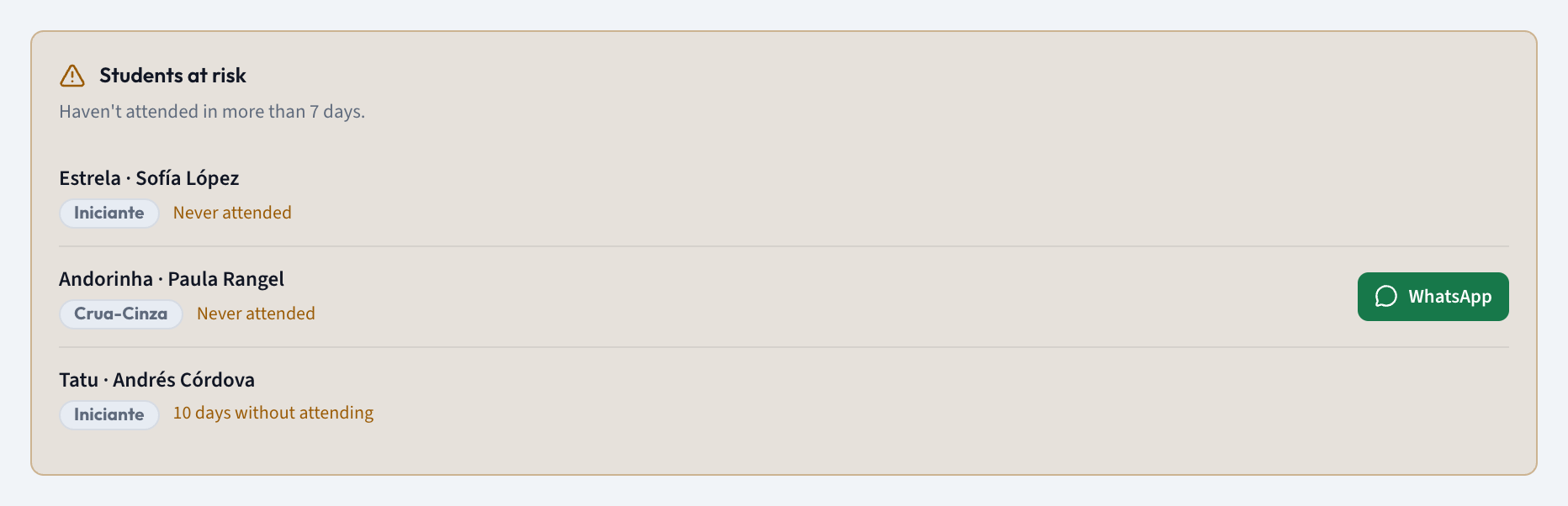
This is the churn list: active students who have not been marked present recently. The heading reminds you of the threshold — Haven't attended in more than 7 days. — and you change it with the Risk alert filter, which offers 3, 7, 14 and 30 days.
Each student shows their name, their graduation, and how long it has been — 9 days without attending — or Never attended if they have never been marked present at all. Longest absence appears first.
Where the student's profile has a phone number, a green WhatsApp button opens a chat with a friendly message already written, asking if everything is okay. Send it, adjust it, whatever — the point is that the follow-up takes one tap.
What you should see
Numbers that move when you change From and To, and a risk list that
shrinks as your follow-ups bring people back. If everything reads — or
No sessions recorded in this range, no attendance was saved in that window —
widen the dates or go take a list.
Where the numbers come from
Two details worth knowing before you act on this page:
- Everything except the risk list is scoped to your date range. The risk list deliberately is not: "days without attending" is measured against the student's whole history, so narrowing the window to one week does not make a student who vanished in March look fine.
- Never attended includes students you only ever marked Absent, and students you enrolled but never marked at all. New enrolments show up here on day one; that is normal, not alarming.
What about upcoming bookings?
The counts of bookings coming your way are not here. Bookings from your public link live on the Upcoming tab, with their own filters and their own statuses, and the Overview tab shows how many are due in the next 7 days. See Offer a trial class.
Keeping the two apart is deliberate: Reports answers "are my enrolled students still coming?", Upcoming answers "who is coming to try us out?".
Troubleshooting
Attendance rate says —. Nothing was marked present or absent inside the
period. It is not a zero — it means "no data".
A student has no WhatsApp button. The number comes from the student's linked profile. Students without a profile, or with an empty phone field, get no button — add their phone in their profile and it appears.
Everyone shows as at risk. Two likely causes: you have not taken attendance in longer than your Risk alert threshold, or you mark attendance in a different group than the one your students belong to. Check the Attendance tab first — if it says no sessions, the risk list is only telling you that.