Take attendance
Open a session, mark each student present or absent, and save the list in under a minute.
For group owners, admins and staff · 5 min · Updated 2026-07-30
Attendance is for your enrolled capoeiristas in your regular classes — separate from the trial bookings in Upcoming. Every session is one schedule on one date, and each student on it is either Present or Absent. Nothing else.
This is the one part of Classes that staff can do end to end, which is the point: whoever is teaching takes the list.
Before you start
- You need to be owner, admin or staff of the group.
- The class must be an active schedule — see Build your weekly schedule.
- Your students must be active capoeiristas in the group. The list builds itself from your roster; there is no per-class enrollment step. See Students & enrollment.
Steps
Open Classes → Attendance
If any of your classes falls on today's weekday, a Today's classes block appears first with those classes and a Today badge. Every active schedule is listed again below, whatever day it runs on.
Each row shows the time range, the class name, the weekday, the location and the level, with a Take attendance button on the right.
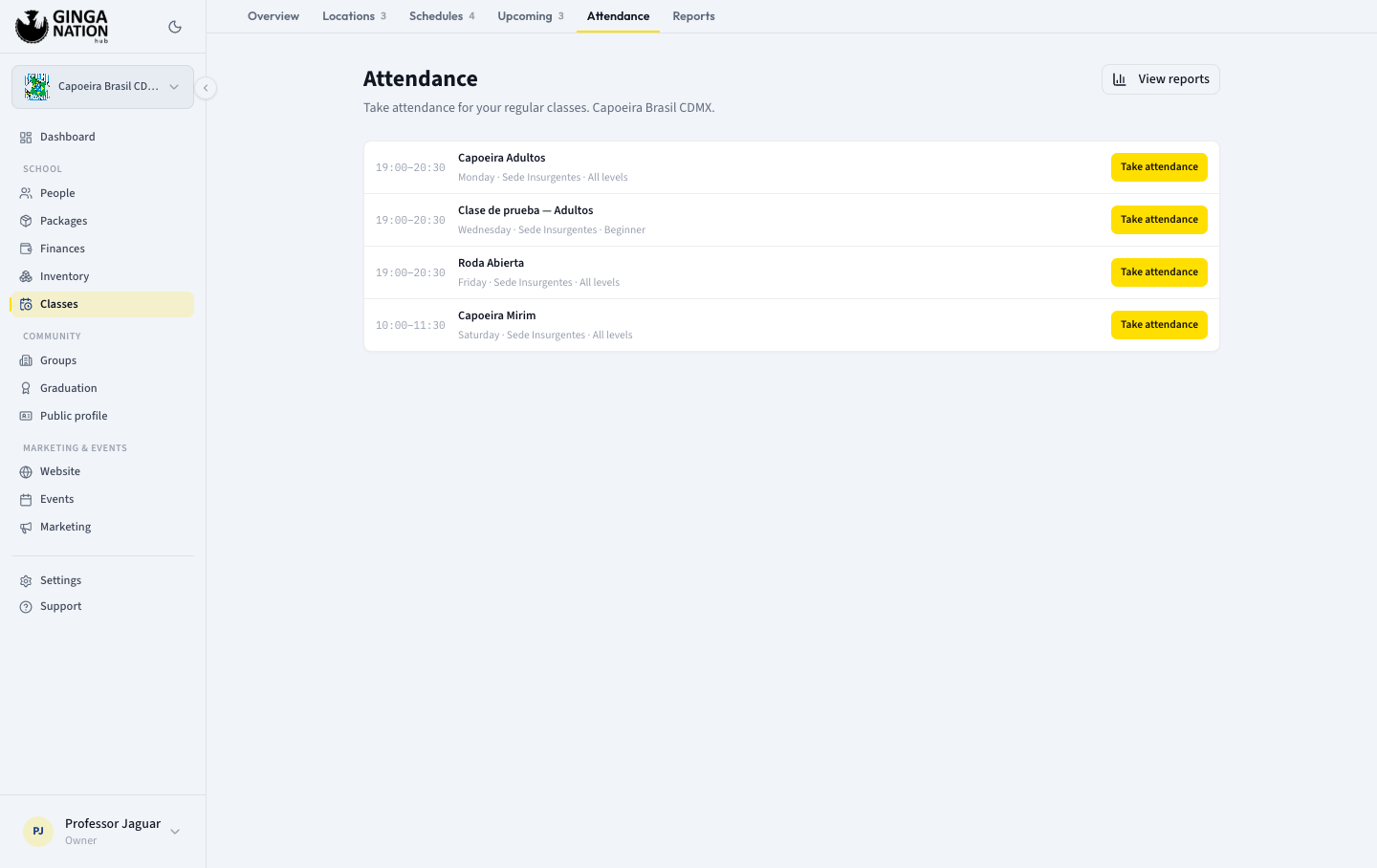
Click Take attendance on the class you just taught
The next screen is the list itself. The class name, weekday, time and location are at the top; Attendance at the top left takes you back.
Session date is pre-filled with the most recent occurrence of that class's weekday — usually exactly the session you just finished. Change it if you are catching up on an older one.
Mark each student
Every active capoeirista in the group is listed with their initials, their apelido and name, and their graduation underneath. On the right, two buttons: Present and Absent.
Tap one to mark the student; tap the same one again to clear the mark and leave them unmarked. Unmarked students are simply not recorded for that session — they count neither as present nor absent.
All present and All absent above the list mark everyone at once, which is the fast path: tap All present, then flip the two or three who did not come.
The footer keeps a running count, for example 3 of 12 marked.
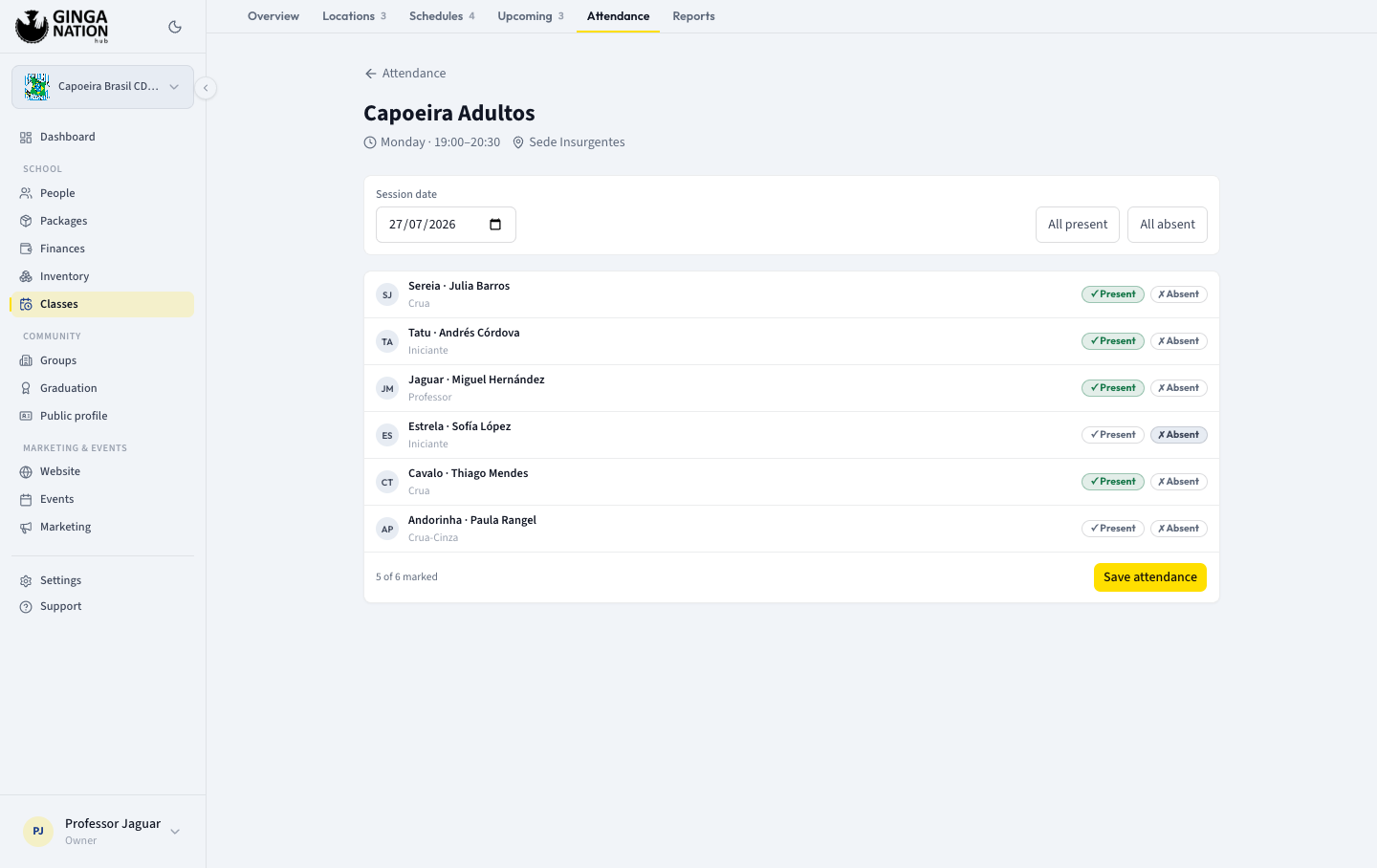
Click Save attendance
You get a confirmation showing how many students were saved, and the list reloads with your marks in place.
What you should see
Reopen the same class on the same Session date and your marks are still selected. Saving again on the same date updates the existing session rather than creating a second one, so correcting a mistake is just: change the mark, save again.
The numbers also start feeding Reports — see See your class reports.
What the statuses mean
There are exactly two, plus "not marked":
| State | Meaning | Counts in your attendance rate |
|---|---|---|
| Present | The student came to that session. | Yes, as an attendance |
| Absent | The student was expected and did not come. | Yes, as a miss |
| Not marked | No record at all for that student and date. | No |
There is no "late" and no "excused". If a student's absence was agreed in advance, either leave them unmarked (so it does not count against your rate) or mark them Absent and treat the difference outside the system — pick one convention and keep it, or your reports will not be comparable month to month.
The session date has to match the class's weekday
A schedule is a weekday template, so an attendance session can only exist on that weekday. Pick a Wednesday date for a Monday class and you get That date isn't a Monday., the student list is replaced by Pick a date that falls on Monday to take attendance., and there is nothing to save.
Today's classes and the pre-filled Session date are worked out from the clock on your device, not the class's time zone. If you are traveling, or your laptop is set to another country, the "today" the page assumes may be a day off from the venue's. Check the Session date before saving.
Troubleshooting
The Attendance tab says there are no active schedules. Only active schedules appear. Go to Schedules, open the class, and check Active schedule (accepts bookings).
The list says there are no active capoeiristas in this group. The roster is built from active capoeiristas of this group, so a school whose students are registered under a different (for example, parent) group shows an empty list. Check the group you are looking at and the students' own group.
Save does nothing. The button is disabled until at least one student is marked; if you tap save with nothing marked you get a "mark at least one student" message.
A trial booking is missing from the list. It will not be there. Prospects who booked through your public link are marked attended or no-show in Upcoming, not here — the two are deliberately separate.