Offer a trial class
Share your public booking link, and handle the bookings that land in the Upcoming tab.
For group owners and admins · 6 min · Updated 2026-07-30
Once you have an active schedule, your group has a public page where a stranger can book a place in one of your classes. You do not build that page — it already exists. Your job is to make sure the right classes are bookable, hand out the link, and then work the bookings that arrive.
Before you start
- At least one active location and one active schedule whose Class type is Trial class or Regular class — see Build your weekly schedule.
- You need to be owner or admin to create schedules and to reschedule a booking. Staff can see bookings and mark them attended, no-show or cancelled.
Steps
Find your booking link
Go to Classes → Schedules. Once you have at least one active schedule, a card appears at the top of the tab showing your public booking URL, with a button to copy it and a button to open it in a new tab. The same card appears on the Overview tab.
The URL is your group's microsite plus /trial-class, for example
roda.ginganation.com/s/your-group/trial-class. That path is the same for
everyone and in every language — the page itself opens in your school's
language (Settings → School → Language), and visitors can switch. Links to
the older /clase-muestra address keep working: they redirect permanently.

The card is only rendered if your group has a microsite address. If you do not see it, set up your public site first — see Your public presence.
Open the link once and check what a prospect sees
The public page walks the visitor through four steps: filters, then day and time, then their details, then a confirmation.
In the first step they enter their age, pick a level and optionally a location. The page then shows only the classes that fit: active schedules of type Trial class or Regular class whose age range and level include them. If your only bookable class is for ages 5–12 and the visitor types 30, they see nothing — that is your Minimum age / Maximum age doing its job.
Then they pick a day and a time, fill in first name, last name, email, phone and an optional note, and tick a consent checkbox. Name, email and the consent tick are required; without the tick the booking is refused.
Share the link where your prospects are
Nothing in your microsite navigation points at this page, so the link only works
if you hand it out: your Instagram bio, a WhatsApp reply, a flyer QR code, a paid
ad. If you add utm_source, utm_medium and utm_campaign parameters to the
URL, they are stored on the booking and shown to you in the booking details, so
you can tell which channel is actually producing students.
Work the bookings in Upcoming
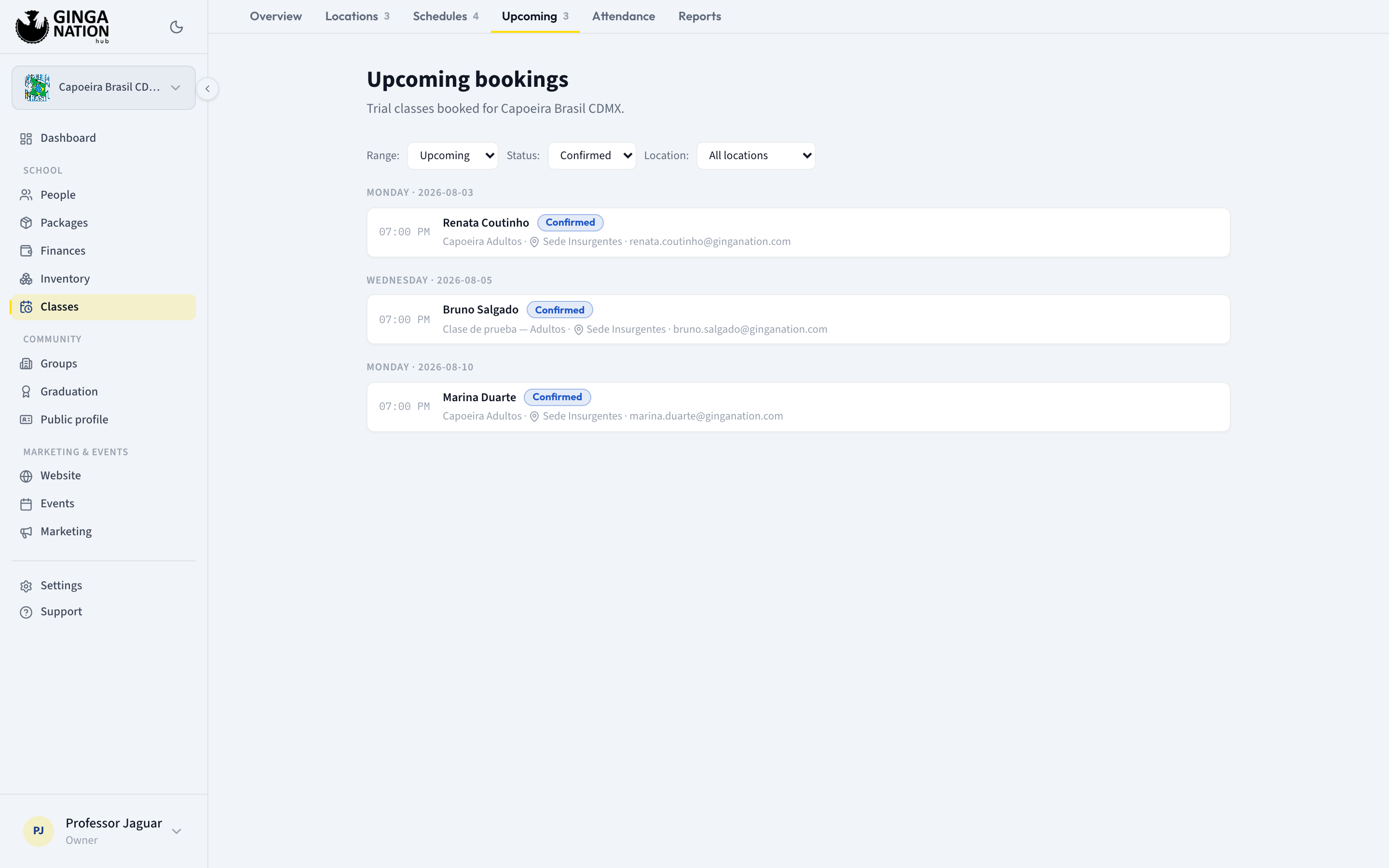
Every booking lands in Classes → Upcoming with the status Confirmed. The tab shows a count of confirmed bookings still ahead of you, and rows are grouped by date with the person's name, the class, the location and their email.
Three filters sit above the list:
- Range — Upcoming, Next 7 days, Past or All dates.
- Status — All, Confirmed, Attended, No-show or Cancelled.
- Location — one location or All locations.
The page opens on Upcoming + Confirmed, so an empty list usually means "nothing booked ahead", not "no bookings ever". Switch Range to All dates to see everything.
Open a booking and record what happened
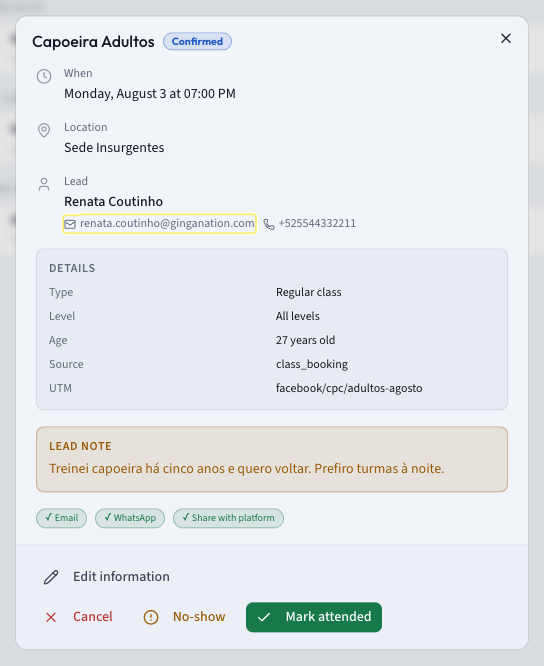
Click any row. A panel opens with When, Location and Lead — the person's name, with their email and phone as tappable links so you can reach them in one click.
Under Details you get the Type, Level, their Age and Requested level if given, the Source, and the UTM if the link carried one. A Lead note appears highlighted if they wrote one. Three small badges show whether they consented to Email, WhatsApp and Share with platform.
After the class, use the buttons at the bottom:
- Mark attended — they came. Status becomes Attended.
- No-show — they did not. Status becomes No-show.
- Cancel — asks for an optional Reason (optional), then Confirm cancellation. The reason is kept on the booking and shown whenever you reopen it.
Once a booking is cancelled the buttons disappear; a cancelled booking is final.
What you should see
A prospect books, and within seconds their row appears in Upcoming as Confirmed. They also become a contact in your group, so the same person booking a second class does not create a duplicate.
Rescheduling a booking
In the booking panel, Edit information opens Edit trial booking. Under Reschedule you can move the booking to a different Class and Date; under Lead information you can correct their Age, Requested level and Notes. Then Save changes.
The date has to fall on the weekday of the class you picked. Choose a Tuesday for a Monday class and you get The chosen date doesn't fall on this class's day (Monday). and the save button stays disabled — pick the class first, then the date.
Rescheduling is owner/admin only.
What the system does and does not do for you
No confirmation email is sent to the prospect. The public page tells them "We've sent you the details by email" and to reply to that email if they need to reschedule, but no such email leaves the platform today. Treat every new booking as a lead you contact yourself — the phone number and email in the booking panel are one tap away. This is a known gap, not something you can switch on in settings.
What the prospect does get on the confirmation screen: the date and time, the location with a directions link, the class name, your For the lead (shown in the confirmation) note, and a button that downloads a calendar file they can add to their own calendar.
Booking dates and times in the Upcoming list and in the booking panel are displayed in Mexico City time, whatever time zone the class is actually in. If you teach outside that zone, read the class's own start time on the Schedules tab as the source of truth.
Troubleshooting
The public page says there are no available times. Check, in order: the schedule is active; its type is Trial class or Regular class; today's date is inside Active from / Active until; the next occurrence falls inside Days ahead to book; and that date is not already at Capacity *. If everything inside the window is full or ineligible, the page offers the first future date it can find instead, flagged as further out than usual.
Someone says the form refused their booking. The usual reasons: they already have a live booking for that same class and date under the same email; the date filled up while they were typing; their age falls outside the class's Minimum age / Maximum age; they were inside the Cutoff (min before start) window for today's class; or the class's location has been deactivated.
Drop-in and Event classes never appear on the link. That is by design. Change the Class type to Trial class or Regular class if you want them bookable.