Issue an invoice
Bill one student for one thing — a month of classes, a uniform, a workshop.
For group owners and admins · 6 min · Updated 2026-07-30
An invoice is a bill: "this person owes me this much, by this date". Creating one moves no money and changes none of your income figures. It only appears in your Pending total and waits to be paid.
Use this when the charge is a one-off. Recurring monthly fees should come from a plan instead, so you are not typing the same bill every month — see Subscribe a student to a plan.
Before you start
- You need to be owner or admin. Staff can see invoices but not create them.
- Decide who you are billing. A Registered client must already exist as a client of your group; anyone else can be billed as a Guest by typing a name.
- If you want tax shown on the bill, or a discount line, configure your rates first — see Set up your billing and tax details.
Steps
Open Finances → Invoices
You land here by default. The filter chips across the top are Open, Paid, Cancelled and All, each with a count. Open is selected and covers three statuses at once: Pending, Overdue and Partial.
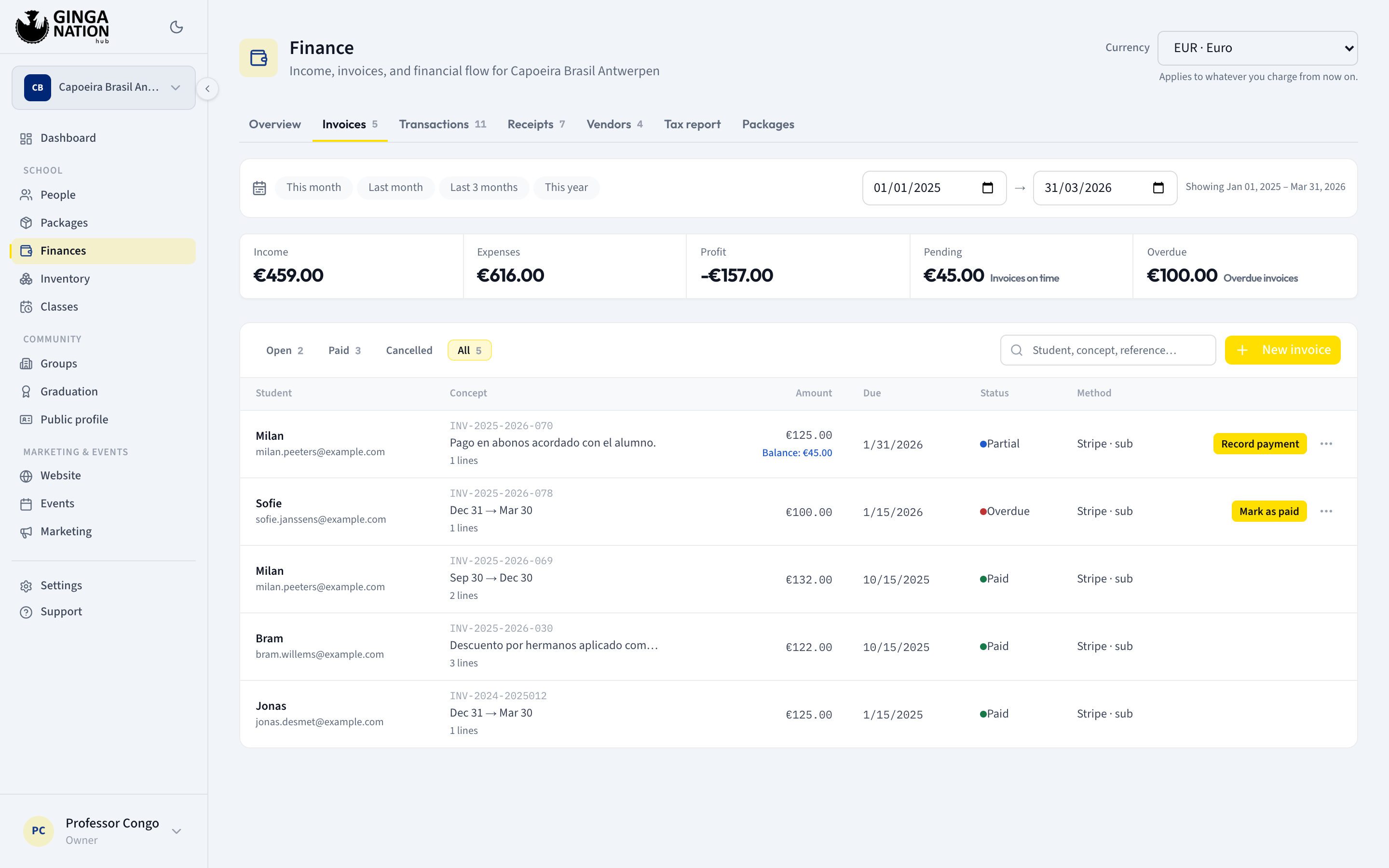
The table columns are Student, Concept, Amount, Due, Status and Method — and Method is not the payment method, which catches everybody once (see the warning below). The search box (placeholder Student, concept, reference…) matches the name, the email, the note and the invoice number — so if you have the printed document in front of you, typing its number finds it.
Click New invoice
The first thing in the dialog is a pair of chips: Single amount and Itemized.
- Single amount — one figure, no breakdown, no tax, and no invoice number. The simplest possible bill.
- Itemized — a small table of lines, each with its own quantity, unit price and tax, and the invoice gets a number. This is the mode covered in Break an invoice into lines.
Which one is preselected depends on your group: if you have configured any tax rate, the dialog opens on Itemized; if you have not, it opens on Single amount.
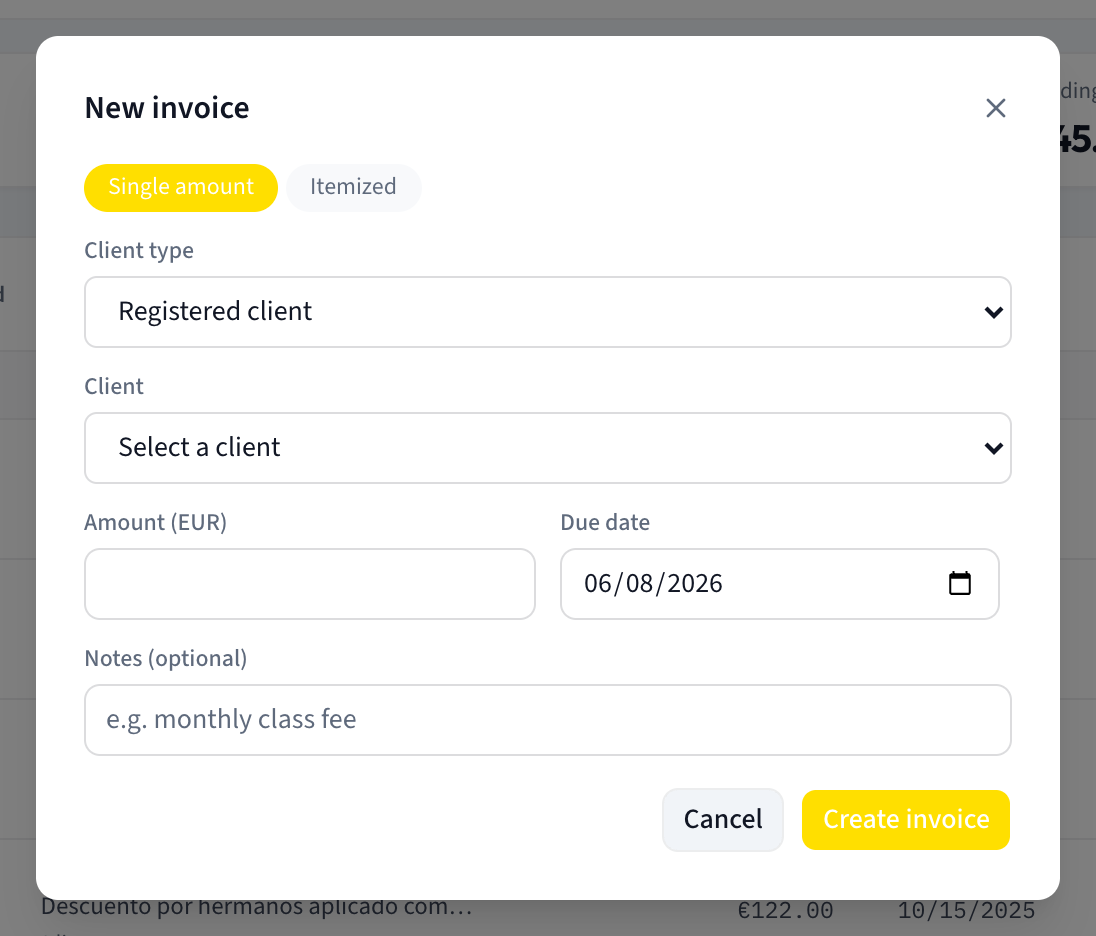
Choose who you are billing
Client type offers two options:
- Registered client — pick from the Client dropdown, which starts on Select a client and lists the clients of your group.
- Guest — type a Name and, if you have it, an Email (optional). The invoice detail later marks this person as a "Customer without a platform account."
A guest invoice is the right tool for a visitor who paid for a single class, or for a parent who is not in your roster.
Enter the amount and the due date
In Single amount mode, fill the Amount field — its label also shows your group's currency code, and that code comes from the group's Currency setting, not from anything you type here.
Due date is prefilled one week ahead. It is what decides whether the invoice turns Overdue on its own later, so put a date you would actually chase.
An invoice created here is stamped with today as both the start and the end of its billing period. The hub gives you no field to say "this is the February fee". That period is what the Invoices list is filtered by, so a bill you type in April for February sits in April. Put the month in Notes if it matters.
Write the note, then click Create invoice
Notes (optional) is, in practice, the concept of the bill: the Concept column shows the note when there is one, and falls back to printing the period dates when there isn't. It also prefills the payment description later, so a note like "July membership" saves you typing it twice.
Click Create invoice — the button reads Saving... while it works. Cancel closes the dialog and creates nothing.
What you should see
A new row under the Open filter with status Pending, your amount, and the
due date you chose. The Method column reads —.
The Method column does not tell you how an invoice was paid. Despite the
name, it is derived from how the bill was set up to be collected, and it never
looks at the payment. It shows Stripe · sub on any invoice generated by a
subscription, Link on any invoice that has had a Stripe link generated for
it, and — on everything else — including an invoice you settled in cash, which
keeps reading — after it is Paid.
The consequence to watch for: a subscription invoice you collected by bank transfer still displays Stripe · sub, because the column only knows that a subscription created it. To find out how money actually arrived, open the Transactions tab — a transaction records a real Payment method, an invoice does not.
If you used Itemized, the row also carries the invoice number in small monospace type above the concept, plus Tax: and an amount when any line had a tax rate, and a count of lines.
The Pending figure at the top of the page goes up by the amount you just billed. Income does not move — nobody has paid anything.
The detail panel
Clicking anywhere on the row (except the buttons at its right edge) opens Invoice details as a panel from the side.
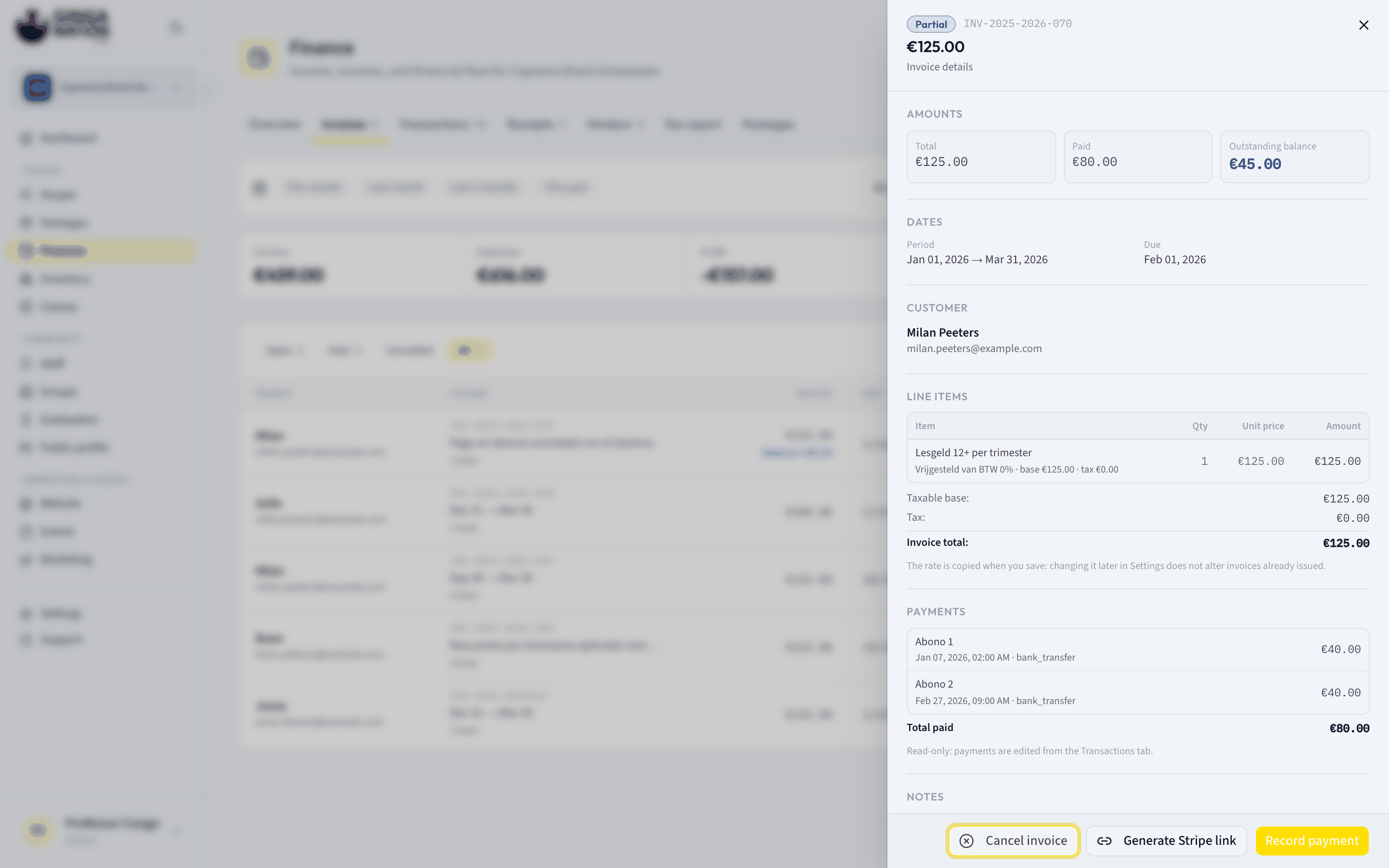
It holds, in order: Amounts (Total, Paid, Outstanding balance), Dates (Period, Due, and Paid on or Cancelled on once they apply), Customer, Line items, Payments, Notes, and Other details (Created, Updated, and Stripe references when there are any).
Two lines in there are worth knowing before you go looking for a button that isn't there:
- Line items reads "This invoice has no line breakdown: it was issued as a single amount." for anything created in Single amount mode.
- Payments reads "Read-only: payments are edited from the Transactions tab." You cannot correct a payment from the invoice.
An invoice imported from another system also shows a Source block with Source system and Original number.
Sharing a card payment link
With the invoice open — or from the ⋯ menu on its row — you get
Generate Stripe link. It creates a payment link for the invoice's exact
amount and copies it to your clipboard; the button then reads Copied!, and
from then on it says Copy Stripe link. The row grows a small link icon and
its Method column reads Link.
This only works if your group has finished connecting a Stripe account that can take charges. Without one you get "No active Stripe account with charges enabled. Complete Stripe onboarding in Settings."
A paid Stripe link does not mark the invoice paid. Nothing in the hub reacts when a student completes a payment through a link generated this way: the invoice stays Pending, no income transaction is written, and no receipt exists. You have to confirm the payment in Stripe yourself and then record it by hand. Automatic settlement happens for card charges driven by a plan, not for these links.
Cancelling an invoice
Cancel invoice appears in the ⋯ menu on the row and at the foot of the
detail panel. It asks "Cancel this invoice?" and shows you who and how much
before you confirm with the red Cancel invoice; Cancel backs out.
The invoice keeps existing with status Cancelled and a Cancelled on date — nothing is deleted. It leaves your Pending and Overdue totals.
Cancelling does not undo payments already recorded against the invoice. Those income transactions stay in the ledger and keep counting toward Income, while the invoice itself stops showing a balance. If a student paid something and you are voiding the bill, delete the payment from the Transactions tab as well, or your income will include money you are no longer claiming.
A Paid invoice cannot be cancelled at all — the buttons do not appear for it, and the server refuses with "Cannot cancel a paid invoice — issue a refund instead."
Troubleshooting
"Invalid amount". The amount must be a number greater than zero. In Itemized mode the same message appears when the lines add up to zero.
"Please select a client." or "Name is required for guest invoices." You switched Client type but did not fill the matching field. Registered invoices need a client picked from the dropdown; guest invoices need a Name.
"Failed to create invoice." The generic fallback when the server refuses. The most common specific cause is a total below zero in Itemized mode — discounts cannot exceed the rest of the lines.
The invoice is not in the list. The Invoices tab is filtered by the date range at the top of the page, matched against the invoice's period — which for a manually created invoice is today. If you were looking at last month, the invoice you just made is outside the window.
The detail panel says "No number". Only invoices created in Itemized mode get a number, and numbering starts from wherever your group's counter already is. A Single amount invoice never gets one, and existing invoices were not given numbers retroactively.