Read your tax report
See the tax you charged and the tax you paid over a period, and understand exactly what the totals count.
For group owners and admins · 7 min · Updated 2026-07-30
The Tax report tab totals the tax figures you put on your own documents over a date range: what you charged on your invoices, what you paid on your expenses, and the difference between the two.
Read the next callout before you read the numbers. It is printed on the screen itself, above the report, every single time.
This report adds up what you configured on your own documents. Ginga Nation does not determine your tax treatment nor issue tax documents: that responsibility is the group's.
That is the whole design of this feature. Every figure below comes from a rate you created, applied to an amount you typed, under a prices-include-tax answer you gave. Nothing here is a filing, a declaration or advice, and no tax authority is involved anywhere. Take it to your accountant, not instead of one.
Before you start
- You need to be owner or admin. The tab is not shown to staff or members.
- Figures only appear where you picked a rate. If your group has no rates set up, the report is empty on purpose — see below.
- The period is the same From / To range as the rest of Finances, so set it before you read anything.
If you have not set up taxes
Most groups will see this first, and it is not an error. The tab shows:
You haven't configured taxes — Your documents will show no breakdown. The rates — and whether your prices already include tax — are defined by your group. — followed by a Configure taxes → link.
That link goes to Settings → Billing, to the Taxes panel described in Set up your billing and tax details.
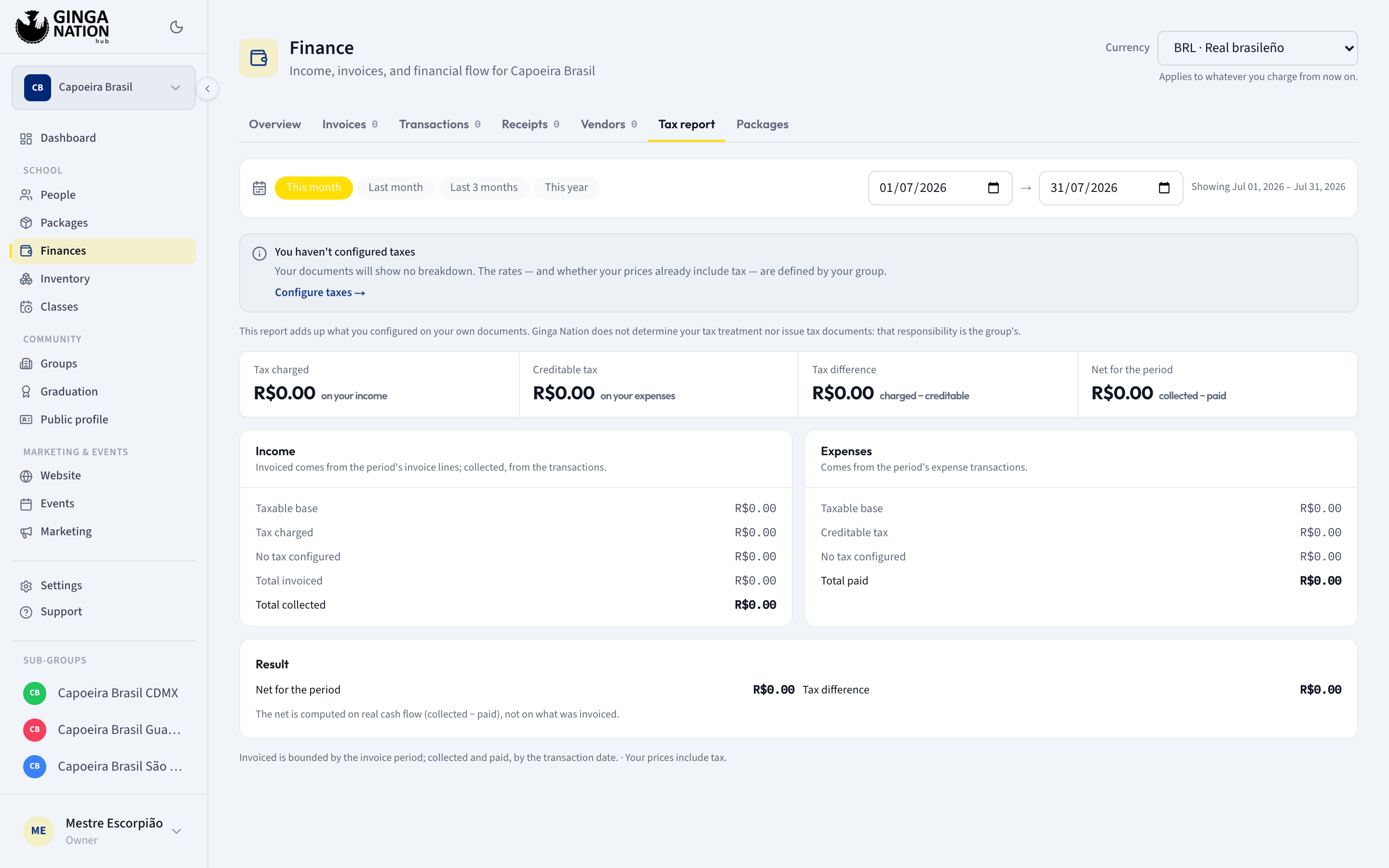
A group that never sets up a rate can keep using Finances indefinitely. There is no nag, no wizard, and no penalty for leaving it alone.
Steps
Open Finances → Tax report
While it works out the figures it shows Calculating….
Set the period with From and To
The date range sits above the report, with quick presets — This month, Last month, Last 3 months and This year — and a line confirming Showing the range in use. The report recalculates whenever you change it.
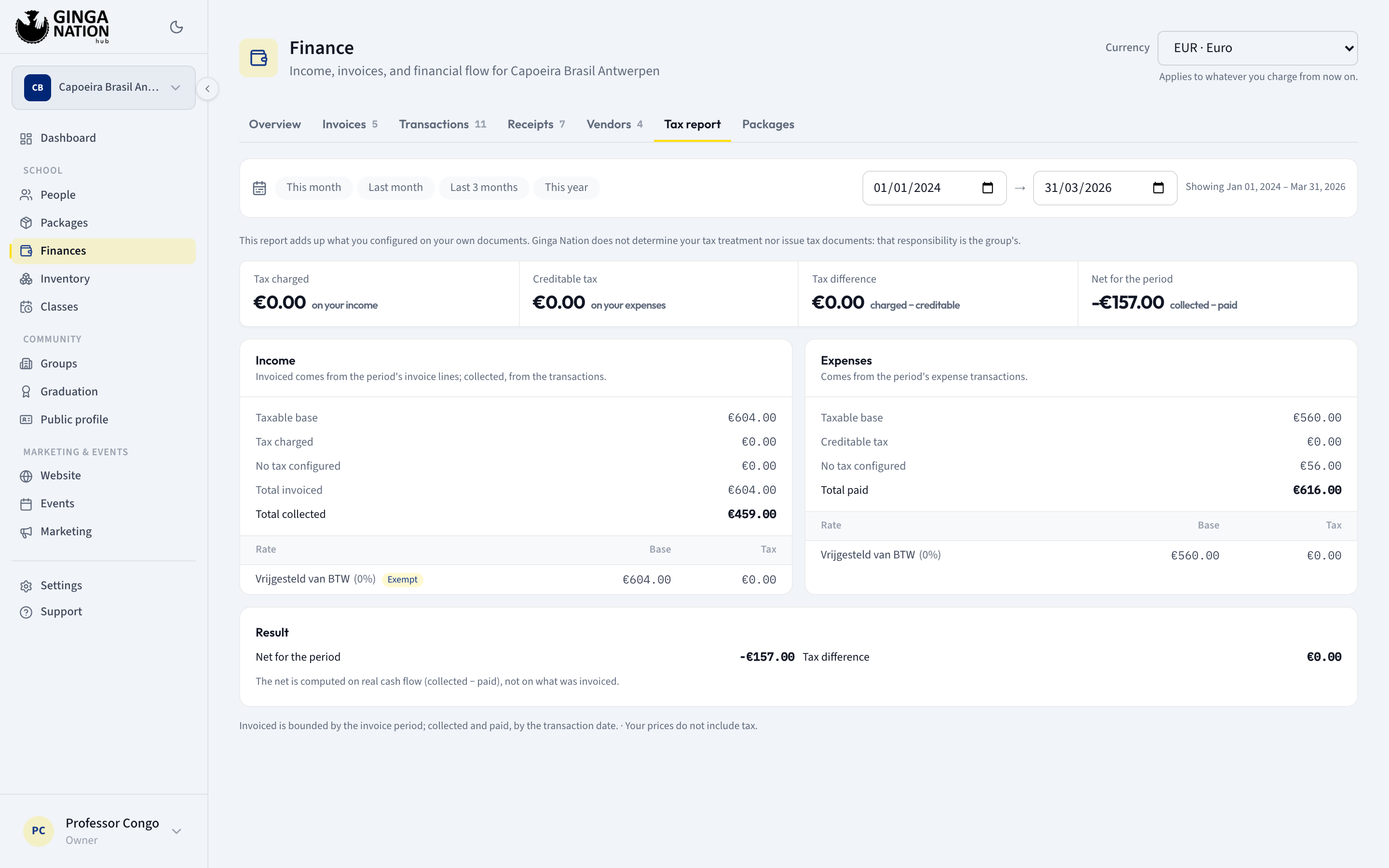
Read the four figures across the top
Each one prints its own definition underneath it:
| Figure | Its own subtitle |
|---|---|
| Tax charged | on your income |
| Creditable tax | on your expenses |
| Tax difference | charged − creditable |
| Net for the period | collected − paid |
Tax difference is a subtraction, not a bill. Whether it is something you owe, something you reclaim, or neither, is not something this screen knows.
Read the two panels
Income — hint: Invoiced comes from the period's invoice lines; collected, from the transactions.
- Taxable base — the base of everything that had a rate.
- Tax charged
- No tax configured — the amounts with no rate on them. Kept separate so base + tax + this adds back up to the total.
- Total invoiced
- Total collected — the money that actually arrived.
Expenses — hint: Comes from the period's expense transactions.
- Taxable base
- Creditable tax
- No tax configured
- Total paid
Read the per-rate breakdown
Under each panel, a small table splits the figures by rate: Rate, Base, Tax. Each row shows the rate name, its percentage in brackets, and — on the income side — a badge for its type: Taxed, Exempt or Zero-rated. A rate saved without a name shows as Unnamed.
The first badge is worth a note: a rate you created as Taxable in Settings → Billing is shown here as Taxed. Two words, one setting — nothing about the rate changed.
The rows come from the snapshot stored on each document, not from your current catalog, so renaming a rate splits it into two rows from that day on: the old name for old documents, the new one going forward.
The Expenses breakdown does not print the type badge — only the income side does.
Read Result
The Result panel repeats Net for the period and Tax difference, with the hint that matters most: The net is computed on real cash flow (collected − paid), not on what was invoiced.
An invoice you issued and nobody has paid does not move the net. It does move Total invoiced and Tax charged.
Which dates the report uses
There are two different clocks here, and the report says so at the bottom: Invoiced is bounded by the invoice period; collected and paid, by the transaction date.
| Figure | Dated by |
|---|---|
| Total invoiced, Tax charged, income Taxable base | the start of the invoice's period — not the due date, not the day you created it |
| Total collected | the date on the income transaction |
| Total paid, Creditable tax, expense Taxable base | the date on the expense transaction |
Two consequences:
- A membership invoice for a period starting just outside your range does not appear, even if you issued it and got paid inside the range. Widen the range rather than hunting for the row.
- The invoiced side and the collected side will rarely match. That is the point of showing both.
Cancelled invoices are left out of the report entirely.
Below that line, the report also restates your group setting — either Your prices include tax. or Your prices do not include tax. — because that single answer determines how every base and tax figure above was split.
Working in more than one currency
If the period contains documents in more than one currency, an amber warning appears: This period mixes more than one currency (…): the totals are not comparable. — with the currencies it found listed in the brackets.
Take it literally. The report does not convert anything. It adds the numbers together as if they were the same unit, so a total spanning two currencies is arithmetic on incompatible amounts — meaningless, not merely approximate. The warning lists which currencies it found.
If your group has ever changed currency, or you handle money in more than one country, narrow the range until the warning disappears and read one currency at a time.
The warning appears above the four figures, so you cannot read the totals without having seen it first. If it is absent, every document in the range is in a single currency and the totals add up to something real.
What the report does not do
- No export. There is no download or export button, by design — not a missing feature you should look harder for. If your accountant needs the detail, read it off the Invoices and Transactions tabs.
- No filing, no submission, no authority. Nothing here is sent anywhere.
- No opinion on your rates. The Type you gave a rate — Taxed, Exempt, Zero-rated — is carried onto the document and shown as a badge. The totals themselves are sums of the amounts you entered.
- No retroactive fixes. Changing a rate today does not change what an old invoice contributed. See Break an invoice into lines.
Who can do what
| Task | Owner | Admin | Staff |
|---|---|---|---|
| See the Tax report tab | Yes | Yes | No |
| Change the period | Yes | Yes | No |
| Follow Configure taxes → and add a rate | Yes | Yes | No |
Troubleshooting
Could not compute the tax report. The figures could not be calculated. Check that From is not later than To, then reload.
Everything sits under "No tax configured". Your documents carry no rate. Rates only apply to documents created after the rate exists and only where you picked one — nothing is applied retroactively.
Tax charged looks too low for what I billed. Two likely causes. Either the invoices in question were issued as a single amount rather than itemized, so they carry no tax at all; or their period starts outside your date range. Check Total invoiced first — if that is also low, it is the date range.
Net for the period doesn't match Total invoiced minus Total paid. It is not supposed to. The net uses Total collected, not Total invoiced — unpaid invoices are excluded from it on purpose.
The same rate shows twice in the breakdown. You renamed or re-created it. The breakdown groups by the name and percentage frozen onto each document, so the old and new versions are separate rows.
An expense's tax looks wrong. When you pick a rate on a transaction, the checkbox The amount already includes tax decides whether the tax is carved out of the amount or calculated on top of it — for that transaction only. Open the transaction and check it.