Choose how you bill
Decide whether you collect tuition by hand or let a saved card be charged automatically.
For group owners and admins · 5 min · Updated 2026-07-30
Before you create a single plan, decide how the money is going to reach you. The hub supports two ways of collecting tuition, and you pick one per student, not once for the whole school — the choice lives on each subscription, so the same group can have half its students paying cash and the other half on a card.
This page explains the difference, what each one needs from you, and what happens on its own once it is running. The mechanics of creating a subscription are in Subscribe a student to a plan.
Before you start
- You need to be owner or admin of the group. Staff cannot open Packages at all — see the role table below.
- You need at least one plan. See Set up your plans.
- For the card option only: a Stripe account connected to your group under Settings → Integrations → Stripe Connect, with the status badge reading Active. See Set up your billing and tax details.
The two modes
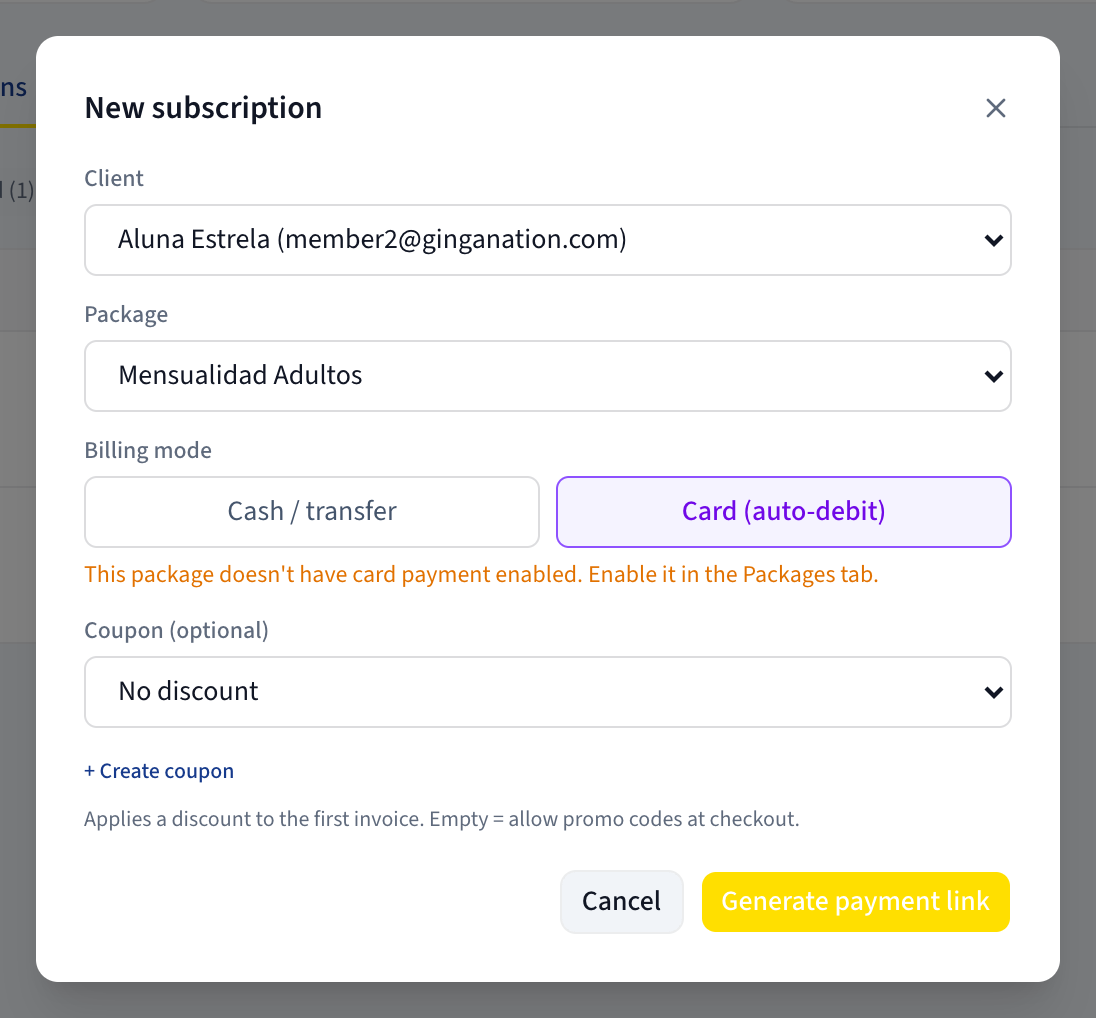
When you click New subscription you get a Billing mode choice with exactly two buttons:
| Cash / transfer | Card (auto-debit) | |
|---|---|---|
| Who takes the money | You, in person or by bank transfer | Stripe, from the student's saved card |
| Who creates the bills | Ginga Nation, once a day | Stripe, on its own schedule |
| Who marks them paid | You, by hand in Finances | Automatic, when the card clears |
| Needs a Stripe account | No | Yes |
| Needs the student to do something | No | Yes — open a link and enter their card |
| What you set up front | Billing day, Start, optional custom price | Nothing except an optional coupon |
Cash / transfer — you stay in control of every step
This is the default and the simpler of the two. Nothing is ever charged to anybody. A daily job on our side creates the bills; settling them is your job.
Once a day, for every Active subscription in this mode, Ginga Nation:
- Creates any invoice that should exist by today and does not yet, based on the plan's cadence, the subscription's Billing day and the plan's Due (days after start).
- Flips any invoice whose due date has passed from Pending to Overdue.
It never creates the same period twice, so a period that already has an invoice is left alone. The invoices land in Finances → Invoices, where you record what you actually received — see Record a payment.
The daily run happens at 06:00 UTC. In practice that means the new month's invoices are waiting for you first thing in the morning; they are not created the instant you press anything.
Card (auto-debit) — Stripe charges the student
Here you never touch the money either, but for the opposite reason: Stripe owns the whole cycle. You generate a payment link, the student opens it and pays with their card, and from that moment Stripe charges the same card every period, retries failures, and sends its own receipts.
What that means concretely:
- The first charge happens when the student opens the link and pays, not on your billing day. The billing anniversary is set by that first payment — a student who pays on the 17th is charged on the 17th from then on. Billing day and Start are not even shown for this mode, because they would be ignored.
- If the plan has an Enrollment fee, it is added to that first payment only.
- Nothing appears in the hub until the student actually pays. Generating the link creates no subscription and no invoice — see the warning in Subscribe a student to a plan.
- Every charge Stripe collects afterwards shows up in Finances as an invoice already marked Paid, with a matching income entry. A charge that fails shows up as Overdue.
- The link expires in 24 hours.
Pausing or cancelling a card subscription in the hub does not stop Stripe. The Pause and Cancel buttons on the Subscriptions tab only change the row you see in Ginga Nation. Nothing in the platform ever tells Stripe to stop, so the student's card keeps being charged every period — and the next event Stripe sends can flip your row back to Active.
To actually stop the money, cancel the subscription in the Stripe dashboard: Settings → Integrations → Stripe Connect → the View in Stripe icon on your account, then cancel it there. Then cancel it in the hub too, so the two agree.
The third case nobody names: a saved card on a cash subscription
There is a middle path that is easy to fall into by accident. On the Subscriptions tab, a Cash / transfer subscription shows a Set up button in the Auto-charge column. That button produces a Card setup link — the student opens it and saves a card, without paying anything right then.
From that moment the subscription is still labelled Cash / transfer, but it is no longer manual: on the day an invoice for it is created, the same daily job charges that saved card automatically, off-session. If the card declines it tries again roughly a day later, up to three attempts, and then marks the invoice Overdue.
Send a Card setup link only if you intend the card to be charged. There is no button anywhere in the hub to remove a saved card from a subscription — once it is on there, that subscription is auto-charging. Removing it means cancelling the subscription and creating a new one.
Check your Income figure against these invoices before you trust it. Unlike a Card (auto-debit) subscription, an invoice settled by this daily auto-charge appears to flip straight to Paid without a matching entry in Transactions — which would mean the money is missing from Income, Profit, the Receipts tab and the Tax report, even though the card was charged and the bill reads Paid.
We have confirmed this in the platform's code but have not yet been able to reproduce it on a live account, so treat it as a thing to verify rather than a certainty. If you use saved cards on Cash / transfer subscriptions, compare a month's Paid invoices against that month's income in Transactions. If a payment is missing, record it by hand (Record a payment) so your books and your receipts are complete, and tell Ginga Nation which invoice it was.
Which one should you pick
Nobody at Ginga Nation can answer that for you — it depends on how your school already collects money and on what your students are used to. What the software can tell you is what each one costs you in effort:
- Cash / transfer asks for a few minutes a month: open Finances, find the invoices, record what came in. It works with no Stripe account, no card data, and no student cooperation.
- Card (auto-debit) asks for one link per student, once, and then nothing. In exchange you give up control of the timing, you need a connected Stripe account, and stopping a subscription means going into Stripe.
Both write into the same place, so your Finances numbers are complete either way.
Can you switch a student from one to the other?
There is no switch. Billing mode is chosen when the subscription is created and there is no control anywhere to change it afterwards.
Moving someone across means ending one subscription and creating another:
- Cash → card: cancel the existing subscription first, then create a new one in Card (auto-debit) mode. Do this in that order. The hub refuses two live subscriptions for the same person on the same plan, so if the old one is still Active or Paused when the student pays the link, their payment goes through in Stripe and the subscription never appears in the hub.
- Card → cash: cancel it in the Stripe dashboard first (see the warning above), then cancel it in the hub and create a fresh Cash / transfer subscription.
Unpaid invoices already generated are not touched by any of this. Cancelling a subscription leaves its open invoices sitting in Finances → Invoices; cancel them there if you do not intend to collect them.
Who can do what
| Task | Owner | Admin | Staff |
|---|---|---|---|
| Open Packages (both tabs) | Yes | Yes | No |
| Create a subscription in either mode | Yes | Yes | No |
| Generate a Card setup link or a payment link | Yes | Yes | No |
| Pause, resume or cancel a subscription | Yes | Yes | No |
| See invoices in Finances → Invoices | Yes | Yes | Yes |
Staff do not get a polite "no permission" screen on Packages — the page fails to load with the error You don't have permission to manage this group's school. Tuition setup is an owner/admin job.