Set up your billing and tax details
Fill in who you are on your documents, and add the tax rates your group uses — if it uses any.
For group owners and admins · 7 min · Updated 2026-07-30
Two different places. Everything on this page happens in Settings → Billing. What you set up here — your issuer details and your tax rates — then shows up in the Finances area, on your invoices, receipts and tax report.
One screen holds two different things: who your group is on the documents it sends, and which tax rates your group uses. This is also the answer to the question the tax report asks — its Configure taxes → link lands right here.
Nothing on this screen is filled in for you. Ginga Nation ships no rates for any country, no suggested percentage, and no assumption about whether your prices include tax. A group that sets up nothing here keeps working exactly as before: no tax column, no breakdown, no tax report figures. That is a normal, supported state — not an unfinished setup.
Everything you type here is arithmetic you own. Ginga Nation does not decide whether your classes are taxable, at what rate, or whether you owe anything — that is a conversation for you and your accountant. The platform only adds up what you enter.
Before you start
- You need to be owner or admin. Staff and members who open the screen see only the line Only the owner or an admin of this group can view and edit its billing details.
- Know how your group actually invoices before you add a rate. You will be asked one question you cannot skip — whether your listed prices already include tax — and the answer changes what every future breakdown means.
- You do not need any of this to send invoices. Invoices without lines and without tax keep working; see Issue an invoice.
Steps
Open Settings → Billing
In the sidebar, click Settings, then the Billing tab. The page is titled Billing, with the subtitle Details printed on the proformas you send to your registrants.
It has three panels, top to bottom: Issuer details, Bank transfer and Taxes.
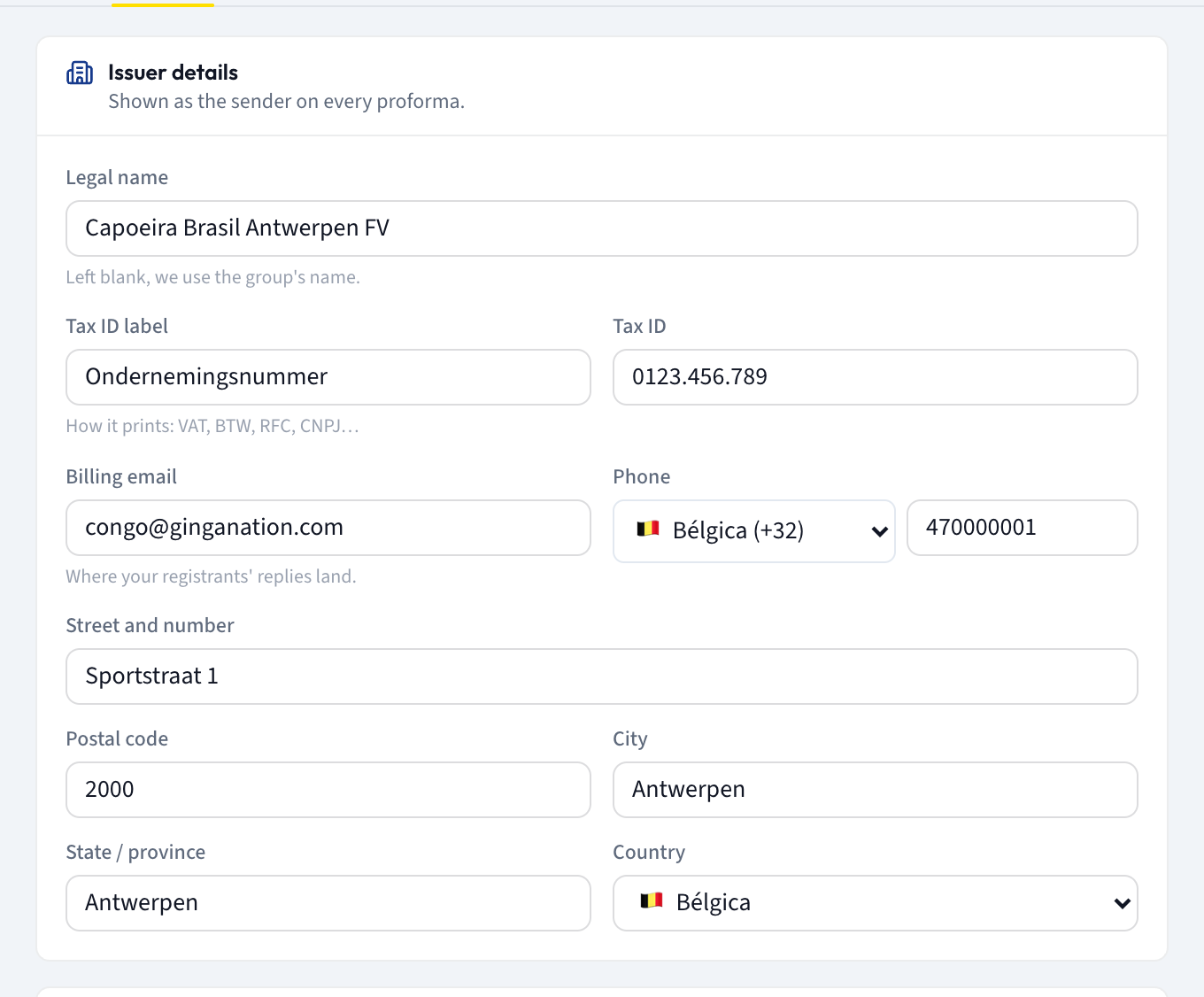
Fill in Issuer details
This is your group's identity as it prints on documents. The panel hint reads Shown as the sender on every proforma.
- Legal name — the registered name of your school or association. The hint says Left blank, we use the group's name.
- Tax ID label — what your number is called where you are. The hint reads How it prints: VAT, BTW, RFC, CNPJ…, and whatever you type is the label printed next to the number.
- Tax ID — the number itself, free text. It is not checked, not validated and not sent anywhere.
- Billing email — hint: Where your registrants' replies land.
- Phone — pick your country from the flag dropdown, then type the number.
- Street and number, Postal code, City, State / province, Country.
The greyed-out text inside these fields is placeholder text, not a suggestion — none of it is saved unless you type over it.
Scroll to Taxes and click Set up taxes
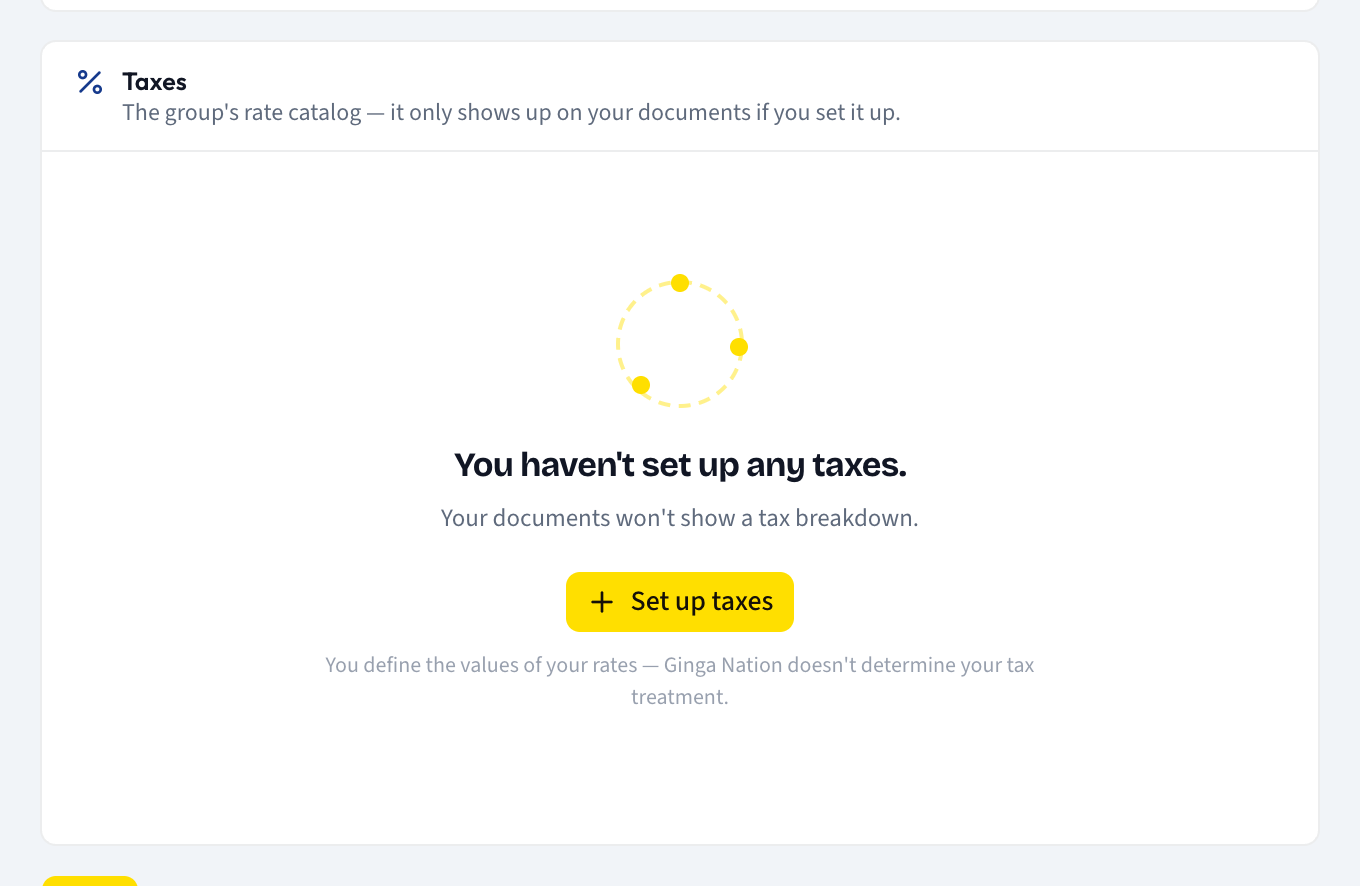
The Taxes panel hint reads The group's rate catalog — it only shows up on your documents if you set it up.
Until you add a rate, the panel shows an empty state: You haven't set up any taxes. with the hint Your documents won't show a tax breakdown., a Set up taxes button, and the line You define the values of your rates — Ginga Nation doesn't determine your tax treatment.
Answer Do your prices already include tax?
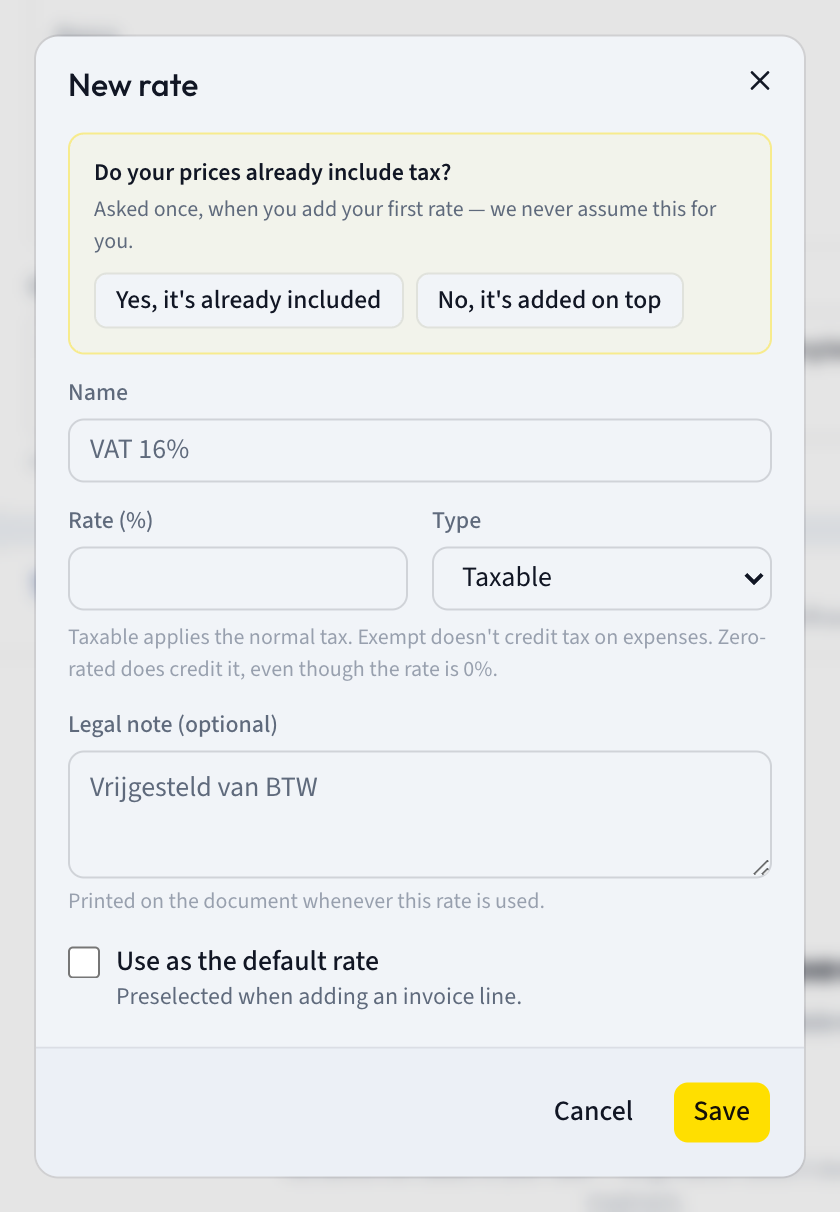
Because this is your first rate, the dialog opens with this question at the top, above the rate fields. Its hint reads Asked once, when you add your first rate — we never assume this for you.
Pick one:
- Yes, it's already included — your listed prices are the final amount, tax inside.
- No, it's added on top — your listed prices are before tax.
You cannot save the rate without answering; the dialog shows Pick an option before continuing. if you try. Read What the answer changes below before you pick — it is the single setting most likely to make your figures wrong.
Describe the rate
- Name — free text: whatever you call this rate on your own documents. The greyed-out example in the field is a placeholder, not a recommendation.
- Rate (%) — a number between 0 and 100, up to two decimals.
- Type — Taxable, Exempt or Zero-rated. The hint under the field reads Taxable applies the normal tax. Exempt doesn't credit tax on expenses. Zero-rated does credit it, even though the rate is 0%.
- Legal note (optional) — hint: Printed on the document whenever this rate is used. Use it for the wording your own rules require.
- Use as the default rate — hint: Preselected when adding an invoice line. Only one rate can hold this at a time.
Click Save. A Rate saved confirmation appears.
Save the rest of the page
The tax panel saves on its own — the rate dialog and the yes/no buttons write immediately. The Issuer details and Bank transfer panels do not: click Save at the bottom of the page for those. A Saved marker appears next to the button and a Billing details saved message confirms it.
What you should see
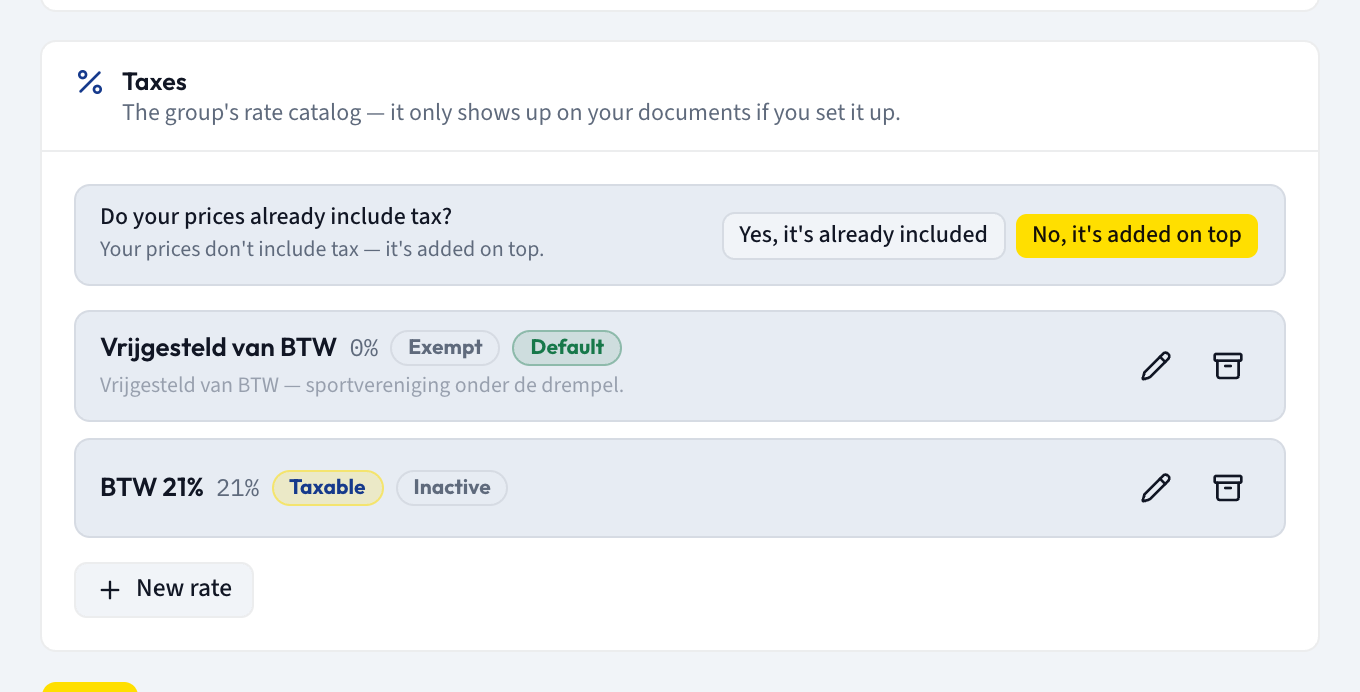
The Taxes panel now lists one row per rate: the name, the percentage, a badge for the Type, a Default badge if you set it, an Inactive badge if it is archived or switched off, and the legal note underneath. Each row has Edit and Archive icons on the right, and a New rate button sits below the list.
Above the list, a row now shows the question Do your prices already include tax? with your current answer spelled out — either Your prices already include tax. or Your prices don't include tax — it's added on top. — and Yes, it's already included / No, it's added on top buttons so you can correct it. Changing it shows Preference saved.
From here on, a Tax column appears in the invoice line editor and a Tax picker appears on transactions — see Break an invoice into lines — and the Tax report tab starts showing figures.
What the answer changes
This is worth reading twice, because the two answers produce different numbers from the same typed amount.
| Yes, it's already included | No, it's added on top | |
|---|---|---|
| What your typed amount means | the final amount, tax inside | the amount before tax |
| Taxable base | amount ÷ (1 + rate) | the amount itself |
| Tax shown | amount − base | amount × rate |
| Invoice total | your typed amount | your typed amount |
The tax is never added to the invoice total. Look at the last row of that table: the total is the sum of your line amounts, in both cases. With No, it's added on top the line editor says so outright — Your prices are recorded WITHOUT tax included: the tax is shown as an informational breakdown and is not added to the invoice total.
So if you charge a price plus tax and you want your student to pay the higher figure, you have to type the higher figure yourself. Picking No, it's added on top does not make the platform bill more.
An unanswered question behaves like No, it's added on top in the arithmetic — which is another reason the first rate cannot be created until you answer.
Overriding it for one transaction
An expense usually arrives with the tax already inside the amount you paid, even when your own classes are priced without it. So when you pick a Tax rate on a transaction, a checkbox appears: The amount already includes tax. It applies to that one transaction only and does not change the group setting.
Rates on recurring billing
A package can carry a rate, so automatic billing produces the same breakdown as a hand-made invoice. In the package editor the field is Tax, with No tax as the first option, and the hint Applied to every invoice this package generates, including automatic billing. With no rates configured, that same hint reads This group has no tax rates configured yet. Set them up under Settings → Billing.
Who can do what
| Task | Owner | Admin | Staff |
|---|---|---|---|
| Open Settings → Billing | Yes | Yes | No |
| Edit Issuer details | Yes | Yes | No |
| Add, edit or archive a tax rate | Yes | Yes | No |
| Answer Do your prices already include tax? | Yes | Yes | No |
| See the Tax report tab in Finances | Yes | Yes | No |
Editing a rate, and what happens to old documents
Nothing you change here rewrites a document you already issued. When you use a rate on an invoice line or a transaction, its name, percentage and type are copied onto that document. The line editor states it: The rate is copied when you save: changing it later in Settings does not alter invoices already issued.
Consequences worth knowing:
- Correcting a percentage affects only documents issued after the change. Old ones keep the figures they were issued with. This looks like a bug and is not.
- Renaming a rate does the same, which means the tax report's rate breakdown groups by the name and percentage that were copied at the time. Rename a rate and you will see the old name and the new one as two separate rows for the same underlying rate.
- Archiving a rate does not touch documents that used it.
Archive fires on the first click. The archive icon on a rate row has no confirmation step — one click and the rate is archived, with a Rate archived message. It stops being offered on new documents, and there is no un-archive button on this screen. To bring one back you re-create it, and the new one is a separate rate as far as the report's breakdown is concerned.
To retire a rate more gently, open Edit rate instead and uncheck Active rate. It stays in the list with an Inactive badge and stops being offered on new documents, but documents that already reference it still show it.
Troubleshooting
I can't save my first rate. You have not answered Do your prices already include tax?. The dialog says Pick an option before continuing. The message Before your first rate, tell us whether your prices already include tax. means the same thing.
Rate must be a number between 0 and 100. The Rate (%) field is a percentage, not an amount. An exempt rate is normally entered as 0 with the Type set to Exempt.
I set a second rate as the default and the first one lost its badge. Only one rate can be the default at a time; setting a new one clears the old.
I set up rates but Finance still shows no breakdown. The Tax column only appears on documents you create after the rates exist, and only where you pick a rate. Documents issued before are unchanged by design.
Only the owner or an admin of this group can view and edit its billing details. You are signed in as staff or a member. Ask an owner or admin to make the change.