Record a payment
Mark an invoice paid, take money in instalments, and log what you spend.
For group owners and admins · 7 min · Updated 2026-07-30
This is the page where your books actually change. Every figure in Finances except Pending and Overdue is built from transactions, and transactions only exist because somebody recorded them.
There are two ways to put money in the ledger, and they are for different situations:
- Mark an invoice paid with Mark as paid — when a bill already exists. Do it this way whenever you can; it keeps the bill and the money tied together.
- Create a transaction with New transaction — when there is no bill: an expense, or income that was never invoiced.
Before you start
- You need to be owner or admin. Staff cannot see the Transactions tab's contents, let alone write to it.
- Know the date the money actually moved. Everything on the Transactions, Receipts and Tax report screens is organized by that date, not by when you typed it in.
- Recording income also produces the student's receipt, so record it before they ask for proof — see Share a receipt.
Steps
Mark an invoice paid
In Finances → Invoices, every invoice that is Pending, Overdue or Partial carries a yellow button at the right of its row. It reads Mark as paid normally, and Record payment when the invoice is already Partial. The same button sits at the foot of the invoice's detail panel.
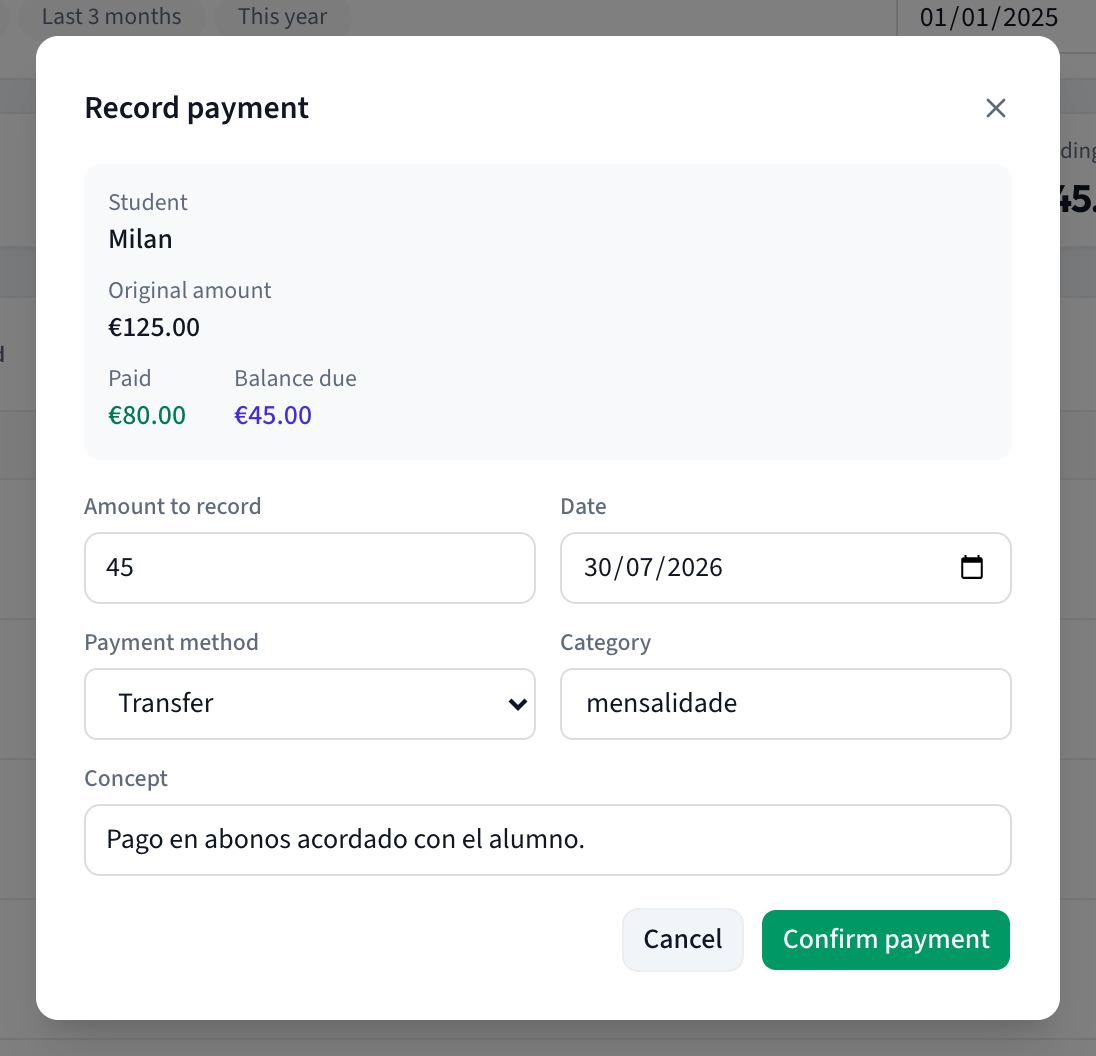
The dialog shows you the Student and the Original amount first, and — if anything has been paid before — Paid and Balance due beside each other. Then five fields:
- Amount to record — prefilled with the outstanding balance, not the total. Leave it alone to settle the invoice; lower it to record an instalment.
- Date — the day the money moved. Prefilled with today.
- Payment method — Transfer, PIX, Cash, Card, Stripe or Other. Transfer is preselected.
- Category — free text with suggestions. It is prefilled with
mensalidadeand the suggestion list ismensalidade,aluguel,água/luz,internet,equipamento,uniformes,salários,marketing,viagem,imposto,outro. That list is hardcoded in Portuguese and Spanish and is not translated yet — you can type over it with whatever wording you use. - Concept — prefilled from the invoice's note. This is what the student sees on their receipt, so make it read like a sentence.
Confirm with Confirm payment. If you lowered the amount, the button instead reads Record payment and a blue hint above it tells you what balance will remain.
Understand what that click did
One click wrote one income transaction for the amount, the date, the method and the concept you gave — and nothing else. The hub then recalculated the invoice from its transactions:
- payments add up to the total → the invoice becomes Paid and gets a Paid on date
- payments add up to less → the invoice becomes Partial and keeps a balance
- there are no payments left → it falls back to Pending, or Overdue if its due date has passed
That recalculation is the only thing that ever sets an invoice's status. It is also why the same invoice can be paid across as many instalments as you like: repeat this step, and each payment is its own row in the ledger with its own date and method.
Log an expense
Go to Transactions and click New transaction.
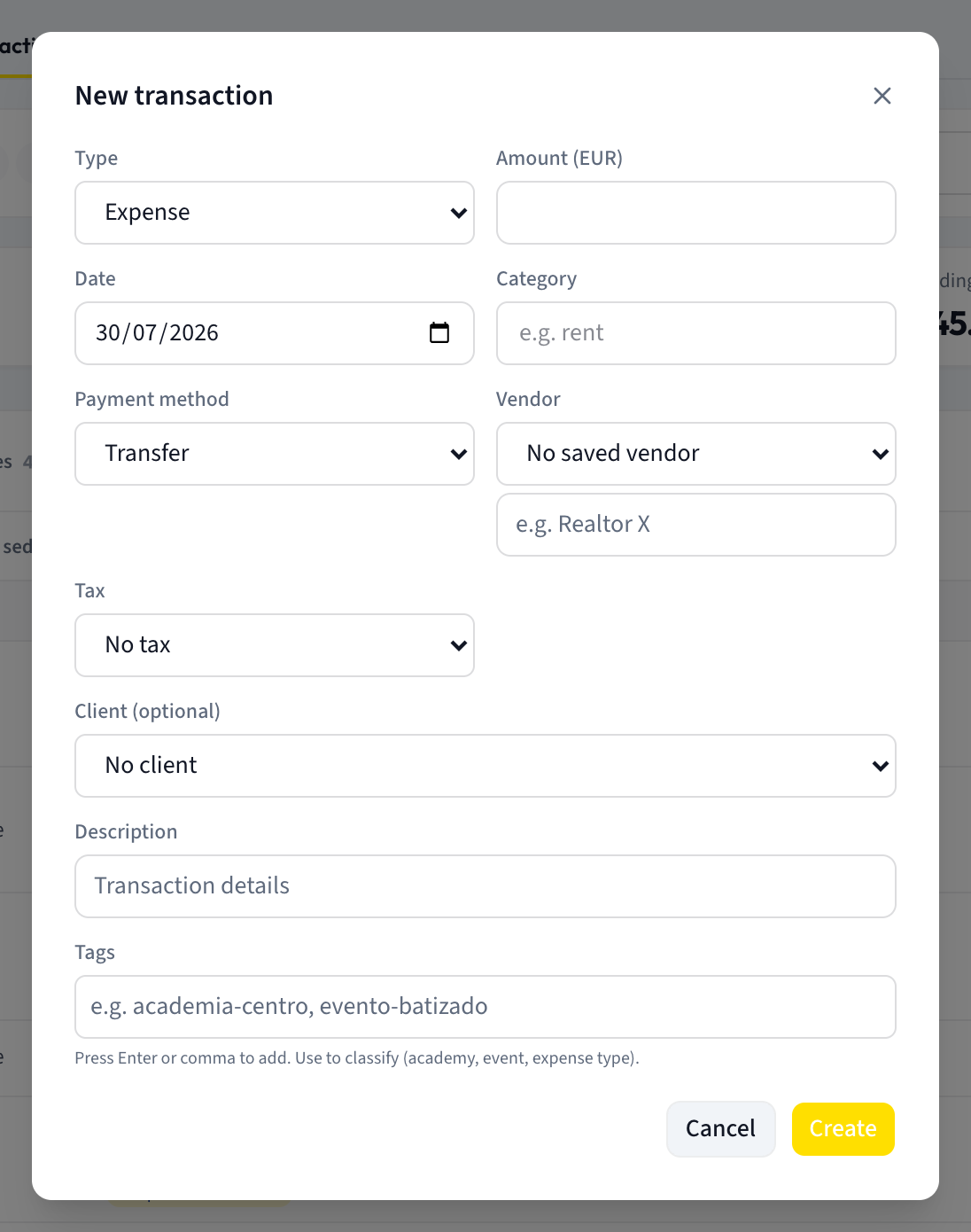
Type opens on Expense. Fill in:
- Amount — its label also shows your group's currency code.
- Date, Category (same suggestion list as above) and Payment method.
- Vendor — a dropdown of your saved vendors, starting on No saved vendor, plus a free-text box that appears while no saved vendor is selected. Saving a vendor is never required: see Keep a vendor catalog.
- Tax — only shown if your group has configured tax rates. It starts on No tax, and picking a rate reveals the checkbox The amount already includes tax, which is usually right for a supplier's bill. This is what feeds the creditable side of your tax report.
- Description and Tags.
Tags are free labels you type; press Enter or a comma to commit each one, and Backspace on an empty box deletes the last. They are lowercased for you, and they are how you slice the ledger later ("which branch?", "which batizado?"). The field's own hint says: Press Enter or comma to add. Use to classify (academy, event, expense type).
Click Create.
Log income that was never invoiced
Same dialog, with Type set to Income. Two things change:
- Vendor and Tax placement shift, and a Client (optional) dropdown (starting on No client) becomes the important field.
- If you leave No client selected, a Bill-to name box appears. Its hint reads An income needs a client or a bill-to name. and you cannot save without one of the two — you will get Pick a client or type a bill-to name for the income.
That requirement is not bureaucracy. Behind the scenes every income has to hang
off an invoice, so when you record income with no bill the hub silently creates a
paid invoice for it, described as Ingreso directo: followed by your description.
That is why the Invoices tab sometimes shows already-paid invoices you never
typed — and why an income needs somebody's name on it.
What you should see
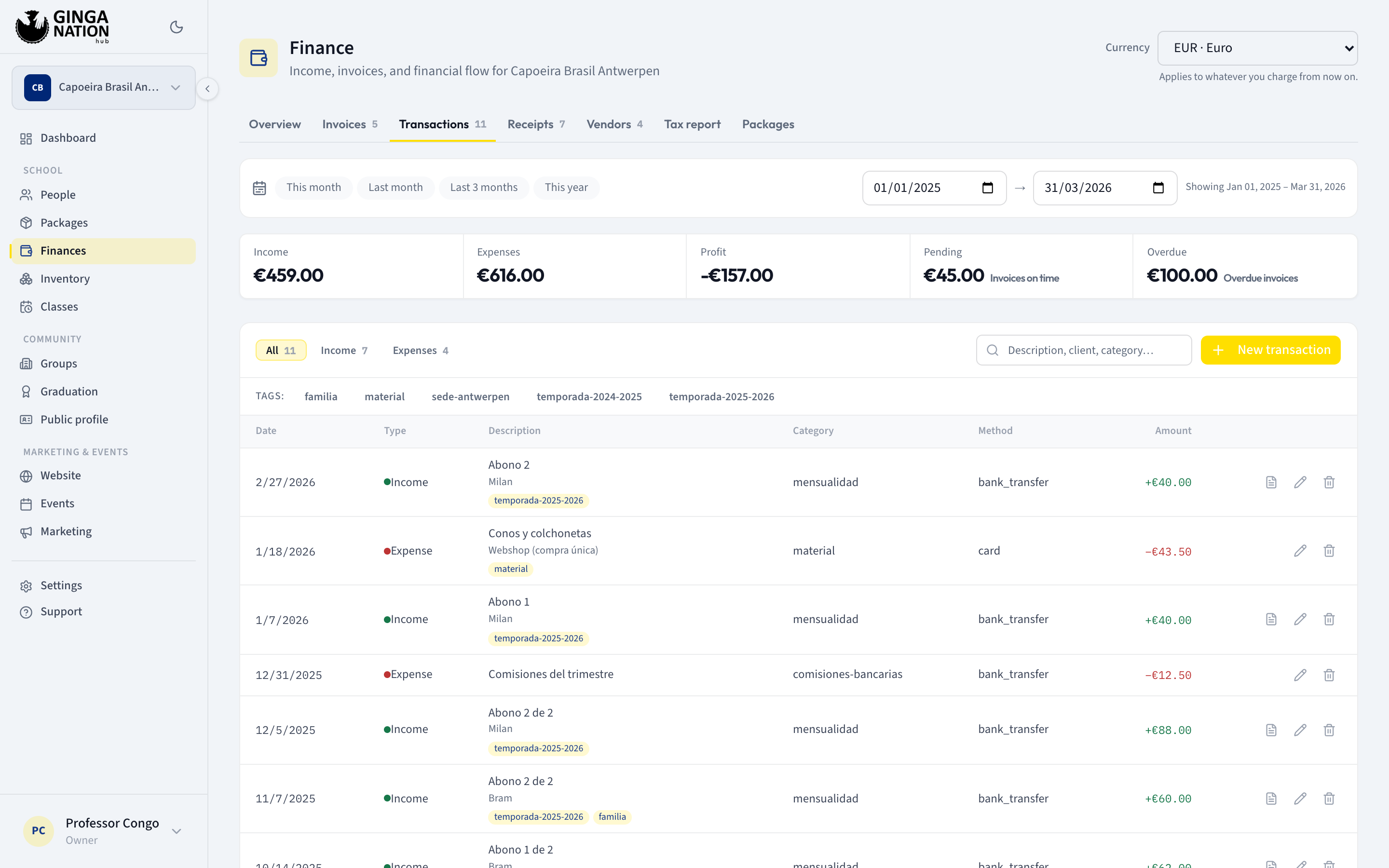
A new row in Transactions, newest first. The columns are Date, Type,
Description, Category, Method and Amount, and the amount carries
a + in green for income or a − in red for an expense. The filter chips are
All, Income and Expenses; a Tags: row appears under them as soon
as any transaction in the range has tags, with a Clear button.
Income, Expenses and Profit at the top of the page move immediately. If the transaction settled an invoice, that invoice's status changes too, and Pending or Overdue drops.
Clicking a row opens Transaction details, which shows the Tax breakdown (or "No tax configured on this transaction." — it never prints zeros as though they were a calculation), the Details, the counterparty as Vendor or Client, the Linked invoice if there is one, the Tags, and Other details. From the linked invoice you get Open the invoice — unless the invoice falls outside your current date range, in which case it says "The invoice is outside the filtered period: adjust the date range to open it."
Fixing a mistake
Both actions live on the row (the pencil and the bin) and at the foot of the detail panel.
Edit opens Edit transaction with the same fields. The client cannot be changed — it is shown as read-only Client — and neither can Type. Saving a different Amount re-runs the invoice recalculation, so correcting a payment you typed short can flip its invoice from Partial to Paid on the spot.
Remove asks "Remove this transaction?", shows you the party, the description and the amount, and takes a red Remove to go through.
Removing a transaction moves money out of your books, and there is no undo in the hub. The row disappears from every list, from Income or Expenses, from the Tax report, and — if it was a payment — its invoice recalculates downward, dropping from Paid back to Partial or Pending. Any receipt link you already sent for that payment stops working. The record is retained internally for auditing, but nothing in the interface will bring it back for you. Read the confirmation dialog's amount before you click.
A payment can only be corrected from the Transactions tab. The invoice's own Payments section is deliberately read-only, so that there is exactly one place that writes to your ledger.
Troubleshooting
The confirm button is greyed out and a red hint mentions the balance due. You typed more than the invoice still owes. The hub refuses to let an invoice be overpaid — record the extra as a separate income transaction instead, or fix the invoice's amount first.
"Payment exceeds the outstanding balance". The same guard, reported by the server, which you can also hit by editing an existing payment upward. The message tells you how much actually fits.
"Failed to mark as paid." or "Failed to save." The generic fallbacks. Check that the invoice is not already Paid or Cancelled — neither accepts a payment — and that your amount is above zero.
The Method column shows a word I never chose, like transferência or outro.
The Transactions table prints the stored value rather than the translated
label, and those stored values are Portuguese. Picking Transfer in the dialog
is what produces transferência in the table. It is cosmetic; the amount is
right.
A student paid by card through a Stripe link and nothing happened. Correct — a link generated from an invoice does not settle it. Confirm the payment in Stripe, then mark the invoice paid here with Payment method set to Stripe or Card, so the money reaches your ledger and the student can get a receipt.
I recorded income and an invoice I did not create appeared. Expected: income with no bill behind it gets one made for it automatically, already paid. Leave it alone — deleting it would orphan the payment.