Reuse a guest form template
Decide once what you ask invited mestres and speakers for, then assign it to every guest.
For group owners, admins and staff · 6 min · Updated 2026-07-30
Every invited mestre needs the same things asked of them: a passport photo, flight details, where they sleep, shirt size, and the terms you agreed. A form template is that list, written once and reused for every guest of every event — so you never again build a checklist by hand at 1 a.m. before a batizado.
Templates in this section are for guests — the mestres, speakers and sponsors you invite (see Invite a special guest). They are not the same thing as a Registration form, which is what ordinary attendees fill in when they sign up; that one has its own templates, built from the Registration form tab of an event.
Before you start
- Be owner, admin or staff of the group. Templates belong to the group, not to a single event, so one template serves every batizado you ever run.
- Know what you actually need from a guest. A template that asks for everything gets filled in by nobody.
Where they live
Two ways in:
- Events → the Templates tab next to Events at the top of the list.
- The Guests tab of any event → Manage templates →.
Either lands on a page titled Form templates: Create reusable form templates and assign one to each guest based on what you need from them. Empty, it reads No templates yet. Create the first one to start assigning it to guests.
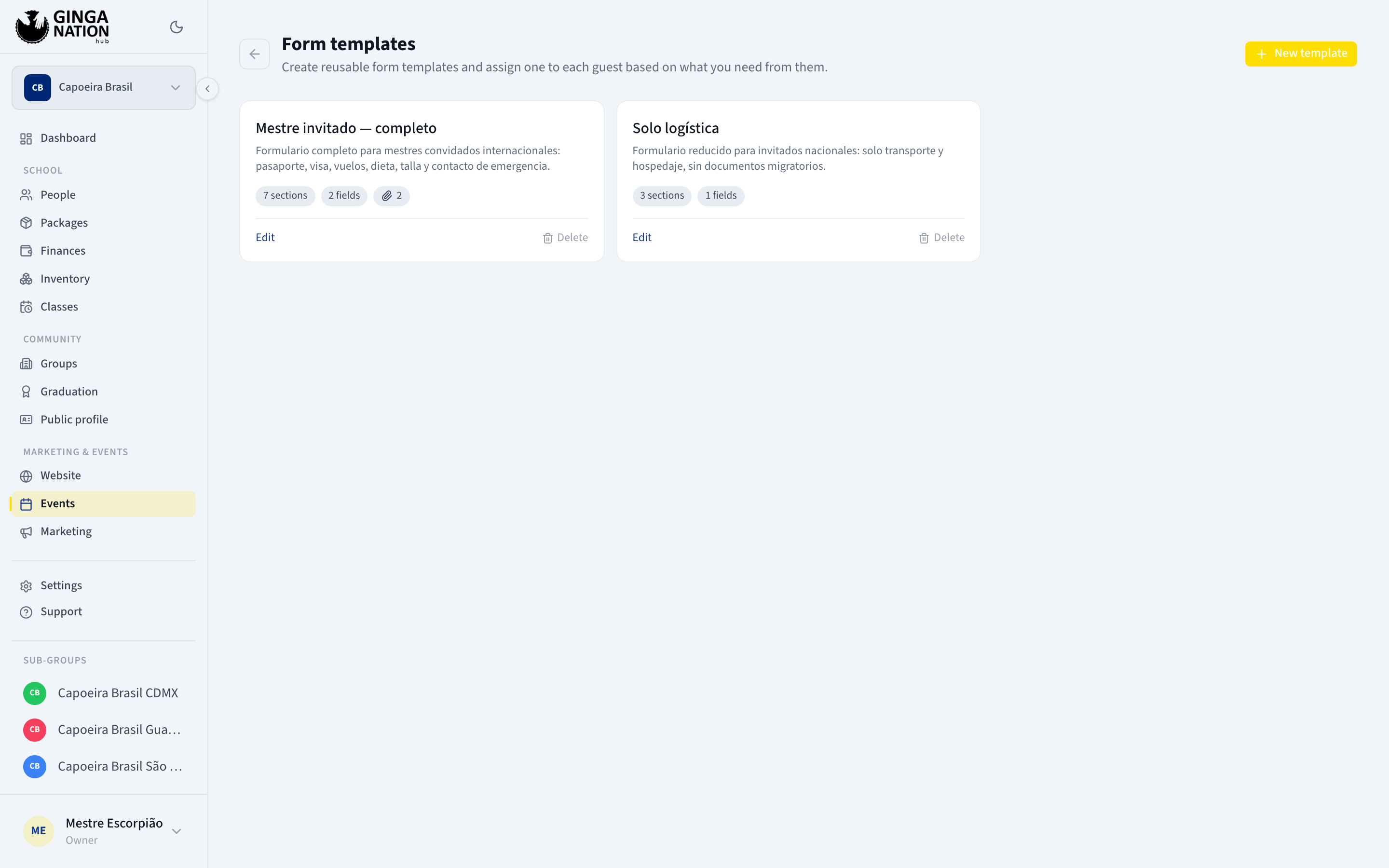
Each template shows as a card with its name, its description, and chips summarising what is inside it — how many sections, how many fields, how many attachments, how many terms — or Empty when it contains nothing yet.
What a template captures
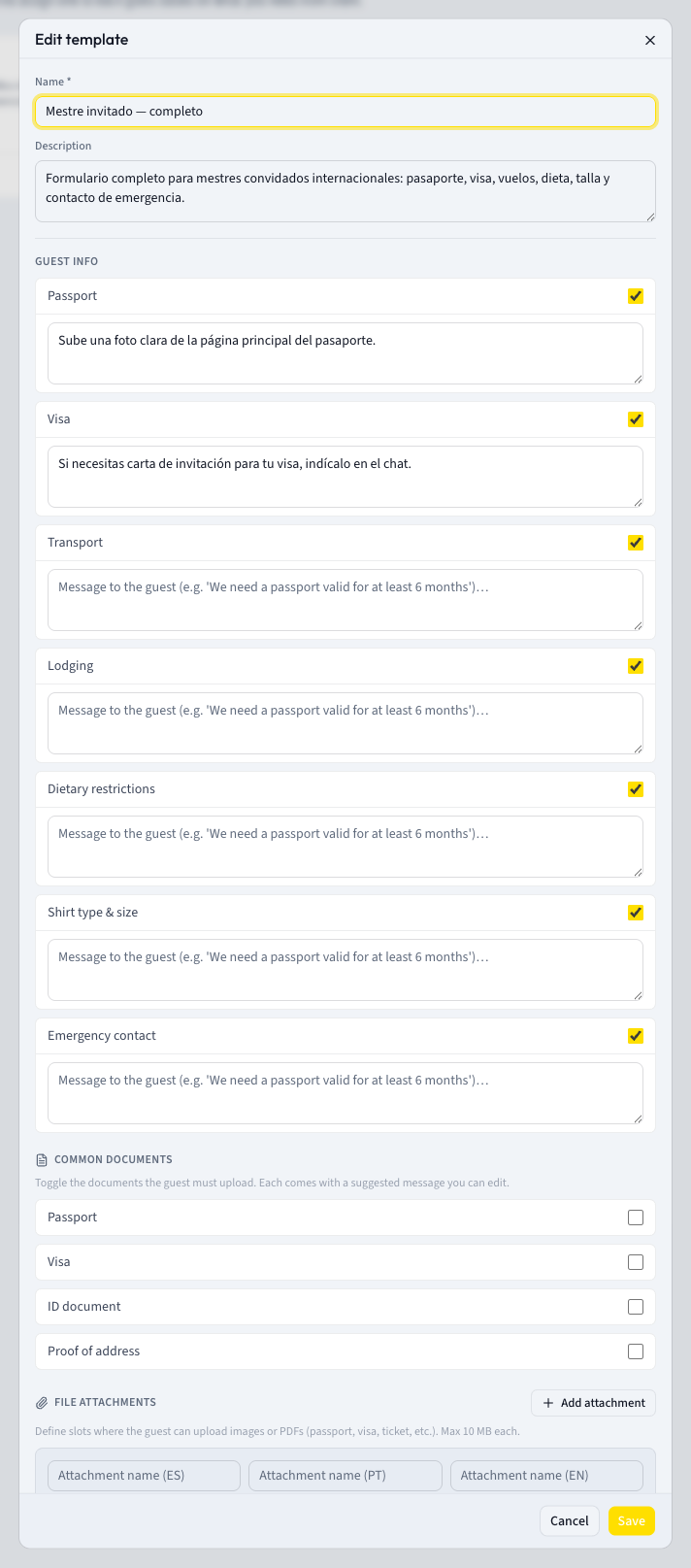
Name and Description
Name is required — the placeholder suggests e.g. Full invited mestre, and that is exactly the right kind of name, because you will be picking it from a dropdown months later. Description answers Which kind of guest is this template for…
Guest info — the sections you switch on
Seven toggles: Passport, Visa, Transport, Lodging, Dietary restrictions, Shirt type & size and Emergency contact. Switch on only what you need.
Each enabled section can carry a note to the guest — the placeholder shows the idea: Message to the guest (e.g. 'We need a passport valid for at least 6 months')… Use it. A section with a clear instruction gets filled in correctly the first time.
Common documents — the usual uploads
Toggle the documents the guest must upload. Each comes with a suggested message you can edit. The catalog covers Passport, Visa, ID document and Proof of address, each arriving with a ready-made instruction in Spanish, Portuguese and English that you can rewrite.
File attachments — anything else you need uploaded
Define slots where the guest can upload images or PDFs (passport, visa, ticket, etc.). Max 10 MB each. Press Add attachment, name the slot in the three languages, add an instruction, and mark it Required if it is.
Custom fields — the questions only you ask
Add field creates one. Give it a Label in Spanish, Portuguese and English — at least one is mandatory: Every custom field needs a label in at least one language. — pick a Type (Short text, Long text, Number, Date, Yes / No or Select), and mark it Required if you need it. A Select also wants its Options (one per line).
Negotiation terms — the deal, pre-written
Terms pre-loaded as drafts in the Negotiation tab when you invite a guest with this template. You'll be able to review and send them from the event — nothing is sent to the guest automatically.
Add term opens New term, with a Type, a Title (E.g. Tatami for the seminar) and Notes (optional). Put your standard lodging, transport and fee terms here and every future invitation starts from them instead of from a blank page.
Save
The button reads Saving… while it works. Cancel discards everything.
Assigning a template
Three moments, in order of usefulness:
- As the event's default. On the Guests tab, Event default template — Automatically assigned to new guests (can be overridden per guest). Set this once per event and stop thinking about it.
- While inviting. The Template step of the New invitation wizard, which arrives pre-filled with the event default.
- Per guest, afterwards. The guest's own Form template picker, where No template (uses event default) falls back to the event's choice.
The guest list has a Form template column so you can see at a glance who was asked what.
What you should see
A saved template appears as a card on Form templates with its summary chips, and immediately shows up in every template dropdown: the event default picker, the invitation wizard, and each guest's own picker.
Troubleshooting
A template cannot be saved. Name is required, and every custom field needs a label in at least one of the three languages. Both errors appear at the top of the dialog.
You want to delete a template that guests are using. The confirmation spells out the consequence: Guests assigned to it will fall back to the event's default form. If that default is also empty, those guests end up being asked for nothing — set a new template on them first.
The template you built does not ask attendees anything. Guest templates only apply to guests. To collect extra information from ordinary participants, use the Registration form tab of the event instead — see Set up registration.