Create your first event
Go from an idea to a saved event draft in a couple of minutes.
For group owners, admins and staff · 8 min · Updated 2026-07-30
Creating an event in the hub takes two screens. The wizard deliberately asks the awkward question first — how do people sign up? — because that single answer shapes everything else: whether the public page gets a register button, whether you need packages and prices, whether there is a list of names to manage afterwards. Everything you type after that is basics you can still change.
What you get at the end is a Draft: a real event with its own page in the hub, invisible to the world until you publish it.
Before you start
- You need to be owner, admin or staff of the group organizing the event. Members can see the event list but cannot create anything.
- Have the date and the start time at hand, and know which city the event happens in — the timezone matters more than you would expect (see the callout in step 4).
- Nothing else has to exist first. No packages, no location, no cover image; the wizard creates the event and you fill in the rest from its tabs.
Steps
Open Events and press Create event
Events is in the sidebar under Marketing & Events. The page header carries the Create event button; if your group has no events yet you get an empty state titled No events created yet with a Create your first event button that does exactly the same thing.
A dialog titled New event opens on Step 1 of 2.
Answer What are you organizing?
This is the intent question, and its subtitle tells you what it decides: This sets how people sign up. You can change it later. Three options, pick one:
| Option | What it means |
|---|---|
| Gathering / roda | Casual attendance, no sign-up. Nobody registers. There is no register button on the public page — people who use the Ginga Nation app can tap that they are going, and you see those names in the hub. |
| Free registration | People register and reserve a spot, no payment. The public page gets a Register for free button and every sign-up shows up in your list. |
| Paid registration | They pick a package when signing up (season, batizado, workshop). You will need at least one package with a price, and payment has to be set up separately for your group. |
Choose the honest one for the event you are actually running. A Tuesday roda is a gathering; a batizado with a shirt and a price is paid registration. You can change the answer later from the event's Registrations tab, so a wrong guess here is annoying, not fatal.
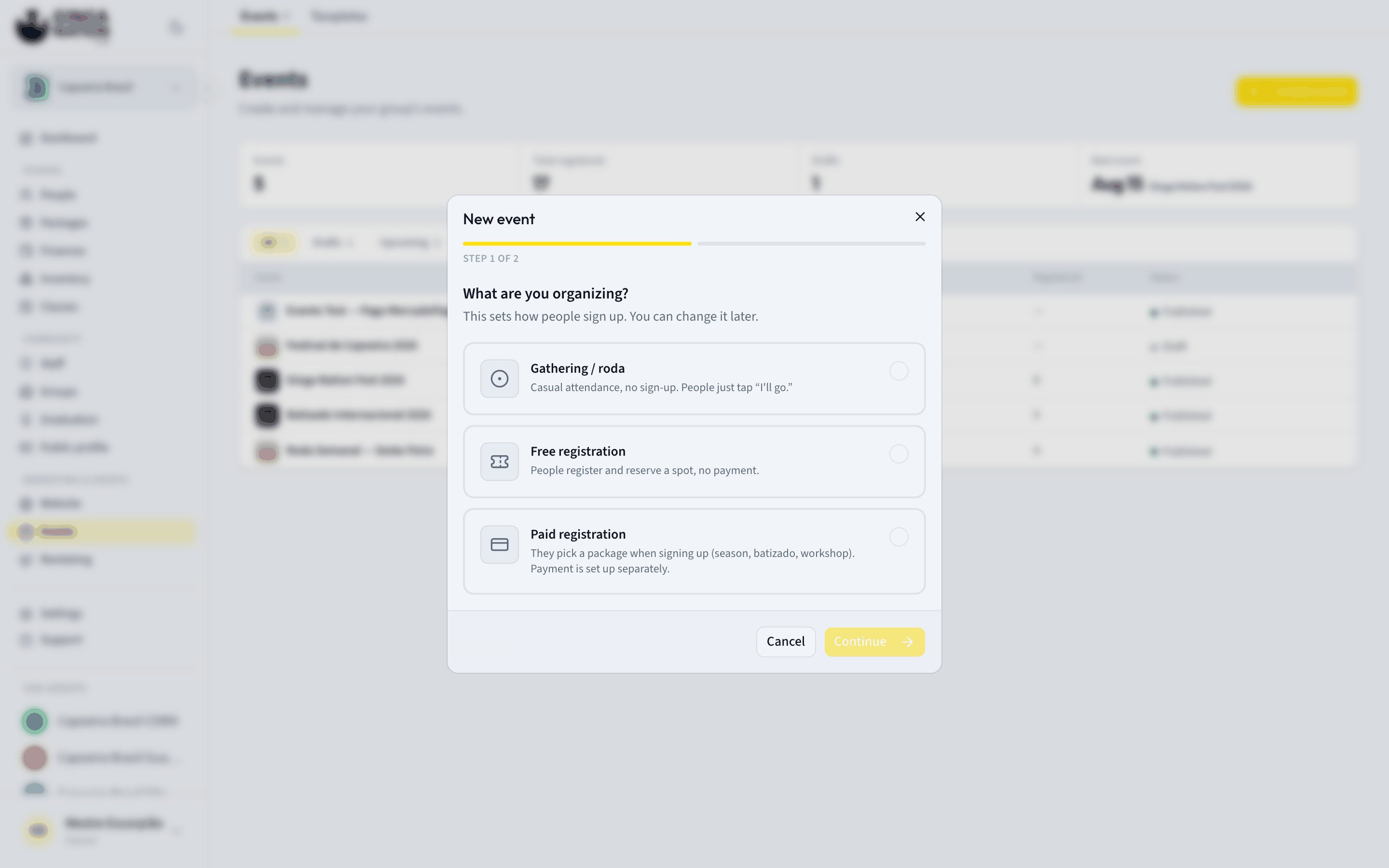
Continue stays disabled until you pick one. Press Continue.
Fill in the basics on Step 2 of 2
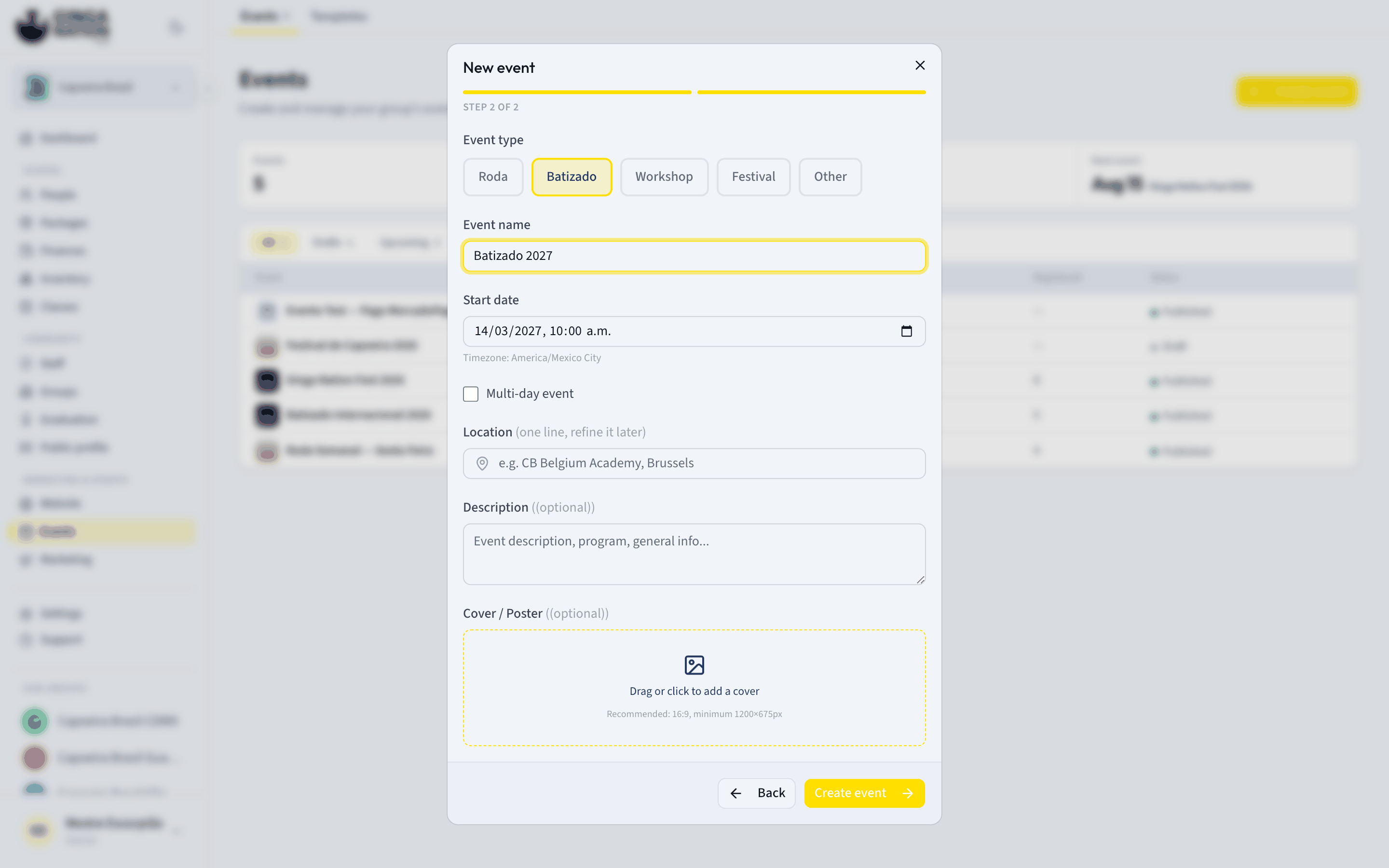
- Event type — one of Roda, Batizado, Workshop, Festival, Other. This is the label people see when they browse events, and it is the filter they use to find yours. Required.
- Event name — required. Placeholder: E.g. Tuesday roda, Batizado 2026. Name it the way you would announce it on WhatsApp.
- Start date — a date and a time, required. Read the timezone note in the next step before you type it.
- Multi-day event — a checkbox that reveals an End date. It is hidden when the type is Roda, on the assumption a roda starts and ends the same day.
- Location — one line, and the label says so: (one line, refine it later). Placeholder: e.g. CB Belgium Academy, Brussels. Whatever you write here becomes the event's first location; you can add the street, city, map notes and even a virtual link later from the Location tab.
- Description — optional here, but it is one of the two things the publish checklist will ask for, so writing a paragraph now saves a round trip.
- Cover / Poster — optional. Drag a file onto the box or click it (Drag or click to add a cover). The hint asks for Recommended: 16:9, minimum 1200×675px — the same image ends up as the thumbnail in your list and as the banner on the public page.
Back returns to step 1 without losing anything.
Understand the timezone before you type the time
Under Start date the wizard shows a line like Timezone: America/Mexico_City.
That is not a setting — it is the hub telling you which timezone your computer is
in, and the wizard stores exactly that as the event's timezone.
An event's times are always shown in the venue's timezone, never converted to the reader's. A roda at 19:00 in Brussels reads "19:00" for someone looking from São Paulo, Mexico City or Tokyo. That is the right behavior — but it means the hour you type has to be the hour on the clock at the venue, and the timezone stored with the event has to be the venue's.
The wizard fills that timezone in from your own computer. So if you are in Mexico
City organizing an event in Brussels, the wizard will happily save
America/Mexico_City, and your 19:00 will be published to the world as the wrong
hour. Whenever the line under Start date is not the timezone of the venue, fix
it right after creating the event (next step) and re-enter the start and end times
there.
Press Create event
The button reads Creating... while it works, and it stays disabled until the type, the name and the start date are all filled in. When it finishes, the hub takes you straight to the new event's page.
Check the date, time and timezone on the Details tab
On the event page open Details. The Date and time panel holds four fields — Start, End, Timezone and Registration deadline — and this is where you correct anything the wizard guessed.
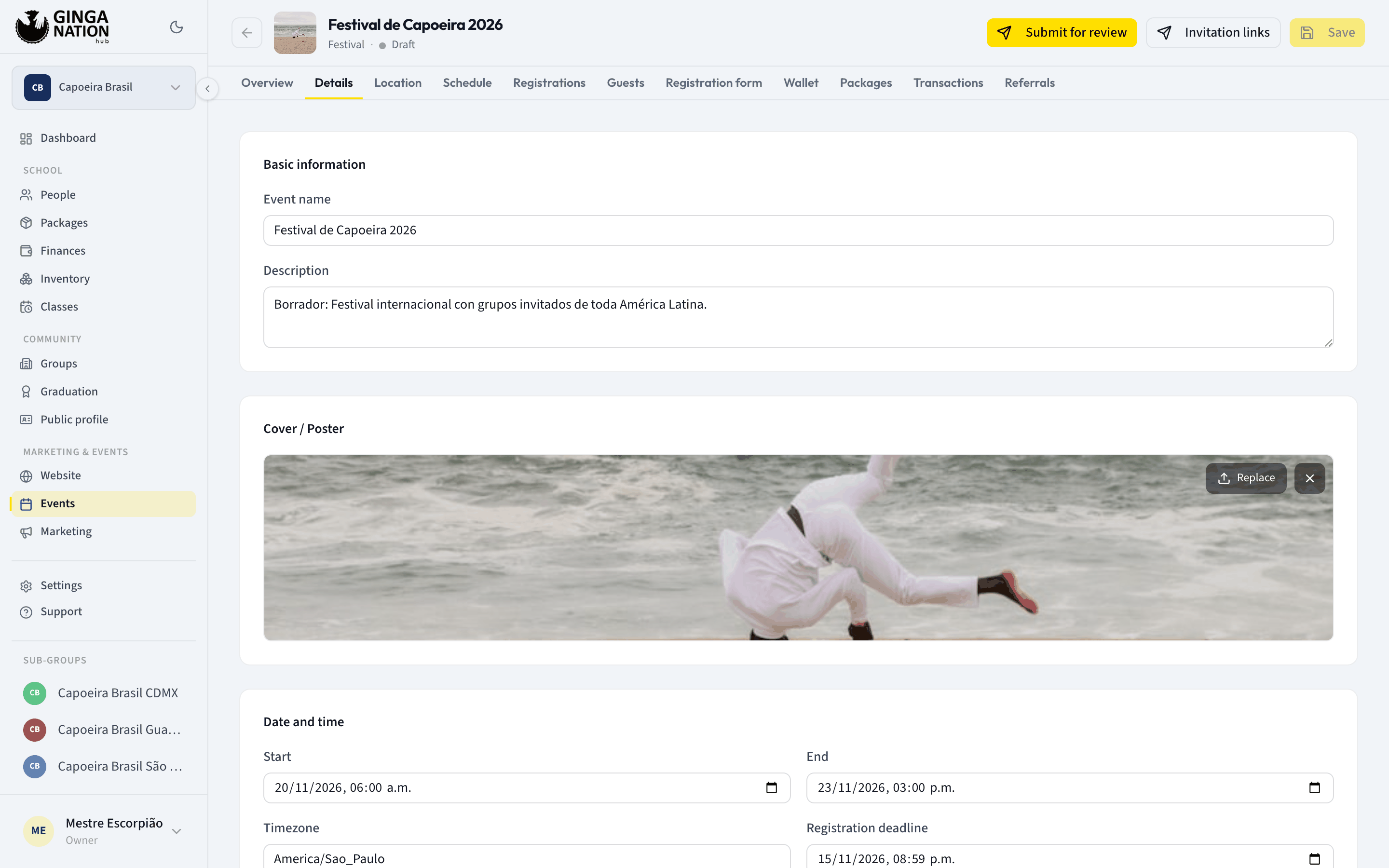
Timezone is a free-text field and it expects an IANA name — Europe/Brussels,
America/Mexico_City, America/Sao_Paulo. Type it exactly, with the underscore
and the region prefix. Then re-enter Start (and End) so the times read as
the wall clock at the venue, press Save, and confirm on the public page once
the event is published.
While you are on this tab, note the other three panels you will come back to: Visibility (Public, Group only, Invite only), Capacity, and a Danger zone with Cancel event.
What you should see
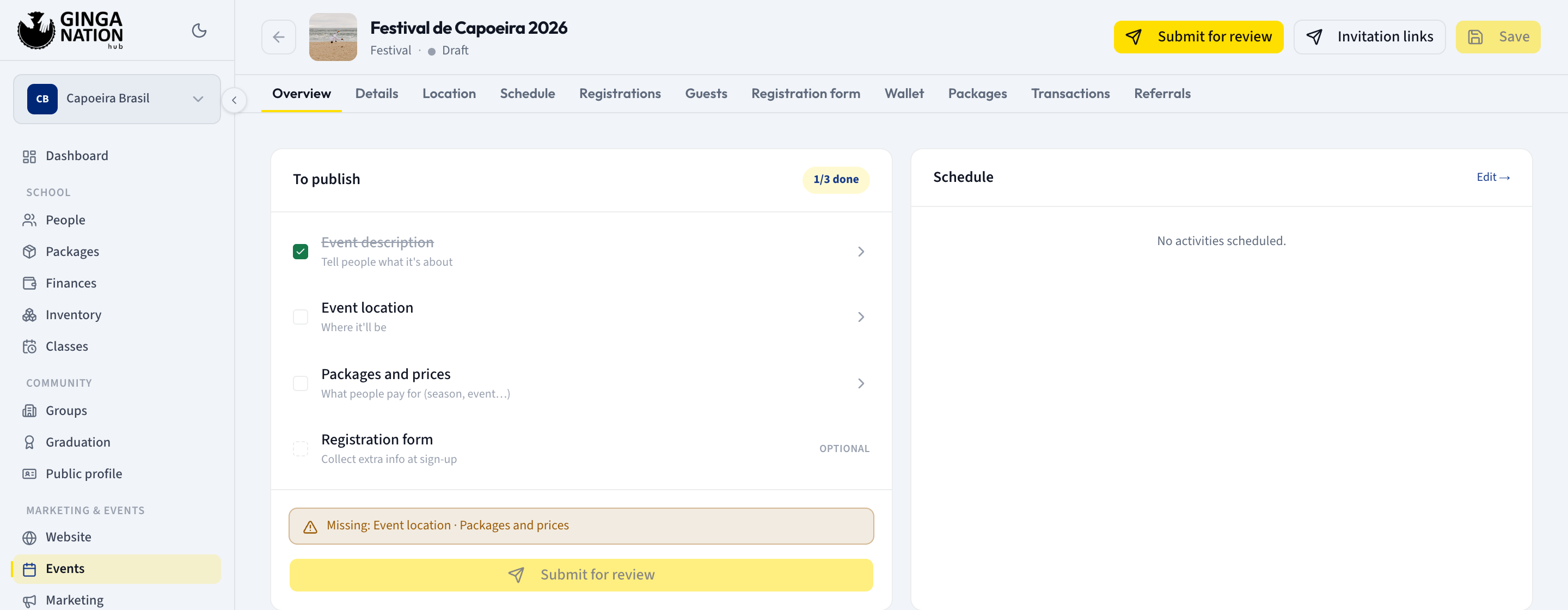
The event page opens with the cover thumbnail, the title, the type, and a status dot reading Draft. Above the tabs sit Submit for review and Save.
The tab bar is long — Overview, Details, Location, Schedule, Registrations, Guests, Registration form, Wallet, Packages, Transactions, Referrals — and you do not need most of it today.
Two things that surprise people:
- Editing is not automatic. Changes on the Details tab are held until you press Save. If you try to leave with unsaved changes the browser warns you.
- The public link is fixed at creation. It is built from the name you first typed, and renaming the event later changes the title everywhere but not the link — on purpose, so a link you already shared on WhatsApp keeps working.
Troubleshooting
Create event stays greyed out. The three required fields are Event type, Event name and Start date. A name made only of spaces counts as empty.
"You don't have permission to manage events for this group." Your role in that group is member. Ask the owner or an admin to raise it, or to create the event and hand it to you.
You chose Paid registration and there is nowhere to add prices. You are on the wrong tab. Packages are not on Registrations — they live in the Packages tab of the event. A paid event also needs a payment account connected for your group; until both exist, switch the event to Free registration (Registrations tab → Change) so it is not stuck.