See who is coming
Read the registration list, understand every column, and fix a single sign-up.
For group owners and admins (staff can read it) · 8 min · Updated 2026-07-30
Once the event is public, the Registrations tab of the event is the only list that matters. It is where you check who paid, who still owes, who filled in the form, and where you fix the messy real-world cases — the aluno who paid by bank transfer, the invited mestre who comes as a courtesy, the duplicate sign-up.
Before you start
- Anyone with access to the event — owner, admin, staff, even member — can open the event and read the list.
- Only the owner and admins of the organizing group see the Actions column and the Manage button. Staff can read, not change.
- Casual events (registration type Casual attendance) have no registration list at all — jump to the last section.
Reading the list
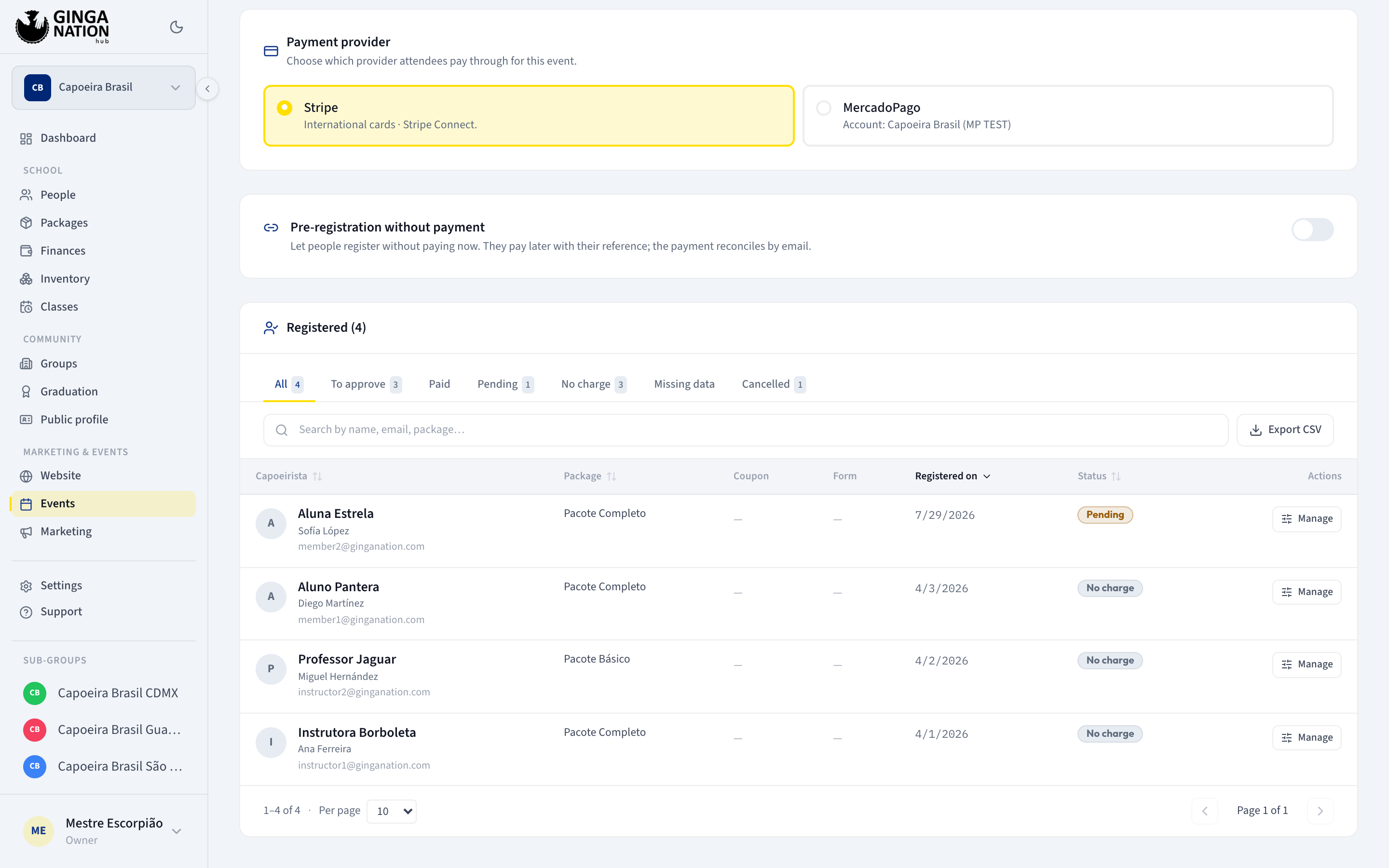
Four figures sit above the table: Registered, Paid, Pending and Missing data. Registered carries a hint with your capacity usage, or No limit when there is no cap.
The table itself:
| Column | What it means |
|---|---|
| Capoeirista | The apelido or display name on the first line, the full name underneath, and the email below that when it differs. Someone who registered without an account still shows their name and email — they typed them at sign-up. |
| Package | The package they picked. A dash means no package: either a free event, or a courtesy place you granted by hand. |
| Coupon | The discount code used, if any. |
| Form | Complete or Pending for the event's registration form, plus a View answers link on completed ones. A dash means this event has no registration form attached. |
| Registered on | When they signed up. |
| Status | The payment state — Paid, Pending or No charge — plus extra badges where they apply: Cancelled, Manual payment (you recorded the payment by hand rather than a gateway confirming it), and Missing data when the person has a charge but has not finished the registration form. |
| Actions | The Manage button. Owners and admins only. |
Capoeirista, Package, Registered on and Status are sortable — click the header to sort, click again to reverse it.
The filter tabs
- All — everyone still active. Cancelled sign-ups are deliberately excluded.
- To approve — the ones waiting on a decision from you: still active, not paid, and either without a package or never having gone through a checkout. This is where pre-registrations land.
- Paid · Pending · No charge — by payment state.
- Missing data — has a charge but has not completed the registration form.
- Cancelled — cancelled sign-ups live here and nowhere else, so they never pollute your counts. You can still reopen and restore them from here.
Next to the tabs: a search box (Search by name, email, package…) and Export CSV, which downloads exactly what you are looking at — the active filter and search included — with the name, full name, email, package, coupon, payment state and registration date, plus the form column when the event has a registration form. It is the list to print and take to the door.
At the bottom, Per page (10, 25, 50 or 100) and page arrows.
Managing one registration
Press Manage on a row. The dialog is titled Manage registration and opens with the person's name, email and current badges. Every section is one real-world situation.
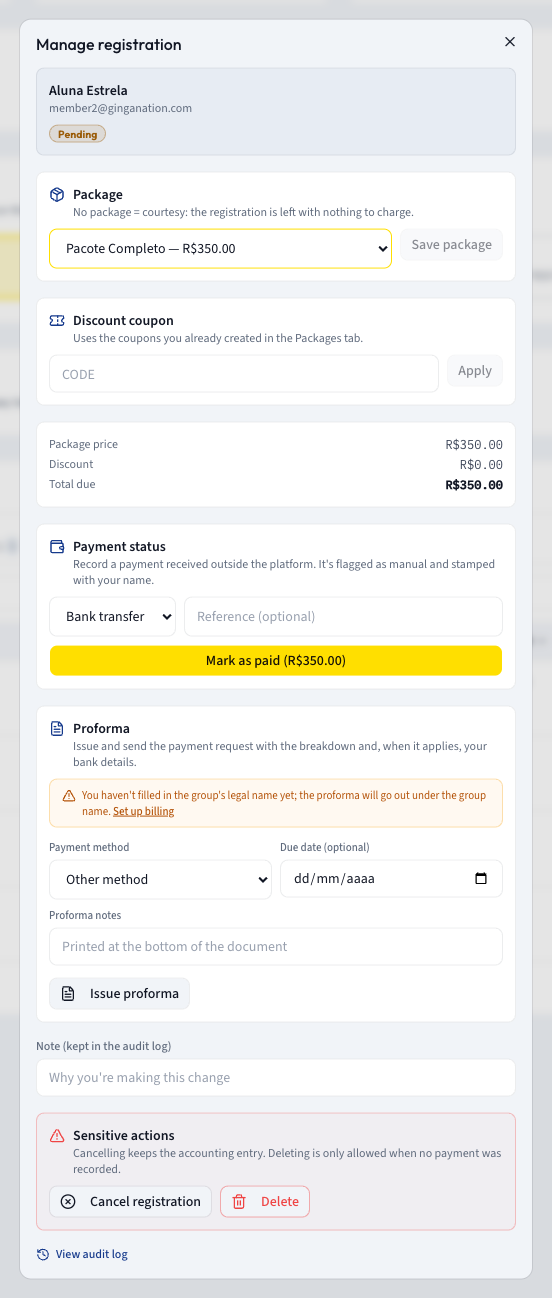
Two habits worth forming:
- Fill in Note (kept in the audit log) before you act. It is one line explaining why you're making this change, and it is kept forever.
- Open View audit log at the bottom when something looks wrong. Every change — package, coupon, payment, cancellation, restoration, proforma — is listed with who did it and when.
Casual events: who's going
An event with Casual attendance has no registrations, so instead the Registrations tab shows the people who tapped that they are going in the Ginga Nation app: a Who's going list with the count, and a Maybe group under it. Until somebody responds it reads Nobody has confirmed attendance yet.
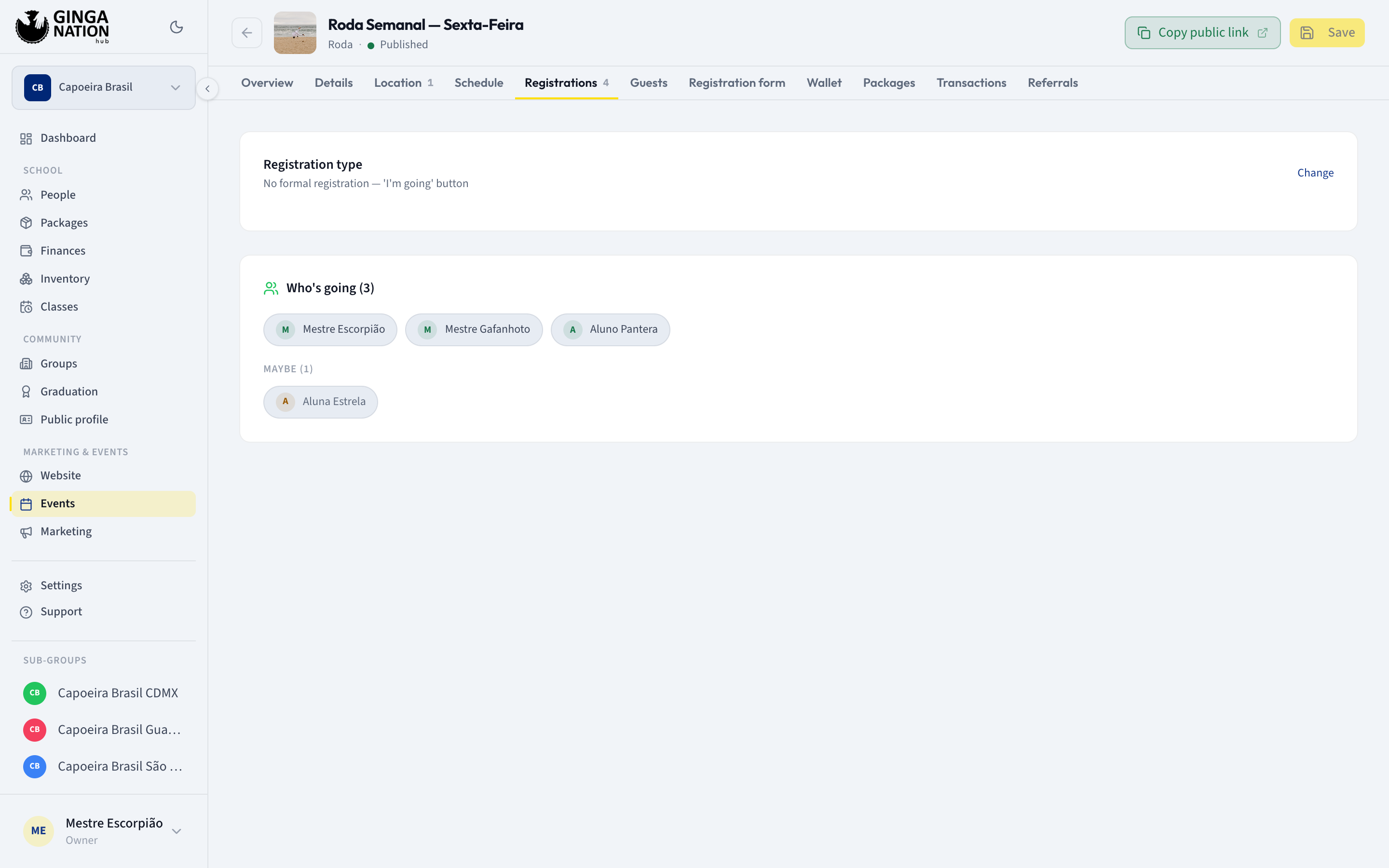
There is nothing to manage here and nothing to export — it is a headcount, not a guest list. If you need names, emails or payments, switch the event to Free registration or Paid registration.
Troubleshooting
There is no Manage button on any row. Only the owner and admins of the organizing group get it: Only the owner or an admin of the organizing group can manage registrations.
Delete is refused because a payment was recorded. That is deliberate — deleting would destroy the accounting trail. Cancel the registration instead, which keeps the entry, or clear the transaction first from the Transactions tab.
Mark as paid is greyed out. There is nothing to charge yet. Assign a package first, or leave it without one as a courtesy: Nothing to charge: assign a package or leave it as a courtesy.
Everyone shows Missing data. The badge only appears when the event has a registration form attached and the person has not completed it — attendees fill it from the app after signing up. If the whole list is flagged, the form was probably attached after people had already registered; nudge them, or detach the form from the Registration form tab.