Invite a special guest
Invited mestres, speakers and sponsors get their own invitation flow — not a registration.
For group owners, admins and staff · 9 min · Updated 2026-07-30
A batizado is not just a list of participants. There is the mestre you flew in, the professor giving the workshop, the sponsor, the person from the city hall. In the hub these people are guests, and they are a different thing from a registration: nobody buys them a package, they do not appear in your Registered count, and what you owe each other — flights, lodging, a fee, a document — is tracked per guest.
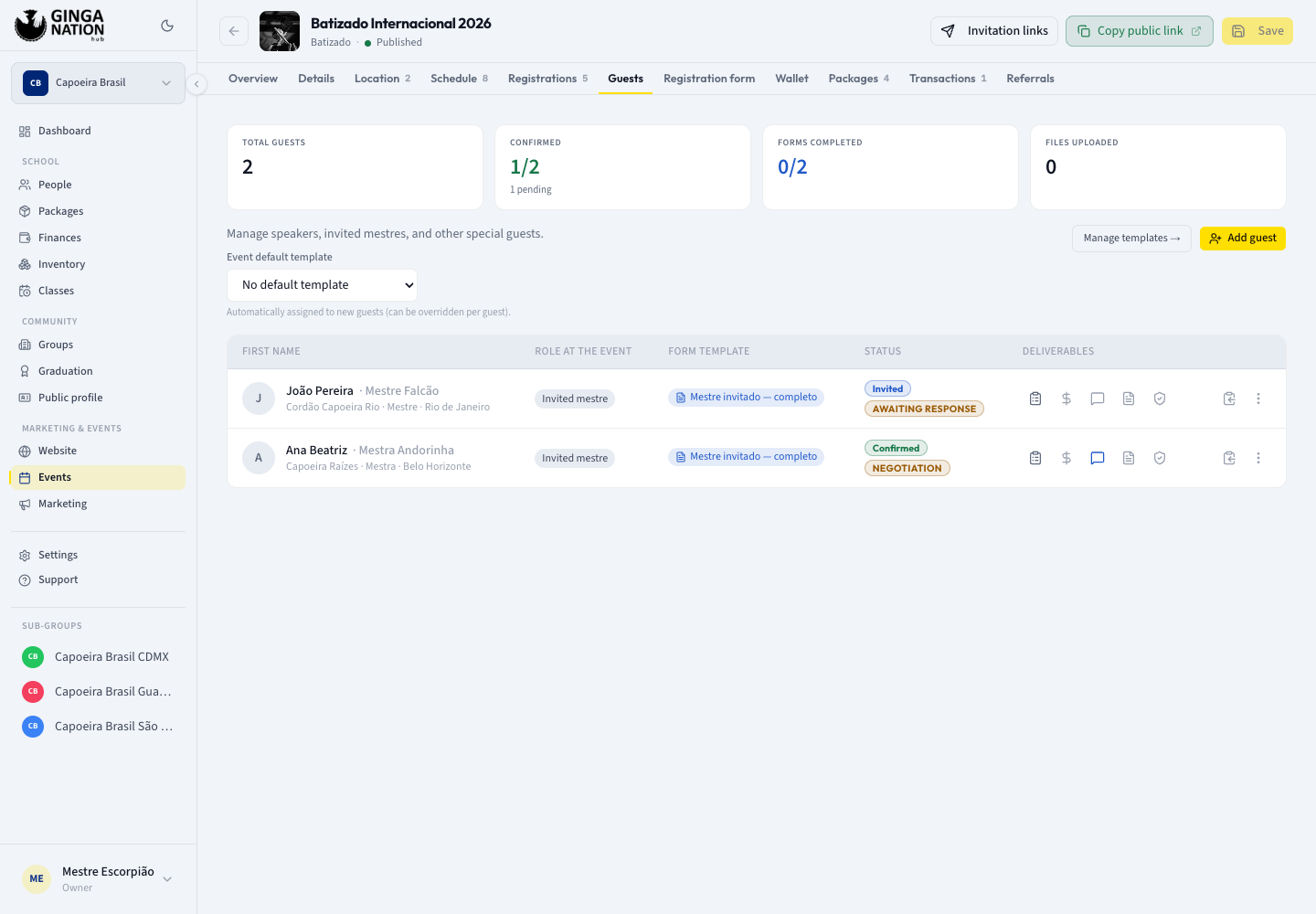
Guests live in the Guests tab of the event: Manage speakers, invited mestres, and other special guests.
Before you start
- Be owner, admin or staff of the organizing group.
- Have the guest's email if you want them to get an invitation they can act on. It is not required — without one they are created as a Prospect and you hand them the link yourself.
- Decide what you need from them (passport, flight details, shirt size, a fee). That set of questions is a form template, and picking one is a step in the wizard — see Reuse a guest form template.
What a guest invitation actually is
One personal, private link. Not an email with a PDF, not a registration form: a page on the public site that belongs to that guest alone, where the whole relationship happens.
On that link the guest sees the event, confirms or declines (they can leave you a message either way), fills in the information you asked for, uploads the documents you asked for, reads the terms you negotiated, and chats with you. Every time they come back, they land on the same page with their current status.
The link is personal — the email says so — and it expires 30 days after it is issued. The hub shows Link expires on with the date, or Link expired once it has, and Regenerate link issues a fresh one (which kills the old one).
Steps
Open the Guests tab and press Add guest
An empty guest list reads No guests yet. Add the first one to send them a confirmation link.
Step Guest — who they are
The dialog is titled New invitation and walks through four steps: Guest, Access, Template, Send.
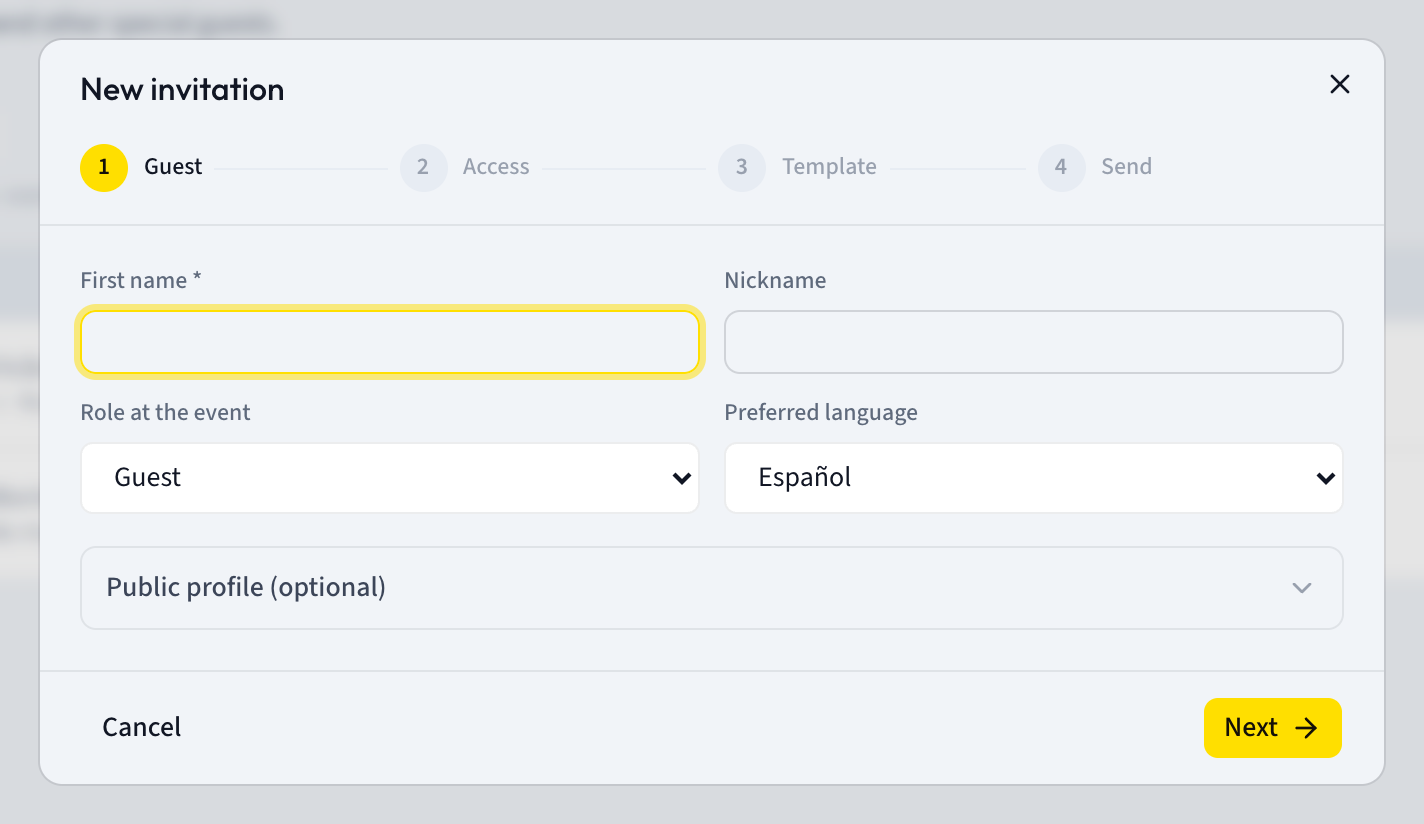
- First name — the only required field in the whole wizard.
- Nickname — the apelido. Use it; it is how everyone knows them.
- Role at the event — Invited mestre, Speaker, Special guest, Sponsor, Authority, Staff, Other or Guest.
- Preferred language — Español, Português or English. This decides the language of the invitation email and of their page, so get it right.
Public profile (optional) expands into last name, Group / Academy, Graduation, country, state, city, Instagram, Facebook, a photo URL and a bio. Fill in what you know and leave the rest: The guest can complete or confirm these details later.
Press Next.
Step Access — email or no email
Type their Email and Phone, then read the box below it. There is no toggle here — the box changes its own text depending on whether you filled Email in, and it tells you exactly what will happen next:
- With an address, it reads: An account will be created and an email sent so they can set their password. That's how they access the full flow: negotiation, documents and chat.
- Without one: Without an email they're created as a prospect. You can share the invitation link with them manually later.
Both are legitimate. The mestre you only reach on WhatsApp is a prospect; you copy their link out of the guest list and send it to them yourself, and you can send the real invitation later once you have their address.
Step Template — what you ask them for
Choose the form template for this guest. Without one there is nothing to ask: Pick a template to define which documents and data the guest is asked for.
If the template carries negotiation terms — lodging, transport, a fee — the wizard warns you that they will be saved as drafts for you to review and send from the Negotiation tab. Nothing goes to the guest automatically.
The exception is the switch We've already agreed on the terms: turn it on and the template's terms are sent with the invitation instead of waiting as drafts. Use it only when the deal really is closed.
If you set an Event default template on the Guests tab, it is pre-selected here for every new guest — Automatically assigned to new guests (can be overridden per guest).
Step Send — review, then Send invitation
The last step is a summary: the guest, the access (their email, or No email (prospect)), the template, and the Terms line telling you exactly what will happen — No negotiation terms, Saved as drafts or Sent on invite.
Press Send invitation (the button reads Sending…). Back returns to any earlier step.
What the guest receives
If you gave an email, Ginga Nation sends them a message in their chosen language, subject You've been invited to followed by the event's name. The body says they have been invited as a special guest, with one button — Open my invitation → — and the raw link underneath in case the button does not survive their mail client. It closes by telling them the link is personal and not to share it.
If you did not give an email, nothing is sent. Copy their link from the guest list (the copy icon on their row) and send it however you normally talk to them.
Reading the guest list
The table has five columns: the guest's name (with their apelido, group, graduation and city underneath), Role at the event, Form template, Status and Deliverables.
Status stacks two badges. The first is where the relationship stands — Prospect, Invited, Confirmed, Declined or Cancelled. The second is the stage they are in: Awaiting response, Account setup, Filling info, Negotiation, Documents pending, Ready. A small Guest opened the link note appears once they have looked at it but not yet answered — the most useful signal in the whole tab when you are chasing someone.
Deliverables are the icons for Guest info, Budget, Contract and Terms & conditions; click them to open the guest and land in that section.
Actions on a row
- The copy icon copies their invitation link (disabled once the link has expired).
- Send invitation — appears only on Prospect guests. It marks them as Invited and restarts the 30-day window on their link. It does not send an email; the invitation email is only sent when you create the guest with an email address in the wizard. After using it, copy the link and send it yourself.
- Cancel invitation — on Invited guests. It sets the guest to Cancelled.
- Regenerate link — asks Regenerate the link? The previous link will stop working. Use it when a link expired or leaked.
- Delete — asks Delete this guest? This action cannot be undone.
Working the relationship
Opening a guest gives you their whole file, grouped into phases — Presentation, Negotiation, Documentation, Done — with sections for Identity, Negotiation, Chat, Documents, Guest info, Budget, Notes and the Guest message they left you.
Two things to know:
- Budget is yours alone. The panel says it plainly: Host-only. Totals are computed per currency. The guest never sees what you projected, committed or paid.
- The phases are ordered. Documentation only opens once the negotiation is closed — Close the negotiation first to open the Documentation phase. When their info and documents look right, Mark complete · move to Done finishes the file, and Reopen puts it back if they need to fix something.
- Notes on the identity form are internal and private to your team.
Troubleshooting
The guest says the link does not work. Check for Link expired on their row and use Regenerate link. Note that regenerating invalidates the previous link, so send the new one.
You used Send invitation and the guest never got an email. That menu item only changes their status to Invited and refreshes the link — it sends nothing. The only path that emails a guest is creating them in the wizard with an email address. For a guest who already exists, copy their link and send it to them yourself.
Send invitation is not in the menu. It only appears while the guest is a Prospect. An already Invited guest shows Cancel invitation instead — and cancelling sets them to Cancelled rather than back to Prospect, so use it only when the guest really is off the list.
The Template step is empty. Your group has no guest form templates yet. Create one first — the Guests tab has a Manage templates → link — or create the guest without a template and assign it afterwards.