Set up graduations and record a cord
Build your group's cord system, then assign a student's graduation.
For group owners, admins and staff · 7 min · Updated 2026-07-30
Every group grades differently: different cord names, different colors, different number of steps, sometimes a separate system for children. The hub does not assume any of that — you describe your system once, and from then on every student's cord is picked from your own list.
Before you start
- Two different places. You build the cord system in Graduation; the last step here, recording a cord on a student, happens in People.
- Do this before you assign cords to students. Until a system exists, the student edit form refuses graduations and shows This group does not have a graduation system configured yet.
- If your group is a sub-group, check the tabs first: you may already inherit your parent group's system and have nothing to build.
Steps
Open Graduation
Click Graduation in the sidebar, under Community. With nothing configured you see No graduation system configured. and two buttons: Import template and Create from scratch.
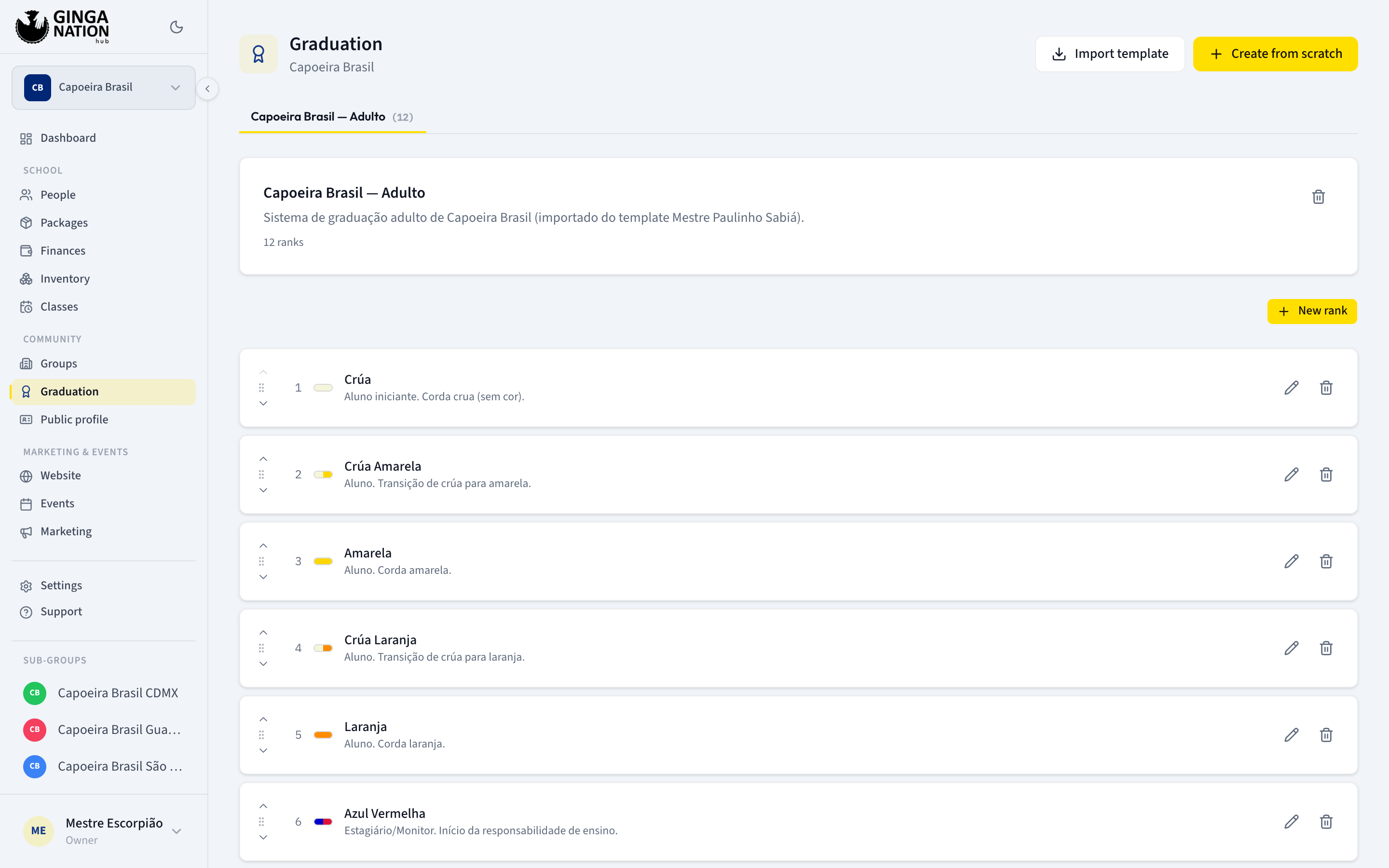
Start from a template, or from scratch
Import template lists ready-made systems from well-known groups. Each card shows the system name, a description, how many ranks it has, and a strip of the actual cord colors; View details expands the full ordered list. There is a search box (Search graduation system...) when there are more than two.
Clicking a card imports it immediately — you get your own private copy, so editing it afterwards changes nothing for anyone else.
You can have more than one system — a common pattern is one for adults and one for children. Each becomes a tab, with its rank count beside the name.
Add your ranks
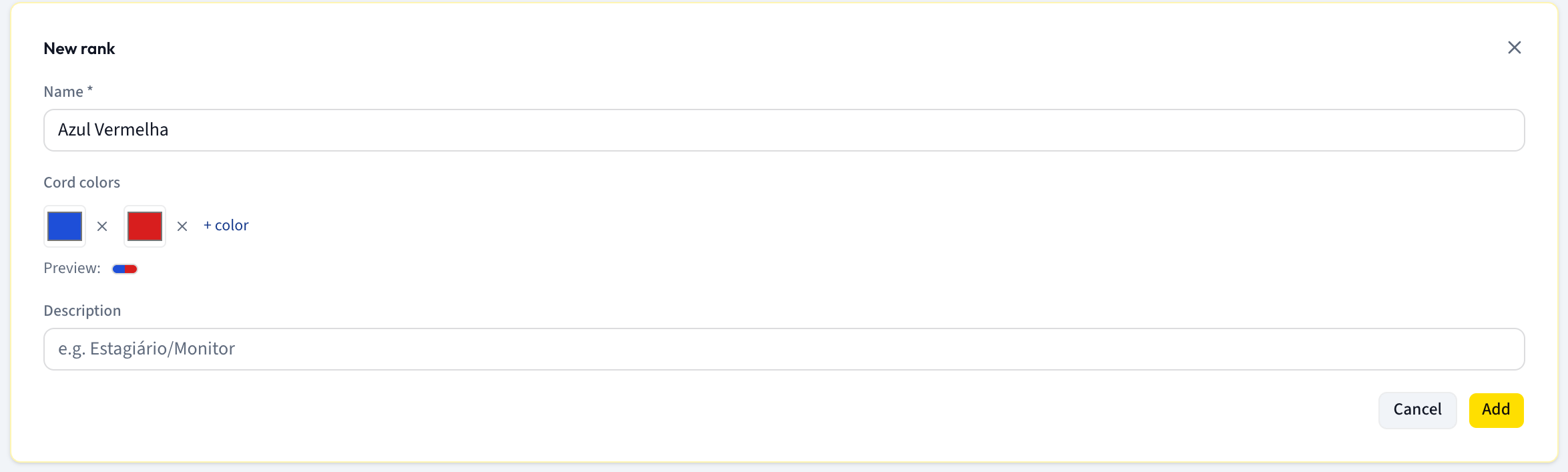
With a system selected, click New rank and fill in:
- Name * — the cord as your group says it, e.g. Azul Vermelha.
- Cord colors — one color picker per stripe. + color adds another, the small cross removes one, and Preview: shows the chip exactly as it will appear next to student names.
- Description — optional, useful for what the rank means, e.g. Estagiário/Monitor.
Then Add. Repeat down the whole system. An empty system prompts you with No ranks yet. Click "New rank" to get started.
Put the ranks in order
Order matters: it is the progression your students climb, and it is the order the dropdowns use everywhere else. Each rank row shows its position number with an up and a down arrow — use them until the list reads from beginner to mestre. The pencil edits a rank, the bin deletes it.
Deleting a rank, and deleting a whole system with the bin icon at the top right (Delete system), happen immediately with no confirmation step. Deleting a system takes all of its ranks with it.
Record a student's cord
Graduations are recorded on the student, not on this screen. Go to People → Students, click the student, click Edit, and open the Graduation dropdown.
The list is grouped by system name and ordered by position, with — No graduation — at the top; underneath, a hint counts what is available to you, e.g. 14 graduations available in 2 systems. Pick the new cord and click Save changes.
The dropdown holds nothing but your own ranks: one group per system, each rank in the order you arranged above, and — No graduation — as the first choice. If a student's current cord is no longer in any of your systems it stays at the top, marked (current, outside system), so you can see it and correct it.
What you should see
The rank appears with its colors in the student's row, in the detail panel, and anywhere else the hub shows a cord. Back on Graduation, the tab shows the number of ranks you configured.
The hub stores a student's current cord, not a history of past ones. There is no batizado log and no "graduated on" date — changing the field overwrites the previous cord. If you need the history, keep it in your own records.
How your system is used elsewhere
- Student records — the Graduation dropdown, and the colored cord chip next to names.
- Sub-groups — a child group automatically sees its parent's systems in addition to its own, both here and in the dropdown.
- The census form on your microsite — its graduation field offers the systems you tick under Systems available in the census in Website → Configuration → Census.
- The public registration form — this one does not use your systems. It offers a generic list of cord names, so verify and correct the cord after approving a request.
Troubleshooting
A student's cord shows "(current, outside system)". Their stored graduation is no longer a rank in any of your systems, because it was renamed, deleted, or came in from the public form's generic list. Renaming a rank does not update the students already on it. Pick the correct rank and save to clean it up.
Saving a graduation is refused. Either the group has no system at all (This group does not have a graduation system configured yet. with a Configure now → link), or the value is not part of your systems — which only happens if the rank changed while you had the form open. Reload and pick again.
You see a system you did not create. Sub-groups inherit their parent's systems, and this screen lets you edit or delete them from the sub-group too. Changes hit the parent group and every other sub-group that shares it — only edit a system that belongs to you.
A cord chip is missing next to names. That rank has no colors set. Edit the rank and add at least one color under Cord colors.