Keep your roster up to date
Find a student fast, fix their details, and take someone off the active list.
For group owners, admins and staff · 6 min · Updated 2026-07-30
Ten minutes a month on this screen is the difference between a roster you trust and a list of names nobody believes. This is the day-to-day work: finding people, correcting details, and marking who stopped training.
Before you start
- Owner, admin or staff of the group. All three can search and edit students here.
- The roster always shows the group selected in the sidebar switcher. Students of a sub-group only appear once you switch to that sub-group under Sub-groups.
Steps
Open People
Click People in the sidebar; you land on the Students tab. The page
heading reads Capoeiristas and the line under it summarizes the group, for
example 24 active · 2 pending · Capoeira Brasil.
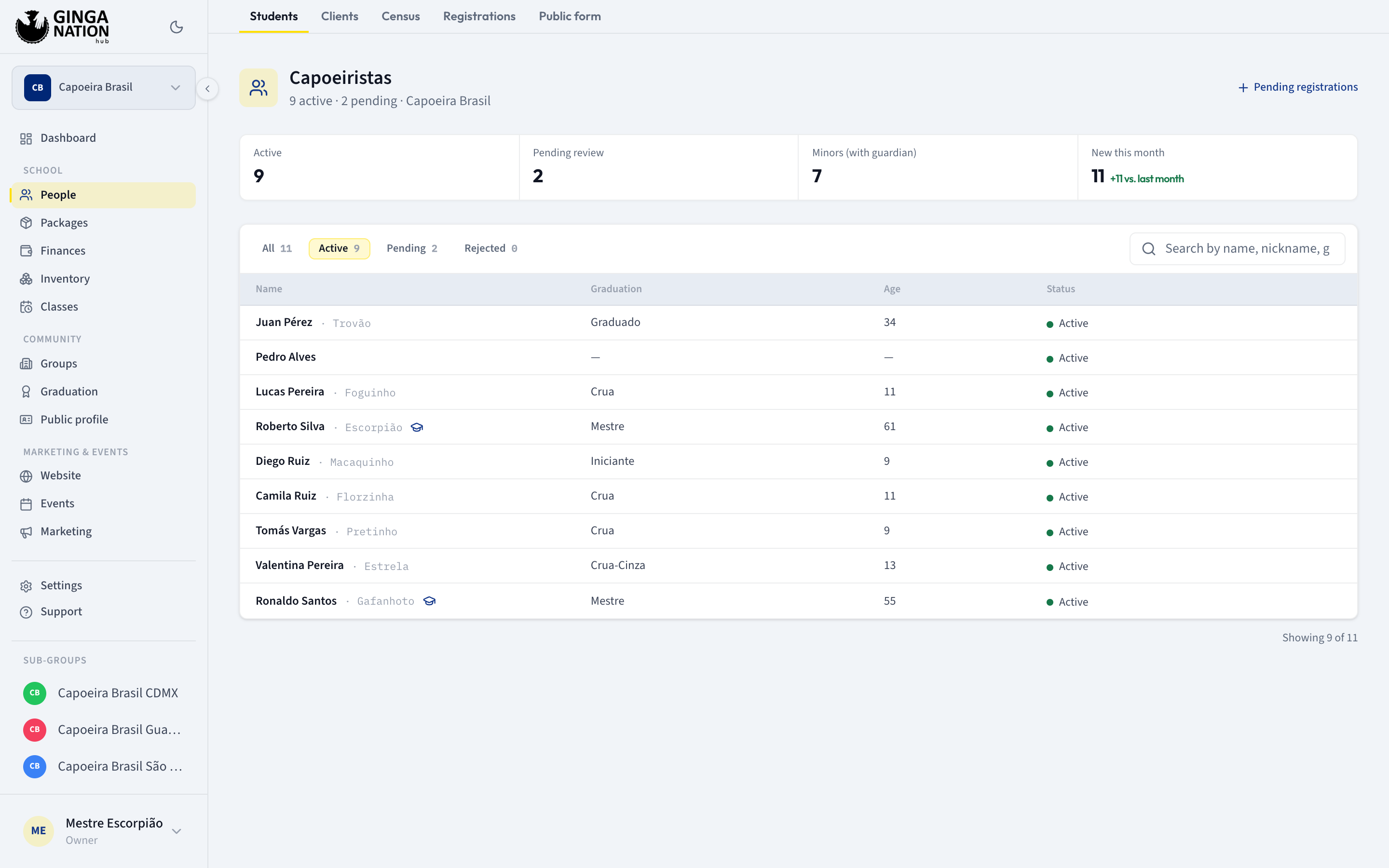
Four counters sit above the list:
- Active — approved students.
- Pending review — submissions still waiting in the queue.
- Minors (with guardian) — everyone under 18, worked out from their date of birth.
- New this month, with a delta against vs. last month.
Filter and search
The chips filter by status and carry counts: All, Active, Pending, Rejected. The list opens on Active, which is why a student you just rejected seems to have vanished — they are under Rejected.
The search box (Search by name, nickname, graduation, or email…) matches on first name, last name, nickname, graduation and the email on the record, and it searches inside the chip you have selected. With nothing found you get No results for "…"; with an empty status you get No capoeiristas in this state.
The line under the table always tells you what you are looking at: Showing 8 of 24.
Read a student's record
Click any row. On a wide screen the record opens as a panel beside the list; on a phone it opens as a card over it. Either way you get:
- the nickname as the heading, with their cord and student since the year they joined;
- Status, and Registered with the date plus a badge for where they came from — Registration, Census, Manual or Imported;
- their graduation and Since (when they started capoeira);
- Contact with their Email as a mail link;
- for a pending student, a Review registration in inbox → shortcut to the queue.
In the table, a small cord chip appears next to the name when their rank has colors, and a graduation-cap icon marks a Leader.
Edit what's wrong
Click Edit in the record — or hover a row and use the Edit button that appears at its right end. On a pending row that button reads Review instead and takes you into the queue.
Change what you need and click Save changes; Cancel discards. The button stays disabled while Name is empty, and only the fields you actually touched are sent.
Field by field:
| Field | What to know |
|---|---|
| Name | Required. |
| Last name, Nickname | Free text; clearing them is allowed. |
| Graduation | A dropdown of your own cords, grouped by system, plus — No graduation —. |
| Date of birth | Drives Age and the Minors (with guardian) counter. |
| Started capoeira | Shown as Capoeira since on the record. |
| Active | Appears in the active practitioners list. |
| Teaches | Marked as instructor/teacher. |
| Primary leader | Main leader of the group (combined with 'teaches' shows as Leader). |
Take someone off the list when they stop training
There is no delete button, on purpose — a student's history (their graduations, their attendance, their payments) should not disappear because they took a year off. What you do instead depends on the case:
- They trained with you and left. Open the record, click Edit, uncheck Active, and Save changes. They drop out of your public directory and out of the lists the platform builds from "active practitioners", while their record and history stay.
- They never actually joined — a test submission, a duplicate, someone who changed their mind. Handle it in People → Registrations with Reject before approving. Rejected records live under the Rejected chip and cannot be edited.
- The record must be gone entirely. Nothing in the hub does that. Ask your Ginga Nation contact; removals are archived rather than erased so that counts from previous months stay correct.
What you should see
After a clean-up pass, Active matches the number of people who actually turn up, Pending review is zero, and every student has at least a cord and a date of birth — which is what makes the Minors (with guardian) counter and the age column meaningful.
Troubleshooting
Unchecking Active didn't change the Active counter. It won't. The Active counter and the Active chip count approved students; the Active checkbox controls whether the person appears in practitioner lists such as your public directory. They are two different things that share a word.
A student is missing. Check the chip you are on (the list opens on Active, hiding pending and rejected people), then check whether the sidebar is pointing at the right group — a student registered to a sub-group only shows when that sub-group is selected.
The Age column shows a dash. No date of birth on the record. Add it with Edit.
No cord chip next to a name. The colors come from the rank in your graduation system. A cord with no colors configured, or a graduation typed before you built your system, shows as plain text.
The Graduation dropdown shows "(current, outside system)". That student's cord no longer exists in any of your systems — usually because the rank was renamed or deleted. Pick the correct current rank and save.
Nothing loads and you get a permissions error. Your account is not a member of the selected group. Check the group name at the top of the sidebar.