Review and approve enrollment requests
Work the Registrations queue, and know what approving or rejecting actually does.
For group owners and admins · 5 min · Updated 2026-07-30
Every submission of your public registration form waits in one queue until a leader looks at it. This is the screen where you decide who joins your group.
Before you start
- Owner or admin to approve or reject. Staff can open the queue and read submissions, but the buttons will be refused with a permissions error.
- Your public registration form should already be live — see Collect enrollments with a form.
Steps
Open People → Registrations
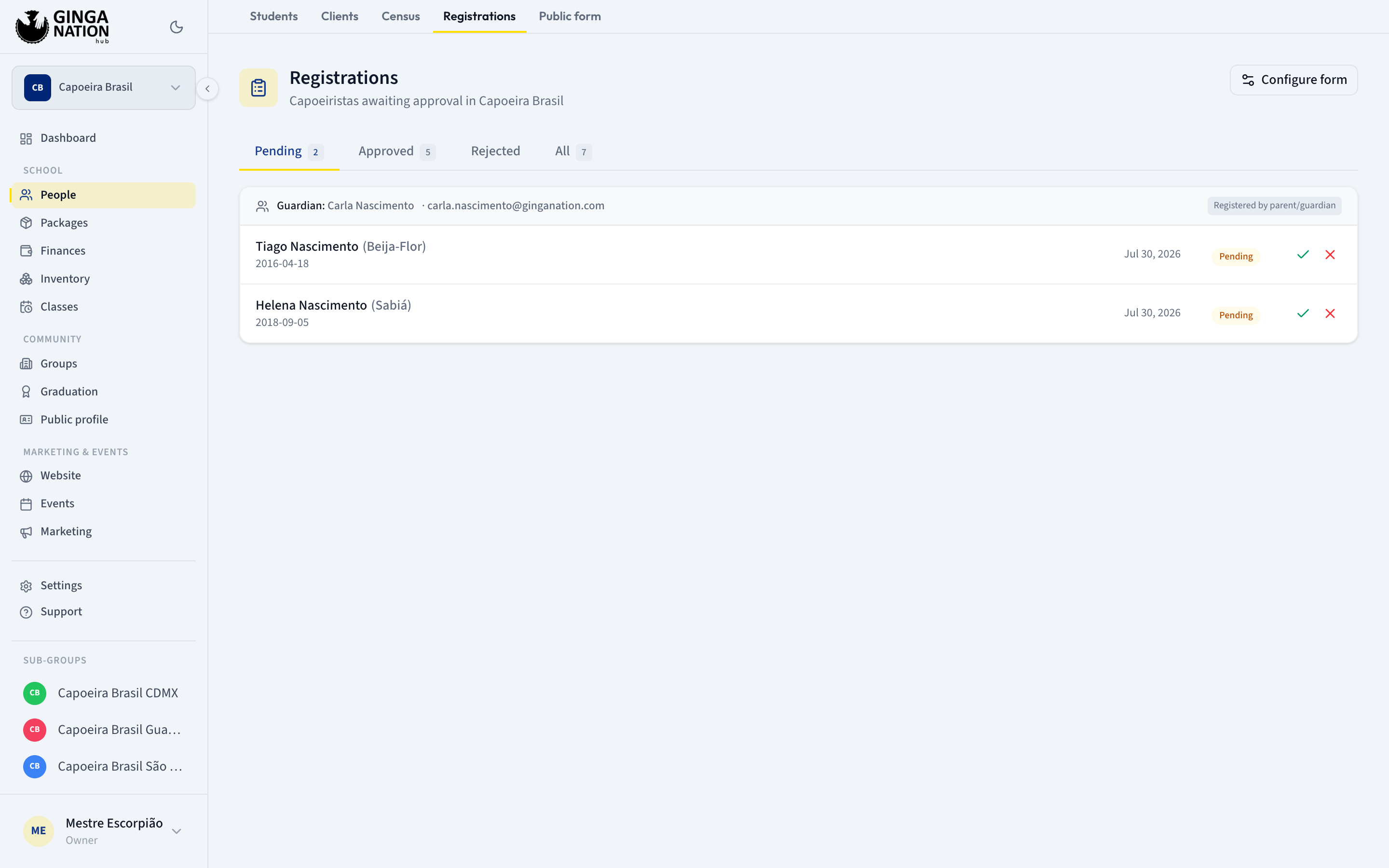
Click People, then the Registrations tab. The page opens on Pending; the other tabs are Approved, Rejected and All, each with a count.
If the list is empty you see No registrations in this state. — check the other tabs before assuming nothing arrived.
Read the card, not just the row
Submissions are grouped by the person responsible for them. When a guardian signed up children — or when one submission contained several people — the card gets a header reading Guardian: with their name and email, plus a badge saying Self-registration or Registered by parent/guardian.
Each row underneath is one capoeirista, showing their name, nickname in parentheses, graduation and date of birth, the date they applied, and their status.
Open a submission to see everything they sent
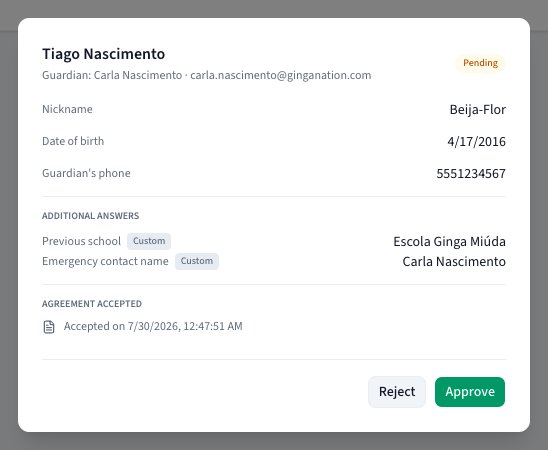
Click the row. The detail panel shows Nickname, Graduation, Date of birth, the Guardian's phone, and — when you asked for them — your own questions under Additional answers, each tagged Custom.
If your form required a document, the panel shows Agreement accepted with Accepted on and the date, the version, and an Open document link to the exact PDF they accepted.
Approve or Reject
Approve turns the request into a real student straight away — the button reads Approving... while it works, then the row leaves the Pending tab.
Reject first asks for a Reason (optional). The placeholder says it plainly: Visible internally only. Then Confirm rejection finishes it (or Cancel backs out).
You can also approve or reject straight from the list with the small tick and cross buttons on a pending row, which skips reading the details — handy when you already know the person.
What approval creates
Approving one submission does three things:
- The capoeirista's status flips from Pending to Active, so they appear on the Students roster and in every count on the page.
- The hub records who reviewed it and when.
- The responsible email becomes a client of the group if it wasn't already — listed as Member when the person signed themselves up, or Guardian when they signed up children. That is what you see later on the Clients tab.
Rejecting is gentler than it sounds: the record stays, moves to the Rejected tab, keeps your reason attached, and can be found later on the roster's Rejected filter. It is not deleted.
What the applicant experiences
This is worth being clear about, because it is easy to assume otherwise:
- After submitting, they see your Success message and nothing else happens automatically.
- Approving does not send them an email. Neither does rejecting. If you want them to know, message them yourself — the queue shows their email and phone.
- The Reason (optional) you type on a rejection is never shown to them.
- If they later create a Ginga Nation account with the same email, their approved record is already waiting for them.
What you should see
The Pending tab count drops, the Approved count rises, and the student
now appears on the Students tab with a green Active dot and a
Registration badge on their record. The roster header line updates its
… active · … pending counts.
Troubleshooting
A message says the capoeirista is already active or already rejected. Someone else in your team acted on it first, or you double-clicked. Reload the page; the row will be in Approved or Rejected.
"You don't have permission to manage registrations for this group". You are staff, not owner or admin. Ask a leader to review the queue.
Census records are missing from this queue. They never come here. The census form creates active students directly — they show up on Students with a Census badge.
A student you approved has the wrong cord. The public form offers a generic graduation list, not your cords. Fix it on the Students tab with Edit.
Someone applied twice. Both submissions sit in the queue as separate rows. Approve one and reject the other, otherwise you will carry a duplicate student.