Collect enrollments with a form
Build your public registration form, share the link, and know exactly where submissions land.
For group owners and admins · 8 min · Updated 2026-07-30
Instead of collecting names over WhatsApp, you can hand people one link. This page covers the form you build in the hub, what a student sees when they open it, and where the answers end up. It also settles the question everyone asks: how this differs from the Census form.
Before you start
- Owner or admin of the group. Staff can open the editor but saving is refused.
- Your group needs a microsite address — that is what the public link is built from. If there is none, the share block never appears. See Your public presence.
- If you want to require a signed agreement, have the PDF ready (max 5 MB).
Steps
Open People → Public form
Click People in the sidebar, then the Public form tab. You can also get there from People → Registrations with the Configure form button.
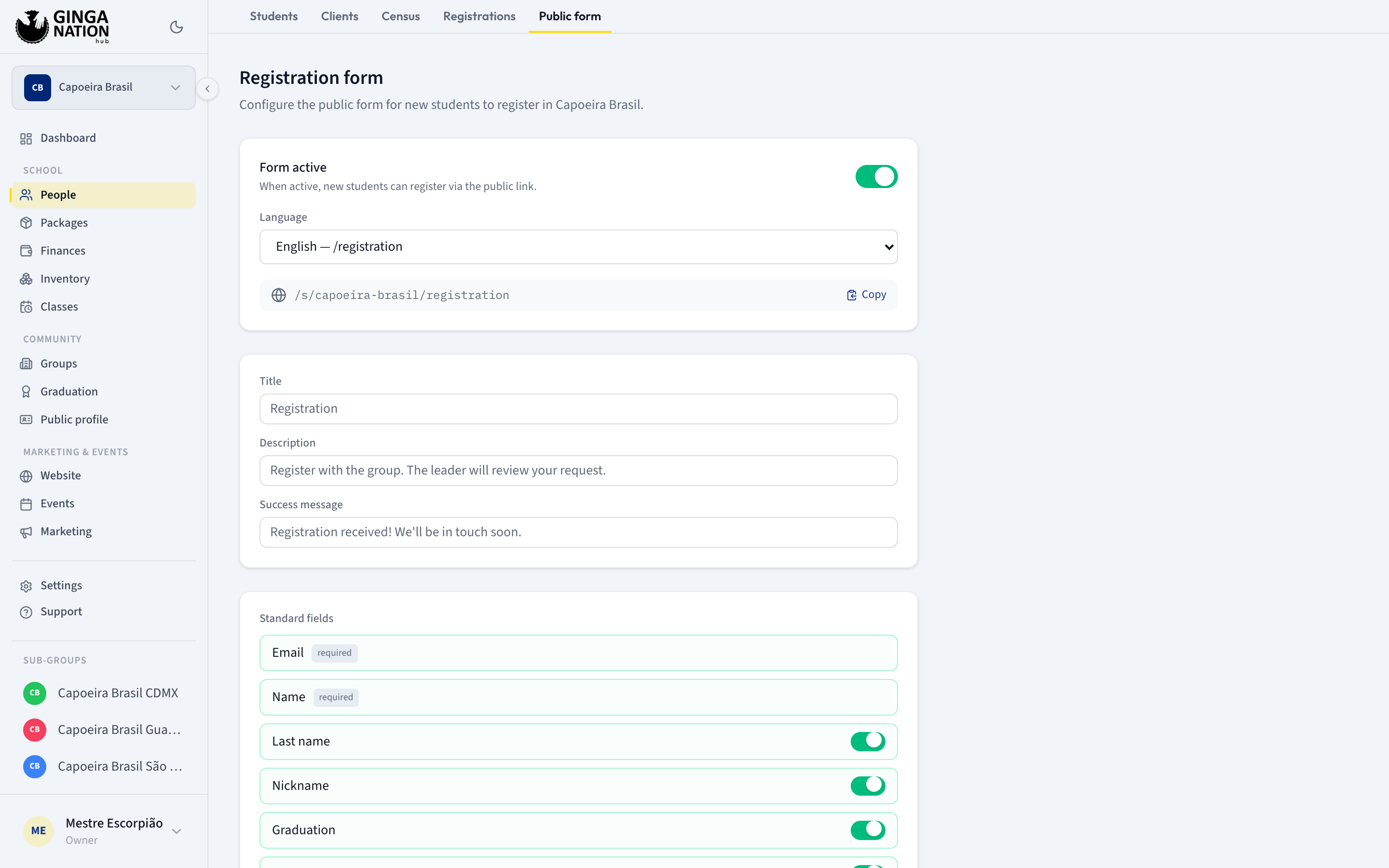
Turn on Form active and pick the Language
Form active is what makes the public page exist — When active, new students can register via the public link. While it is off, the address returns a not-found page.
The public address is always the same: /s/your-slug/join. By default the form
opens in your school's language (Settings → School → Language); the
Form language dropdown lets you override that for this form only:
- Automatic — follows the school language
- Português, Español or English — forces the form into that language
Change the language later and old links still work: they redirect to the new path.
Write the wording students see
Three optional fields shape the page:
- Title — the page heading. Defaults to Registration.
- Description — the line under the heading. Defaults to Register with the group. The leader will review your request.
- Success message — what they read after submitting. Defaults to Registration received! We'll be in touch soon.
Choose the fields
Standard fields are the ones that map onto a student record. Email and Name carry a required badge and cannot be switched off. Last name, Nickname, Graduation, Date of birth and Phone each have a toggle.
Under Custom fields, click Add to build your own question: Field name, Type (Text, Long text, Number, Date, Email, Phone, Select, Yes / No), an optional Description (optional) shown as help text, and the Required checkbox. Choosing Select reveals Options (comma separated).
Each custom field row then lets you flip req. / opt., open Edit field, or delete it.
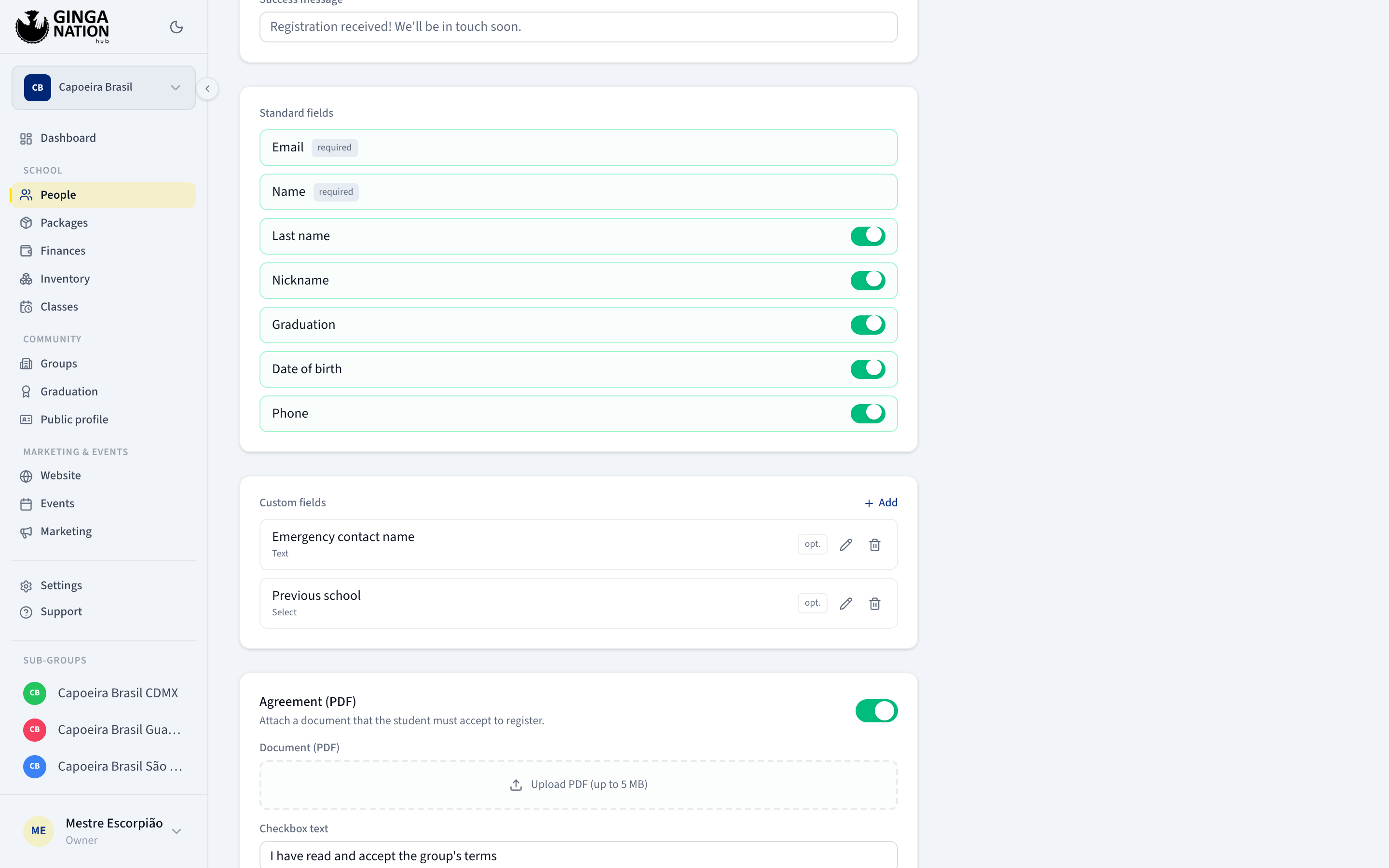
Editing a field keeps the answers already collected under it. Deleting a field only removes it from the form — answers people already gave stay on their records under Additional answers.
Optional: require an agreement
Turn on Agreement (PDF) — Attach a document that the student must accept to register. Then:
- Document (PDF) — click Upload PDF (up to 5 MB). Once uploaded you get Replace and a delete button. Only PDFs are accepted.
- Checkbox text — the sentence next to the tick box, e.g. I have read and accept the group's terms.
- Document version (optional) — a label like
v2026.01, stamped onto every submission so you know which version each student accepted.
Save, then copy the link
Click Save; a green Saved appears. Now the share block shows your path
and a Copy button that puts the full address on your clipboard:
https://roda.ginganation.com/s/your-slug/join.
While you have unsaved edits, Copy is disabled and the hub warns Save your changes so the link matches the current settings. — the live form still behaves like the last saved version.
What the student sees
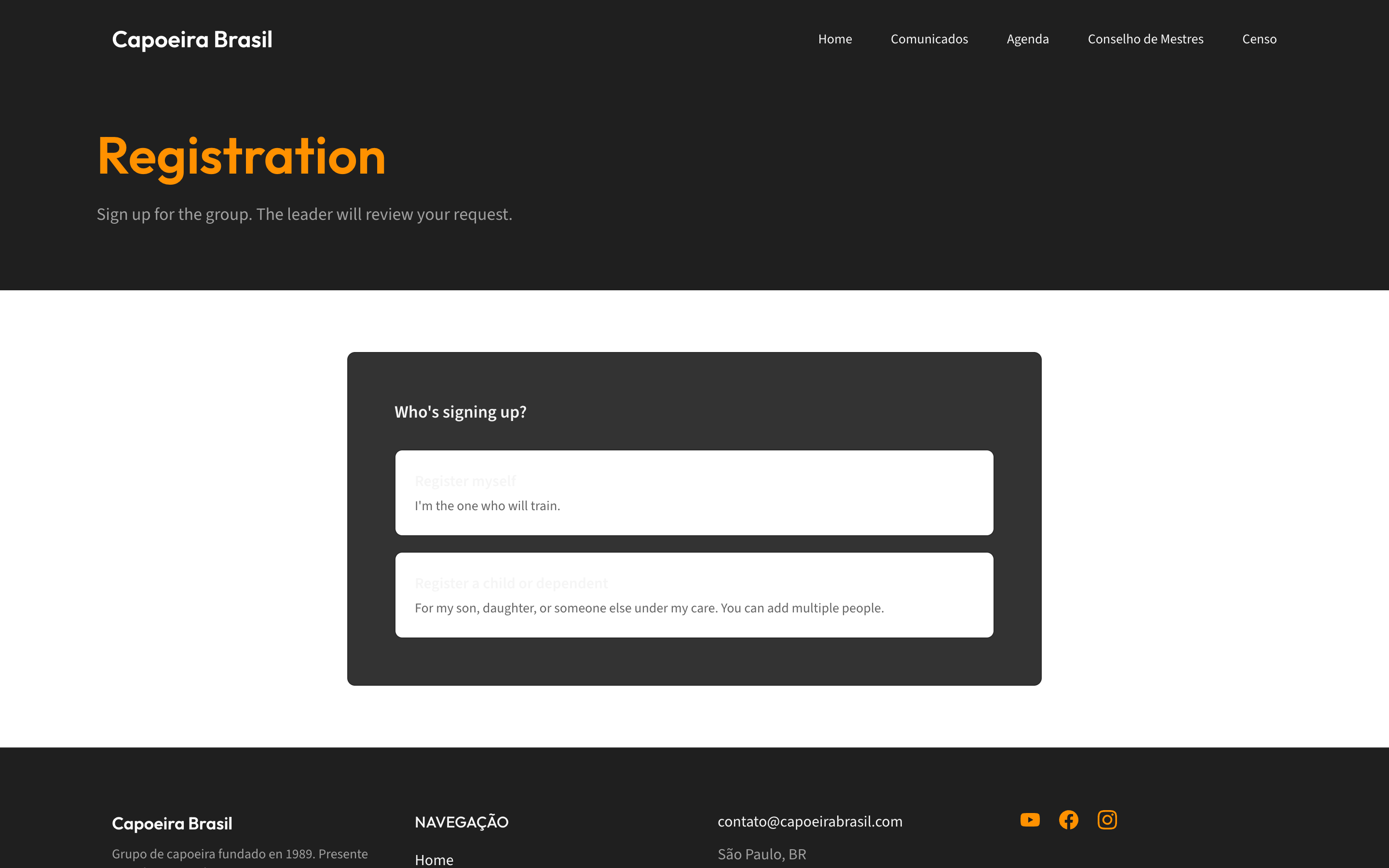
The page opens with Who's signing up? and two choices:
Everything you switched on appears on a single screen, and the button reads Submit registration. The person is both the student and the responsible contact.
On success they see Request sent, your success message, and a Register again link.
The Graduation field on this form does not offer your group's cords. It falls back to a generic list (Iniciante, Batizado, Graduado, Formado, Instrutor, Professor, Contra-Mestre, Mestre, translated to the form's language). Treat whatever they pick as a claim to verify, and set the real cord yourself after approving — see Set up graduations and record a cord.
Where submissions land
Every submission creates one Pending capoeirista per person, all attached to the responsible email, and shows up in People → Registrations. Nothing reaches your roster until you approve it, and the applicant is told exactly that by the default description. If you use the Ginga Nation app, owners and admins also get a push notification.
Continue with Review and approve enrollment requests.
Registration form vs Census form
Both write to the same roster, but they are different tools configured in different places:
| Registration form (People → Public form) | Census form (Website → Configuration → Census) | |
|---|---|---|
| Public path | /join | /census |
| Switch | Form active | Census active on the site |
| Guardian + several children | Yes | No — one person per submission |
| PDF agreement | Yes | No |
| Field types | Includes Yes / No | No Yes / No |
| Extra standard field | Phone | Started capoeira |
| Graduation options | Generic fallback list | The systems you tick under Systems available in the census |
| Result | Pending — needs your approval | Active immediately, no review |
| Duplicate protection | None | Refuses a second submission for the same email in the same group |
In short: the census form is a headcount tool that trusts what people type. The registration form is an enrollment tool that puts you in the loop. If you only ever want one of them, use the registration form.
The census form is part of your microsite, so it is switched on with the other site sections under Website → Configuration, not in People. See Your public presence.
Troubleshooting
The public link 404s. Form active is off, or your changes are unsaved, or the group has no microsite address.
No share block at all. The group has no microsite address yet. The editor gives no explanation in this case — it simply hides the link.
Someone says the form was in the wrong language. The language is the form's, not the visitor's: one language per group, chosen in the Language dropdown.
A phone number arrived without a country code. The public form's phone field is plain text, so people type what they like. Ask for the international format in the field's Description (optional) if this matters to you.
Custom answers look like Previous school. They are labeled from your field
name; the record shows them under Additional answers with a Custom badge.