Add your first student
Get one capoeirista onto your roster and learn what a student record holds.
For group owners and admins · 6 min · Updated 2026-07-30
This is the page to read the first time you open People and go looking for a "new student" button. There isn't one — and once you know why, the shortest path to your first student takes about two minutes.
In the hub, a student record is always created by a form submission. So to add someone by hand, you turn on your public registration form and fill it in for them, then approve it. From that moment the record is yours to edit.
Before you start
- You need to be owner or admin of the group. Staff can see the roster and the queue but cannot approve a request or save the form settings.
- Your group needs a microsite address for the form link to exist. If your group has no public site yet, start with Your public presence.
- Optional but worth doing first: a graduation system, so the Graduation dropdown has cords in it. See Set up graduations and record a cord.
Steps
Open People → Public form
In the sidebar, click People, then the Public form tab. Turn Form active on, pick the Language your students read, and click Save.
The share link only appears once the form is active and saved. It looks like
https://roda.ginganation.com/s/your-slug/join. The full walkthrough of
this editor is in
Collect enrollments with a form.
Fill the form in for your student
Open the link in a new tab. The form asks Who's signing up? — choose Register myself for an adult, or Register a child or dependent if you are recording a minor with their guardian's contact details.
Only two things are ever required: Email and Name. Everything else is a field you chose to switch on.
The email you type becomes the responsible person for the record — the address you can reach them at and, later, the one used to link their account. Use the student's real email (or the guardian's), never your own, or every student you add will hang off your account.
Approve the submission
Go back to the hub, open People → Registrations. The submission is sitting in the Pending tab. Open it, check the details, and click Approve.
Nothing appears on your roster before this step.
Complete the record in Students
Open the Students tab, click the student's row, then click Edit. Fill in whatever the form didn't ask for, and click Save changes.
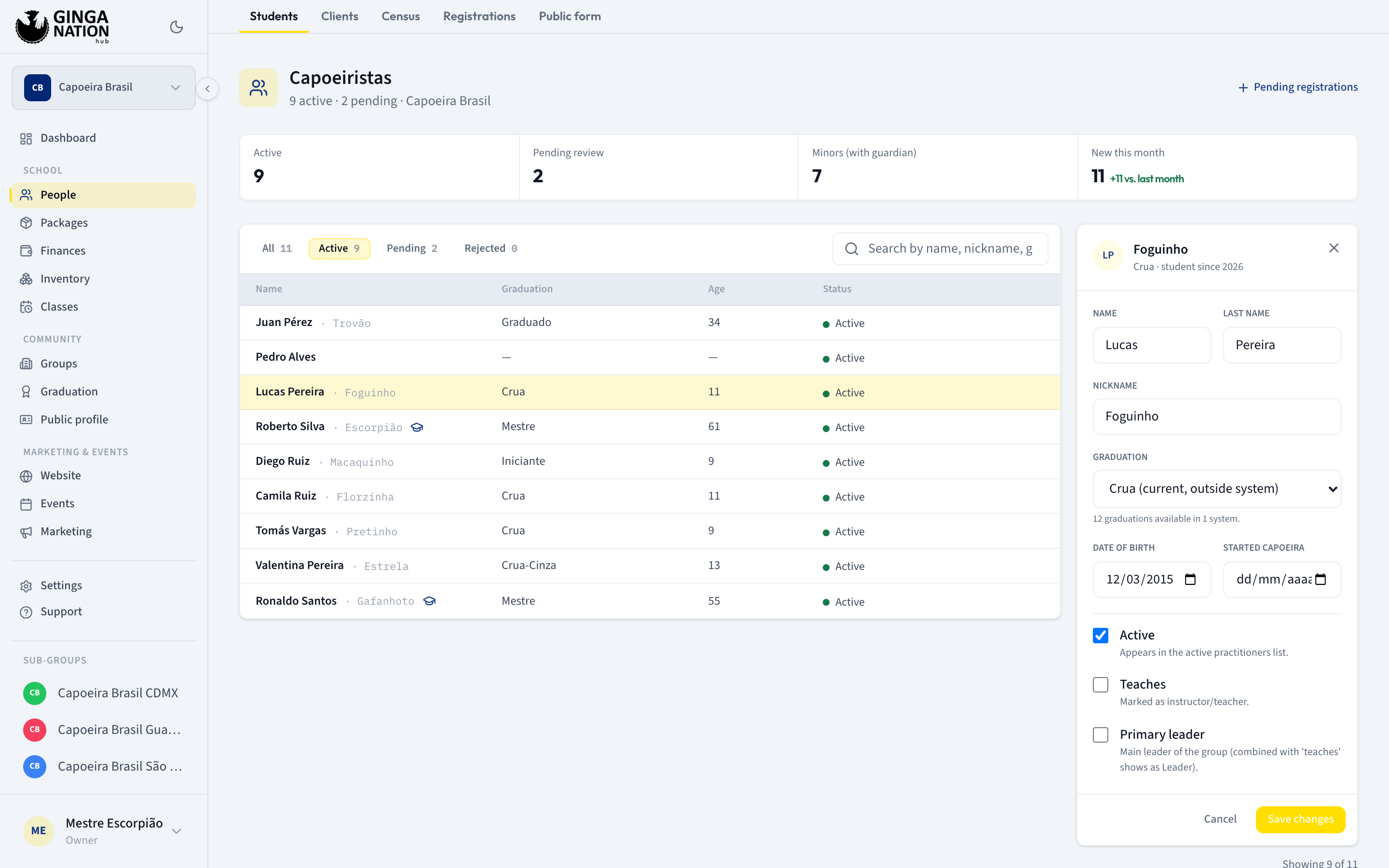
What you can edit on a student record
These are all the fields the hub lets you change, and what each one expects:
| Field | Required | What it expects |
|---|---|---|
| Name | Yes | Cannot be saved empty. Save changes stays disabled while it is blank. |
| Last name | No | Free text. Leave it blank and it is stored as empty, not as a space. |
| Nickname | No | The apelido. Shown next to the name across the hub, and used as the record's headline in the detail panel. |
| Graduation | No | A dropdown, never free text. It lists the ranks of your graduation systems, grouped by system name, plus — No graduation —. |
| Date of birth | No | A date picker. It drives the Age column and the Minors (with guardian) count on the roster. |
| Started capoeira | No | A date picker. Shown as Capoeira since on the record. |
| Active | — | Checkbox: Appears in the active practitioners list. |
| Teaches | — | Checkbox: Marked as instructor/teacher. |
| Primary leader | — | Checkbox: Main leader of the group (combined with 'teaches' shows as Leader). |
What the hub cannot edit
Some information can only arrive through the public form, and the hub shows it read-only on the record:
- Email and the guardian's phone number. They belong to the responsible person, not to the student record, and there is no field for them in the edit form. To fix a wrong email, the person has to submit the form again with the right one.
- Answers to your own custom questions. They show under Additional answers with a Custom badge.
- Agreement acceptance. When your form requires a PDF agreement, the record shows Agreement accepted, the date, and Open document.
- Health notes and emergency contacts. The platform stores them, but no screen in the hub displays or edits them today.
What you should see
The student appears in Students with a green Active dot, and the header
line under the page title counts them: 1 active · 0 pending · <your group>.
Opening the record shows Registered with today's date and a small
Registration badge — the badge tells you where the record came from
(Registration, Census, Manual or Imported).
Troubleshooting
The share link doesn't appear. It is only rendered when the form is active and the version on the server matches what you are looking at. If you changed anything, the hub shows Save your changes so the link matches the current settings. and greys out Copy until you save.
Opening the public link gives a "not found" page. The form is not active, or your group has no microsite address yet.
"name cannot be empty". The server refuses a blank Name even if the field looks fine — check for a stray space-only value.
Saving a graduation fails. If the group has no graduation system, the edit form replaces the dropdown with This group does not have a graduation system configured yet. and a Configure now → link. If you see a message saying the graduation "is not part of this group's graduation systems", the rank was renamed or deleted after it was assigned.
You submitted the form twice and got two students. The registration form does not check for duplicates: each submission creates its own pending request. Reject the extra one instead of approving it. The census form does check, and answers with This person is already registered in this group.