Set up your group
The two questions the hub asks after your first sign-in, and the optional steps that follow.
For the person who created the account — they become the group's owner · 10 min · Updated 2026-07-30
The first time you sign in, the hub asks two things: who you are, and what your group is called. That is the whole required setup. Creating the group also creates its public site, and the hub then offers three optional steps to make that site look like your group.
Before you start
- A confirmed account — see Create your account.
- Your group's name as you want it read in public, and the country where it operates.
- Optional but useful: your group's logo as a PNG, JPG, WebP or SVG file under 5 MB, and one to three photos of your group.
You cannot get to the dashboard before finishing these two steps — the hub keeps returning you to the setup until the group exists. There is a Sign out link at the bottom of the first step if you need to leave and come back.
Steps
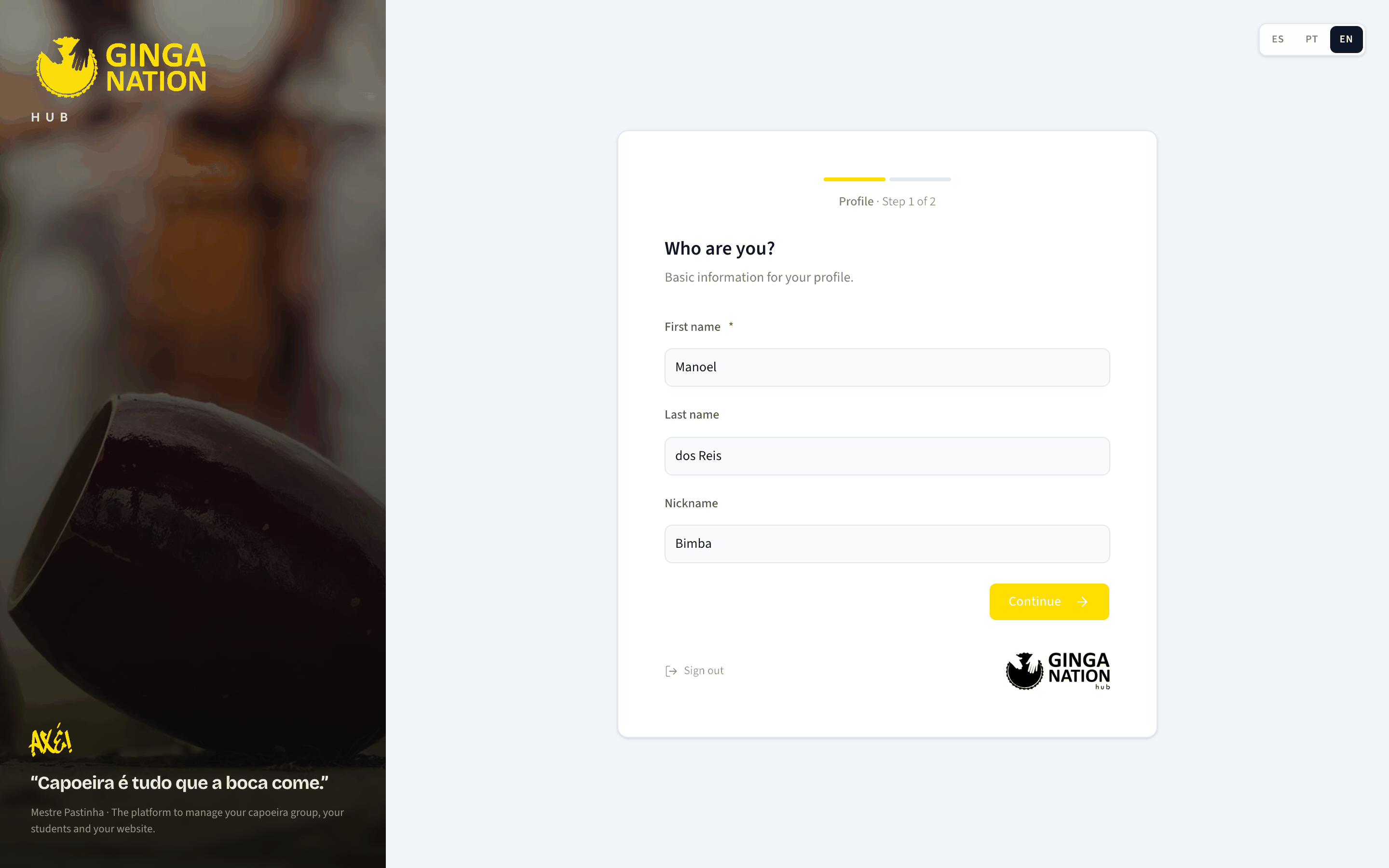
Answer Who are you?
Step 1 of 2. Fill in First name — it is the only required field — plus Last name and Nickname if you want them. The nickname is your apelido: what people in the roda actually call you.
Press Continue.
Answer Create your group
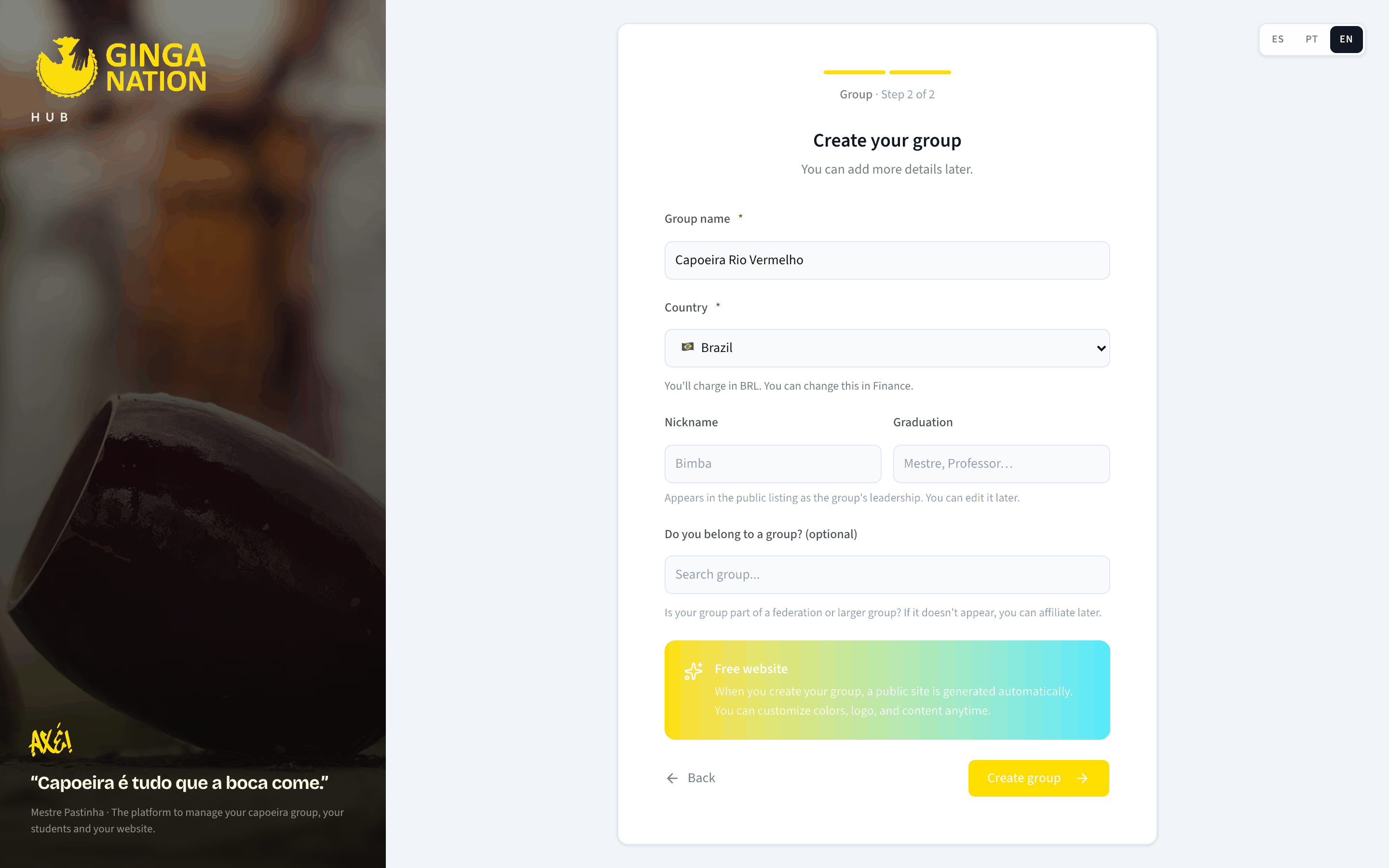
Step 2 of 2. Two fields are required:
- Group name — what appears on your public site and in the directory.
- Country — pick it from the list. This sets the currency your group charges in, so it is worth getting right; the hub shows you which currency it picked right under the field.
Three more are optional:
- Nickname and Graduation (for example
MestreorProfessor) — these two appear in your public listing as the group's leadership. - Do you belong to a group? (optional) — search for a federation or larger group your school is part of. Type at least two letters; if nothing matches you get No groups found, and you can affiliate later instead.
Press Create group.
If the heading reads Confirm your group instead, the hub already found your group — that happens when you filled in a public Ginga Nation form before opening this account. Review the values it pre-filled and press Save; no duplicate group is created.
Land on your dashboard
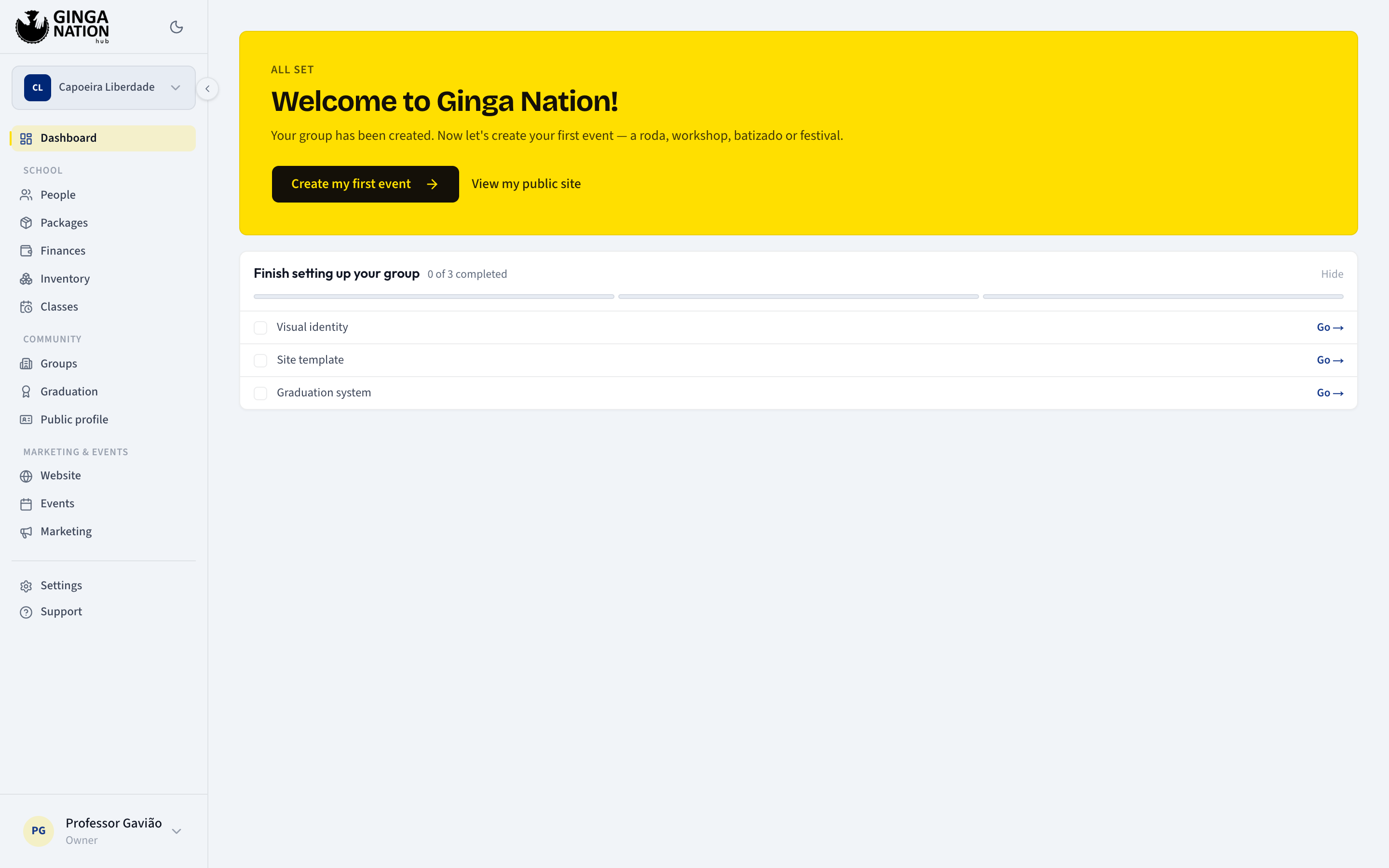
Creating the group lands you on the dashboard with a welcome panel: a greeting, a Create my first event button, a View my public site link (your site already exists), and a checklist titled Finish setting up your group.
The three optional steps
Each checklist row opens one step; Go → takes you there and each step has a Back to dashboard link and a Skip button. Nothing here is required, and you can come back to any of them later.
What you should see
Your dashboard opens without redirecting you back to setup, the sidebar shows your group's name at the top, and your public site is live at its own address — the View my public site link in the welcome panel goes straight to it.
The checklist stays on the dashboard until all three optional steps are done. If you would rather not see it, Hide dismisses it for good.
Changing your answers later
- Group name, Logo, Nickname and Graduation — the Public profile area, which is exactly what the public directory reads.
- Site template, colors and photos — the Website area.
- Graduation system — the Graduation area.
- Country — the hint under the field (You'll charge in … You can change this in Finance.) points at Finance, which is not yet open to every account. Until it is, ask Ginga Nation support to change a group's currency. There is no separate currency field: it follows the country.
Troubleshooting
The logo will not upload. Only PNG, JPG, WebP and SVG are accepted, and only up to 5 MB — the step says so under the upload box, and rejects anything else with Unsupported format. or File too large.
The parent-group search finds nothing. It needs at least two characters and only matches groups already on the platform. Leave it empty and affiliate later; it is optional on purpose.