Create your account
Sign up, confirm your email, and get into the hub for the first time.
For anyone starting a group on Ginga Nation · 5 min · Updated 2026-07-30
Anyone can open an account in the hub — there is no waiting list and you do not need an invitation from us. You sign up with an email and a password, confirm the email, and the hub takes you straight into setting up your group.
Before you start
- An email address you can open right now. The hub sends a confirmation link there and you cannot sign in until you click it.
- A password of at least 8 characters — the hint under the field reads Minimum 8 characters.
- Nothing else. You do not need your group to already exist on the platform.
Every sign-in screen has a small ES · PT · EN switch in the top-right corner. Pick your language before you start and the rest of the hub follows.
Steps
Open the sign-up page
Go to the hub and choose Create account — the link sits under the sign-in form. The page is titled Create your account.
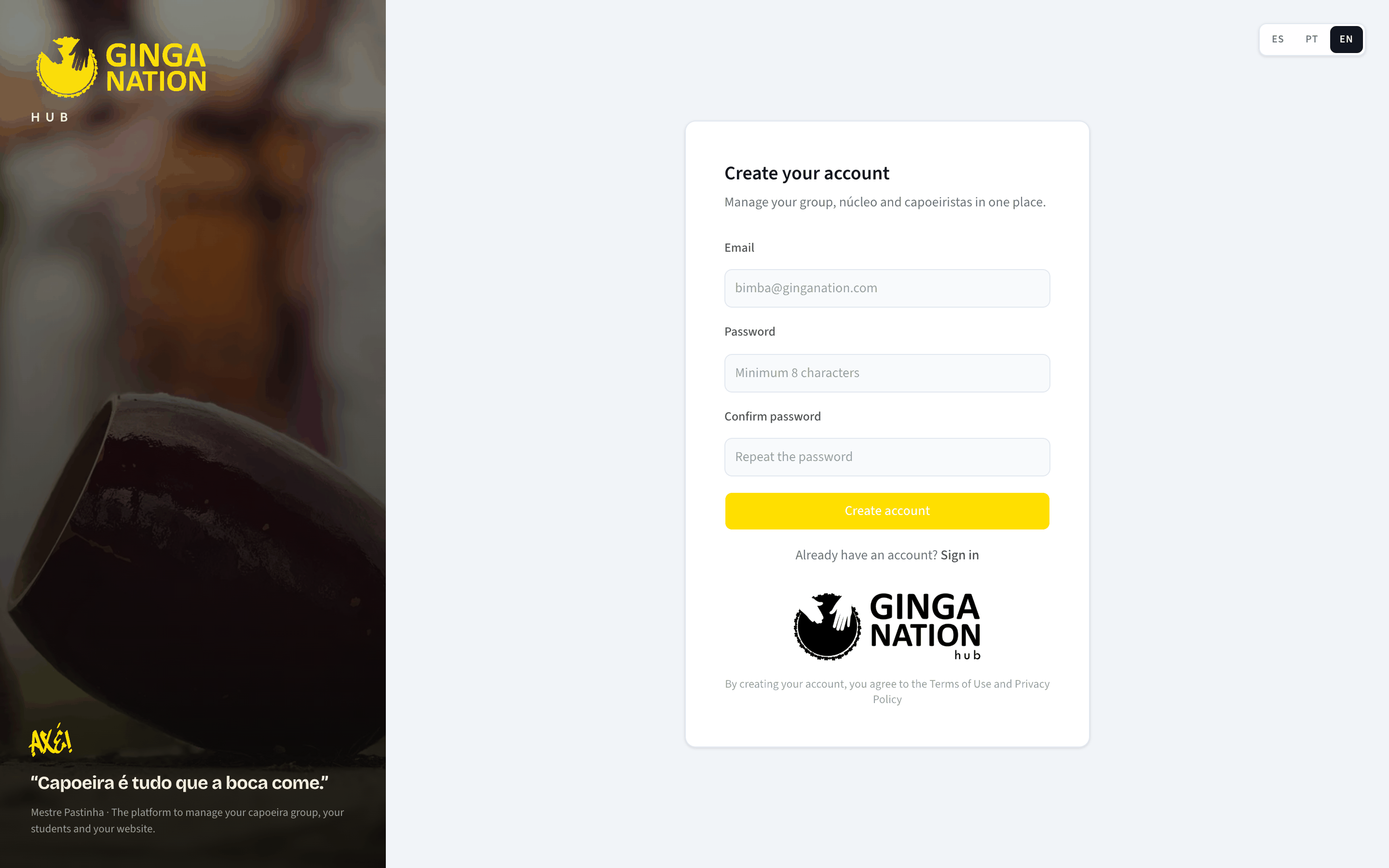
Fill in Email, Password and Confirm password
The password field asks for a minimum of 8 characters, and you have to type the same password twice. If the two do not match you get Passwords don't match. and nothing is sent.
Then press Create account. The button reads Creating... while it works.
Confirm your email
The hub replaces the form with a panel titled Confirm your email telling you which address it sent the link to. Open your inbox and click that link — it signs you in and drops you straight into the group setup.
If the mail has not arrived, the panel itself says to check your spam folder, and offers try again to go back to the form and re-enter the address.
Sign in from then on
After the first time, you get into the hub through Sign in with the same email and password.
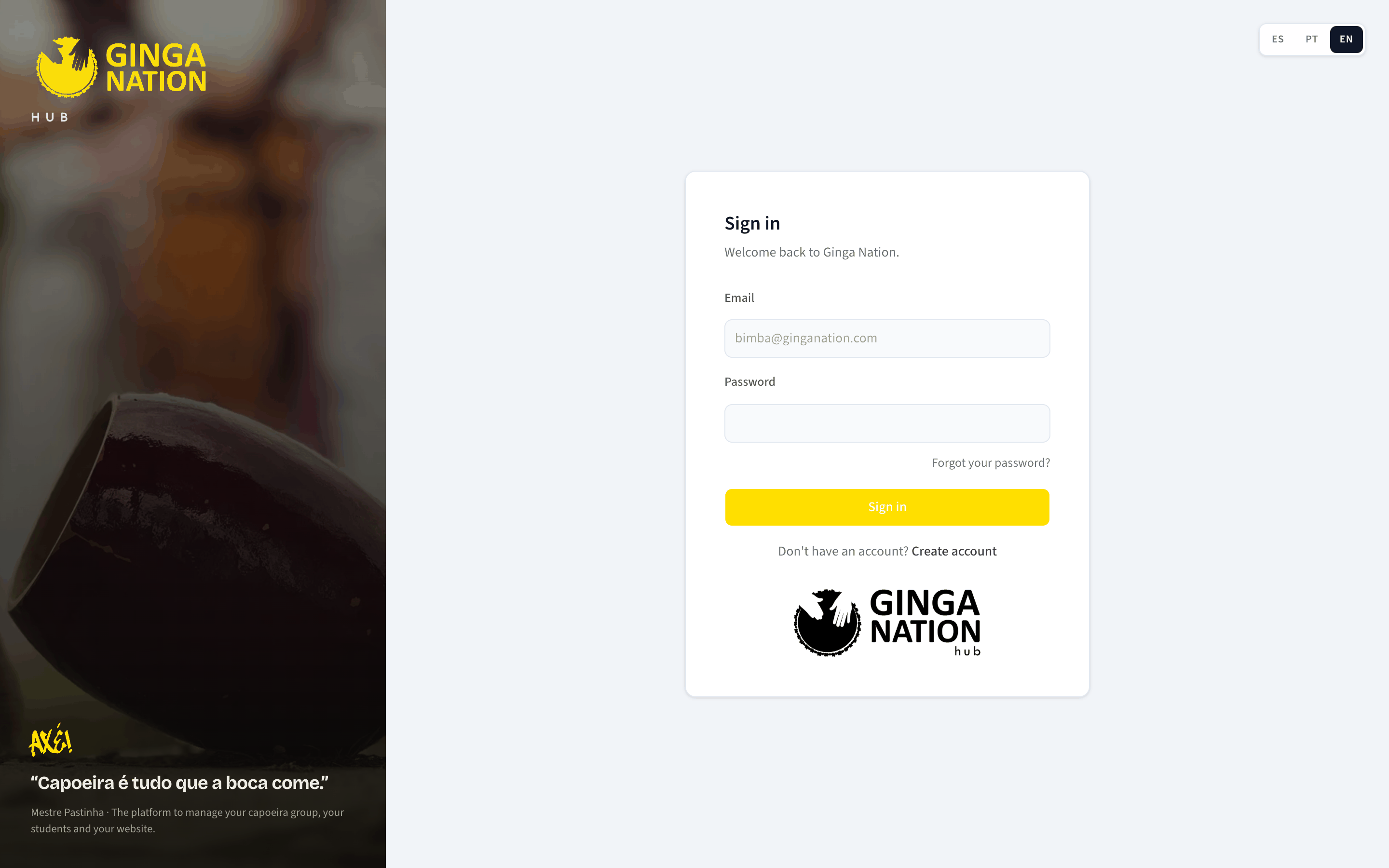
If you already have a session open, going to the sign-in page just bounces you to your dashboard.
What you should see
Right after confirming your email you land on the group-setup questions, not on the dashboard — the hub keeps sending you back there until your group exists. Continue with Set up your group.
If you forget your password
Choose Forgot your password?
The link sits under the Password field on the sign-in form and opens a page titled Recover password.
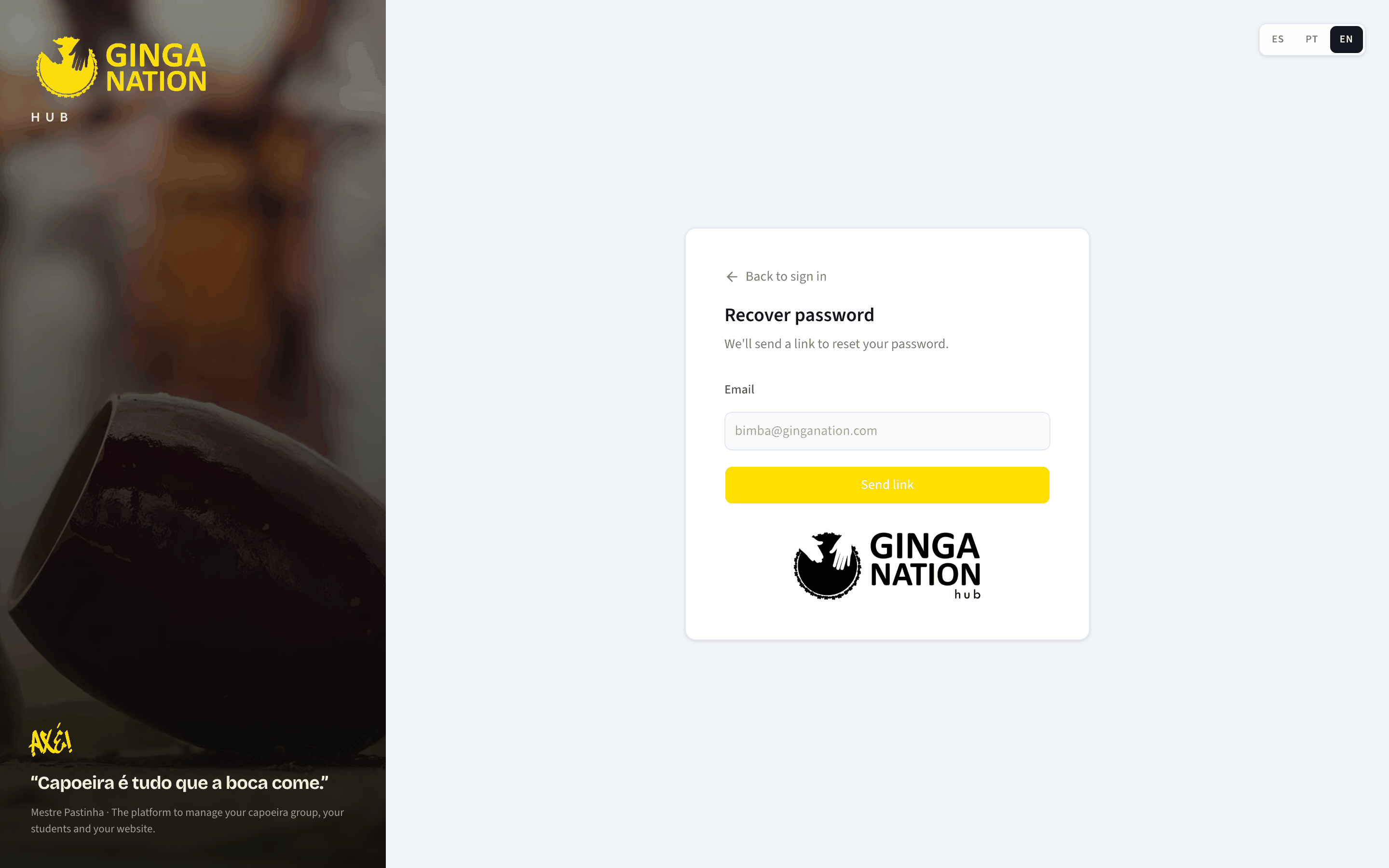
Enter your Email and press Send link
The page confirms that the link was sent and to which address. If nothing arrives, Send again re-sends it.
Set a New password
The link from the email opens a page titled New password. Type the new password twice — New password and Confirm password, again at least 8 characters — and press Save new password. You are signed in immediately afterwards.
You can also start this same flow from inside the hub, without signing out: see Manage your account settings.
Troubleshooting
You signed up but cannot sign in. Until you click the link in the confirmation email the account is not active, and the sign-in form will reject it. Look for the mail in spam before signing up again with the same address.
The password reset link does nothing. These links are single-use and expire. Request a fresh one from Forgot your password? rather than reopening an old email.