Manage your account settings
Change your password, pick your language and theme, and see what lives under Integrations and Billing.
For anyone with a hub account — the Billing tab is owner and admin only · 5 min · Updated 2026-07-30
Settings holds two different kinds of things: preferences that belong to you (your language, your theme, your password) and configuration that belongs to your group (its integrations and its billing details). Both live behind the same three tabs: General, Integrations and Billing.
Before you start
- Nothing for General — every account can open it.
- For Billing you must be the group's owner or an admin; anyone else gets told so instead of the form.
- Group-level tabs act on the group selected in the sidebar switcher.
Steps
Open Settings
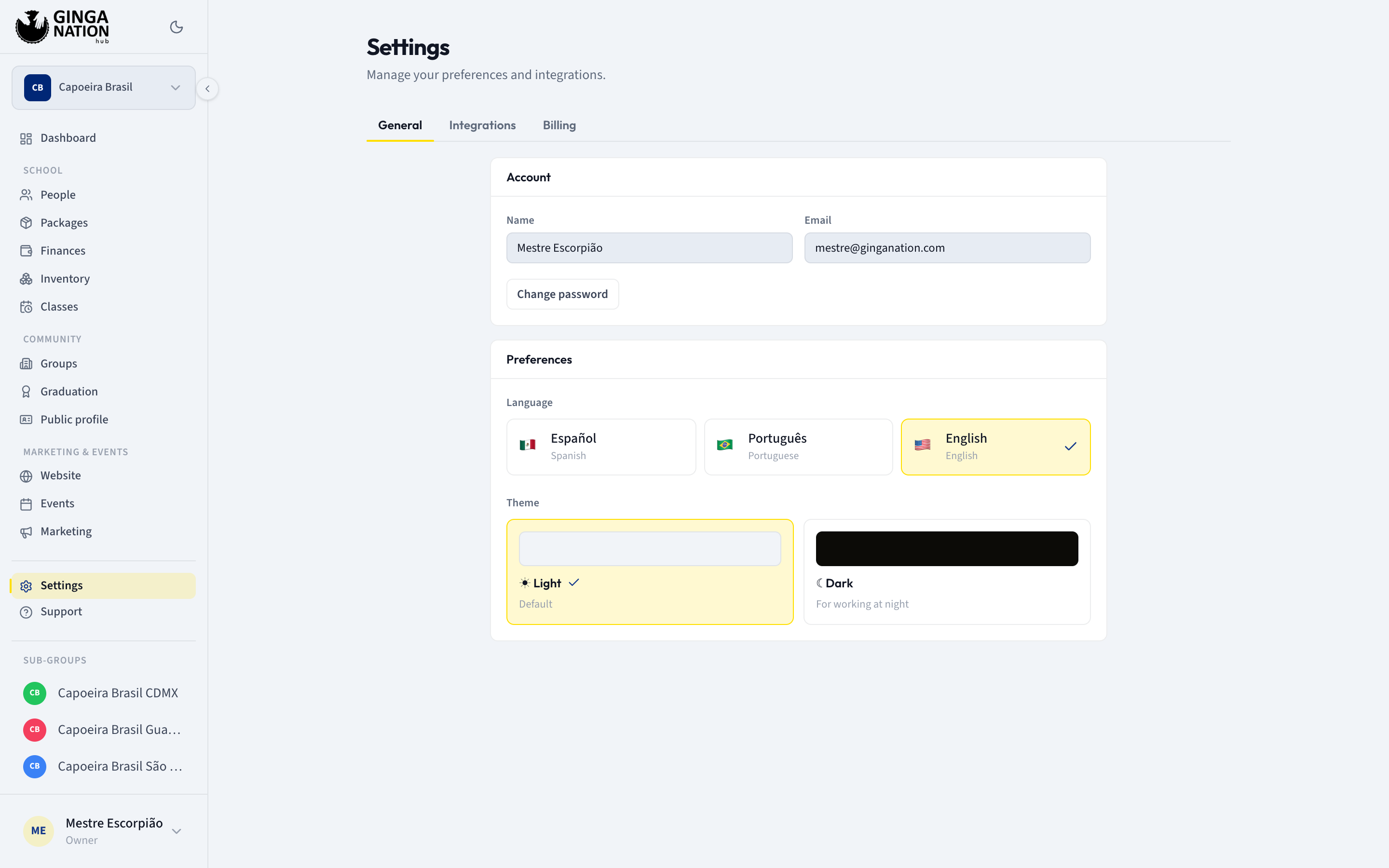
It is the first entry below the divider at the bottom of the sidebar. The page is headed Settings — "Manage your preferences and integrations." — with the three tabs under it. General is what you land on.
Check your Account panel
It shows your Name and Email as they are stored. Both are read-only here.
Change password sends a reset link to that email address — the same flow as Forgot your password? on the sign-in screen, without having to sign out. The page confirms it with "We sent an email to … to reset your password."
Set your Language
Under Preferences, pick Español, Português or English. The change applies immediately and is saved to your profile, so it follows you across Ginga Nation — the hub and the mobile app included. A Saved chip confirms it.
Set your Theme
Still under Preferences: Light ("Default") or Dark ("For working at night"). This one is a per-device preference, not part of your profile. The sun/moon button in the sidebar does the same thing in one click.
The Integrations tab
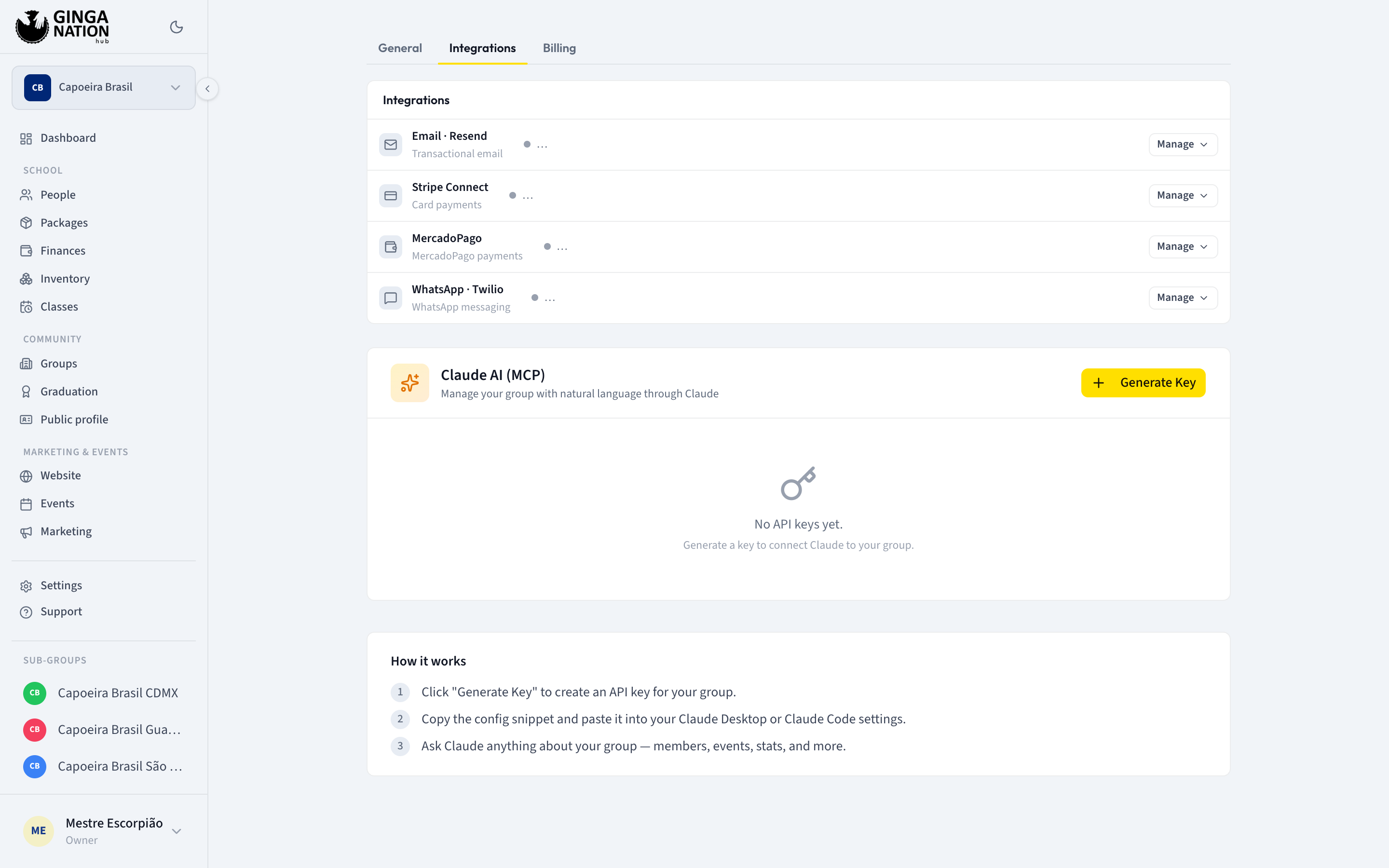
Everything here belongs to the group in the switcher, not to you. Each row expands to its own form and shows whether it is Connected, Not connected or Invalid:
- Email · Resend — your own Resend account, used to send the group's emails from your domain instead of ours.
- Stripe Connect — card payments, so you can charge for events and class fees.
- MercadoPago — the same, through MercadoPago.
- WhatsApp · Twilio — WhatsApp messaging.
All four are optional. Connecting a payment provider is what makes paid event registration possible, so the Events guides are the place that actually needs it.
Below the list, Claude AI (MCP) generates an API key that lets Claude read your group's data in plain language. Generate Key creates one — copy it immediately, it is shown only once — and the How it works panel walks through pasting the snippet into Claude. Keys you have created appear under Active Keys with the date they were created and when they were last used, and can be deleted from there.
If the tab says No group selected., your account is not attached to a group yet. There is nothing to configure until it is.
The Billing tab
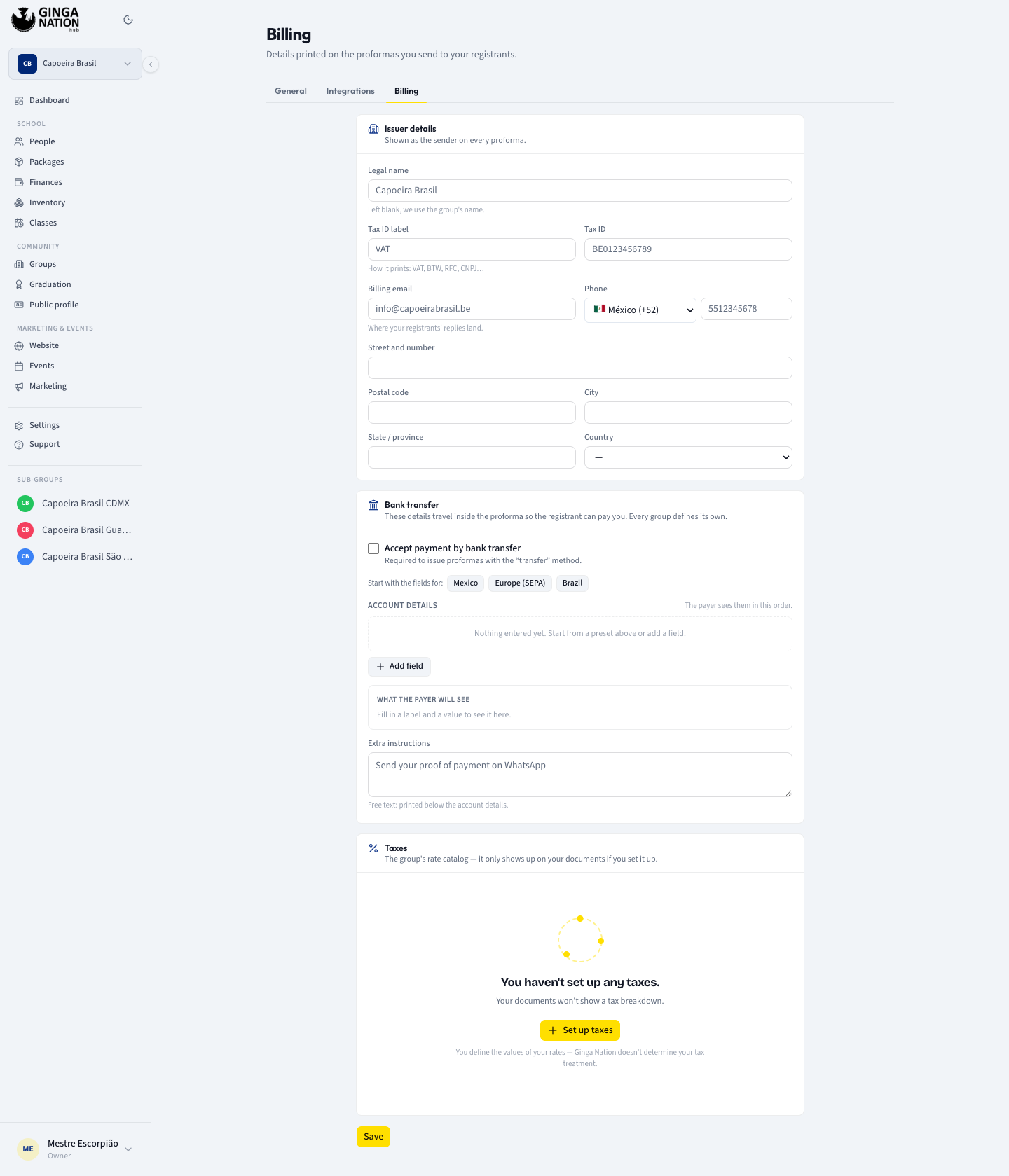
This tab is about the documents your group sends to people registering for its events — "Details printed on the proformas you send to your registrants." Only the group's owner or an admin can see and change it. It holds three panels:
- Issuer details — the identity that prints as the sender: Legal name (your group's name is used if you leave it blank), a Tax ID with the label it should print under (VAT, BTW, RFC, CNPJ…), a Billing email where replies land, a phone and an address.
- Bank transfer — turn on Accept payment by bank transfer and define the account details you want the payer to see. There is no fixed set of fields: you can start from a preset for Mexico, Europe (SEPA) or Brazil, then add, rename, reorder or remove rows, and a preview shows exactly what the payer will read. Extra instructions is free text printed underneath.
- Taxes — an optional catalog of your group's rates. Nothing is set up for you and no default is assumed: with an empty catalog, your documents simply show no tax breakdown. The first time you add a rate the hub asks once whether your prices already include tax.
Ginga Nation does not decide your tax treatment — you enter the rates and the legal notes you want printed. Ask your accountant what belongs here.
What you should see
Your language change takes effect the moment you pick it, and is still in place next time you sign in — on any device. A connected integration shows Connected on its row without you reopening it. Saved billing details are confirmed with "Billing details saved".
Troubleshooting
Your name is wrong and you cannot edit it. The Account panel is display-only. Your group's public-facing name, nickname and graduation are edited in Public profile instead; for the name on your own account, contact Ginga Nation support.
Billing tells you only the owner or an admin can edit it. That is the permission check, and it is per group — being an admin of a parent group does not carry over to its sub-groups. Ask the group's owner.
You lost a Claude API key. Keys are shown once, at creation. Delete the old one from Active Keys and generate a new one.