Complete your public profile
Fill the one form that feeds your directory card, the world map and your microsite's contact details.
For group owners, admins and staff · 5 min · Updated 2026-07-30
Your public profile is the shortest, highest-value form in the hub. It is a single screen, it takes five minutes, and it is what everything else on the public side reads from — your directory card, your pin on the world map, the leaders page, and the contact details on your microsite.
Do this even if you never turn on a microsite.
Before you start
- You need to be owner, admin or staff of the group. Members can open the page but not save.
- Have your logo file, your city, and the leader's nickname and graduation to hand.
How this differs from the microsite
| Public profile | Microsite | |
|---|---|---|
| What it is | Facts about your group | A web page you design |
| Where it shows | Directory card, world map, leaders page, your site's contact block and footer | roda.ginganation.com/s/<slug> |
| Exists by default | Yes, from the day the group is created | No — off until you switch it on |
| Who reads it | The whole platform | Visitors to your page |
Put another way: the public profile is the data, the microsite is the presentation. When both exist, the microsite reads the profile — so fixing a wrong city here fixes it everywhere at once.
Steps
Open Public profile
In the sidebar, under the community section, click Public profile. Under the title, the page tells you where this data ends up: "in the directory, the map, and the leaders page". Top right, View listing opens the public platform.
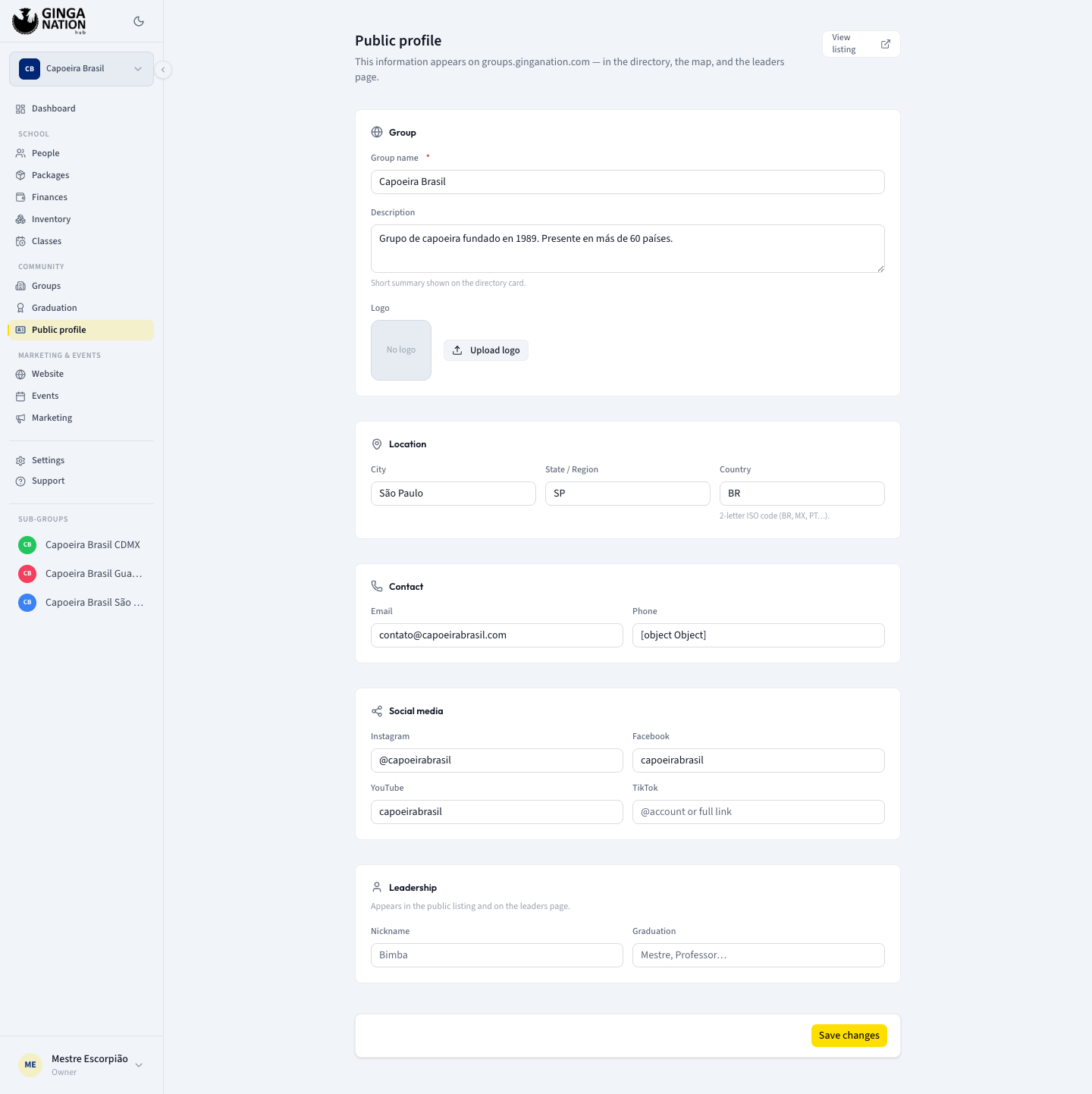
Group — name, description, logo
- Group name is required — the Save changes button stays disabled while it is empty. This is the name shown on your card and in search.
- Description — the hint says it plainly: Short summary shown on the
directory card. One or two sentences. Placeholder:
Capoeira Angola since 1985, based in Salvador…. - Logo — Upload logo (or Change logo if there is one already, plus Remove). Empty, the square shows No logo and your card falls back to the first letter of your group's name.
This is the same logo the Website editor uploads. Changing it in either place changes it in both.
Location — where people can find you
City, State / Region and Country. Country takes a two-letter
code — the hint reads 2-letter ISO code (BR, MX, PT…) — and the field forces
what you type to uppercase, so mx becomes MX.
The country code is what puts you on the world map and into the country and continent filters of the directory. Without it your group is browsable only by searching its name. City matters almost as much: it drives the city filter and is the first thing shown on your card.
Contact — how they reach you
Email and Phone.
Neither appears on the directory card itself. Your email becomes the email button in the contact block of the marketing microsite templates, and your phone appears in the footer of the Bulletin and Institutional templates.
Social media
Instagram, Facebook, YouTube and TikTok. Each accepts either the
handle or a full link — the placeholders show both, e.g. @group or full link.
These are the pills on your directory card, which is the one place a browsing prospect can jump straight to your Instagram. Fill in the ones you actually post on.
Leadership
The hint says: Appears in the public listing and on the leaders page. Two
fields — Nickname (placeholder Bimba) and Graduation (placeholder
Mestre, Professor…).
They are shown together on your card as one line, graduation first: "Mestre Escorpião". For most prospects this line is the single strongest signal on the card, so fill it in.
If your group has no main teacher recorded yet, saving this section creates one from your own account. That record is what the leaders page lists.
Save
Click Save changes in the bar at the bottom. It reads Saving… while it works, then a Changes saved ✓ note appears next to it for a couple of seconds.
What you should see
Find your group at roda.ginganation.com/grupos — search for its name. Your
card should show your logo, your group name, "City, Country", the graduation and
nickname of your leader, and a pill for each social network you filled in.
If your microsite is Active, the card is clickable and carries the address
roda.ginganation.com/s/<your-slug> with a copy button.
Public pages are cached for about a minute — reload after a moment if your change is not visible yet.
Troubleshooting
The Phone field shows [object Object]. Your group's number was saved in a
structured form that this field cannot display, and the same text can leak into
your microsite's footer. Type your number in plainly and save — that fixes both
the field and the footer.
Your microsite shows a WhatsApp button you cannot edit. The contact block of the marketing templates has its own WhatsApp number, and there is no field for it on this form. If it is wrong or missing, contact Ginga Nation.
View listing does not open your card. The button points at the platform's
older groups.ginganation.com address. The current one is
roda.ginganation.com — go to roda.ginganation.com/grupos and search for your
group.
"You don't have permission to manage this group's listing". You are a
member of this group. Ask an owner or admin to make the change.
"Select a group to edit the public profile." Your account is not a member of any group yet.
Save changes is greyed out. Group name is empty. It is the one required field.