Set up your microsite
Turn on your group's own web page, pick a template, and set your address, logo and colors.
For group owners, admins and staff · 9 min · Updated 2026-07-30
Your microsite is a real web page for your group, at
roda.ginganation.com/s/<your-slug>. It ships switched off. This page is the
one-time setup: pick how it looks, decide which sections exist, preview it, and
publish it. Writing the words and news that go on it is the
next page.
Before you start
- You need to be owner, admin or staff of the group. Members can open the editor but cannot save.
- Your group already exists — the site and its address were created with it.
- Fill in your public profile first if you have not. The microsite reads your logo, contact details, social links and city from there.
Steps
Open Website
In the sidebar, under the marketing section, click Website. The title bar shows Website and, underneath it, the name of the group you are editing.
The editor has three tabs — Configuration, Content and Directory — and the header carries the controls you will use at the end: View live, Preview, an Active / Inactive switch, and Publish.
Everything on this page happens inside Configuration, which has its own menu down the left: Template, General, Appearance, Sections and Census.
The editor always works on one group — the one named under the title. There is no group picker on this screen, so if you run a parent group and its children you may not be able to reach the other groups' sites from here.
Pick a template
Open Template. The heading reads Choose the template, and the templates are split across two tabs:
"Attract new students". A conversion-focused page: a big headline, your class schedules, testimonials and a contact block with a WhatsApp button.
Three styles: Clean (white and airy), Vibrant (vibrant colors, big calls to action) and Heritage (dark, earthy tones).
Choosing one of these adds two extra items to the left menu: Schedules and Testimonials.
Each card shows a small mock-up that already uses your logo and your primary color, so you can compare them before committing. Click one to select it — a check mark appears in its corner.
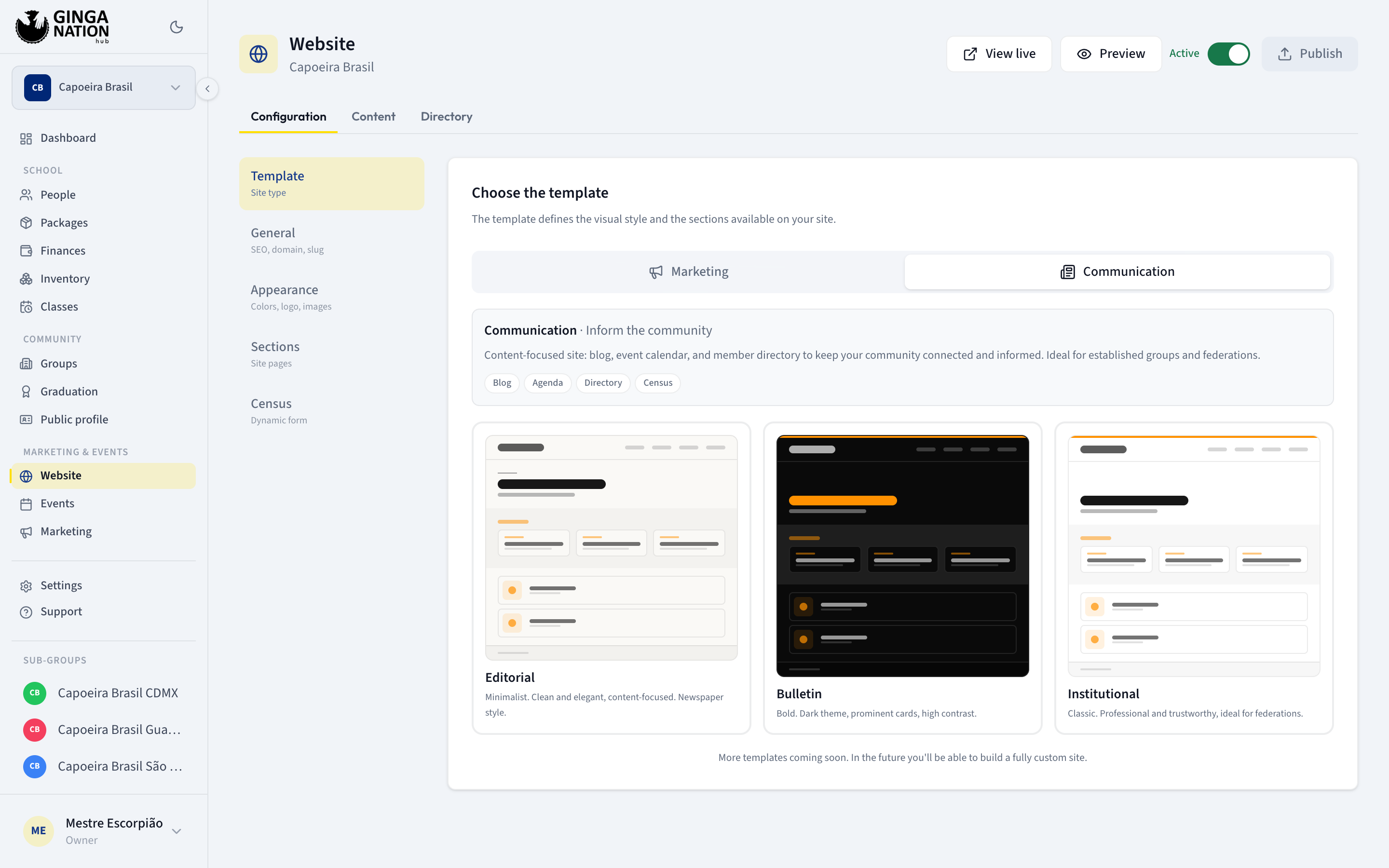
The template is not just a skin: it decides which blocks the page renders. A marketing template shows schedules, testimonials and contact and does not list your agenda items on the home page; a communication template lists your posts and agenda and has no testimonials or contact block. Switching later is one click, and nothing you wrote is deleted.
Check your address in General
Open General. The first thing it shows is Slug — a read-only value like
/s/capoeira-brasil. That is your address:
roda.ginganation.com/s/capoeira-brasil.
The slug was generated from your group's name when the group was created. It is not editable in the hub, and renaming the group later does not change it.
Then fill in two fields that matter more than they look:
- Site title — the browser tab title, and on the marketing templates the big
headline at the top of your page. Placeholder:
Capoeira Brasil. - Description — the sentence search engines show under your title, and on
the marketing templates the line under the headline. Placeholder:
Capoeira group present in over 60 countries.
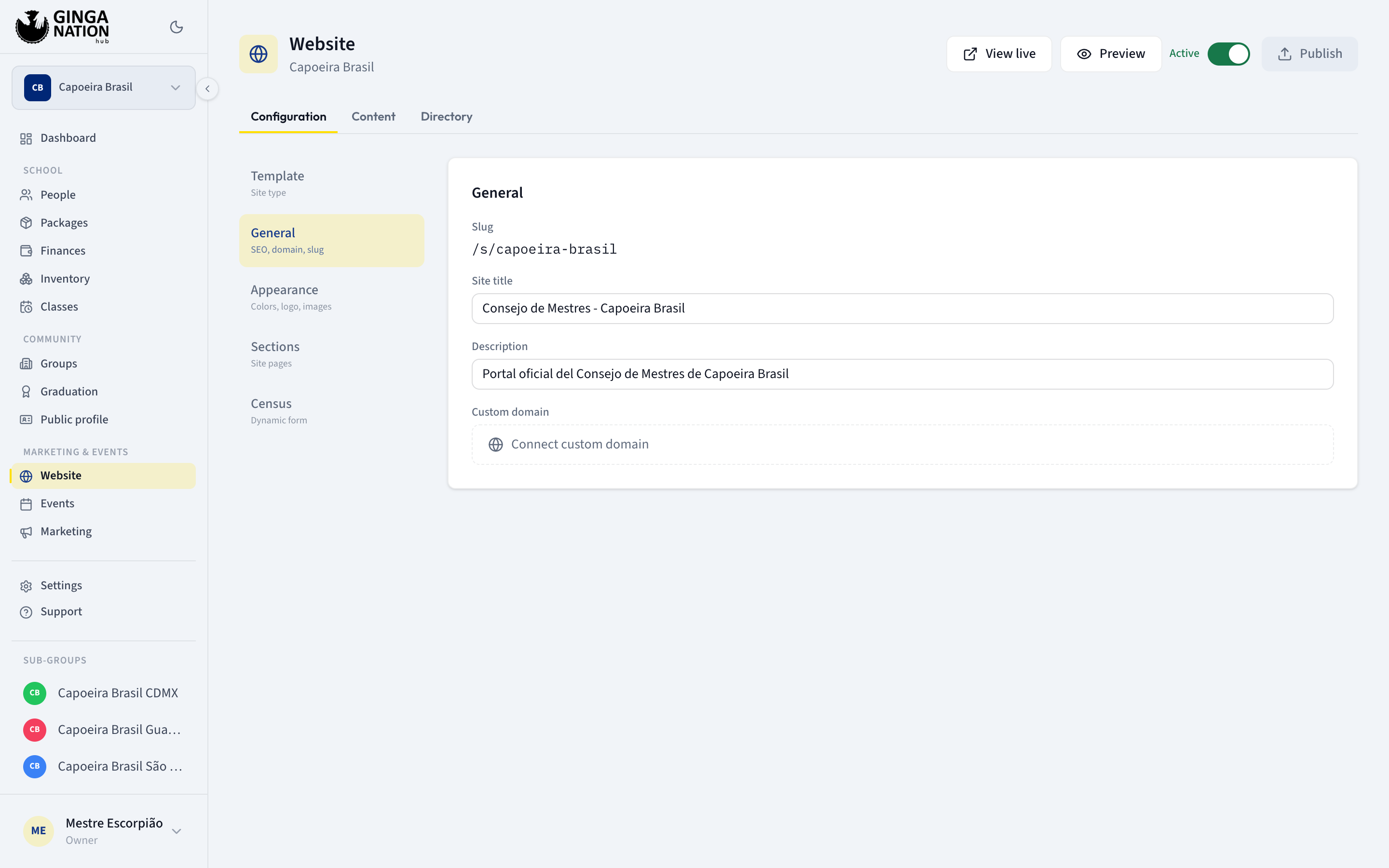
Leave Custom domain alone unless Ginga Nation has set it up with you.
Connect custom domain opens a Connect domain dialog with CNAME
instructions and saves whatever domain you type. But saving it only changes
where the View live and Preview buttons point — nothing yet serves your
site from your own domain, so those buttons will lead to a page that is not your
site. Your working address is the /s/<slug> one above.
Set your colors and images in Appearance
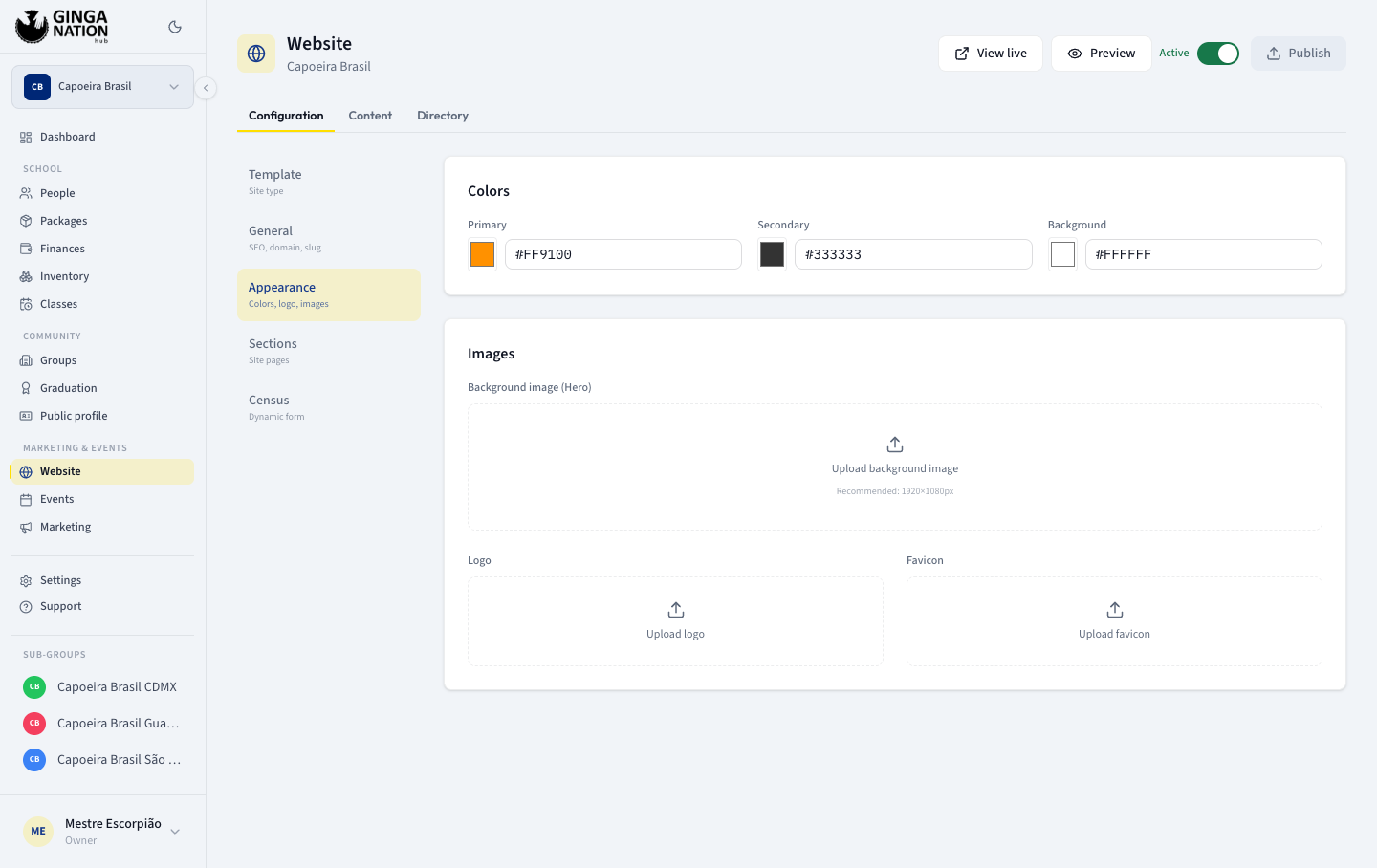
Colors gives you three pickers — Primary, Secondary and Background — each with a color swatch and a hex field.
Only Primary changes your page: it is the accent color used for headings, links, buttons and highlights in all six templates. Secondary and Background are saved, but the current templates set their own light or dark palette and ignore them; Secondary shows up only in the gradient behind your logo on the directory card.
Images has three uploads:
- Background image (Hero) — the photo at the top of your page. The hint reads Recommended: 1920×1080px. Use a wide, uncluttered training photo.
- Logo — shown in the site's navbar and footer. Saving this also replaces your group logo everywhere else on the platform, including your directory card, because the two are deliberately kept in sync.
- Favicon — uploaded and stored, but not yet used by the public site, so do not expect the browser tab icon to change.
Choose your sections
Open Sections — "Site pages". Each row is a section with a switch on the right and an arrow to expand it:
| Section | What it adds |
|---|---|
| About us | A block on the home page telling your group's story |
| Blog | A news page, fed by the posts you write in Content |
| Agenda | An events page, fed by the agenda items you write in Content |
| Directory | A public page listing your mestres and graduated members |
| Contact | Described as "Contact form and links to social media" |
Turn a section on first — expanded while off, it just says Enable this section to configure it. Once on, expanding it reveals:
- Menu name — rename the entry in your site's navigation, e.g. call Directory "Conselho" or "Our mestres". This works for Blog, Agenda, Directory and Census.
- For About us: Section title, Text, Year founded and an Image. Covered on the content page.
- For Directory: Intro text, shown above the list of mestres.
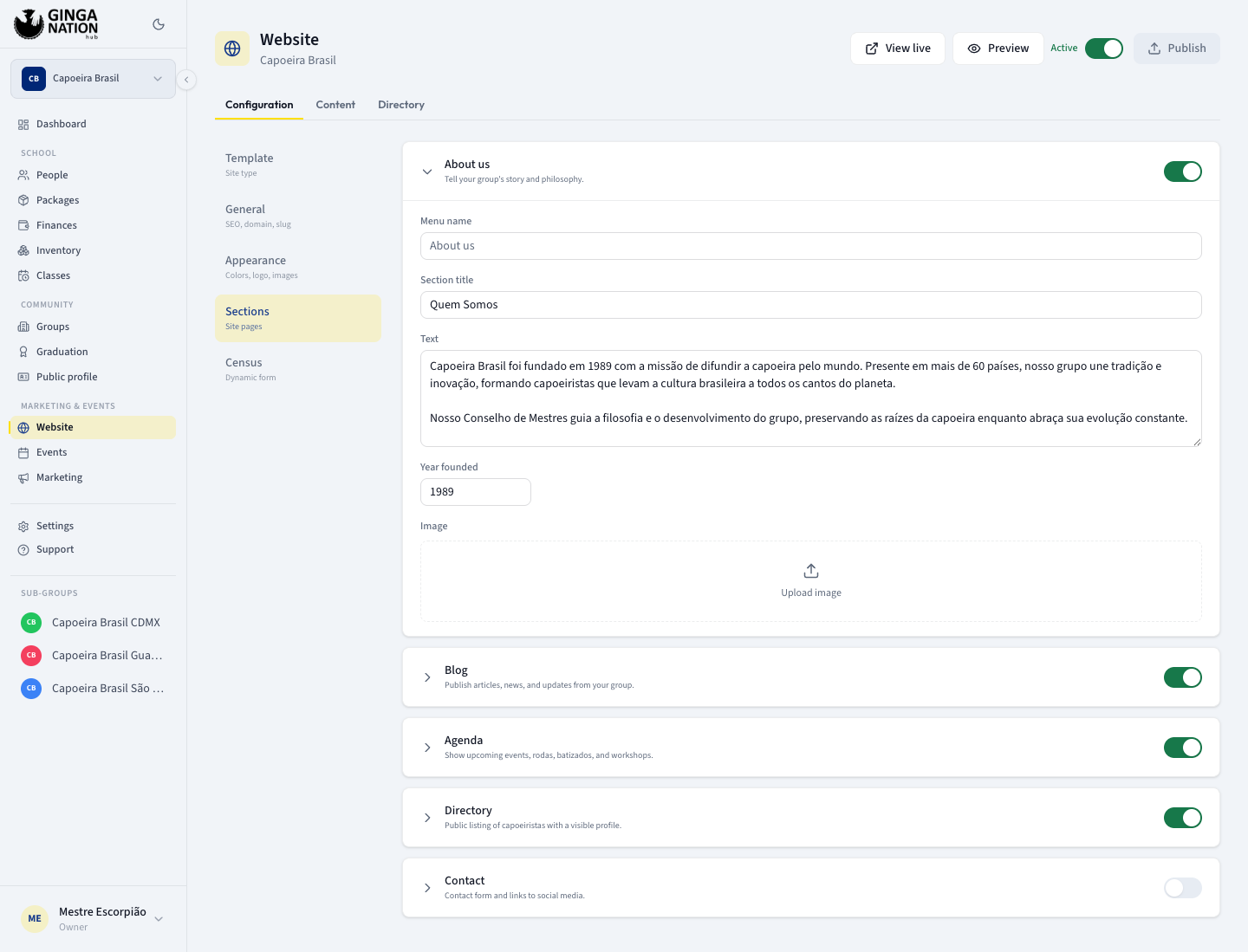
The Contact switch currently has no effect on your published page. The marketing templates always show their contact block when your public profile has an email, a WhatsApp number or an Instagram handle, and the communication templates have no contact block at all. Setting a Menu name on About us also does nothing — that section is part of the home page, not a menu entry.
Census is not in this list — it has its own item at the bottom of the left menu, with a switch labeled Census active on the site and a Census form builder underneath it for choosing the Standard fields and adding Custom fields.
If you picked a marketing template: Schedules and Testimonials
Schedules is read-only on purpose. It shows a weekly grid under the heading Schedules and locations, with the note that these come from your classes and "Edit them there and the site updates automatically", plus a Manage in Classes link. If you have not set any up, it shows No schedules yet.
Testimonials is where you type them: Add testimonial gives you Name, Role (optional), Testimonial and Photo URL (optional). The panel recommends at least 3. Testimonials are only saved and shown on marketing templates.
Preview it
Click Preview in the header. The site opens full-screen in a frame, with the address shown next to the word Preview and a device switcher — Desktop, Tablet, Mobile. Open in new tab opens the real page.
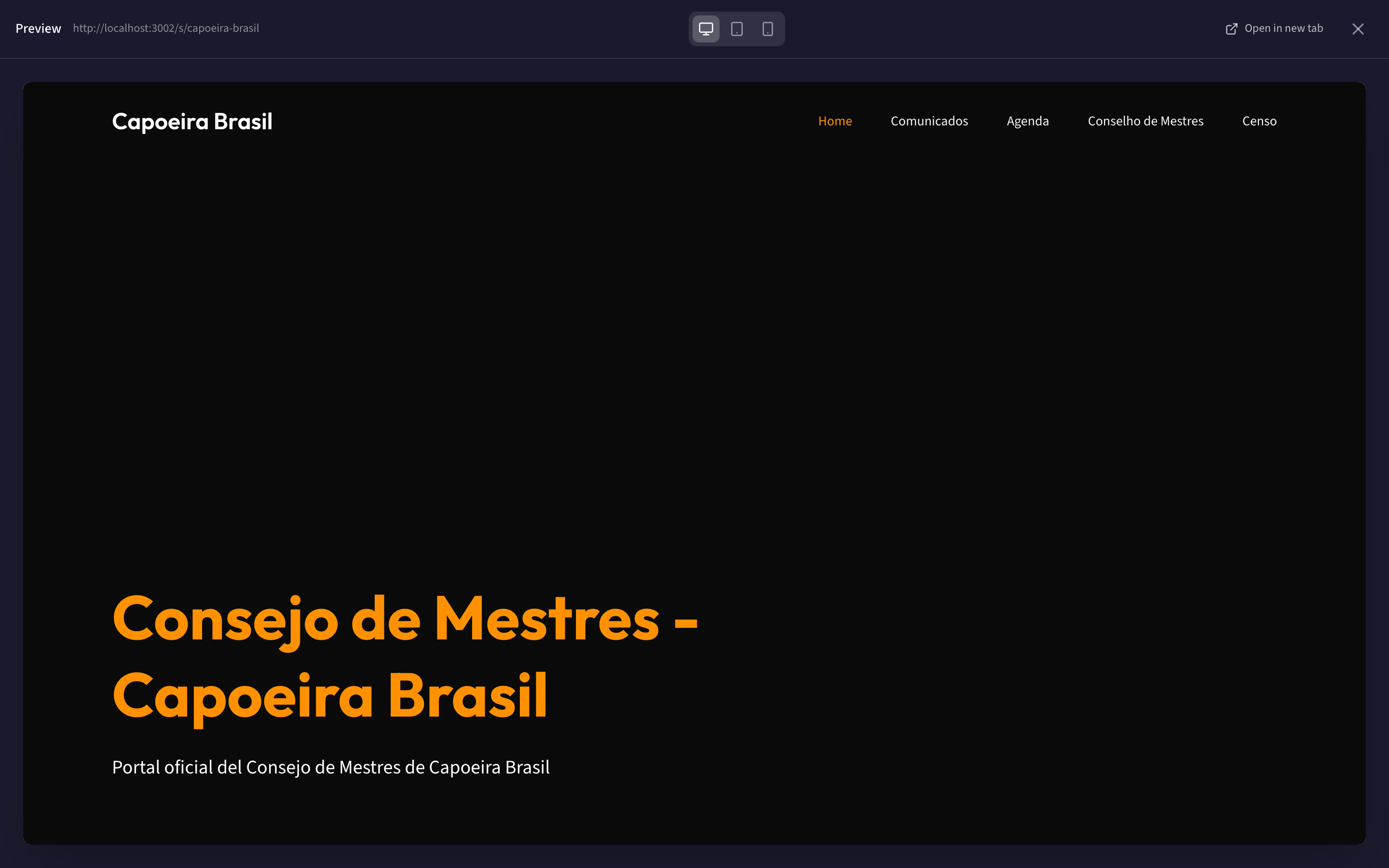
Preview and View live both load the published page, not your unsaved edits. Publish first, then look.
Turn it on and Publish
In the header, the switch next to Publish reads Inactive while your site is hidden. Click it so it reads Active, then click Publish. The button shows Publishing... and then Published.
Do both of these from the Configuration tab. Publish saves the Configuration tab only, and it can only do that while that tab is open.
What you should see
Open roda.ginganation.com/s/<your-slug> in a normal browser window — no login.
You should get your group's page with your template, your primary color, your
logo in the navbar, your headline and description, and a menu listing exactly
the sections you switched on.
Back in the hub, the header switch reads Active and View live points at that same address.
Your card in the directory becomes clickable within about a minute, and gains a row of section links plus your address with a copy button.
Public pages are cached for about a minute. If a change is not there yet, wait and reload before assuming it failed.
Troubleshooting
"Publish" does nothing and shows no error. You are on the Content or Directory tab. The Active switch and the Publish button only work while Configuration is the open tab — from the other tabs the click is silently dropped. Go back to Configuration and click Publish there.
Your edits vanished when you came back to a tab. Switching from Configuration to Content or Directory and back discards unsaved configuration edits, even though Publish may still look enabled. Publish before you leave the Configuration tab.
"Publish" is greyed out. Nothing has changed yet. The button only enables once you edit something on the Configuration tab.
"You don't have permission to manage this group's website". Your role in
this group is member. You can look at the editor but not save. Ask an owner or
admin.
"Tenant not found" or "Failed to load the configuration". The group has no website record. This is not something you can fix from the editor — contact Ginga Nation.
"No associated group." Your account is not a member of any group, so there is nothing to edit.
An upload fails. The editor falls back to a prompt: Upload failed. Paste the image URL:. If you have the image hosted somewhere else you can paste its URL; otherwise cancel and try the upload again with a smaller file.
Your page is in Portuguese. The section names and the fixed wording on the public pages ("Comunicados", "Agenda", "Conselho de Mestres", "Ver horarios") are Portuguese for every group today. You can override the navigation labels with Menu name, but not yet the wording inside the blocks.