Set up registration
Choose how people sign up, until when, and how many you can take.
For group owners, admins and staff · 8 min · Updated 2026-07-30
Registration is the one decision that changes what the world sees on your event page. You already answered it in the creation wizard; this is where you change your mind, add a deadline, cap the numbers, and — for paid events — hand out links to specific people.
Everything here lives in two places: the Registrations tab of the event, and the Details tab.
Before you start
- Be owner, admin or staff of the organizing group.
- The event already exists as a draft. You do not have to publish it first — setting registration up before publishing is the sane order.
The three registration types
Registrations tab → the Registration type panel shows the current one with its description. Press Change to see all three (and Close to collapse them again).
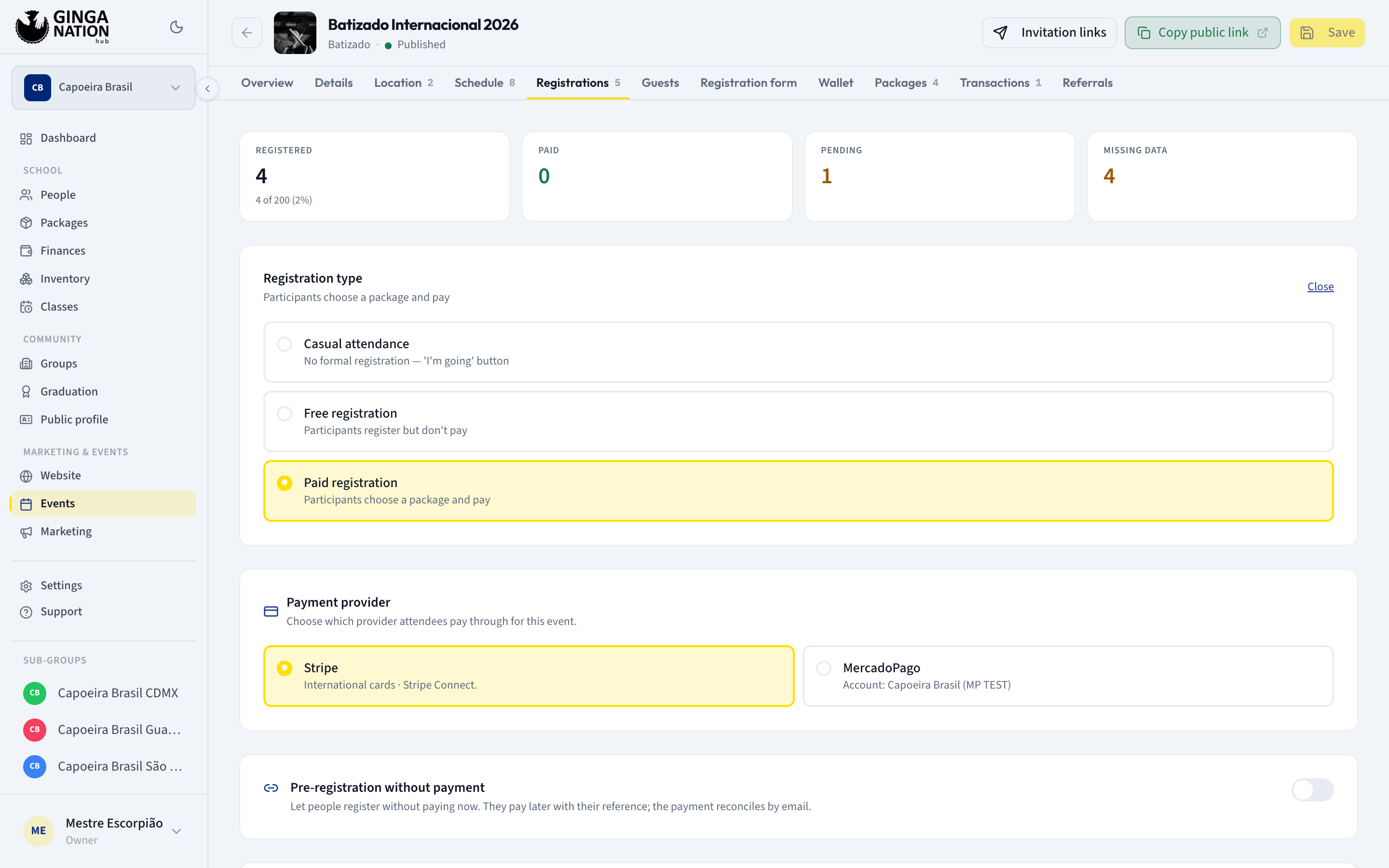
No formal registration — 'I'm going' button.
Nobody signs up. The public event page shows the date, the place and the program, and no register button at all. People who use the Ginga Nation app can mark that they are going, and the hub lists them for you: a Who's going section with their names, plus a Maybe group underneath. Before anyone responds it says Nobody has confirmed attendance yet.
This is the right setting for weekly rodas and open street rodas — anything where counting heads matters more than collecting names.
Switching type takes effect immediately, with no confirmation step. Switching a paid event to free does not undo the payments that already happened, so change it with care once people have started signing up.
If the event type is Batizado and registration is still Casual attendance, the tab shows a nudge — Batizados usually use paid registrations. — with a Configure now? link that opens the same three options. It is a hint, not a requirement.
Set a deadline
Details tab → Date and time → Registration deadline. Leave it empty and sign-ups stay open until the event itself.
Once the deadline has passed, the public page replaces the register button with Registration deadline passed, and the platform refuses any further sign-up attempt even if someone kept the old link.
The deadline is a wall-clock time in the event's timezone, exactly like the start time — a deadline of 23:59 means 23:59 where the event happens, for everyone. Check the Timezone field in the same panel before you trust the cutoff.
Cap the numbers
Details tab → Capacity → Maximum number of participants. The label spells out the escape hatch: (leave empty for unlimited), and the field shows Unlimited as its placeholder.
With a capacity set:
- The Registrations tab shows how full you are, as
{total} of {cap} ({pct}%)under the Registered figure; without a limit it just says No limit. - The public page shows the same ratio next to the registration details.
- New sign-ups are refused once the cap is reached.
One subtlety worth knowing: for a paid event the cap counts registrations that have actually been paid, so unpaid pre-registrations do not eat your places. For a free event every registration counts.
Collect extra information at sign-up
The Registration form tab lets you attach a form to the event — Define the
extra info attendees fill in when completing registration from the app. Pick one
of your group's templates in Template for this event (or No form), and the
tab then tracks progress as {completed} of {total} attendees completed registration. Create template and Edit template build and change the
templates themselves; Remove form detaches it from this event.
Attendees fill this form from the Ginga Nation app after registering, which is why the registration list has a Form column showing Complete or Pending.
Extras for paid events
Pre-registration without payment
Registrations tab, only for paid events: a switch titled Pre-registration without payment — Let people register without paying now. They pay later with their reference; the payment reconciles by email.
Turn it on and you get a Public pre-registration link with a Copy button. Anyone with that link can reserve a place without paying; you record the payment later from the registration itself. Turning the switch off closes pre-registration again, immediately.
Invitation links
For a paid event the event header carries an Invitation links button, which opens a page of the same name.
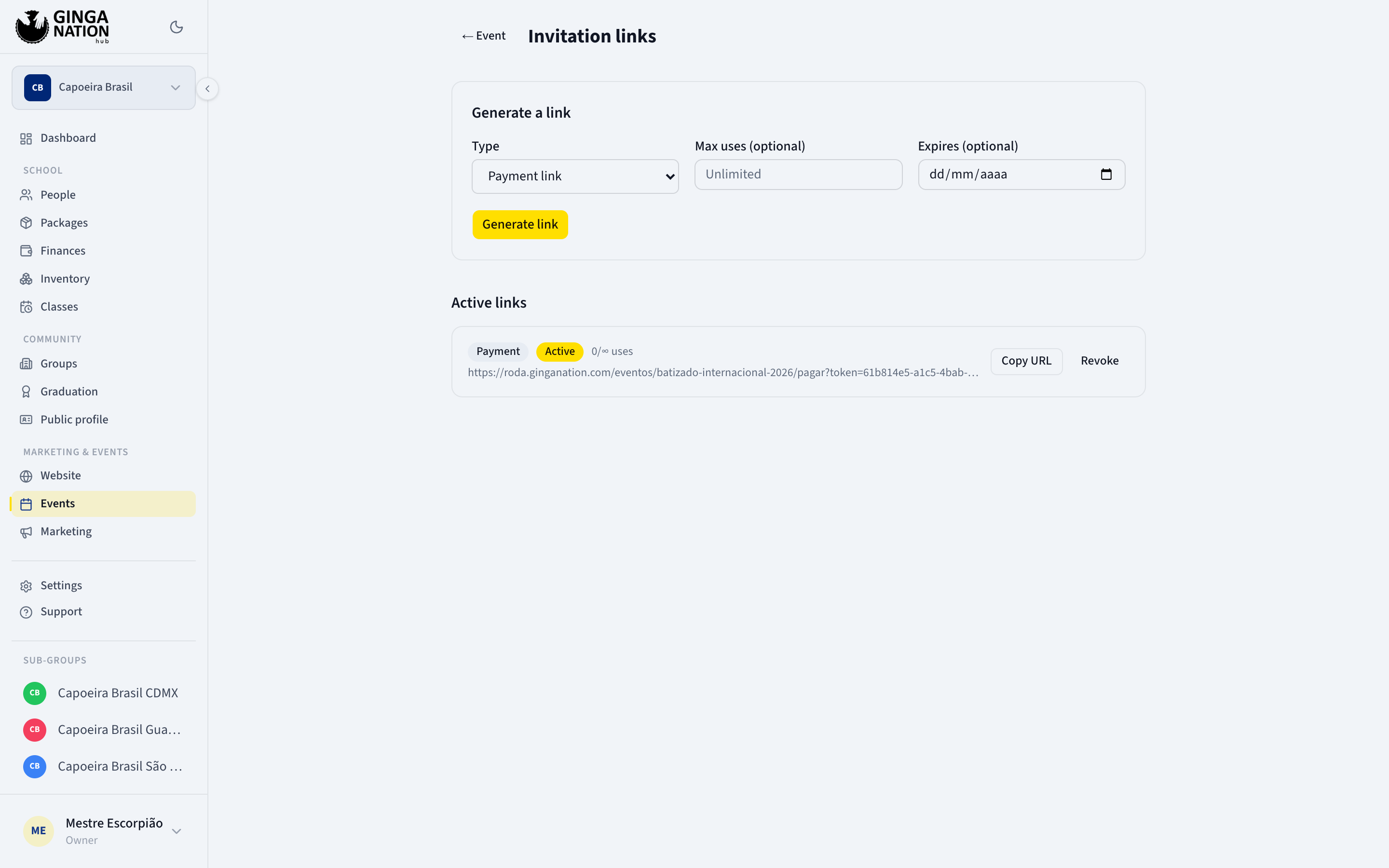
Under Generate a link you choose:
- Type — Payment link or Registration link (no payment).
- Max uses (optional) — blank means Unlimited.
- Expires (optional) — a date.
Press Generate link and it appears under Active links with its type, a
status badge (Active, Expired, Exhausted, Revoked), a used/max uses counter, Copy URL and Revoke. Revoking kills the link on the spot,
which is what you want when a link you sent to one person starts circulating.
Payment provider
When your group has a MercadoPago account connected, paid events also show a Payment provider panel — Choose which provider attendees pay through for this event — with Stripe and MercadoPago side by side. One provider per event. If you have never connected MercadoPago, the panel simply is not there.
What you should see
Back on the Registrations tab, an event with free or paid registration shows four figures at the top: Registered, Paid, Pending and Missing data, followed by the list of everyone who signed up. A casual event shows no figures at all — just Who's going and Maybe.
Troubleshooting
Somebody says the register button is missing. Either the registration type is Casual attendance (there is no button by design), the Registration deadline has passed, or the event is not Published yet.
A registration went through after you thought you were full. Check what the cap is counting: on a paid event only paid sign-ups count toward it, so a batch of unpaid pre-registrations can push you over the number you had in mind. Also check that Maximum number of participants is actually set — an empty field means unlimited, not zero.
Someone hits an error in Spanish when paying for a full event. The "event is full" message an attendee gets at checkout is not translated yet, so a Portuguese- or English-speaking attendee may see Spanish text. The cause is real — the event has reached its capacity.