Check in attendees at the door
Scan the QR on each ticket from your phone, read what the screen tells you, and handle the awkward cases — an unpaid balance, one code with four tickets, somebody who already walked in.
For group owners, admins and staff · 7 min · Updated 2026-09-17
Check-in is the one part of running an event that does not happen in the hub. It needs a camera, so it lives in the Ginga Nation mobile app, on the phone you are holding at the door.
You do not have to prepare anything. The QR your attendees show you already exists: the ticket in their app, their Apple Wallet pass and their Google Wallet pass all carry the same code, and a screenshot of the ticket scans just as well.
Before you start
- You need the mobile app. The hub has no check-in screen.
- You need a role in the organizing group — owner, admin or staff. Roles are per group and are not inherited: being an admin of a parent group gives you nothing on a child group's event.
- The event must collect registrations. An event set to Casual attendance has no tickets and no QRs, so it never shows a Check-in button.
- The event must be published.
- It only opens around the event. Check-in appears from 48 hours before the event starts until 48 hours after it ends. Before that window there is nothing to scan, so the app keeps it out of your way.
Open the scanner
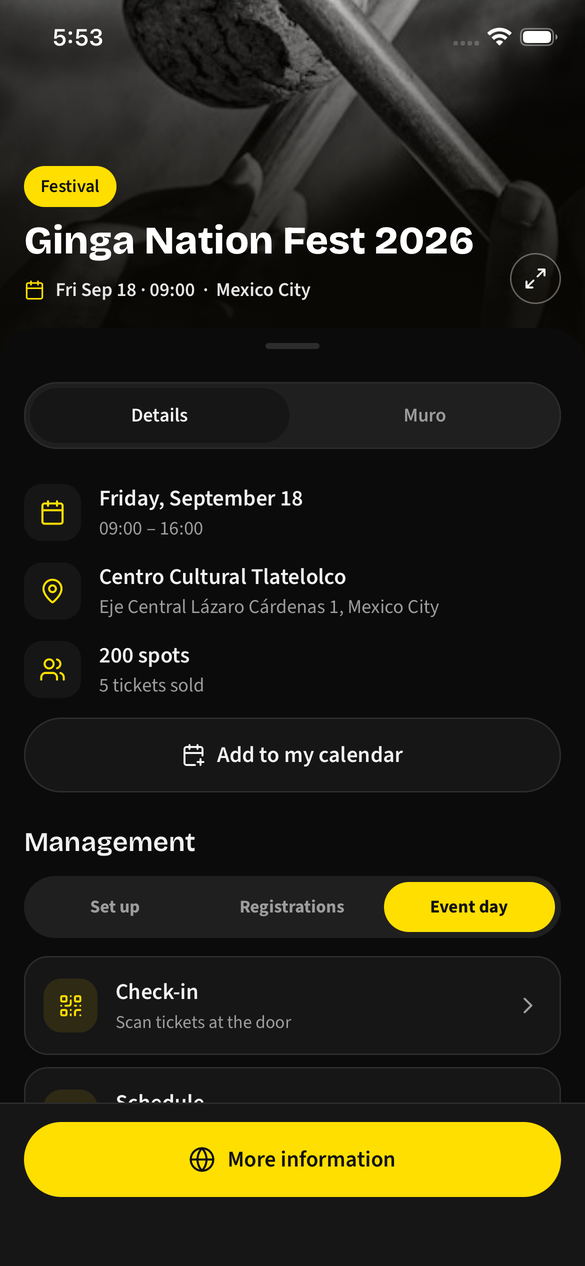
Open the event
In the app, go to Manage school → Events and tap your event.
Go to Event day
The management panel appears under the event with three phases. Inside the 48-hour window it opens on Event day by itself — that is where the work is that day.
Tap Check-in
Scanning
The camera fills the screen and the app asks you to Center the QR in the frame. The corner brackets are only a guide — the scanner reads the whole frame, so you do not have to line it up perfectly.
A counter in the header keeps a tally — 12 scanned, 13 scanned, and so on. Read it for what it is: it counts what you have scanned since you opened this screen, and it resets when you leave. It is not a live headcount of the room.
Every scan opens the attendee's record on a full screen. That is deliberate: the cases that cost you time at a door are the awkward ones, and those need room.
Reading the result
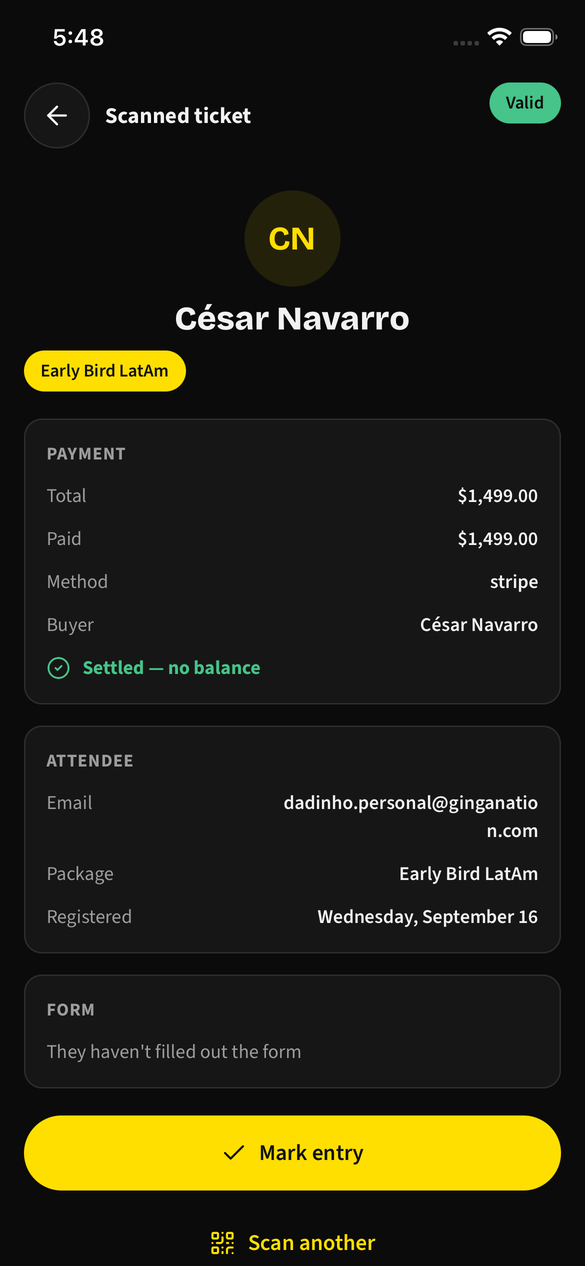
A badge at the top tells you where you stand:
| Badge | What it means | Can they come in? |
|---|---|---|
| Valid | A good ticket, nobody has used it yet. | Yes — tap Mark entry. |
| Owes | A good ticket with money still outstanding. | Yes. See below. |
| Inside | This ticket has already been used. | They are already in. See below. |
| Cancelled / Not valid here | The sign-up was cancelled. | No. This is the only case that blocks. |
Nothing is marked until you tap the button. Scanning only looks the ticket up.
A balance does not block entry
When somebody still owes, the screen says The balance doesn't block entry and shows the total, what they have paid and what is left. The button becomes Mark entry anyway.
This is on purpose. The person is standing in front of you and the queue is moving: collect at the door if you can; the ticket is marked either way.
What matters for later is that the balance is recorded as it was at the moment you scanned, not as it is now. If they settle up next week, the record still shows what you knew when you let them in — so the decision stays yours and stays explainable.
Somebody who already walked in
The screen reads Already entered at 19:42 and, when it knows, Marked by whoever scanned it. It wasn't marked again. A second scan never overwrites the first.
If it was a mistake — you scanned the wrong ticket of a group, or the wrong person stepped forward — tap Undo entry. Undo does not erase anything: the original entry stays in the history and the undo is added after it. You can see that trail under History on the same screen.
One code, several tickets
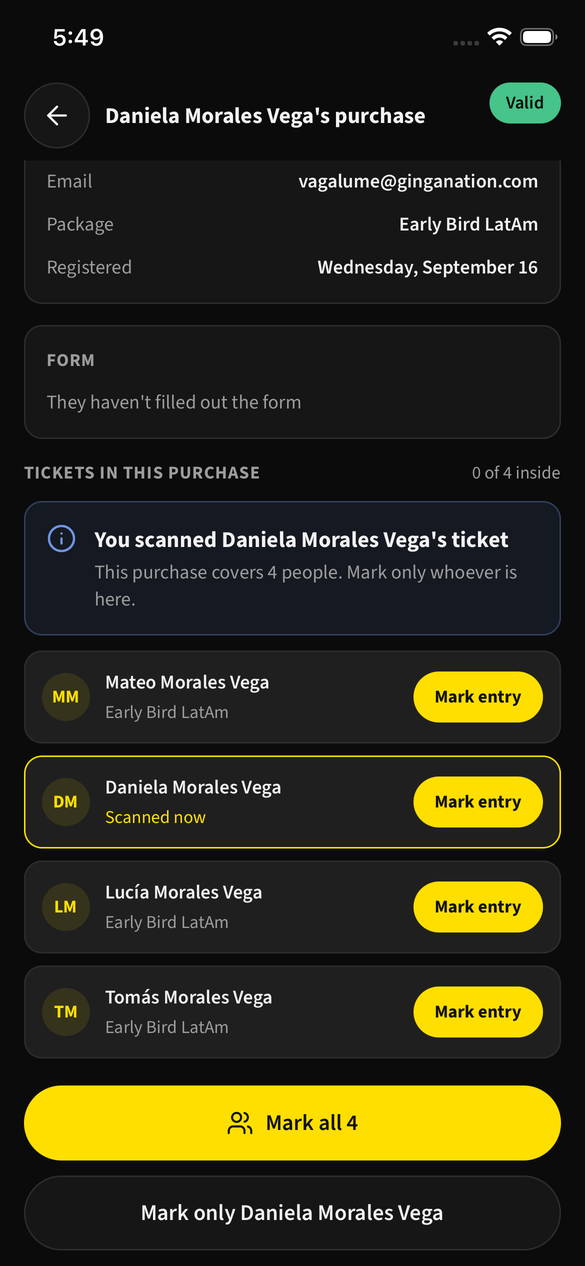
When a mother buys four tickets, all four sit on the same purchase, and any one of those QRs brings up the whole purchase. You get the buyer's name and every ticket underneath it, each with its own state.
From there you can Mark all 4 in one go, or Mark only the ones who actually walked in. You do not need to scan the other three phones — which is the point, because usually there are no other three phones.
Two warnings that are not blocks
- Wallet pass revoked — the pass was reissued or withdrawn. Not a refusal: verify their identity before letting them in.
- Incomplete registration — they never filled in the event's registration form. Worth a word at the door; it does not stop them.
When the QR will not scan
Cameras fail, phones die, and some tickets never had a QR to begin with. Tap Search by name — from the scanner, or from the camera-permission screen if you denied the camera.
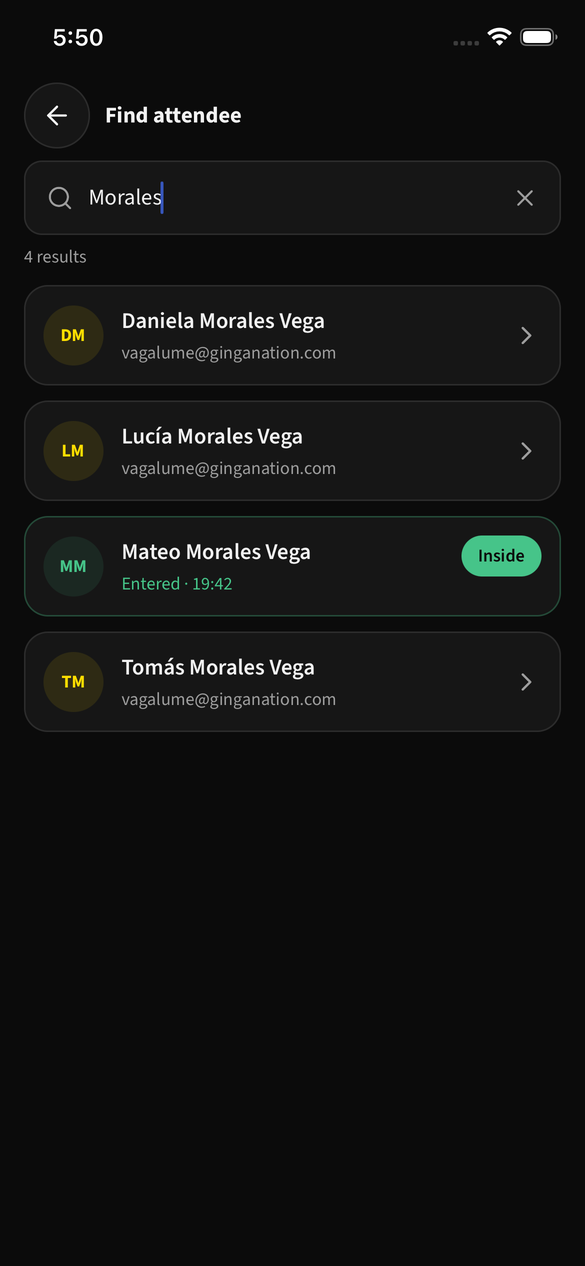
The app is blunt about what this is for: Search isn't a rescue. It works with a broken camera, a dead phone, or tickets with no QR.
How it behaves:
- Type at least two letters. It searches first name, last name and email — not the phone number, not the package, not a payment reference.
- You get at most 25 matches, so a common first name is worth narrowing.
- Each row already tells you the answer: Entered · 19:42 for somebody inside, or their email if they have not arrived. Inside and Cancelled badges sit on the right.
- Tapping a row does not let anybody in. It opens the same record a scan would, and you confirm there. The record notes that this one came from a search rather than a scan.
What check-in does not do yet
Worth knowing before the day, so you can plan around it:
- There is no attendance list. Nowhere in the app or the hub shows you everyone who has arrived. To find out whether one specific person is in, search their name.
- The counter on the scanner is yours alone. It counts your session on that phone. Two people scanning at two doors have two separate counts, and neither survives closing the screen.
- The registrations list does not show it. That list is about who paid, not who arrived.
- There is no export of who came.
Live capacity was deliberately left for a later phase. If you need a headcount on the night, count at the door the old way.
Troubleshooting
There is no Check-in button. Three things gate it, in this order: you are not an owner, admin or staff of the organizing group; or the event is set to Casual attendance and has no tickets to scan; or you are outside the 48-hour window around the event, where the Event day tab is dimmed and does not respond.
This ticket is for another event. The code is real, just not yours. The screen names the event it does belong to, so you can point the person to the right door.
This ticket has no registration assigned. The purchase went through without a named ticket attached to it, so there is nothing to mark. Find the person with Search by name instead.
Invalid QR or Ticket not found. This code isn't a Ginga Nation ticket — you have scanned something else entirely, or a ticket that was deleted. Fall back to searching by name.
The camera is blocked. Allow the camera for Ginga Nation in your phone's settings, or work through Search by name for the rest of the night.