Publish your event
Complete the To publish checklist, send the event for review, and get its public link.
For group owners and admins · 7 min · Updated 2026-07-30
A draft is invisible. Publishing is what gives the event a public page, a link you can share, and — when registration is switched on — the button people press to sign up. Publishing is not a switch you flip yourself: you submit the event and Ginga Nation approves it.
Before you start
- You must be owner or admin of the organizing group. Staff can edit everything on the event but the Submit for review button is not theirs.
- The event must be in Draft. An event already Under review, Published or Cancelled cannot be submitted again.
- Your group must be verified by Ginga Nation. Verification is about the group, not the event, and it blocks the approval step rather than the submit step — see Troubleshooting.
The To publish checklist
Open the event and go to the Overview tab. While the event is a draft, the
first panel there is titled To publish, with a counter reading 2/2 done (or
3/3 for a paid event) and one row per requirement. Clicking a row jumps straight
to the tab where you fix it.
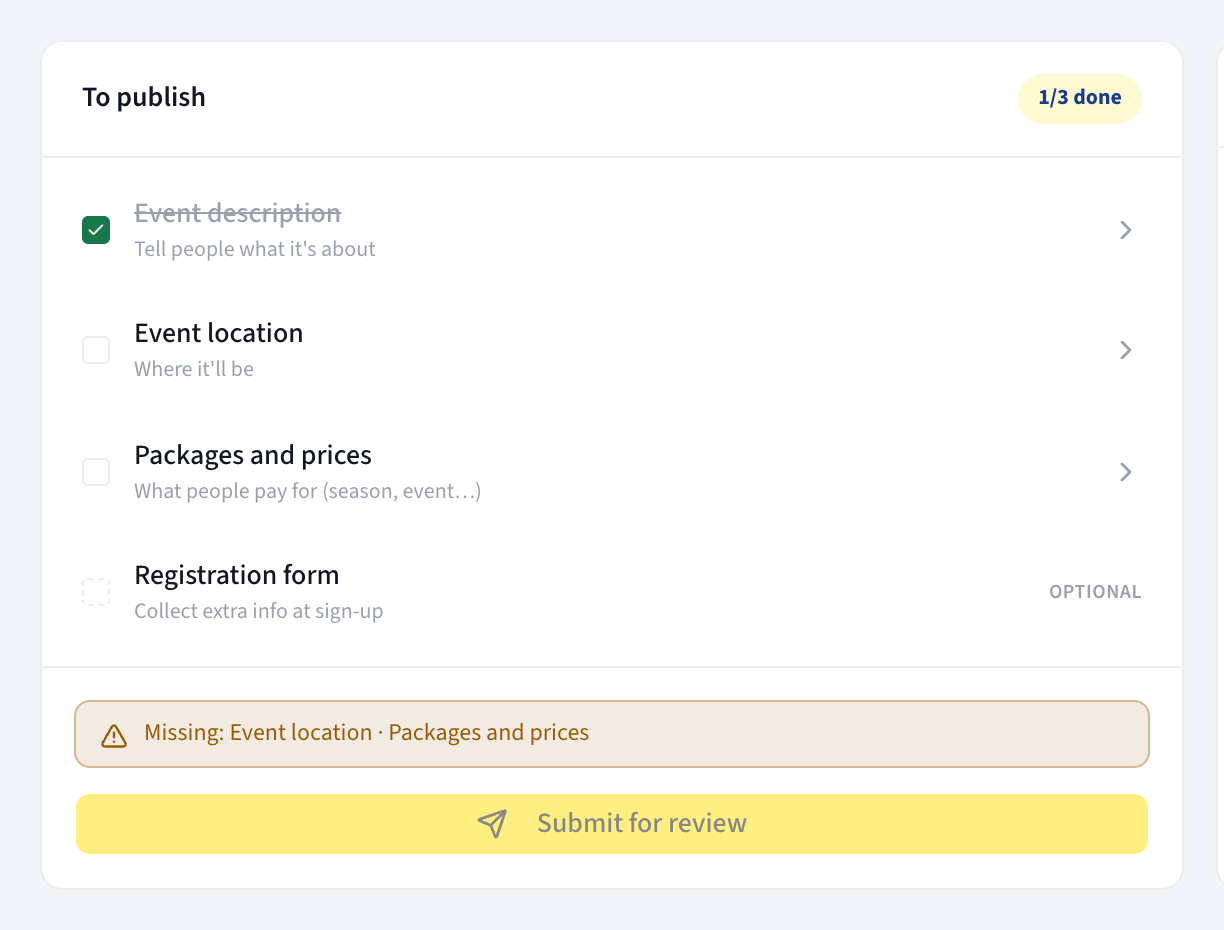
| Row | What it wants | Where you do it |
|---|---|---|
| Event description | Tell people what it's about. Any non-empty description counts. | Details tab → Basic information → Description, then Save. |
| Event location | Where it'll be. At least one location on the event. | Location tab → Add location, fill the form, then press Add location again to save it. Location name is the only required field; address, city, state, country, postal code, a Virtual link (Zoom, Meet, etc.) and notes are optional. Editing a location you already saved uses Save location instead. |
| Packages and prices | What people pay for (season, event…). Only appears when the registration type is Paid registration. | Packages tab. |
| Registration form | Collect extra info at sign-up. Marked Optional — it never blocks anything. | Registration form tab. |
When the required rows are ticked, the panel says All set — submit for review to
publish. and its Submit for review button becomes usable. While something is
missing it lists it: Missing: Event location.
The checklist is a route through the tabs, not a gate. The platform itself does not refuse a submission for a missing description, location or package — the Submit for review button in the event's header works regardless. Treat the checklist as what a reviewer expects to find, because an event with no location and no description is exactly the kind that gets sent back.
Steps
Set Visibility before you submit
Details tab → Visibility, three choices:
- Public — the event can appear on the public site and in the event directory.
- Group only — not published publicly.
- Invite only — not published publicly.
Only Public events reach the public event pages. A Group only batizado can be approved and still never show up in the directory, which looks like a bug and is not one.
Press Submit for review
The button sits in the event's header while the status is Draft (the checklist panel has a second copy of it). One press and the status becomes Under review.
Wait — and stop editing
While the event is Under review the hub shows This event is awaiting approval. Edits are locked until the review is complete. and the Save button is disabled. The header carries an Under review badge with a clock.
Ginga Nation reviews it and does one of two things:
- Approves it → the status becomes Published.
- Sends it back → the status returns to Draft and a Review needed panel appears at the top of the event with the reviewer's note explaining what to change. Fix it and submit again.
Copy the public link
Once the event is Published, a Copy public link button appears in the
header. It copies the event's public address — roda.ginganation.com/eventos/ plus
the event's own slug — and that is the link to put in your bio, your WhatsApp
groups and your flyers.
The link is derived from the name the event had when it was created and never changes afterwards, even if you rename the event. Share it freely; it will not rot.
What you should see
On the public page: the cover image, the title, the description, the schedule if you added activities, the location, the organizer, and — when registration is on — the register button. Dates and times appear in the event's timezone for every visitor on earth, which is why the Timezone field on the Details tab has to be right before you publish.
In the hub, the event moves out of the Drafts filter on the events list and into Upcoming. Once its start date has passed it shows up under Past.
Troubleshooting
Submit for review does nothing / an error appears. Only a Draft can be submitted, and only by the group's owner or admin. If you are staff, the action is not available to you.
The event was submitted but never gets approved, and you are told the group is not verified. A published event puts your group on the public discovery surface, so the approval step requires the organizing group to be verified first. The message you will hear back is El grupo organizador debe estar verificado antes de publicar el evento — it comes back in Spanish whatever language you use the hub in, because this message is not translated yet. It means "the organizing group must be verified before the event can be published". Verification is handled by Ginga Nation — ask us to verify the group, then the same submission can be approved.
Published, but the event is nowhere to be found publicly. Check Visibility on the Details tab. Only Public events appear on the public event pages; Group only and Invite only do not.
You need to call the event off. Details tab → Danger zone → Cancel event. The hub warns you that cancelling the event will notify participants and mark the event as cancelled, and asks for confirmation. The status becomes Cancelled and the event stays in your list under Past.