Write the content on your site
Fill your microsite with an about text, news posts, an agenda and your council of mestres.
For group owners, admins and staff · 8 min · Updated 2026-07-30
Once your microsite is set up and published, it is an empty frame. This page is about filling it: the story block, the news posts, the agenda entries and the list of mestres — and where each one shows up publicly.
Before you start
- You need to be owner, admin or staff. Members can read the editor but every save is refused.
- Do the setup first. A section you have not switched on will not appear no matter what you write into it.
Where each piece of content lives
The Website editor splits the work across its three tabs, and they do not save the same way.
| What you are writing | Where | How it saves |
|---|---|---|
| Your story, directory intro, testimonials | Configuration | Only when you click Publish |
| News posts and agenda entries | Content | Immediately, per item |
| Your mestres / council members | Directory | Immediately, per item |
Because the Content and Directory tabs save on their own, the Publish button does not apply to them — and it is silently ignored while either of those tabs is open. Anything you type under Configuration must be published from Configuration.
Steps
Tell your story — Configuration → Sections → About us
Switch About us on, then expand it. You get:
- Section title — the heading above the block. Placeholder:
About us. - Text — the body. Placeholder:
Tell your group's story.... Two or three short paragraphs beat one long one. - Year founded — a number, e.g.
1989. Shown alongside the text. - Image — a photo next to the story.
Then click Publish.
The story block only appears publicly if About us is switched on and the Text field is not empty. A title and an image with no text will not render.
Write news posts — Content
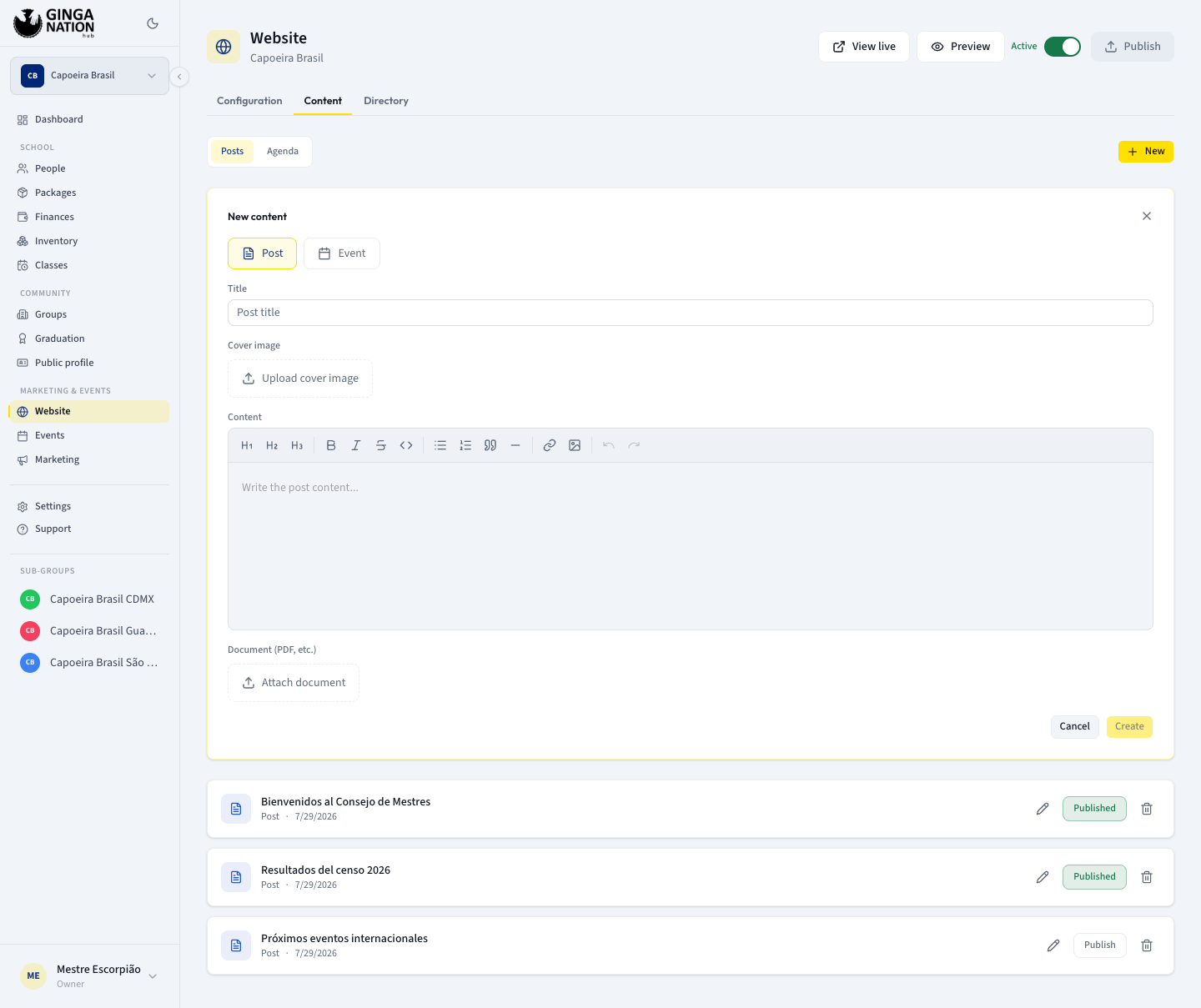
Open the Content tab. The toolbar has two filters, Posts and Agenda, and a New button.
Click New, keep the type on Post, and fill in:
- Title — placeholder
Post title. - Cover image — Upload cover image.
- Content — a rich text editor; placeholder
Write the post content.... - Document (PDF, etc.) — Attach document if you want to hang a PDF off the post, e.g. a regulation or a form.
Click Create. The post appears in the list straight away.
Publish each item
New content is created unpublished — it exists in the hub but not on your site. Each row in the list has a button that reads Publish while the item is hidden and Published once it is live. Click it to flip.
The row also gives you a pencil to edit and a bin to delete.
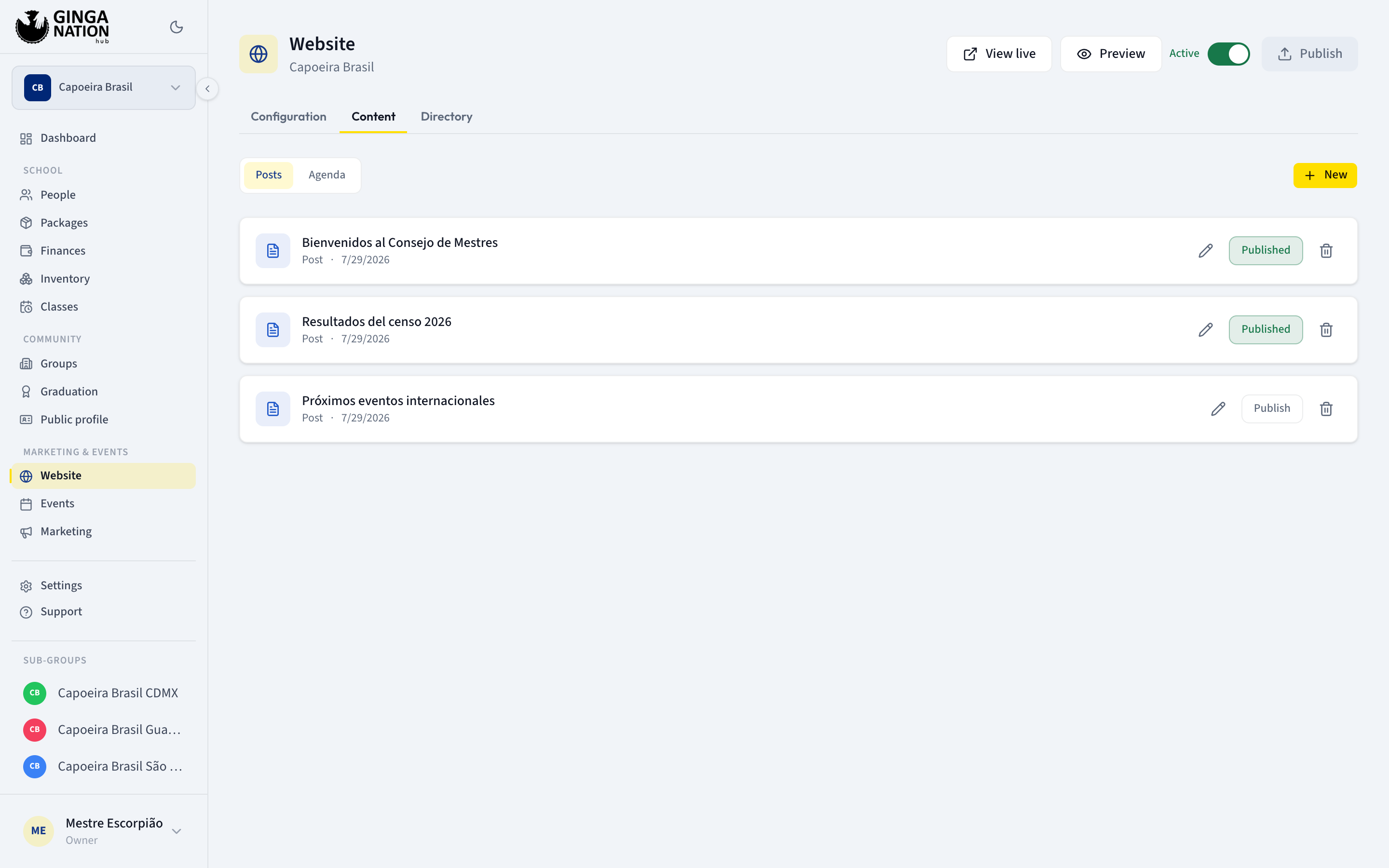
The bin deletes immediately, with no confirmation dialog. Click carefully.
Add agenda entries
Same New button, but choose the Event type. On top of the title, cover image and body you get:
- Event date — a date and time picker.
- Location — free text; placeholder
Parque Chapultepec, CDMX.
Publish it the same way.
These agenda entries are not the same thing as the events you create in Events. They are plain content for your own page: no registration, no tickets, no check-in. If you are running a batizado that people pay for, use Events and treat the agenda as an announcement board.
List your mestres — Directory
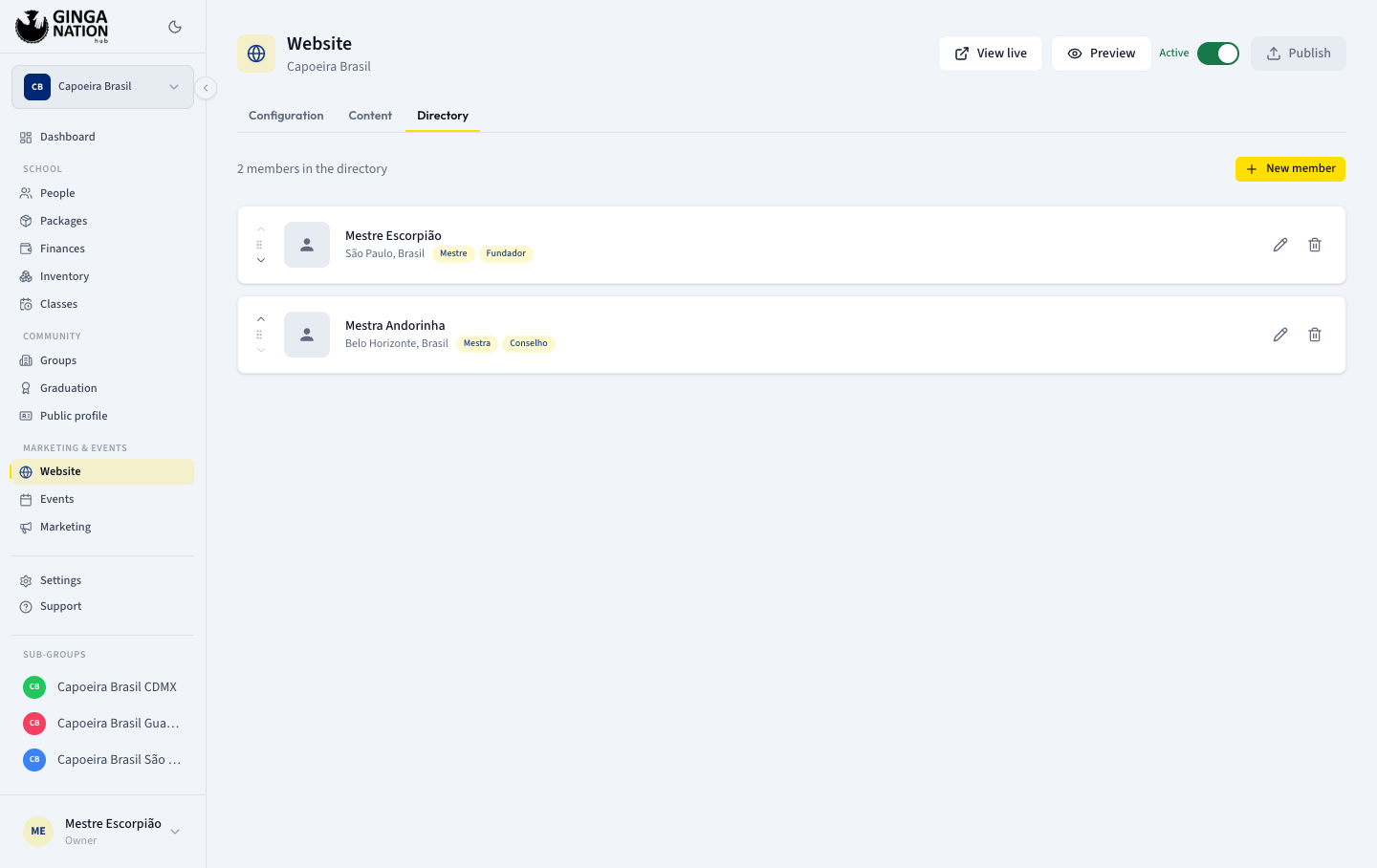
Open the Directory tab. It shows a count — "N members in the directory" — and a New member button. Empty, it reads No members added. Click "New member" to get started.
For each person: Name * (required; placeholder Mestre Escorpião),
Photo, Location (São Paulo, Brasil), Tags (comma-separated) —
e.g. Mestre, Fundador, Angola — plus Email, WhatsApp, Website,
Instagram and a Description for a short bio. Then Add.
Back in the list, the arrows on the left of each row move people up and down; that order is the order they appear publicly. The bin removes them — again with no confirmation.
This tab is for people you want on the public page whether or not they have an account. Your public list can also include capoeiristas from your own roster who are flagged for the directory; those come from your students, not from here.
Add the intro above the list
Back in Configuration → Sections, expand Directory and fill Intro
text — the paragraph shown above the list of mestres. Placeholder: Text that appears above the mestres directory.... Click Publish.
What you should see
Open roda.ginganation.com/s/<your-slug>:
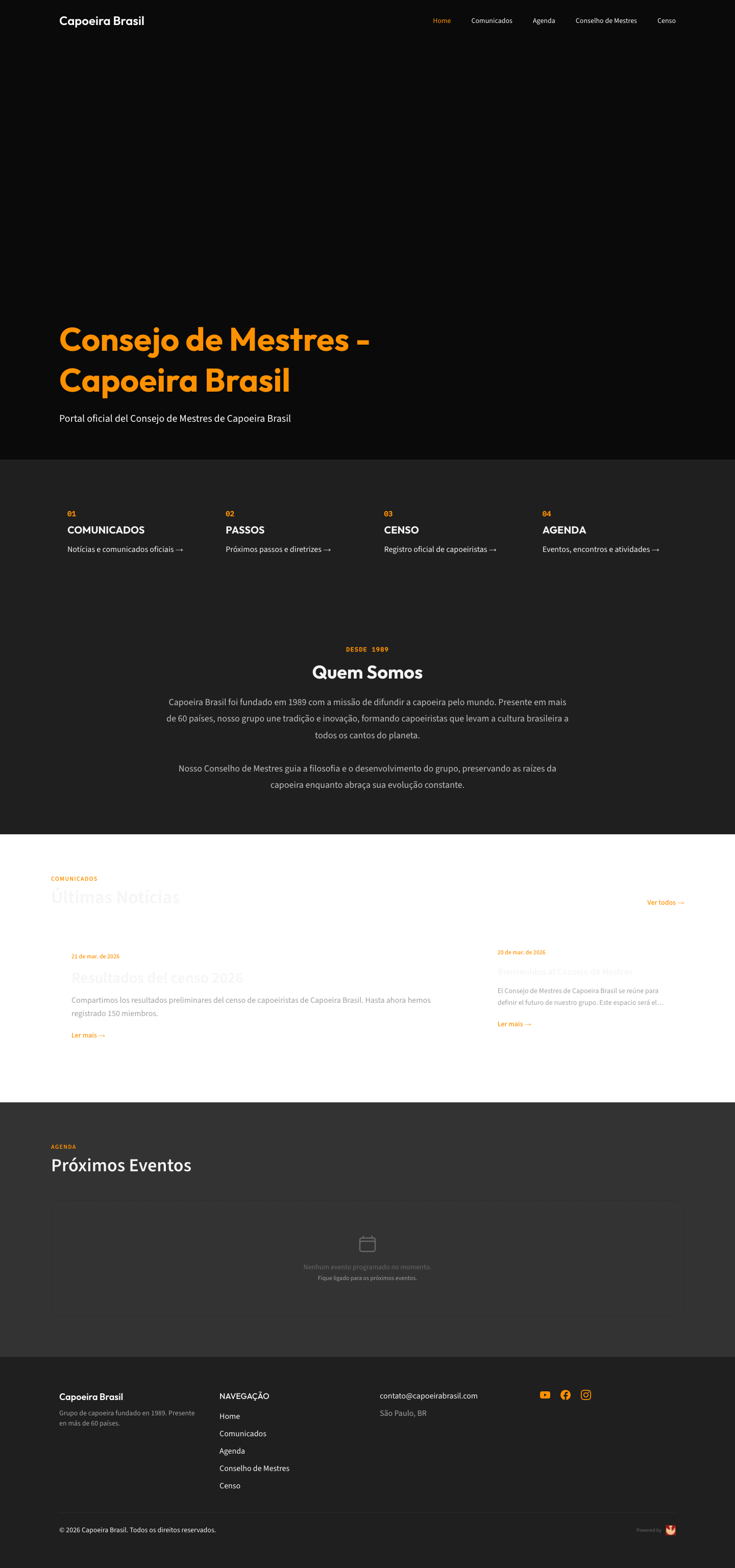
- Your story block sits under the hero.
- Published posts appear on the home page and on their own page, reachable from the menu entry for Blog (called "Comunicados" unless you renamed it with Menu name).
- Agenda entries with a future date appear on the agenda page.
- Council members appear on the directory page, in the order you set, with your intro text above them.
- Unpublished items appear nowhere.
On the marketing templates the home page does not list your agenda entries — that space is used by your class schedules instead. The menu entry and the agenda page still work.
Troubleshooting
You published a post and the page is still empty. Check three things, in order: the item's button says Published (not Publish); the matching section switch is on under Configuration → Sections; and you waited about a minute for the public page's cache to refresh.
Renaming a post breaks its old link. The web address of a post is generated from its title, and editing the title regenerates it. Any link you already shared to the old address will stop working.
Your agenda entry disappeared from the page. Only entries whose Event date is in the future are listed on the home page. Past entries stay in the hub.
"Failed to create content" / "Failed to update content". Usually a role problem: only owners, admins and staff can write content. Also check that Title is filled — Create stays disabled without it.
Testimonials you typed are gone. Testimonials are only kept while a marketing template is selected. Switching to a communication template drops them on the next publish.