Find your way around the hub
A tour of the sidebar, the dashboard and the mobile menu, so you know where to look.
For group owners, admins and staff · 6 min · Updated 2026-07-30
The hub is one screen: a sidebar on the left that never changes, and whatever you opened on the right. This page walks the sidebar top to bottom so you know which area does what.
Before you start
- An account that belongs to a group. If yours does not, the sidebar says No group associated and most areas will have nothing to show.
The sidebar, top to bottom
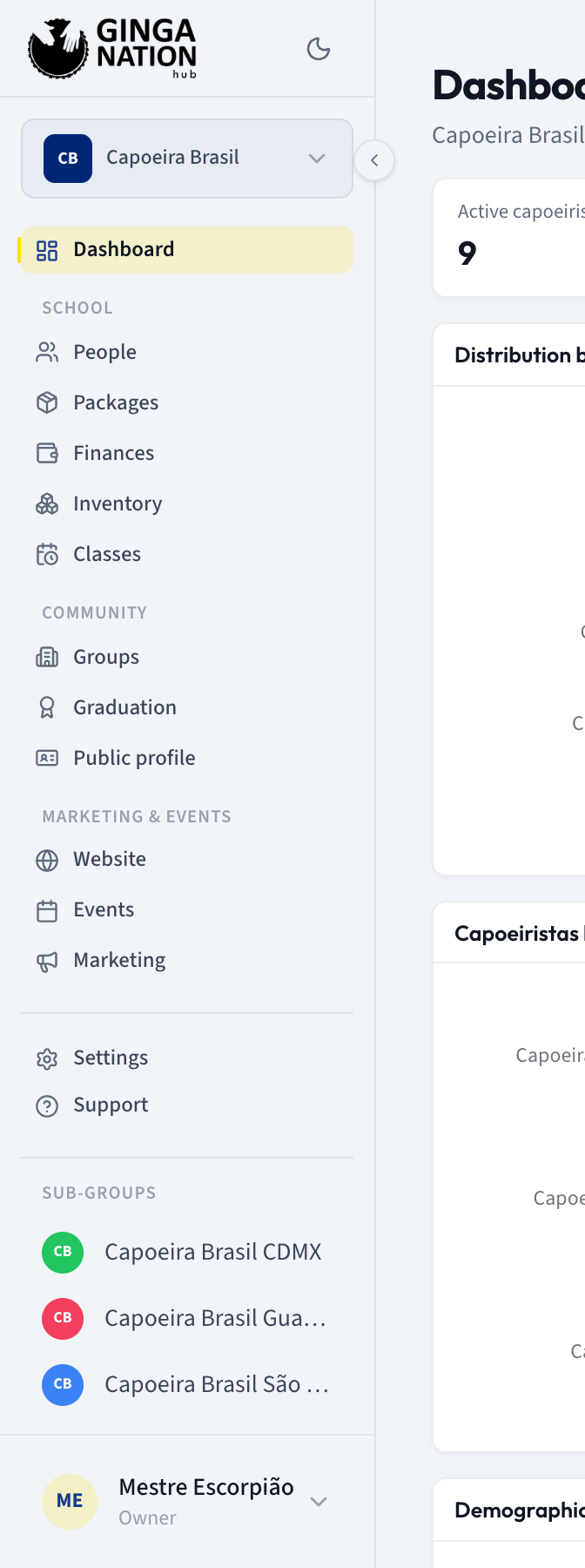
Your group, at the top
Under the logo sits the group you are currently working in. If you belong to more than one, click it: the dropdown lists them under Groups and Sub-groups, and picking one switches every screen to that group and returns you to the Dashboard. Groups you own that sit under the current one also appear as a Sub-groups shortcut list further down.
Everything you do in the hub applies to the group shown here. When something looks empty, check this first.
Dashboard
The landing screen. Covered below.
School
Day-to-day school management:
- People — your roster: capoeiristas, clients, the census, registration requests and your public enrollment form. See the Students guides.
- Packages — the tuition plans you sell. See the Finances guides.
- Finances — invoices, payments, receipts, expenses and the tax report. See the Finances guides.
- Inventory — uniforms and materials your group keeps stock of.
- Classes — training locations, weekly schedules, trial bookings, attendance and reports. See the Classes guides.
Community
- Groups — your group's hierarchy and affiliations: the parent group yours belongs to, if any, and the sub-groups under it.
- Graduation — your group's graduation systems: the cords and levels, their names, colors and order. Import a ready-made system or build one from scratch.
- Public profile — what the public directory shows about your group: name, description, logo, city, contact details, social accounts and leadership. There is a View listing button to see the result.
Marketing & Events
- Website — your group's public microsite: template, colors, content and domain, with Preview and View live.
- Events — rodas, workshops, batizados and festivals, each with its own tabs for details, location, schedule and registrations. See the Events guides.
- Marketing — campaigns, audiences and your contact list, with its own sub-navigation across the top.
Below the divider
- Settings — your account, language, theme, integrations and billing details. See Manage your account settings.
- Support — listed in the sidebar, but it has no page yet (see the warning below).
The small arrow on the sidebar's right edge collapses it to icons only (Collapse sidebar / Expand sidebar), which is worth doing on a small laptop. The sun/moon button next to the logo switches between light and dark.
The dashboard
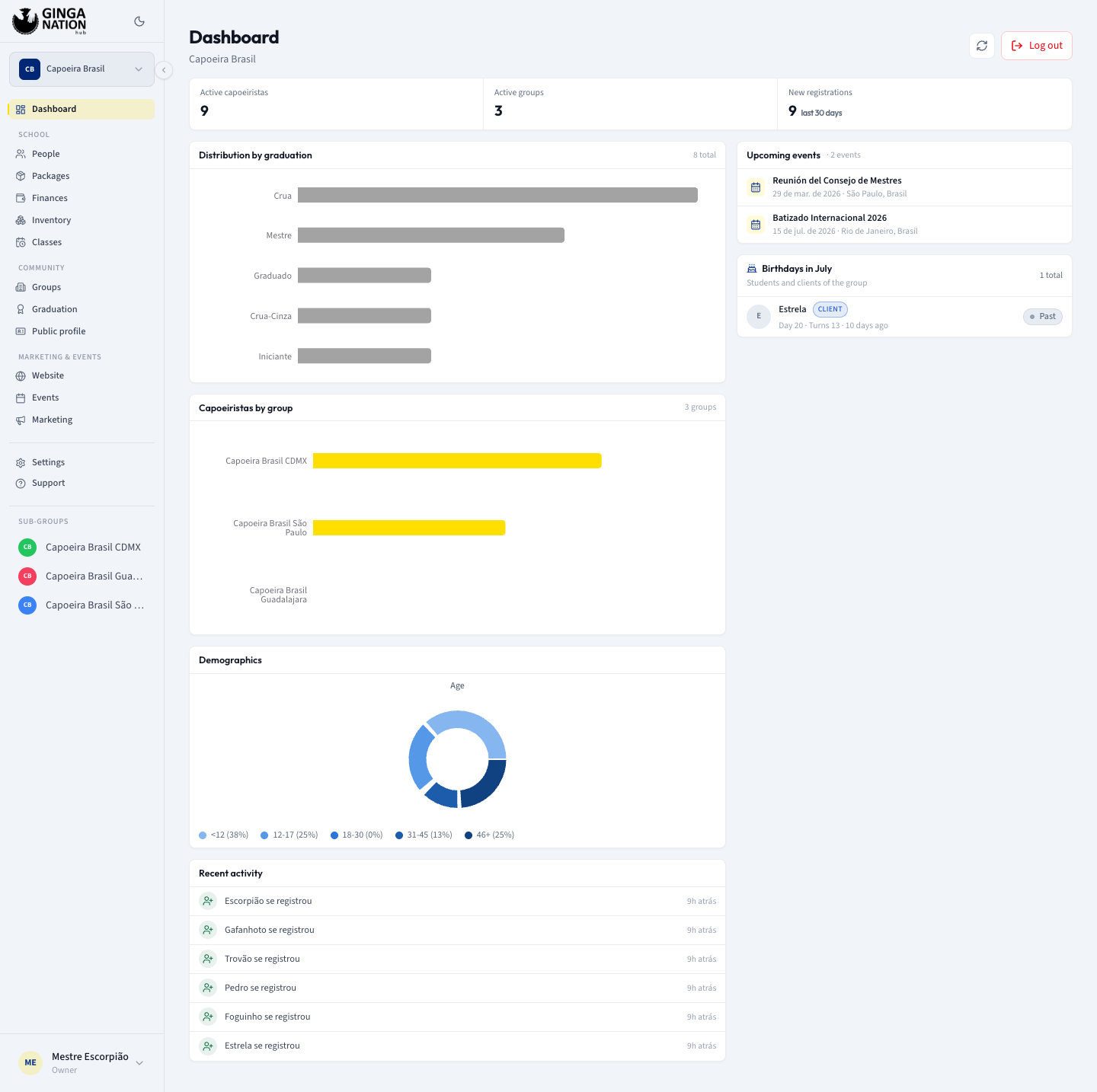
The dashboard answers "how is my group doing right now?" for the group in the switcher. Depending on what your group has, you will see:
- Three counters at the top: Active capoeiristas, Active groups and New registrations over the last 30 days.
- Distribution by graduation — how many capoeiristas sit at each cord.
- Capoeiristas by group — only when your group has sub-groups.
- Demographics — a breakdown by Age.
- Recent activity — the latest changes in your group.
- Upcoming trial classes · 7 days — bookings coming in from your public site.
- On the right: Upcoming events, and a birthdays card headed Birthdays in July (whichever month it is) listing students and clients with a birthday that month.
A card you have no data for either says so plainly ("No graduation data") or does not appear at all. A brand-new group's dashboard is mostly empty; that is normal.
Top right of the dashboard you get a Refresh button, which re-reads the numbers without a full page reload, and Log out.
Log out only lives here, on the dashboard header. To sign out from anywhere else, click Dashboard in the sidebar first.
On a phone
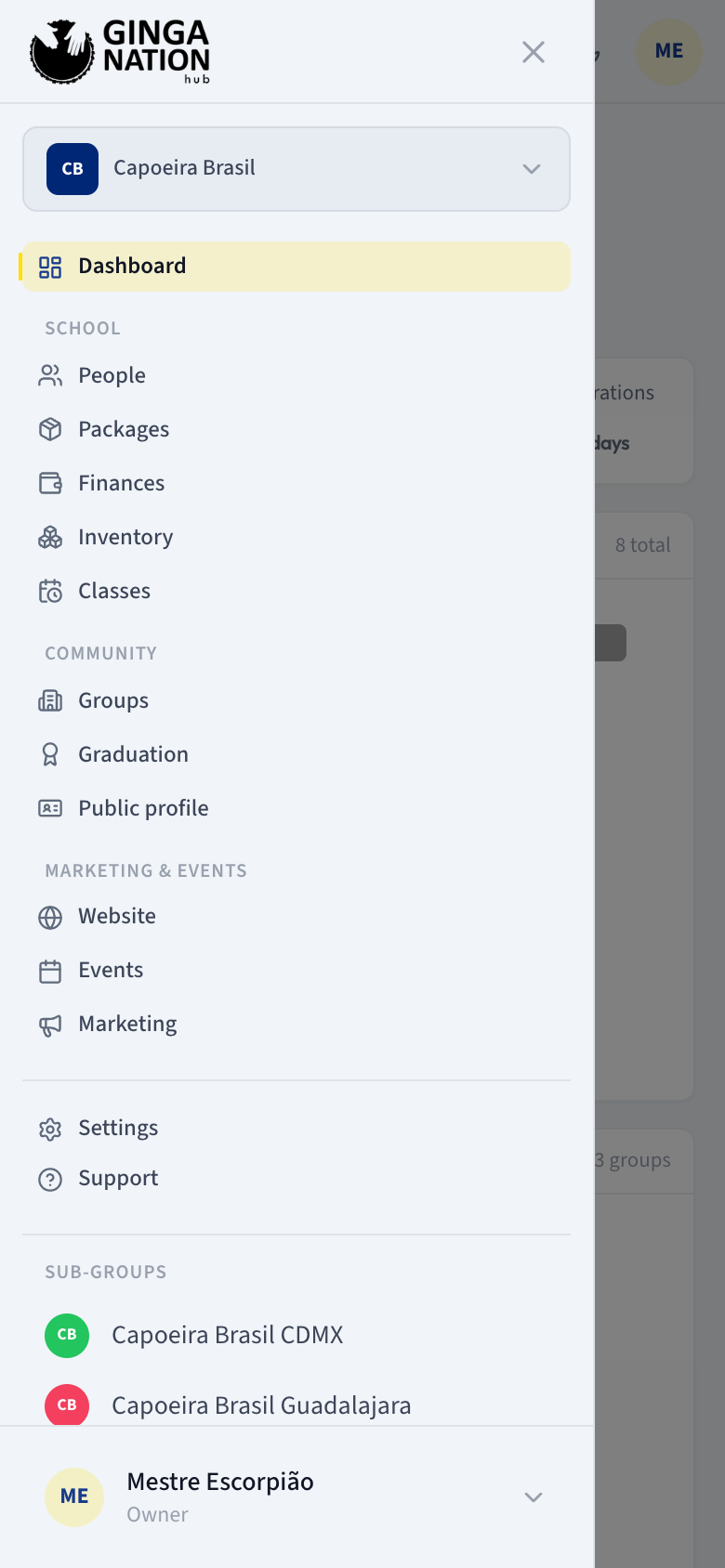
On a narrow screen the sidebar becomes a drawer:
- A bar across the top holds a menu button (Open menu), your group's name and logo, the light/dark switch, and your initials.
- The menu button slides the full navigation in from the left; Close menu or a tap outside it closes it, and it closes by itself as soon as you open an area.
- Tapping the group name in the top bar opens the drawer with the group switcher already expanded.
Troubleshooting
Support leads nowhere. The Support entry is in the sidebar but the page behind it does not exist yet, so it will fail to load. Contact Ginga Nation by email in the meantime.
The numbers look like someone else's group. Check the group name at the top of the sidebar — the dashboard, and every other area, always shows the group selected there.